---
updatedAt: 2026-02-12T16:53:10.000Z
agentTools:
projectIndex: https://docs.knack.com/llms.txt
---
# Finding Record IDs
A Record ID is a unique identifier for each record in your Knack application. This ID is essential when working with the Knack API or custom code to target specific records. While you can always find a Record ID in an API response, you can also locate it directly within the Builder.
This guide outlines two methods for finding a Record ID in the Builder.
***
## Method 1: Using System Fields (Recommended)
The easiest way to find a Record ID is by enabling **System Fields** in your data tables. This will display the Record ID as a column directly in the table, allowing you to view and copy it with ease.
**Step 1: Navigate to Your Records**
In the Builder, navigate to the table that contains the record you are working with. In this example, we are looking at the "Events" table.

**Step 2: Open the Table Options Menu**
Click the three-dot menu icon (⋯) located in the top-right corner of the table toolbar, next to the Import and Export icons.

**Step 3: Select "Show System Fields"**
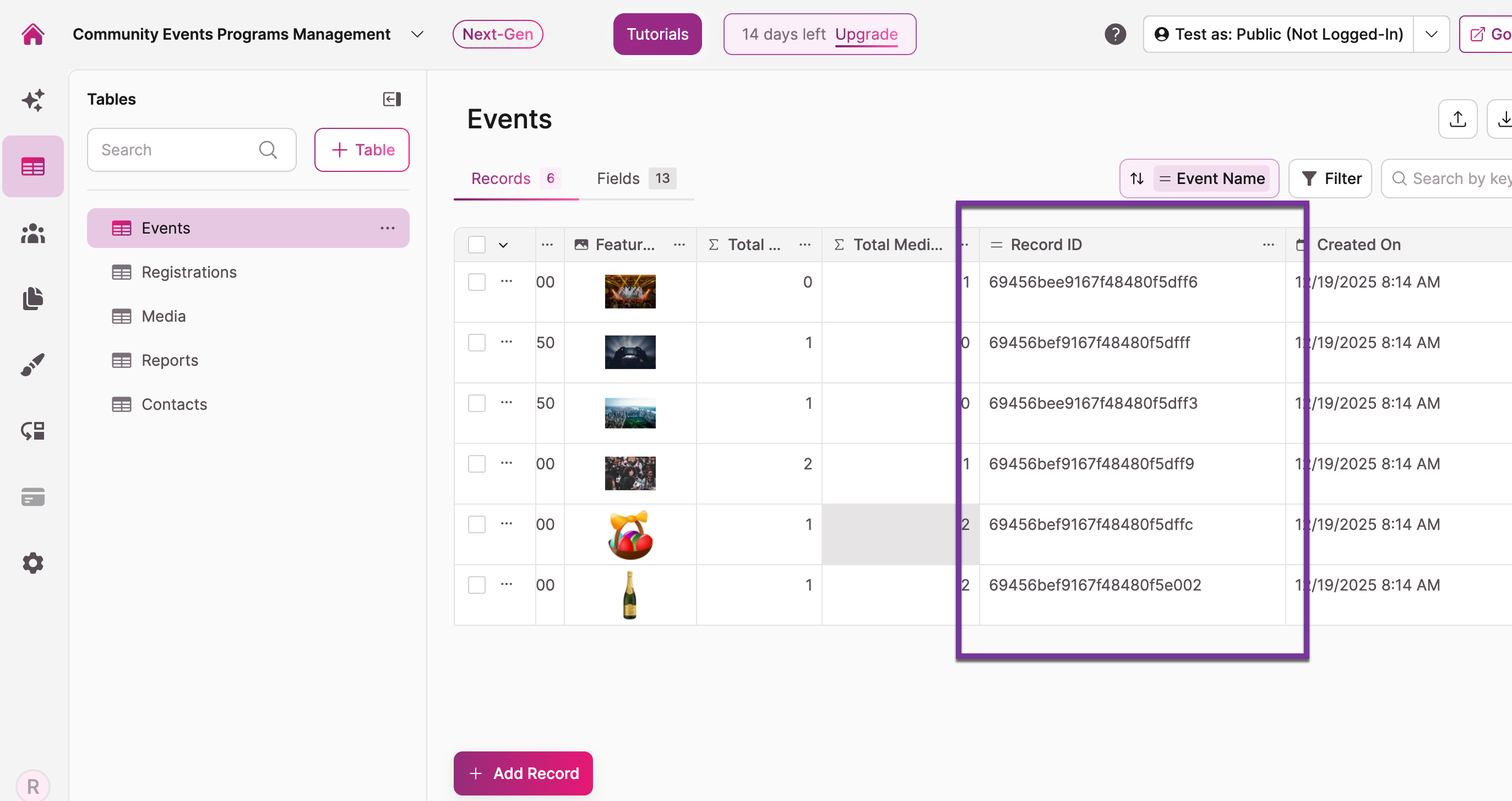
From the dropdown menu, select **Show System Fields**. This will add three new columns to your table: `Record ID`, `Created On`, and `Updated On`.
**Step 4: Locate the Record ID Column**
Scroll to the right of the table to view the new system fields. The `Record ID` column will contain the unique identifier for each record. You can now easily copy the ID you need.
***
## Method 2: Using Inspect Element (Technical)
For users who are comfortable with browser developer tools, you can also find the Record ID by inspecting the page's HTML. This method is more technical and is generally only needed if you cannot access the System Fields.
Although this is easiest done with Chrome, similar steps can be taken from most browsers.
**Step 1: Inspect the Record Row**
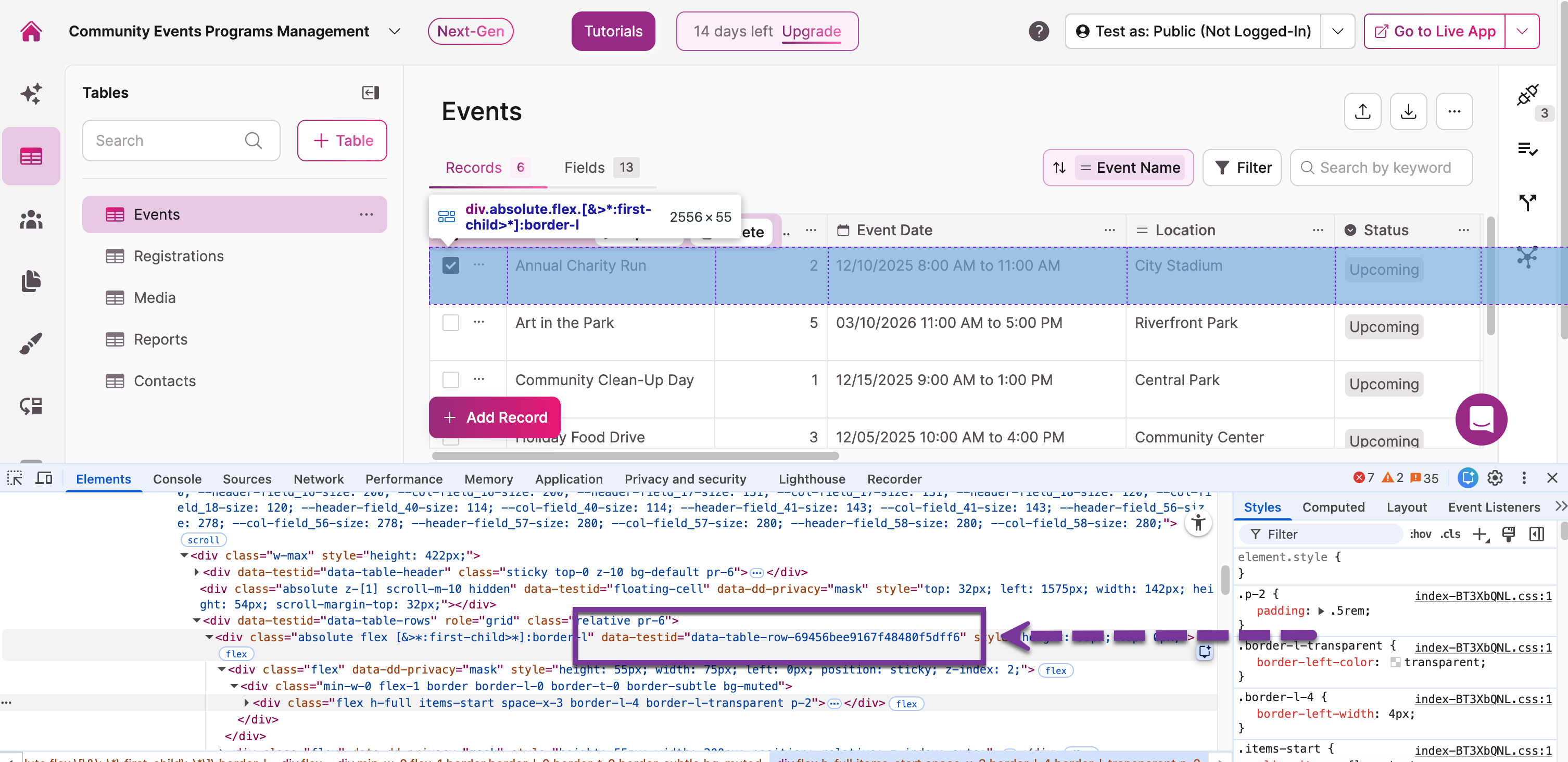
From the object's records page in the Builder, right-click near the checkbox on the record's row you're working with, then click on **Inspect** or **Inspect Element**.
**Step 2: Locate the Record ID in the HTML**
Your browser's developer console will open up. Look for the HTML element that represents the table row. In the Knack Builder, the Record ID is often stored in an attribute called `data-testid`.
You will see an element with an attribute like `data-testid="data-table-row-69456bee9167f48480f5dff6"`. The long string of characters at the end is the unique Record ID that can then be used in your custom code.