

Tutorial: Auto-Respond to Customer Feedback with ChatGPT
Use Case
In this Flow, you'll automatically generate and send a professional email response whenever a customer submits feedback through your Knack app. The submitted feedback is analyzed by ChatGPT and turned into a thoughtful reply, which is saved to the record and emailed directly to the customer — all in just a few steps.
Overview of the Flow
- Trigger – New Record Created in Knack: The Flow begins when a customer submits feedback through your app, either via a form submission or a record created directly in the builder.
2. Action – Create Chat Completion with ChatGPT (OpenAI): The submitted feedback is sent to ChatGPT, which generates a thoughtful, professional response tailored to the customer's input.
3. Action – Update Record in Knack: The AI-generated reply is saved to a Response field on the same feedback record, allowing you to maintain a communication history and review response quality over time. (Optional — skip this step if you prefer not to store responses.)
4. Action – Send an Email with Knack: The response from ChatGPT is automatically emailed to the customer, creating a seamless follow-up experience without any manual effort.
How to Configure the Flow
Table Setup
Start by creating a table in your Knack app to store the feedback and AI responses. In this example, the table is called Customer Feedback and AI Responses and includes fields for the customer's name, email, feedback, and the ChatGPT (OpenAI) response. Both the Customer Feedback and ChatGPT (OpenAI) Response fields are set as paragraph text fields to allow enough space for longer messages.
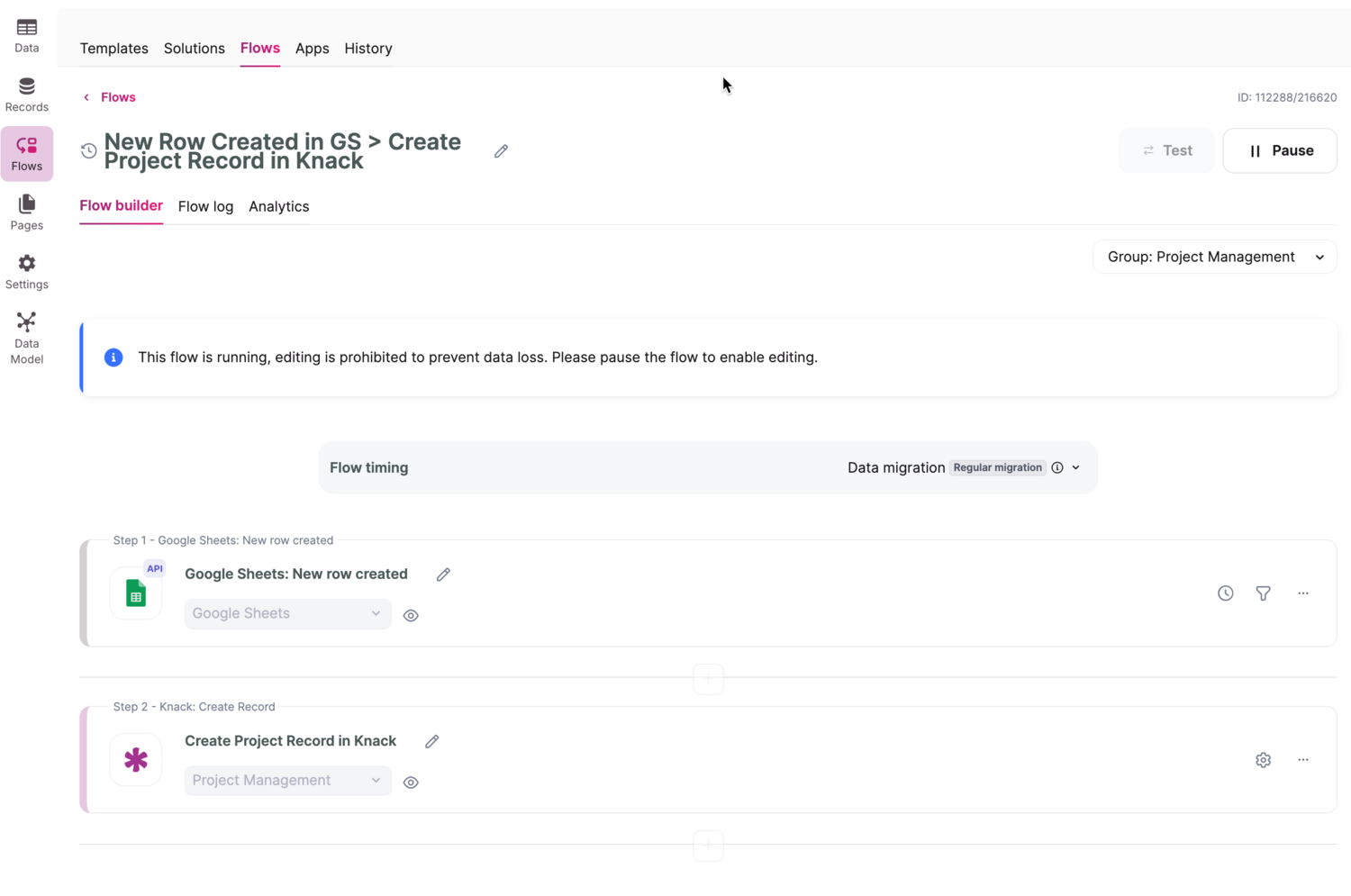
When a new record is created, the text entered into the Customer Feedback field is sent to ChatGPT for analysis. The AI generates a professional reply, which is saved to the ChatGPT (OpenAI) Response field. Finally, the customer receives an automated email containing the AI-generated response.
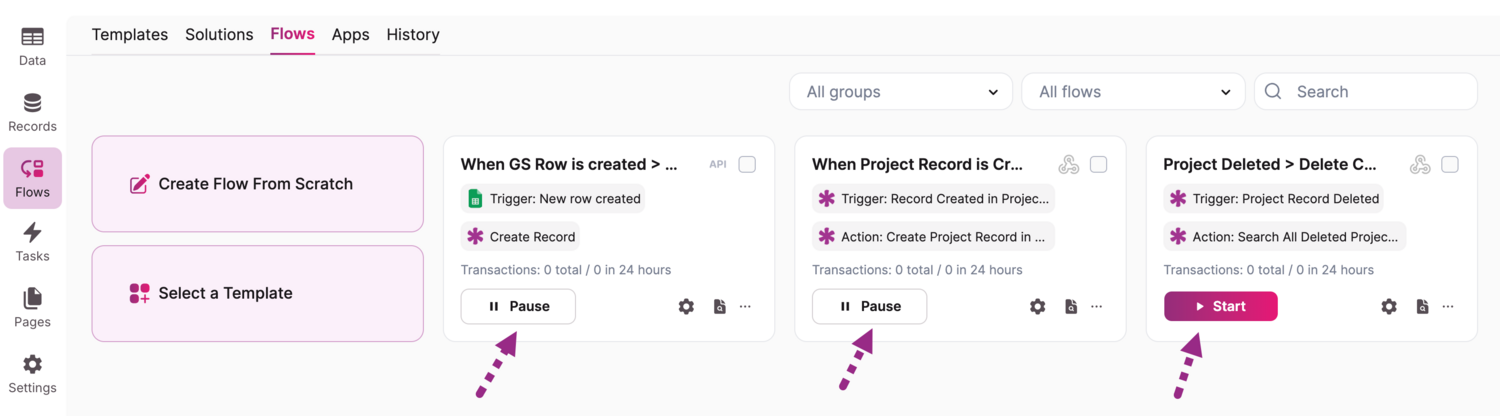
To get started, click Create Flow From Scratch to open a new Flow.
You can rename your Flow at any time.
Step 1: Trigger — New Record Created in Knack
Click Add a Trigger and select Knack as the app and Record Created as the trigger event.
Tip: You can also use a Form Submit trigger if you want to capture feedback directly from a Knack form.
Select your app and the Customer Feedback and ChatGPT Responses table.
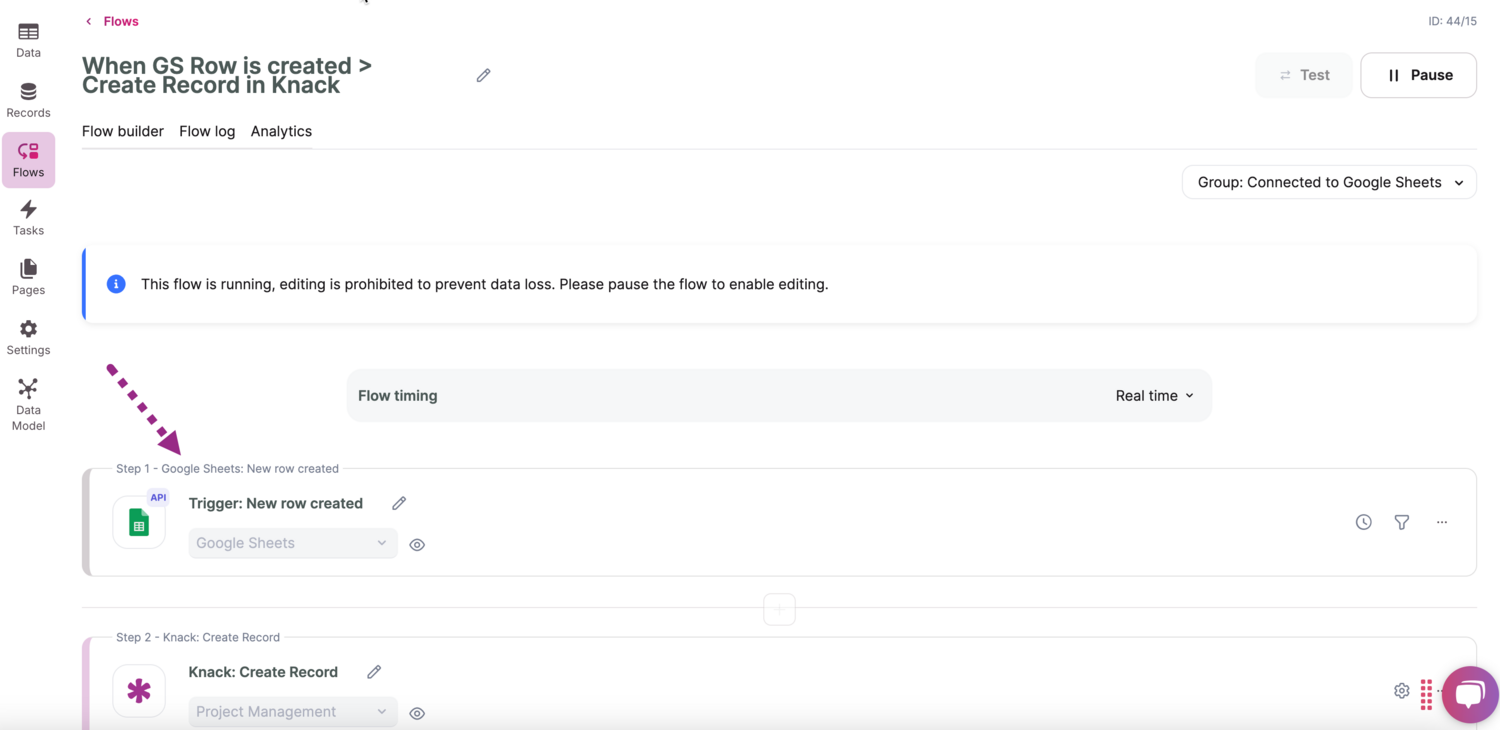
Once saved, every time a new record is created in this table, the Flow will trigger and send the content of the Customer Feedback field to ChatGPT for analysis.
Step 2: Action — Create Chat Completion in ChatGPT (OpenAI)
Click Add an Action and select ChatGPT (OpenAI) as the app and Create Chat Completion as the action.
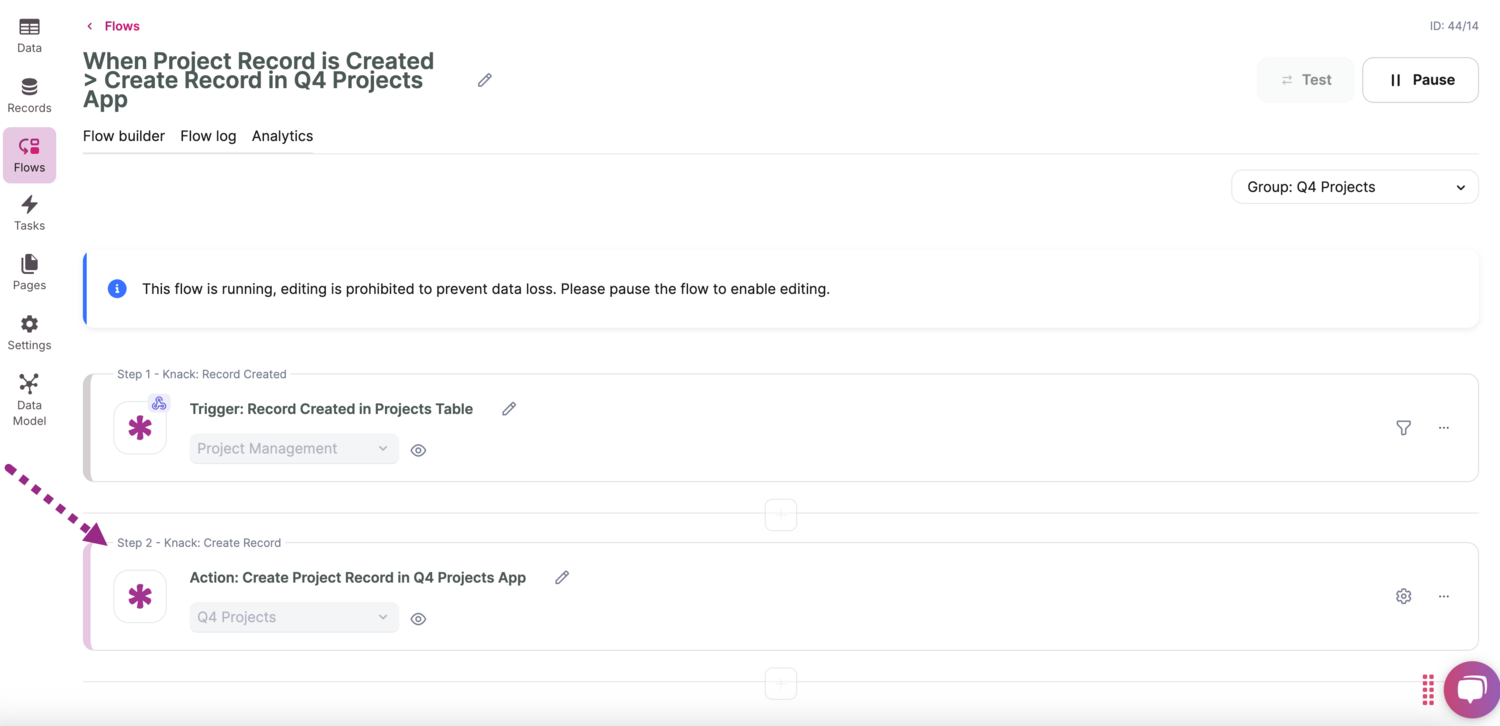
This opens the Create Chat Completion settings where you map your fields.
Field Definitions
Only Model – ID and Messages are required. The optional fields give you greater control over the AI's output.
| Field | Required | Description |
|---|---|---|
| Model – ID | ✅ | The OpenAI model to use (e.g. gpt-4o, gpt-3.5-turbo). Use gpt-4o for best speed and quality; gpt-3.5-turbo for cost efficiency. |
| Temperature | Optional | Controls creativity. Range: 0 (focused) to 2 (random). Use 0.7–0.9 for natural replies; 0.2 for precise output. |
| Top_p | Optional | Alternative to temperature (nucleus sampling). Range: 0.0–1.0. Use lower values (e.g. 0.1) for consistent replies; higher values (e.g. 1.0) for more variety. |
| Max Tokens | Optional | Limits response length. 150–300 tokens produces a short paragraph. 1 token ≈ ¾ word. |
| Number of Results | Optional | How many completions to return. |
| Messages | ✅ | Defines the conversation input for the model. See below. |
Messages field — Role and Message Text:
- Role: Indicates who is speaking. When using Flows with OpenAI, always set the role to user, since you're sending prompts for the AI to analyze and respond to.
-
Message Text: The actual prompt for the AI. You can include instructions alongside mapped fields from your app. For example: "Can you please classify this Sales Lead? Their name is {Name}, business is {Business Name}, location is {Location}, and revenue is {Revenue}."
For this tutorial, select gpt-4o as your Model – ID.
In the Messages section, set the Role to user and enter the following prompt, then map the Customer Feedback field from Step 1:
"Please write a professional, polite, and helpful response to the following customer feedback: {Customer Feedback}"
-
Step 3: Action — Update Record in Knack (Optional)
Saving the AI-generated response to your Knack record maintains a clear communication history, enables quality review of AI replies, and gives customer service agents important context for follow-ups. However, this step is optional — you can skip straight to Step 4 if you prefer not to store responses.
Click Add an Action, select Knack as the app, and choose Update Record. Specify the Customer Feedback and ChatGPT Responses table.
For the Record ID field, select the Record ID from Step 1 — the trigger event. This ensures the Flow updates the exact record that initiated the process.
Map the Response Content value from ChatGPT (OpenAI) to your response field (in this example, the field is named ChatGPT (OpenAI) Response).
Step 4: Action — Send an Email with Knack
Click Add an Action, select Knack as the app, and choose Send an Email.
Tip: You can also send notifications via SMS using apps like Twilio, or alert your team through Slack.
For the Message field, select the Response Content output from Step 2 (ChatGPT (OpenAI)).
For the Subject, enter a static value such as RE: Customer Feedback.
For the To field, map the Customer Email field from Step 1.
Save and continue.
Testing the Flow
Start your Flow and create a new test record in the Customer Feedback and ChatGPT Responses table (or submit a form that creates a record in this table). Add some sample customer feedback when creating the record.
After the record is created, the Flow triggers and sends the feedback to ChatGPT. The AI generates a response, which is saved to the ChatGPT (OpenAI) Response field and emailed to the customer.
Note: You may need to refresh the page a few times as ChatGPT takes a moment to generate the response.
Here is an example of a ChatGPT-generated response to a negative customer service complaint:
"Dear Customer, I'm really sorry to hear about your recent experience with our customer service team. As a valued customer, you should always receive respectful and professional communication, and I'm sorry that this was not the case. Please be assured we take such matters very seriously..."
Once the Flow completes, you can confirm that the AI response has been saved to the record and that the email was successfully delivered to the customer's address.
Tip: In this tutorial we used a simple prompt, but you can improve response quality by mapping additional fields — like the customer's name or account details — to ChatGPT for more personalized replies.
Now, whenever a customer submits feedback, Knack Flows automatically generates and sends a professional, thoughtful response via email — helping you maintain strong customer relationships without any manual effort.
Updated 8 months ago