

Flows Billing, Add-Ons, & Transactions Overview
This article explains how Transactions are counted in Knack Flows, what is included in each plan, and how to manage Add-On Transaction packs.
Who has access to Flows and Transactions?
Access to Flows and Transaction information is currently restricted to the Knack account owner. Shared Builders are currently unable to view the Flows tab within the Knack app.
- Support for Shared Builders creating/editing flows in each app is expected to be available by July 1st 2026.
What Counts as a Transaction?
Transactions are the usage metric that Flows are based upon. Each time a Flow runs:
- The initial Trigger step is free and does not count toward your Transaction total
- Each subsequent Action step that executes counts as one Transaction
- Steps that result in errors do not count toward your Transactions
Examples
Example 1 — 1 Transaction per run: Trigger (Knack record created) → Action #1 (send a Slack message) = 1 Transaction
Example 2 — 2 Transactions per run: Trigger (new Gmail email containing "help") → Action #1 (send email body to OpenAI to summarize) → Action #2 (create a Knack record with summary) = 2 Transactions
No matter how frequently the trigger checks for new emails, those trigger-step operations are not counted toward Transactions.
Example 3 — 15 Transactions per run: Trigger (new Event created in Knack) → Action #1 (search for 13 active Members) → Action #2 (iterator/loop tool) → Action #3 (create an Event Registration for each Member) = 15 Transactions (1 for searching + 1 for iterating + 13 for creating records)
Triggers vs. Action Steps
- Trigger steps start your Flow (such as when a record is created). They are free and unlimited and do not count toward your Transaction total.
- Action steps — such as updating a record, sending an email, or searching for data — do count toward your Transaction total.
Note: Flows Transactions do count toward the API calls included in your plan.
Free Transactions by Plan
Every Knack account includes a set number of free Transactions per month based on your subscription plan:
| Plan | Monthly Transactions Included |
|---|---|
| Trial | 100 |
| Starter | 500 |
| Pro | 2000 |
| Corporate | 5000 |
| Plus 1 | 10,000 |
| Plus 2 | 20,000 |
| Plus 3 | 50,000 |
| Agency (Bronze) | 5,000 |
| Agency (Silver) | 15,000 |
| Agency (Gold) | 50,000 |
For the most current Transaction counts, see the Knack pricing page.
Add-On Transaction Packs
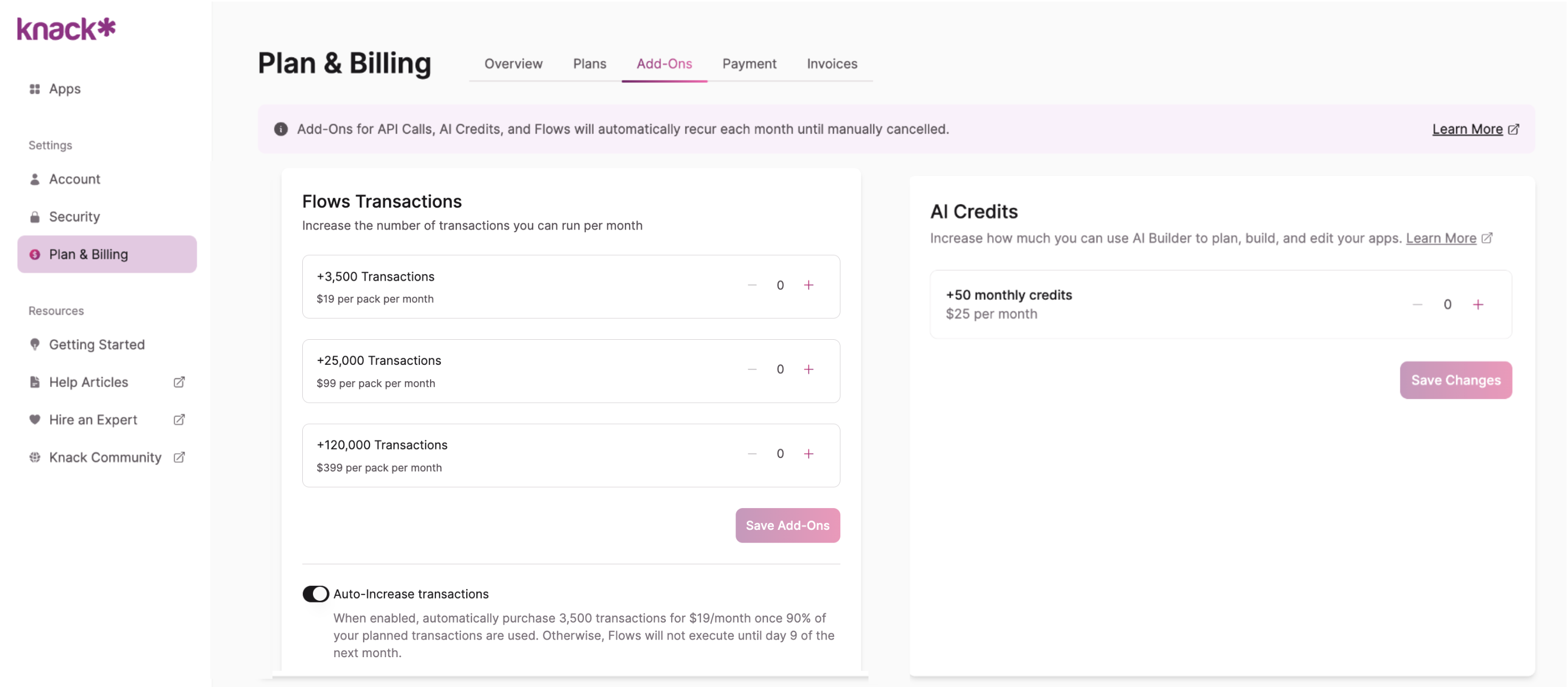
If you need more than the Transactions included with your plan, you can purchase Add-On Transaction packs:
| Pack | Price |
|---|---|
| 3,500 Transactions | $19/month |
| 25,000 Transactions | $99/month |
| 120,000 Transactions | $399/month |
Note: Starter and Trial plan accounts are not eligible for Add-On Transactions. You must be on the Pro plan or higher to purchase Add-On packs.
Add-On packs offer cost efficiency when scaling up:
- Upgrading from 3,500 to 25,000 Transactions gives you more than 7x the Transactions for only 5x the cost
- Upgrading from 25,000 to 120,000 Transactions gives you nearly 5x the Transactions for only 4x the cost
- Add-On packs apply to the current and future months unless manually removed
- You can remove Add-On packs from the Billing tab in your Knack Dashboard before the next billing cycle starts — removed packs remain active for the current billing period
Auto-Increase for Transactions
To keep your Flows running smoothly if you approach your Transaction limit, Knack offers an Auto-Increase feature:
- How it works: When your Transaction usage reaches 90% of your plan limit, Knack automatically adds 1,000 Transactions to your account for $19
- Billing: The charge applies for the remainder of your current billing cycle and continues each subsequent month until removed. Recurring charges align with your Knack plan renewal date
Note: The Auto-Increase feature is not available on Starter or Trial plans. Your account must be on the Pro plan or higher to use this feature.
When a Knack account owner upgrades from a Trial account to a paid plan that permits Add-On Transactions, a notification banner will appear at the top of the Knack Dashboard confirming that Auto-Increase has been activated.
Monitoring Transaction Usage
Knack provides several tools to track your Transaction usage:
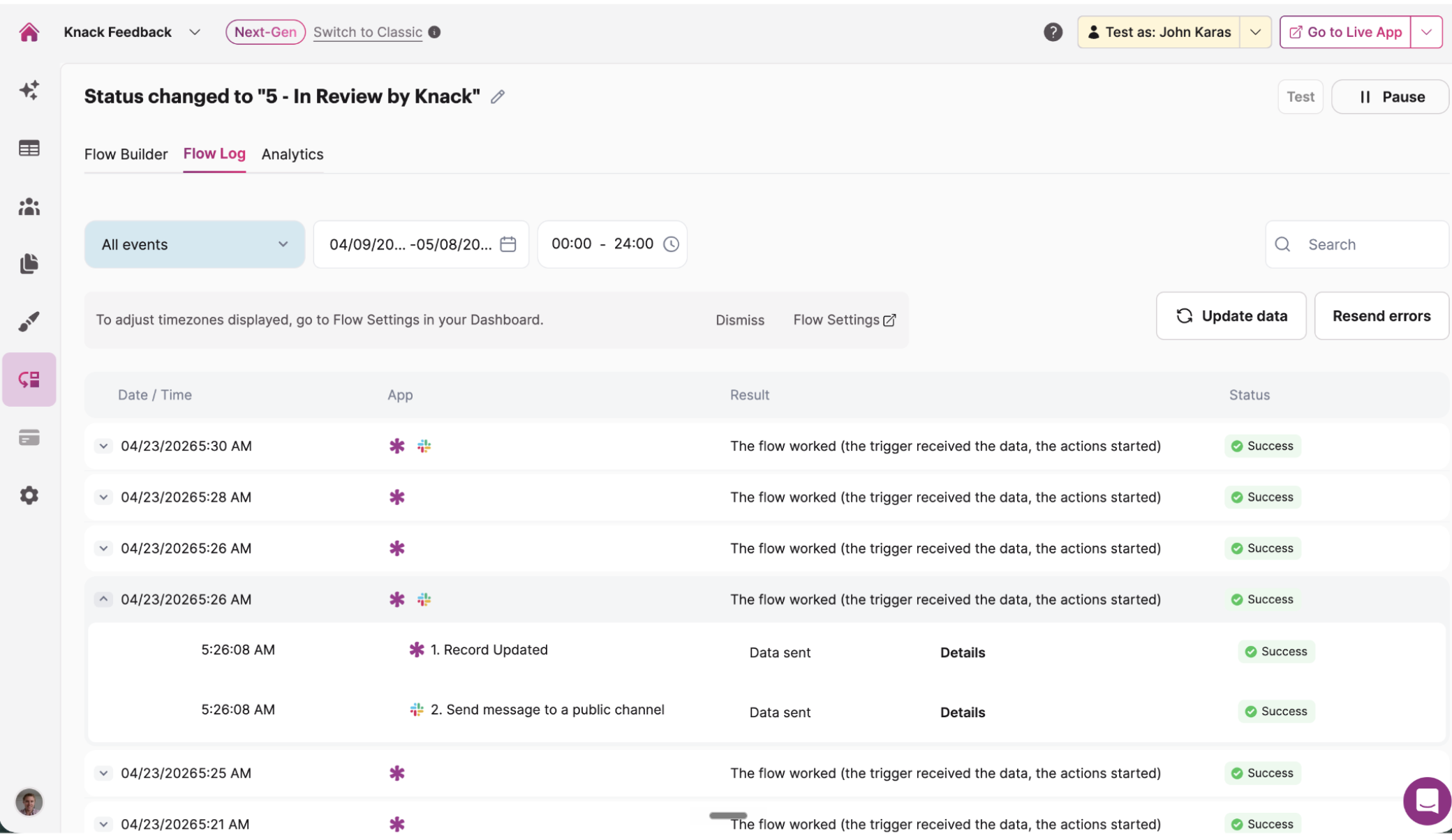
Flow Logs: Within each Flow, you can access detailed log showing which steps have fired and the status of each step. You can also drill into the Details of the values sent in each step's fields/parameters
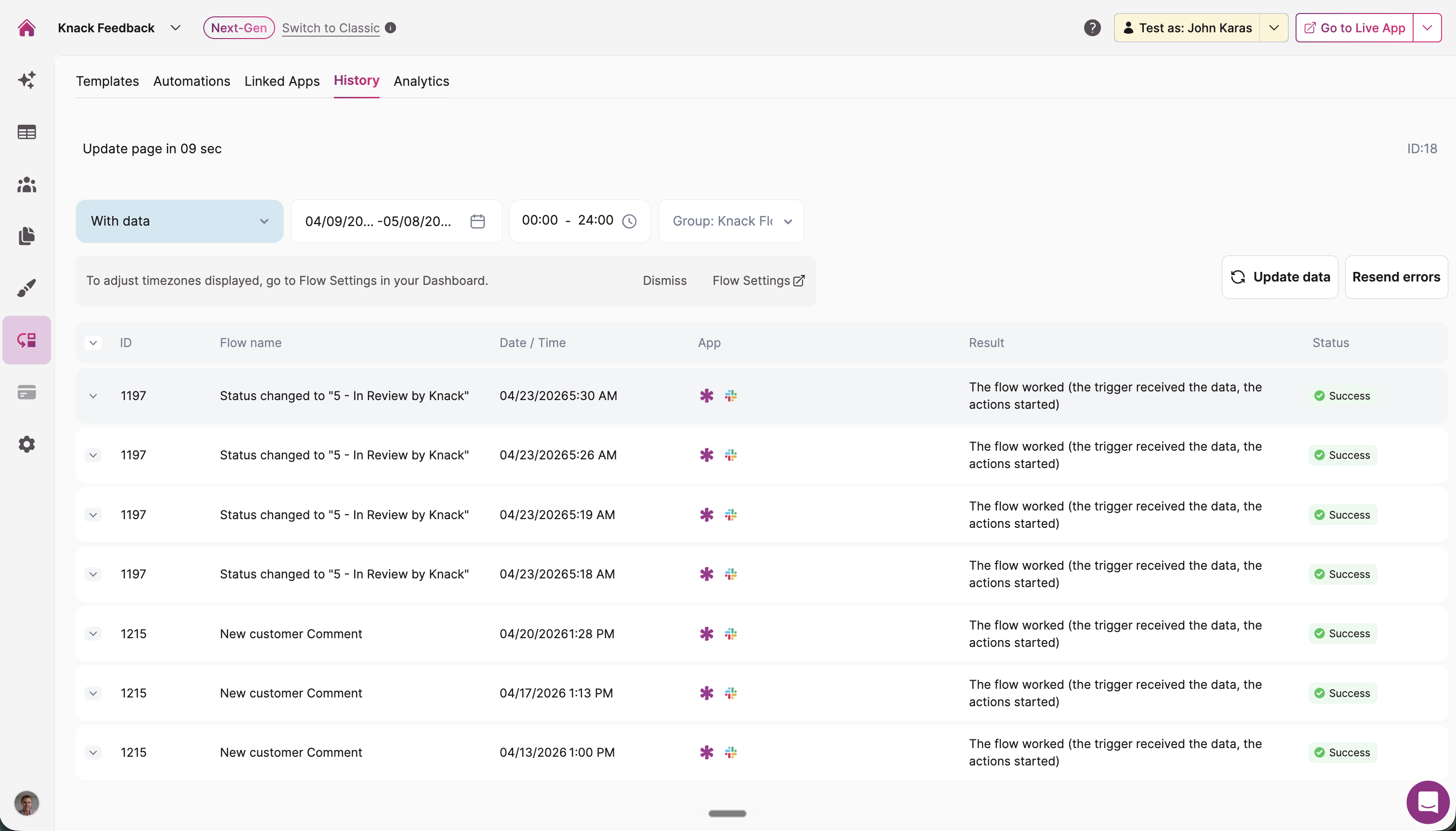
History tab For a broader overview across all your apps and Flows, use the History tab to see You can filter by date, view total Transaction counts, and track specific steps.
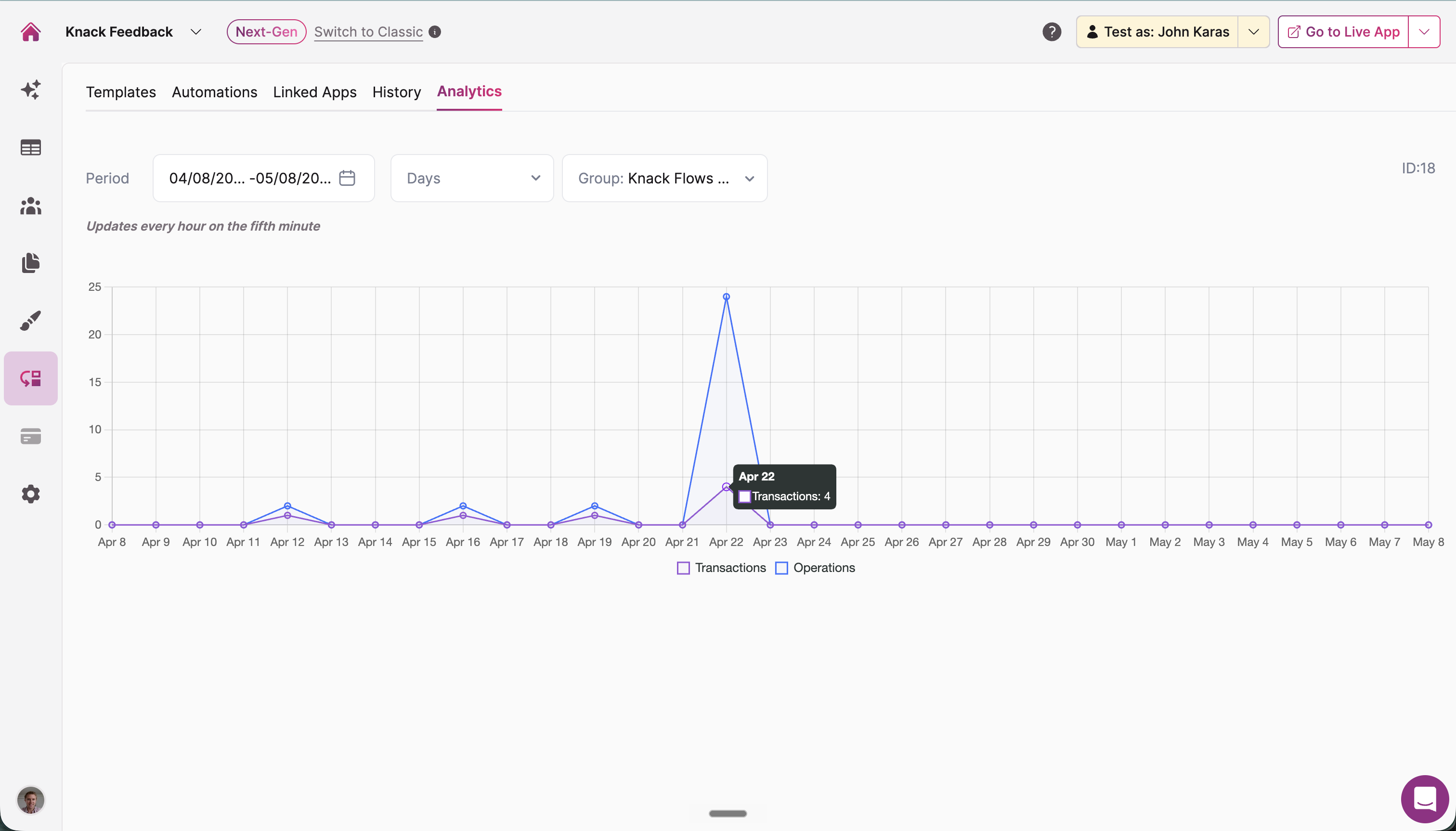
Analytics tab: This tab contains visual line-charts of your "Operations" and "Transactions" metrics
Note: The Analytics section displays Transactions through the previous day. For real-time data on remaining Transactions, go to Knack Dashboard > Plans & Billing.
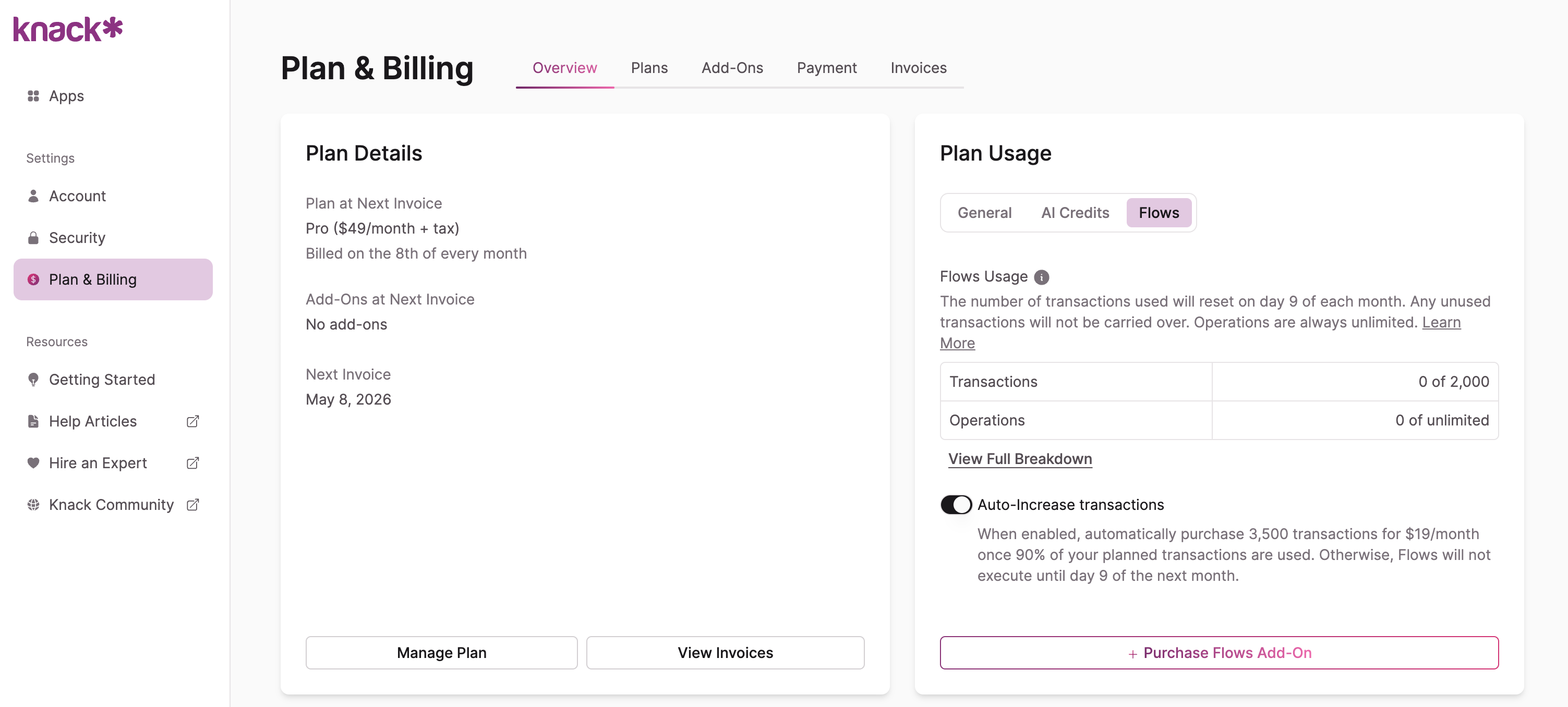
Plans & Billing tab: The Plans and Billing section of your Knack Dashboard gives you a real-time view of your remaining Transactions, total planned Transactions, and any active Add-On packs... See the Overview tab and Add-Ons tab
Understanding Operations
The Analytics tab includes an Operations metric to help contextualize activity. Operations include your Transactions plus all trigger step activity (real-time webhook triggers, interval-based triggers, and scheduled triggers).
All Knack customers receive unlimited Operations — Flows usage entitlements and Add-ons are based solely on Transactions.
Updated about 1 month ago