

Flows: Parse JSON Tool
Learn what the Parse JSON tool does in Knack Flows and how to use it to extract specific values from a JSON response for use in later steps.
What You'll Learn
This article covers what the Parse JSON tool does in Knack Flows and how to add it to a flow to pull specific values out of a JSON response.
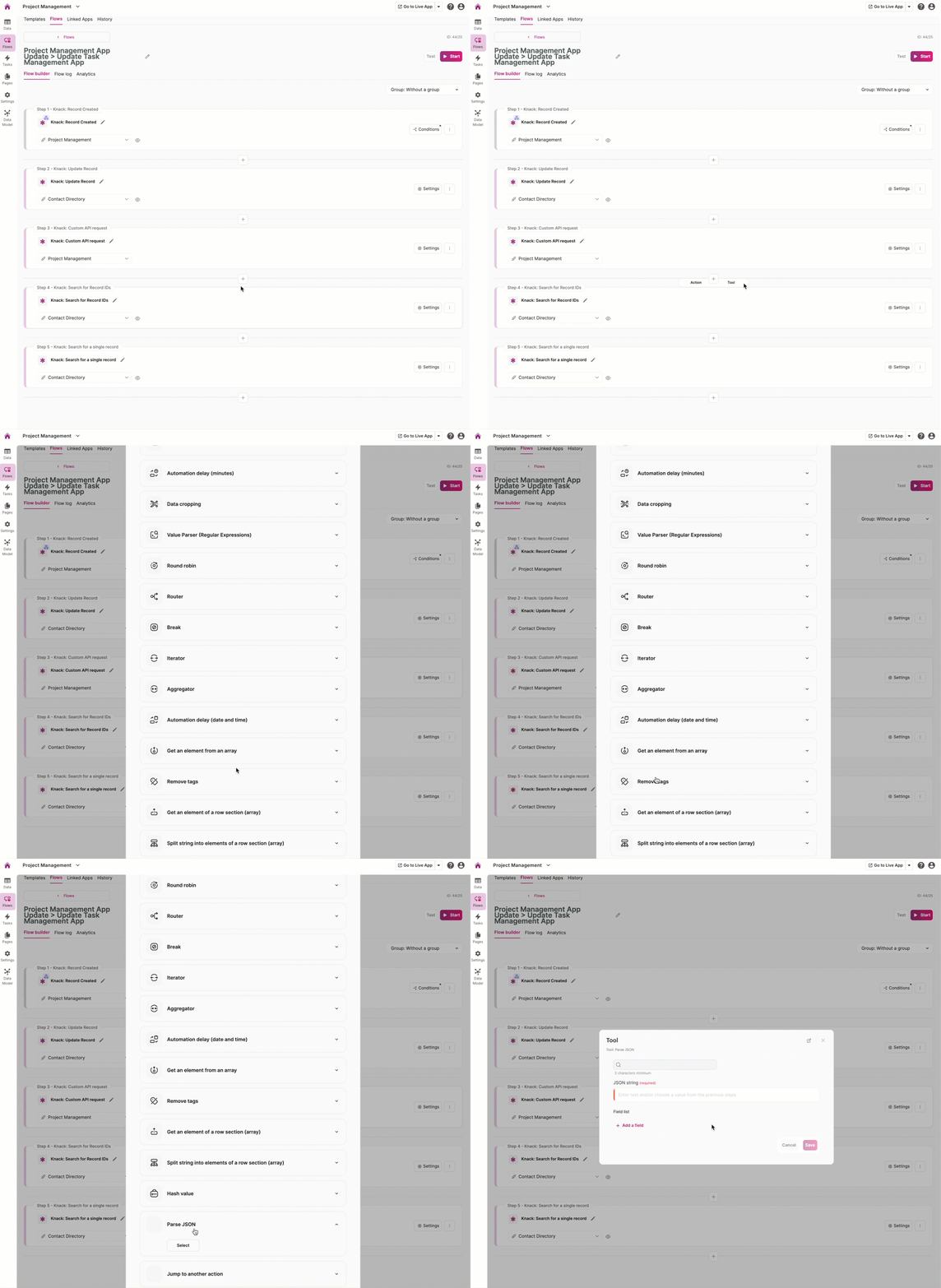
What the Parse JSON Tool Does
The Parse JSON tool extracts specific values from a JSON response so you can use them in later steps of your flow. It's useful when you're integrating with a system that returns data as a JSON string instead of as ready-to-use, individual fields.
For example, say a webhook sends you data about an updated deal from a CRM. You make an HTTP request to get the full deal details, but the response comes back as one block of text instead of separate fields. The Parse JSON tool breaks that block down into individual values you can reference in the rest of your flow.
What the Parse JSON Tool Solves
- Extracts structured data. It turns a JSON string into individual values you can use in later flow actions.
- Simplifies setup. You don't have to manually parse or handle raw JSON text yourself.
- Supports API integrations. It's especially useful with external services that return JSON responses you need to work with later in the flow.
How to Use the Parse JSON Tool
Add the Parse JSON tool as a step right after the step where you receive a JSON response, such as an HTTP request or a webhook trigger. This gives the tool something to pull data from.
Add the Tool to Your Flow
- Open the flow you want to edit.
- Find the step that receives the JSON data, such as an HTTP request step.
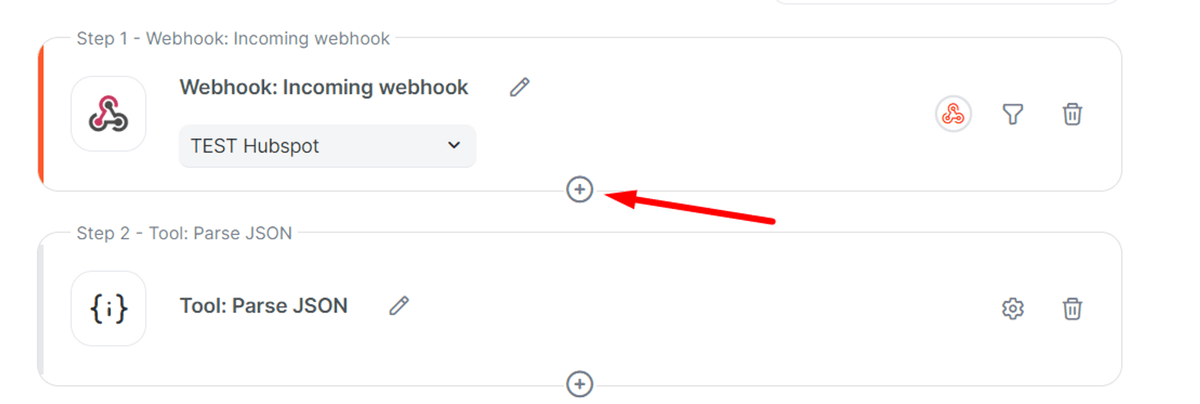
- Click the + button under that step.
- Choose Tool, then select Parse JSON.
Configure the Tool
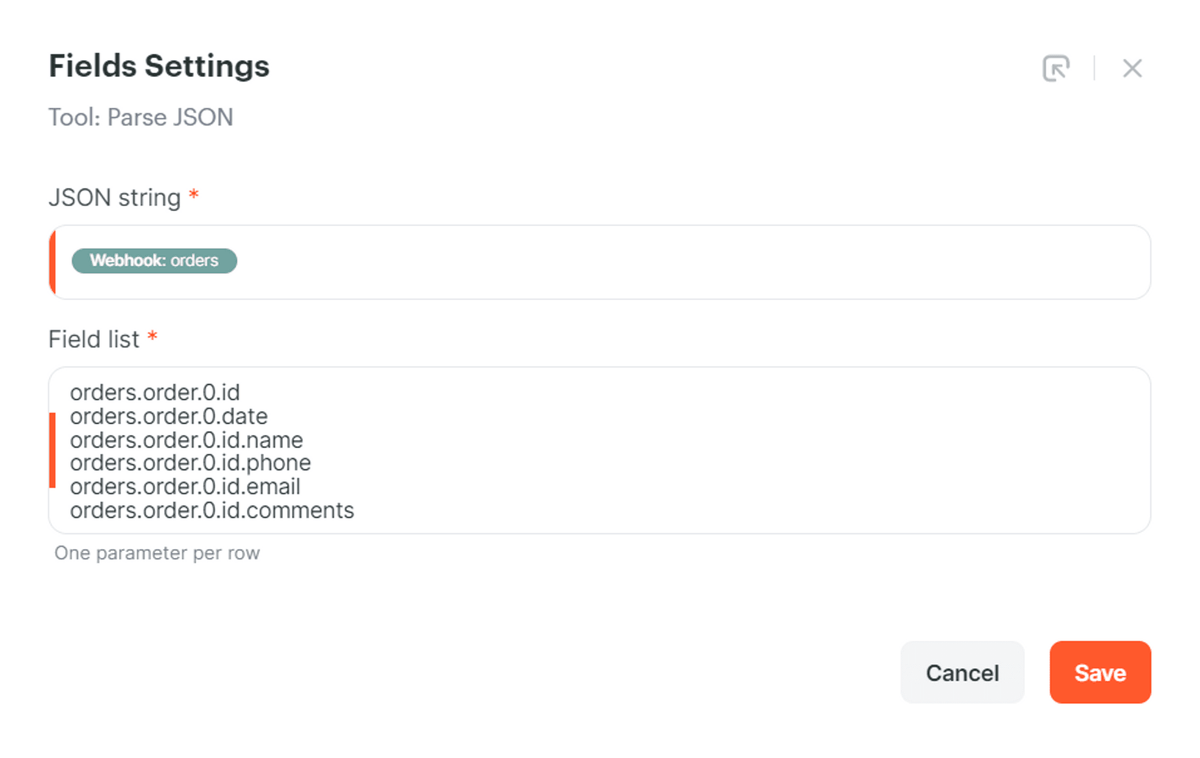
Once the Parse JSON tool is added, open its settings to tell it what to parse:
- In the JSON string field, select the JSON data you want to parse. This is usually the response from the step above it, like an HTTP request or webhook.
- In the Field list box, enter the path to each value you want to extract, one per line. Paths reflect the structure of your JSON data. For example, if your response includes an order object with a nested customer, you might enter:
orders.0.id
orders.0.date
orders.0.name
orders.0.email
orders.0.comments- Click Save.
TipMatch each path to the exact structure of the JSON response you're parsing. If a path doesn't match, that field won't populate in later steps.
Use the Extracted Values
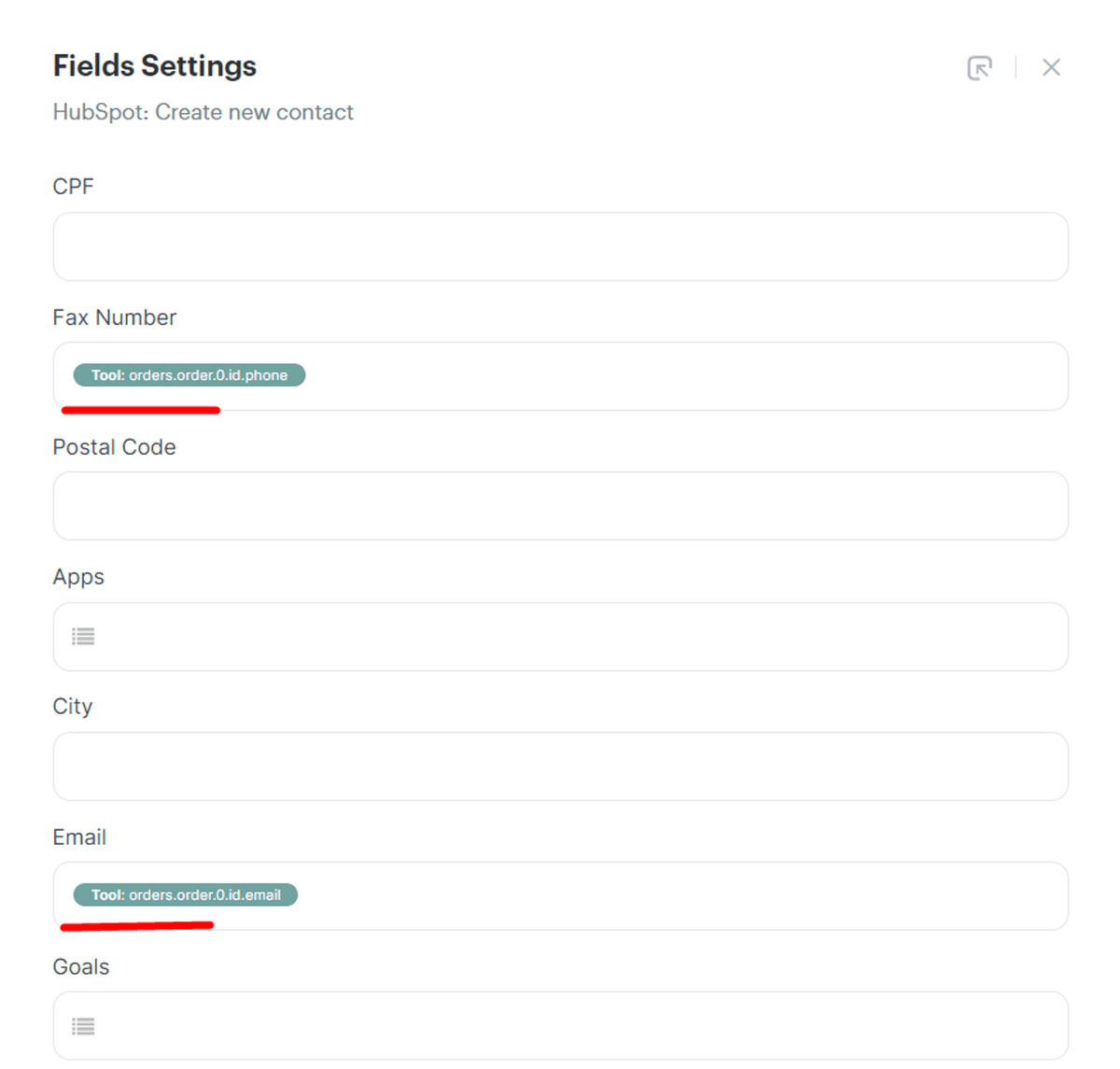
After you save the tool, the values you listed become available as variables in any step that comes after it in the flow. For example, if you're creating a new contact in a connected app, you can map fields like email or phone number directly to the values the Parse JSON tool extracted.
Common Mistakes
- Using it with XML data. The Parse JSON tool only works with JSON. If your response is XML, you'll need to convert it first or use a different approach.
- Field paths that don't match the JSON structure. If a path in the Field list doesn't exactly match how the JSON is nested, the corresponding value won't extract correctly.
- Placing the tool before the JSON data exists. The Parse JSON tool needs a JSON response to work with, so it must come after the step that generates that response, not before.
Next Steps
- Flows: Value Parser (Regular Expressions) Tool - use this tool when you need to isolate values from text using patterns instead of JSON structure.
- Flows: Data Cropping Tool - trim or crop response data as part of your flow.
- Flows: Getting Started - see how the Parse JSON tool fits into the full set of Flows tools and triggers.
Updated about 1 month ago