

Managing Your Flows
How to Start Creating a New Flow
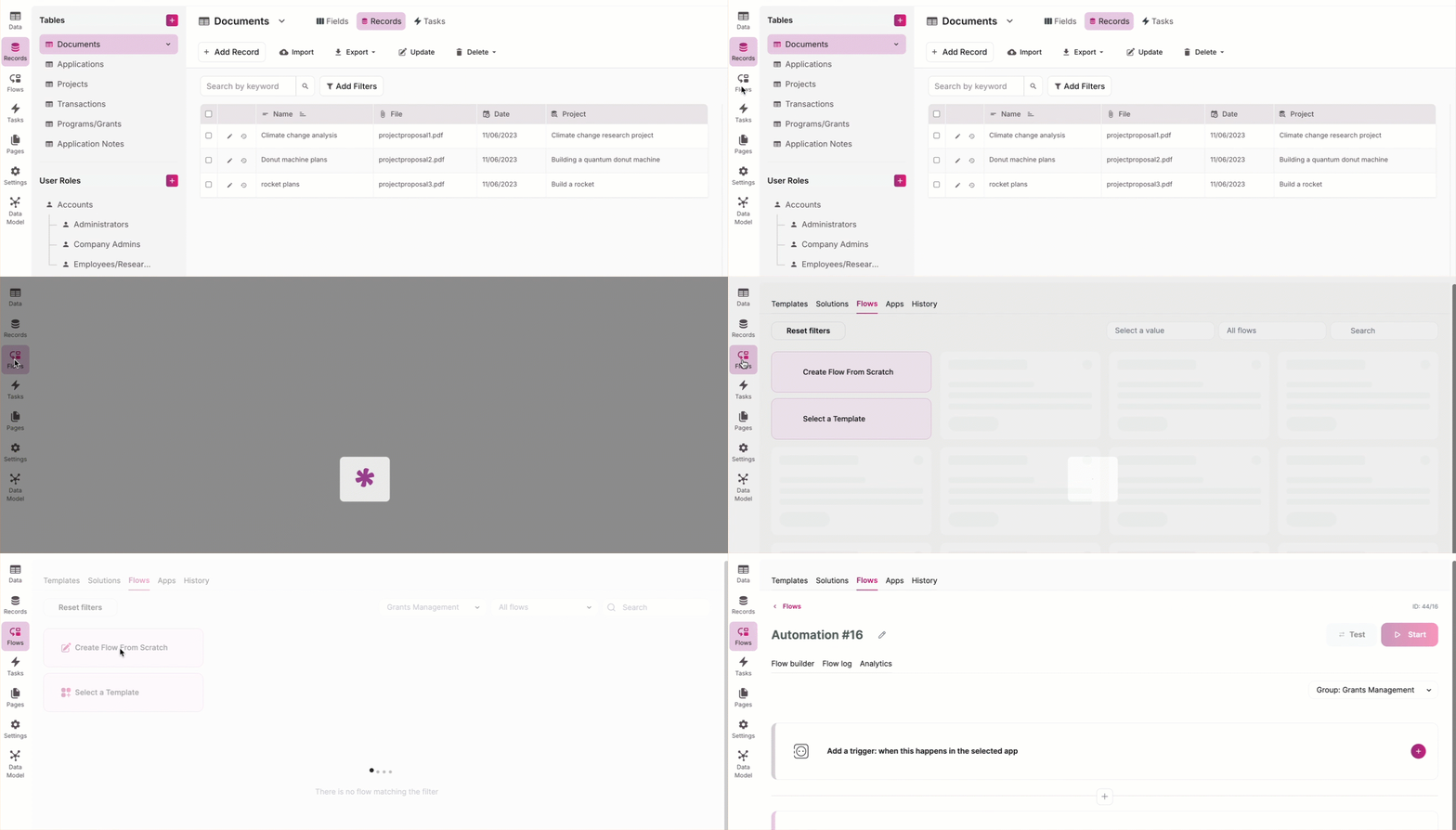
To start creating a new Flow, locate the Flows section in the left-hand navigation menu and choose the "Create Flow From Scratch" option.
Note: Flows is not compatible with your browser's Incognito mode.
How to Copy, Rename, or Delete a Flow
Copy a Flow
- Click the ellipses icon (
...) at the bottom right corner of the Flow. - Select "Copy" from the menu.
- Enter a new name for the copied Flow.
Rename a Flow
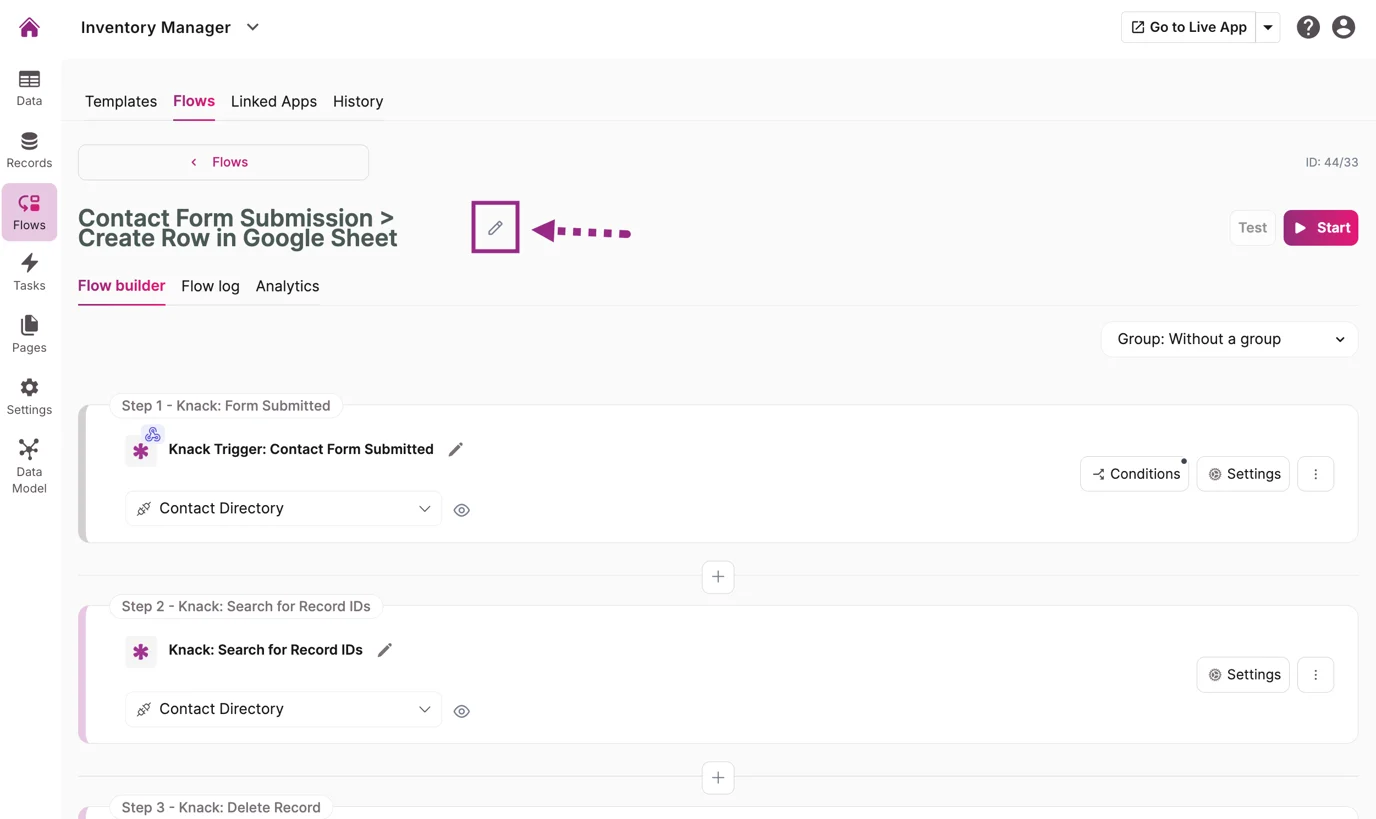
Click the pen icon next to the Flow's name and edit the text directly, or click the ellipses icon (...) and select "Rename" from the dropdown menu.
Delete a Flow
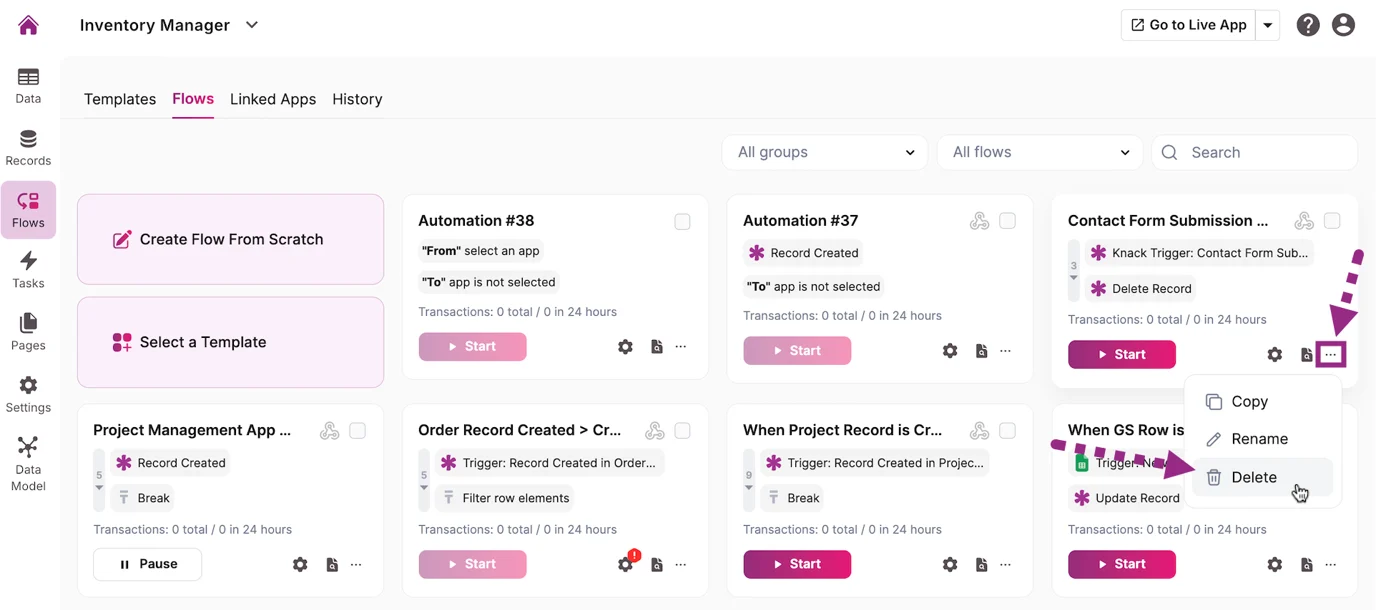
Click the ellipses icon (...) and select "Delete" from the list.
Flow Settings
To access Flow settings, click the gear icon at the bottom of the Flow. This will take you to the Flows Builder, where you can edit triggers, actions, and filter conditions, and access the Flow's logs and analytics.
Tip: Clicking on a Flow from the list will also take you directly to the Flows Builder.
How to Start, Pause, or Recover a Flow
Start or Pause a Flow
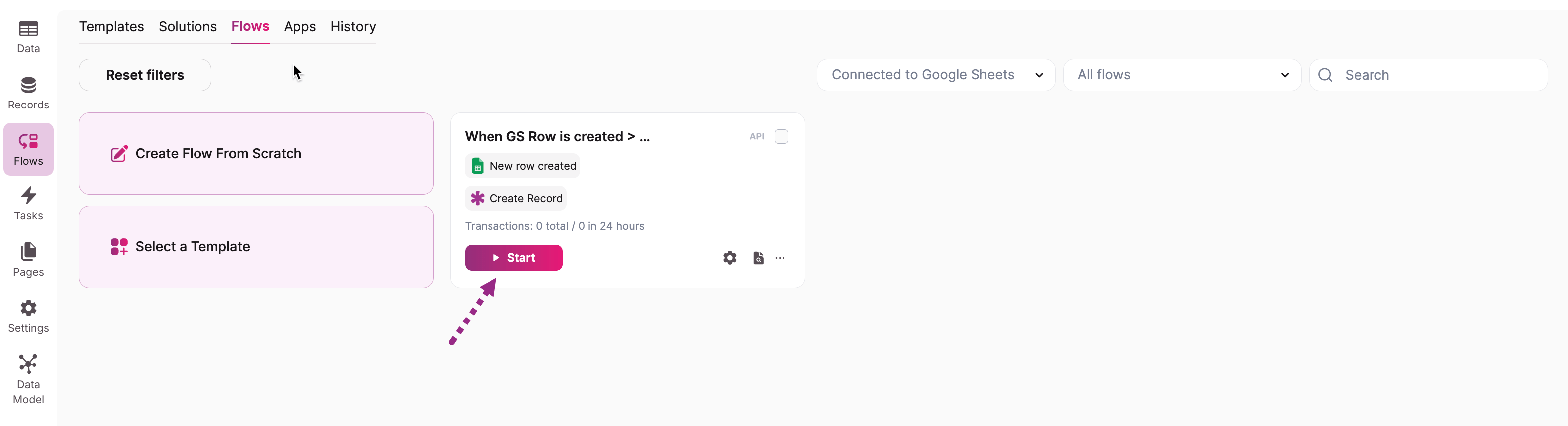
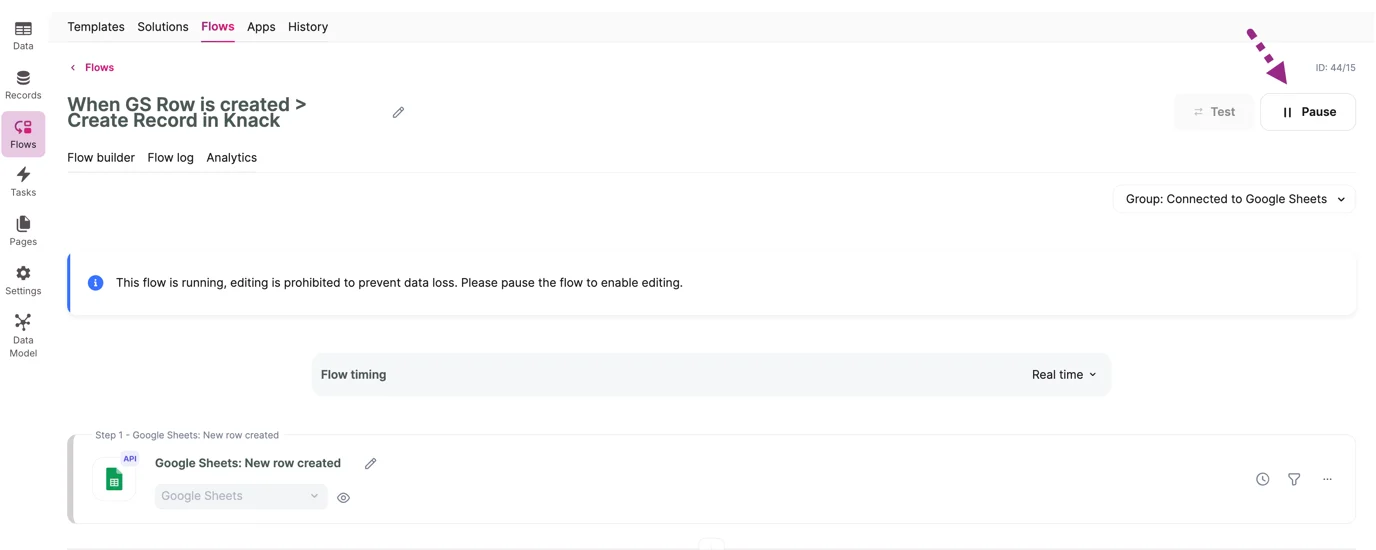
In the Flows section, find the "Start" or "Pause" button in the Flows Builder or within the Flow preview. Click the button to activate or pause your Flow.
Recover a Deleted Flow
- Navigate to the second dropdown list to the right of the Group dropdown.
- Filter by Deleted Flows.
- Locate the Flow you wish to recover and click "Recover".
- After recovery, adjust settings and restart the Flow as needed.
How to Assign a Flow to a Group
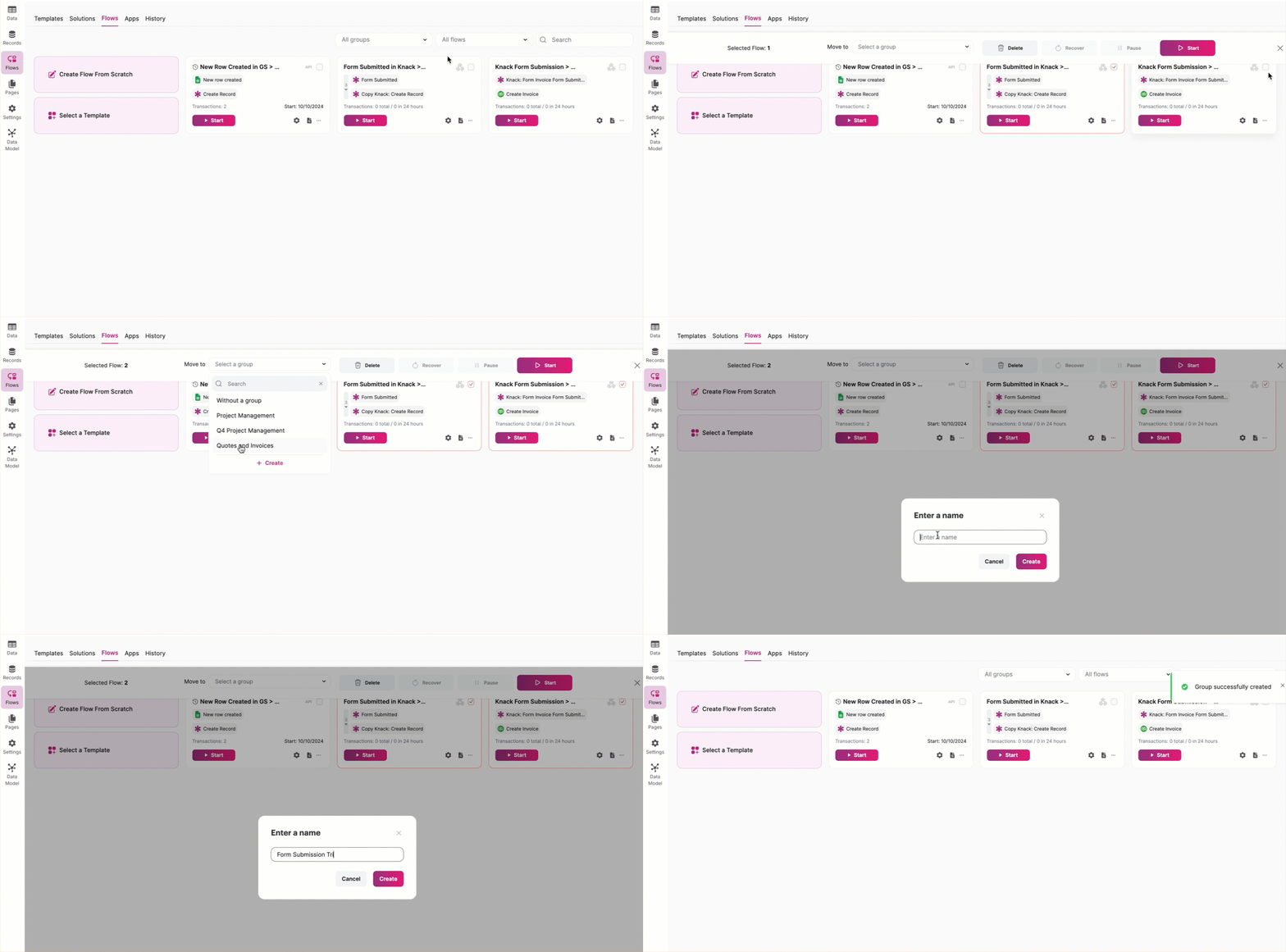
Option 1: Assign from the Flows Tab
- Select the checkbox next to one or multiple Flows.
- A menu will appear — use the dropdown list to select an existing group or create a new one.
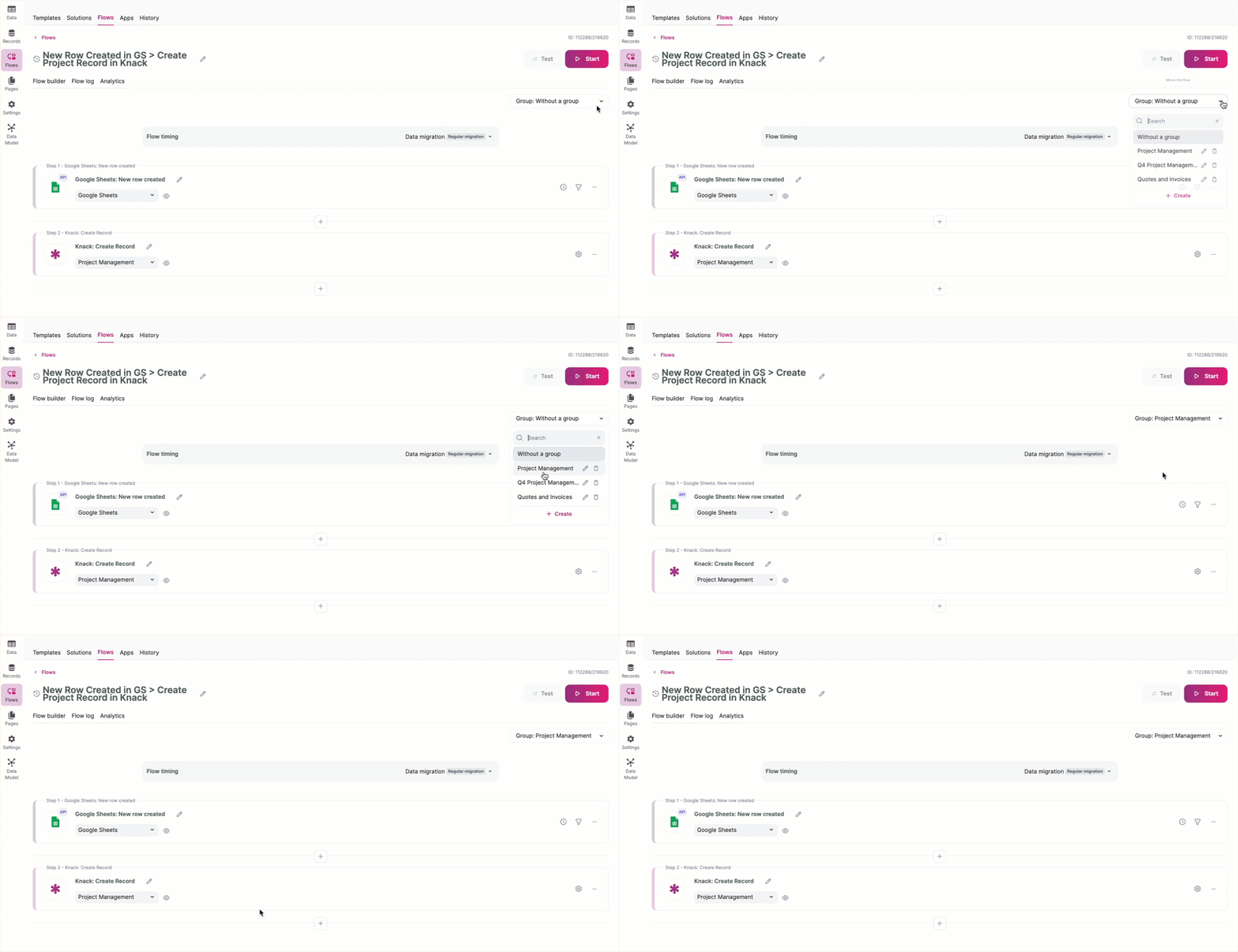
Option 2: Assign from the Flows Builder
Locate the Group dropdown beneath the "Test" and "Start/Pause" buttons. Select an existing group or create a new one.
Tip: To learn more about grouping in Flows, see Flows Grouping.
How to Filter Your Flows by Category
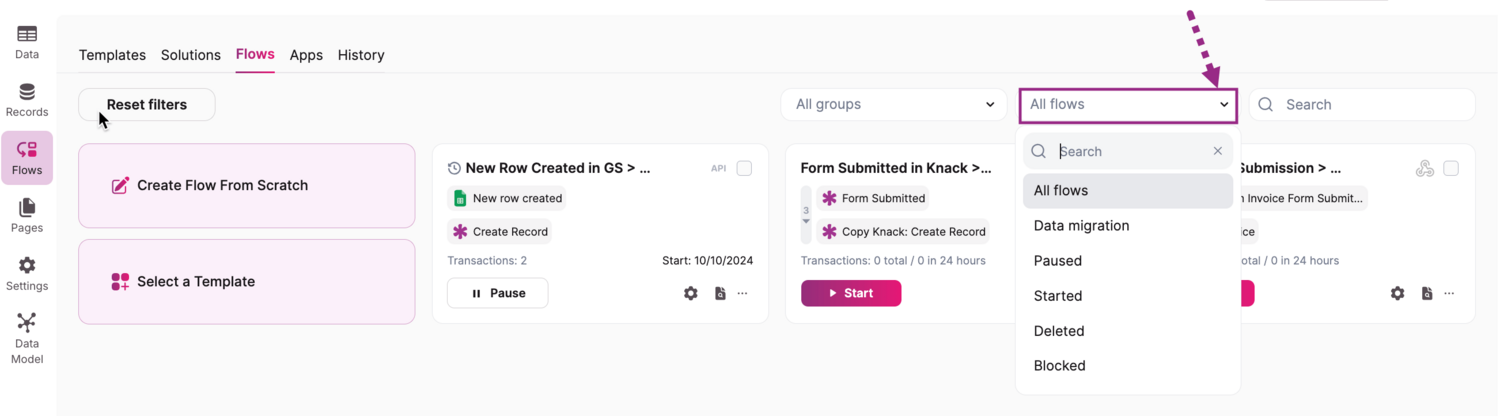
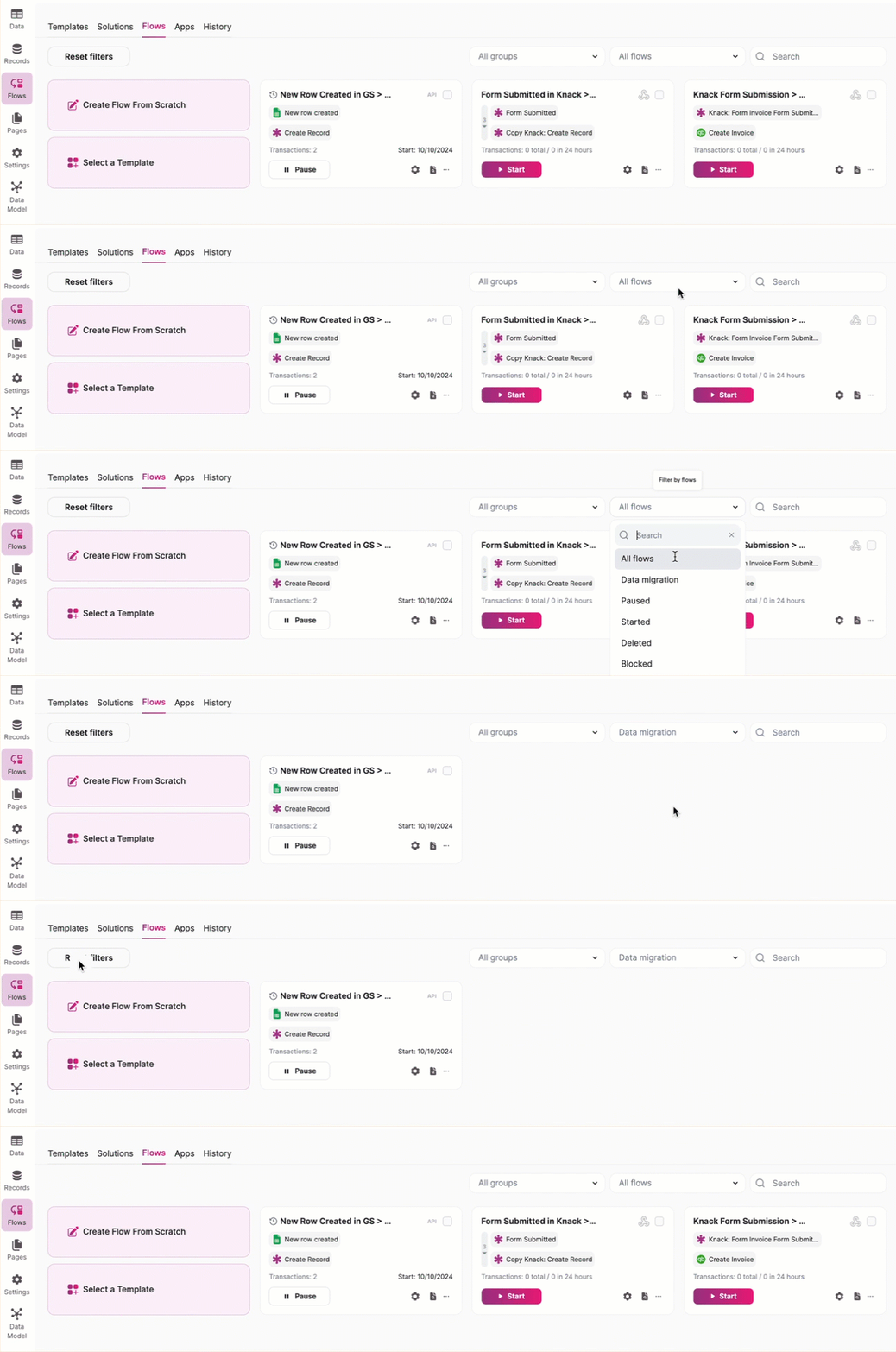
In the Flows tab, use the dropdown list to the right of the Group dropdown to filter Flows by:
- All Flows
- Data Migration
- Paused
- Started
- Deleted
- Blocked
To clear filters and view all Flows, click "Reset Filters" next to the dropdown list.
How to Search for Flows by Name
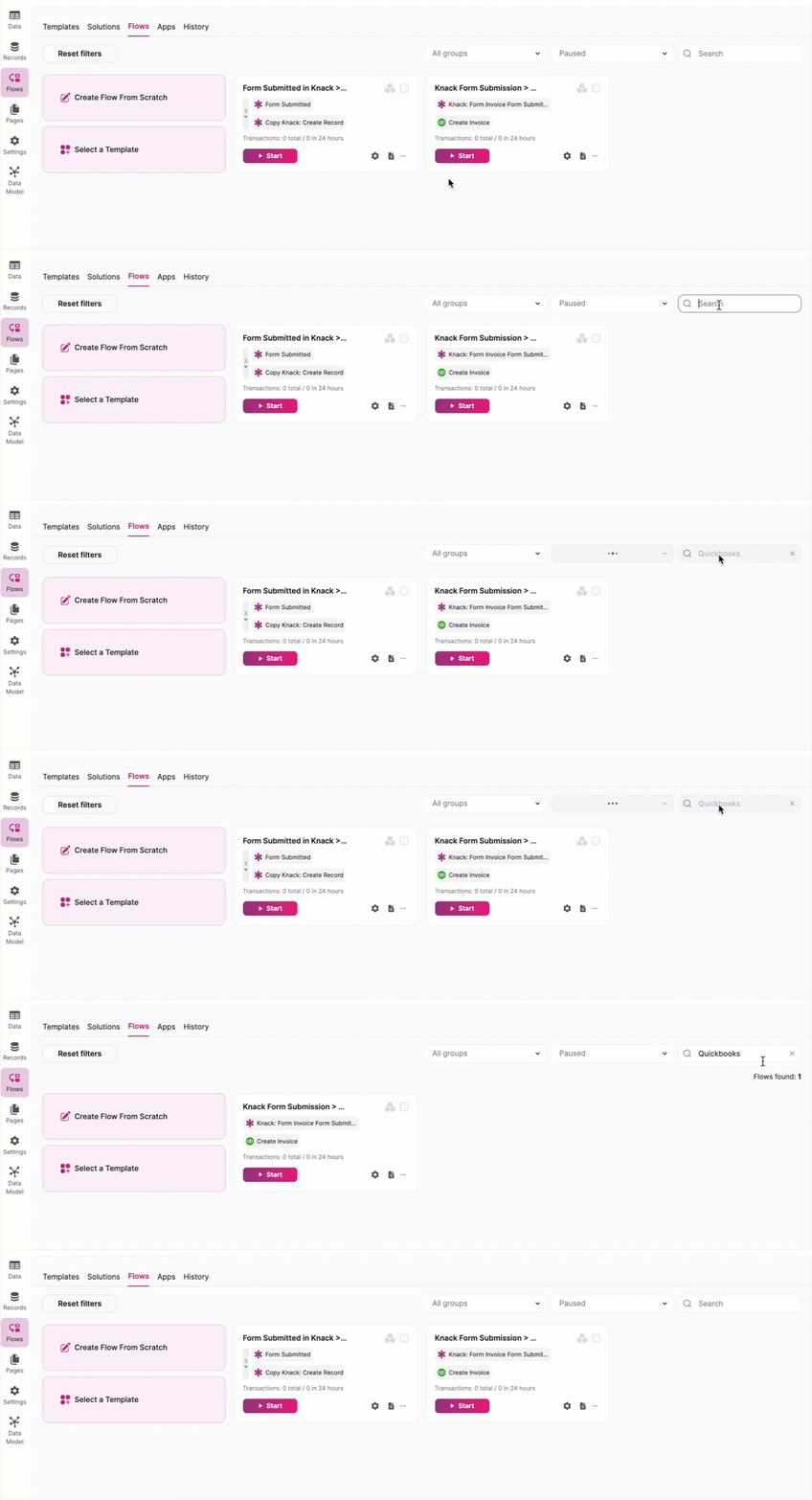
Use the Search field on the far right above your Flows to search by name. The search function works alongside any applied filters or group selections for more refined results.
Updated 8 months ago