

Adding Webhook Parameters to a Linked App in Flows
Learn how to add new expected fields to an existing webhook connection in Knack Flows without disrupting the fields already in use.
What You'll Learn
This article shows you how to add a new expected field to an existing webhook connection in Knack Flows. You'll use the Webhook Parameters field in the Linked Apps section, so your automation can start receiving a field it previously ignored.
Adding a New Webhook Parameter
Knack Flows only picks up fields from an incoming webhook if you've told it to expect them. If a new field starts arriving and your automation isn't using it yet, you add it as a webhook parameter.
- Go to Flows > Linked Apps.
- In the left panel, select the app group your connection belongs to (for example, Webhook), then select the specific connection you want to edit.
- On the connection's Access tab, find the Webhook parameters box.
- Add the new field name to the box.
- Press enter to place each parameter on its own line.
One parameter per lineManually entered variables that duplicate webhook fields already detected on the Webhook fields tab will not be saved.
Parameter names must match exactlyThe parameter names you enter must match the field names in the incoming webhook data exactly, including case and formatting. A mismatch means Knack won't pick up the field.
Only include the fields you actually need in your webhook payload. Any field you don't list is set to its default value in Knack (or left blank if it has no default). You can safely add fields on a per-call basis by including them only when needed, and leaving them out otherwise.
For example, if you're connecting to Stripe and want to capture a customer's name, email, and company ID, you'd add each on its own line:
name
email
company.id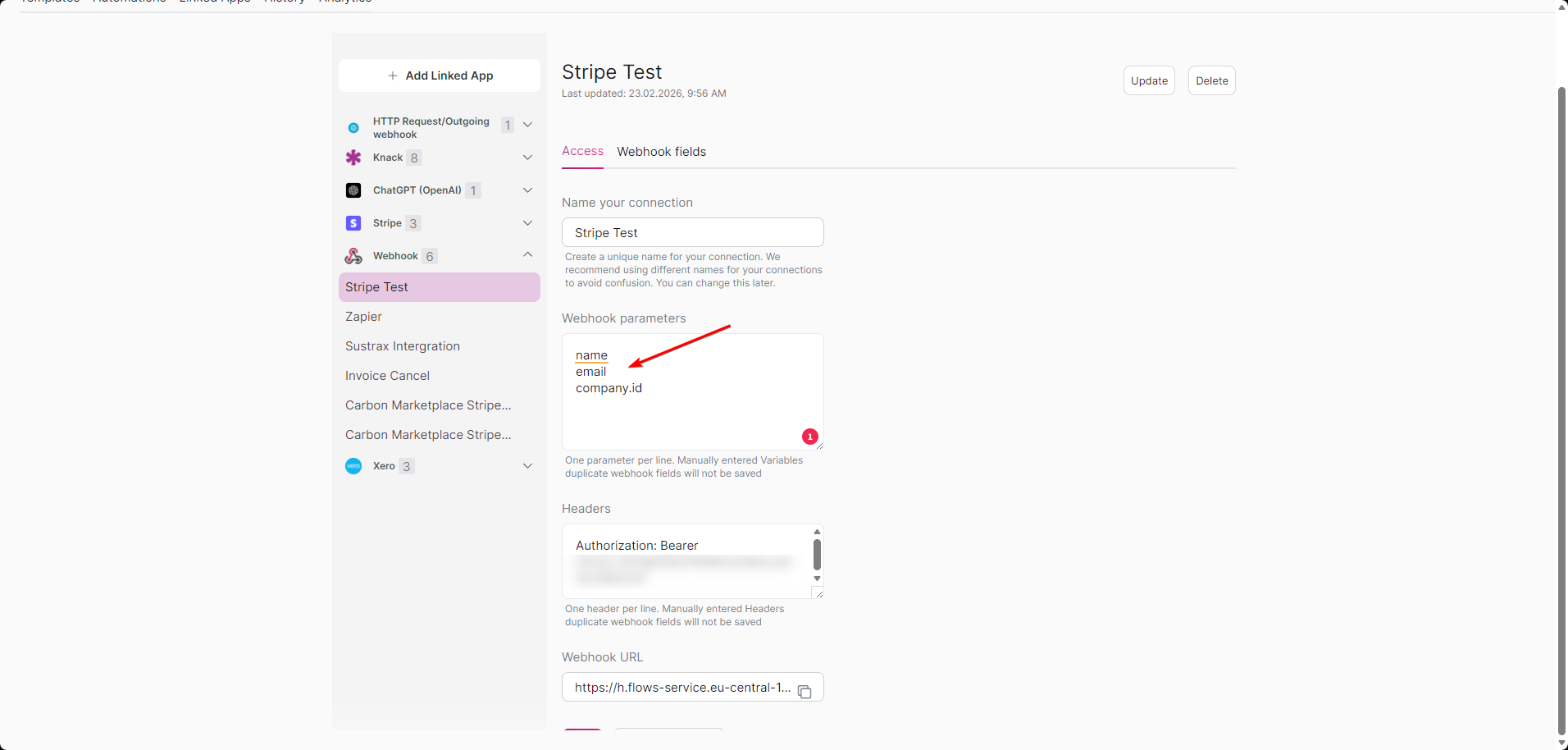
Testing the New Parameter
After adding a parameter, confirm Knack is receiving it correctly before using it in your automation.
- Click Catch a Webhook.
- Trigger the webhook from the source app (in this example, Stripe).
- Confirm the new field appears in the detected data.
Once Knack detects the field, it's available to use anywhere in your automation.
Renaming a parameter that's already in useIf you rename a parameter that your automation already references, this will break that automation. Update any steps using the old name before or immediately after the rename.
Required fields still need to be includedIf you rely on required-field validation in the Builder, the required field key must be included in the payload to take advantage of that validation. If a required field isn't included, it will still be set to its default (or blank), even if it's marked required.
Common Mistakes
- Forgetting to add a parameter for a new field. Knack won't automatically detect a new field in your webhook data. You need to add it in the Webhook parameters box on the Access tab every time you want to receive a field that isn't already listed.
- Duplicating a field that's already detected. If you manually enter a variable that duplicates a field already picked up on the Webhook fields tab, it won't be saved.
- Typos or formatting mismatches. Since parameter names must match the incoming data exactly, a small typo or case mismatch will cause the field not to be detected.
- Renaming without updating references. Renaming a parameter that's already used in your automation steps breaks those steps until they're updated with the new name.
Next Steps
- "Linked Apps": Managing the apps/systems you've authenticated to - covers the broader Linked Apps connection settings, including how to add and manage app connections.
- Flows Triggers - explains webhook, API, and scheduled triggers, and how they start your automations.
Updated about 1 month ago