

Epic (FHIR)
Connecting your Epic system to Knack Flows allows you to securely send data from Epic to your Knack apps.
What You'll Learn
This article explains how to connect Epic (FHIR) to Knack Flows by granting access through your Epic system, and covers every Epic (FHIR) action available once the connection is set up. Epic (FHIR) is a healthcare interoperability API, so this connector is built for health systems and health tech teams that need to read patient, appointment, and clinical data out of Epic.
About Epic (FHIR)
Epic (FHIR) is Epic's implementation of the HL7 FHIR R4 standard, a REST API that lets outside applications read structured clinical data from an Epic system. It covers patient demographics, appointments, diagnoses, medication orders, lab results, and vital signs, all exposed as standard FHIR resources instead of proprietary formats. Connecting Epic (FHIR) to Knack Flows lets you pull this clinical and scheduling data out of Epic and into your Knack app without a staff member looking it up manually.
Setting Up the Epic (FHIR) Connection
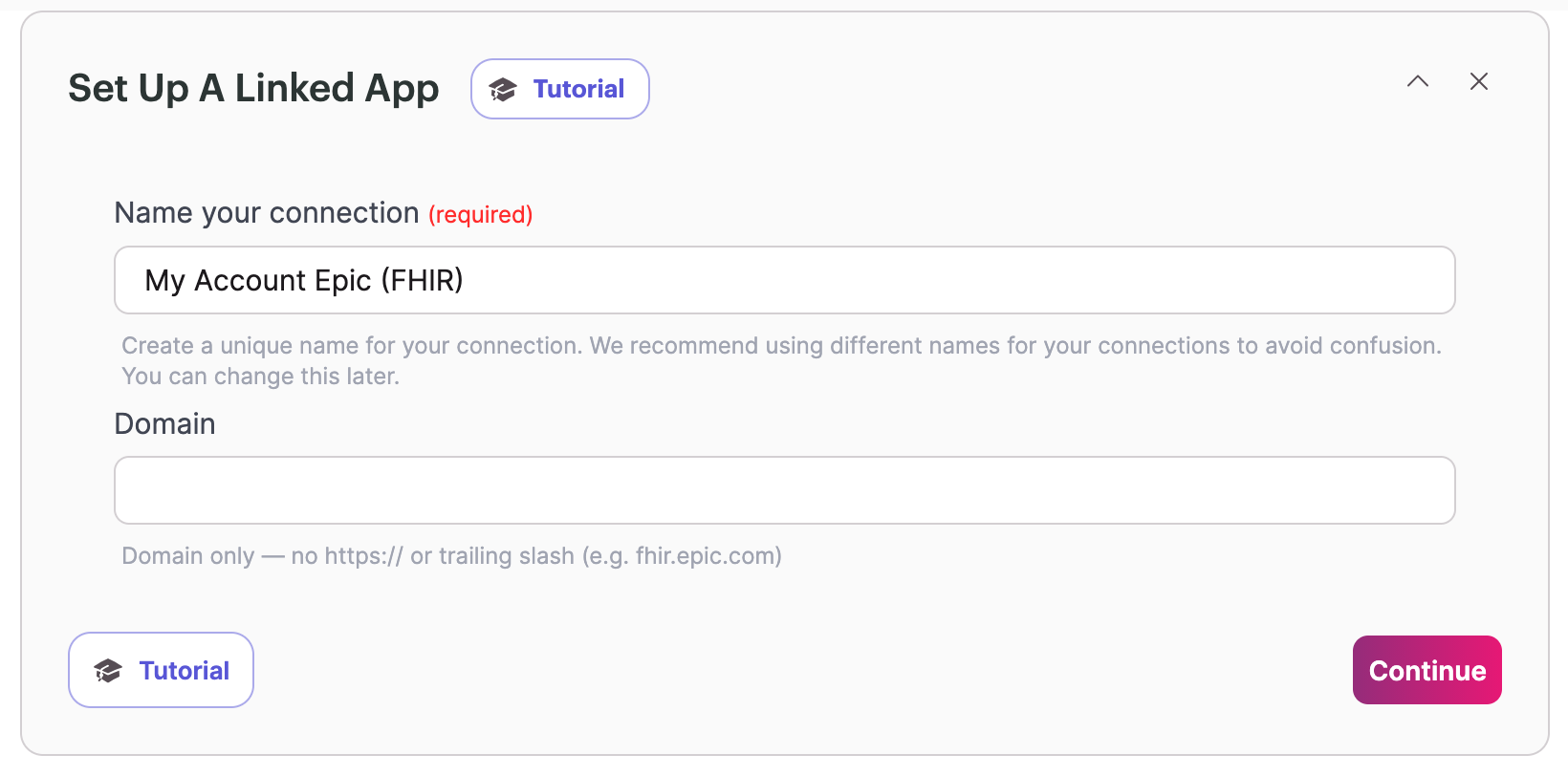
To set up your Epic (FHIR) connection, you'll need to grant access to Knack's technology partner within your Epic system.
- Add the domain your Epic system runs on so Flows can connect to it, then select Continue.
- Select the Grant Access button.
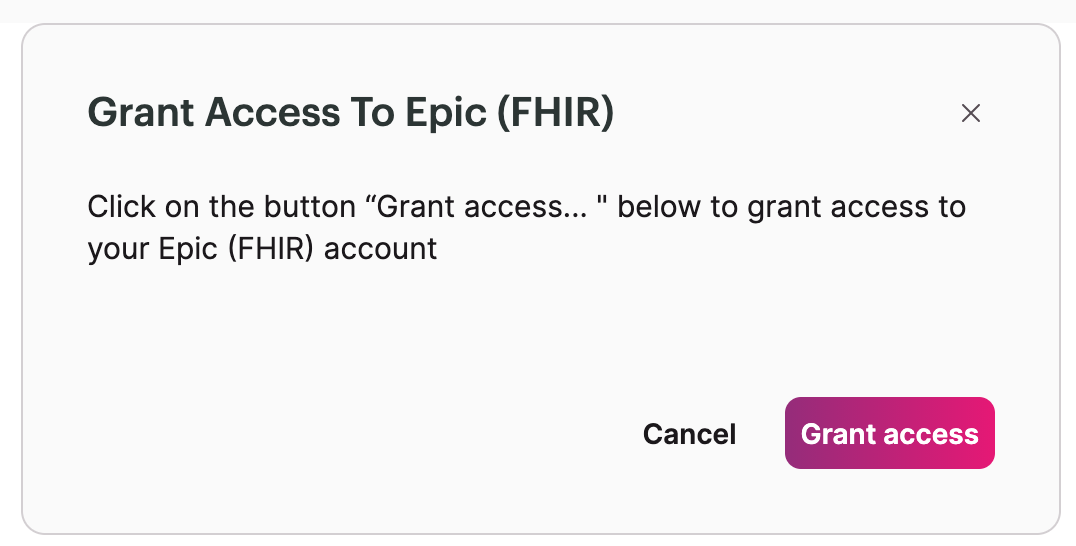
- If you aren't already logged in, you'll be prompted to log in and authenticate with your system using OAuth2.
- Once authentication is complete, your Epic (FHIR) connection is ready and you can set up your Flow.
Epic (FHIR) Actions
Epic (FHIR) has no triggers, only actions, since it's a read-focused interoperability API rather than an event-driven system. You can find full technical detail on each FHIR resource in Epic's FHIR Documentation.
| Action | Summary |
|---|---|
| Create Patient (Demographics) (R4) | Creates a new patient demographic record in Epic. Use this when a patient is registered in your Knack app and needs a corresponding record created in Epic. |
| Get Appointment by ID (Appointments) (R4) | Retrieves the full details for one specific appointment using its FHIR appointment ID. Use this when you already know which appointment you need information on. |
| Get Condition by ID (Problems) (R4) | Retrieves the details of one diagnosis or health condition on a patient's problem list using its FHIR ID. Use this when you already have the condition ID and need its full details. |
| Get Medication Request by ID (Signed Medication Order) (R4) | Retrieves the details of one signed medication order using its FHIR ID. Use this when you already know which medication order you need information on. |
| Get Observation by ID (Labs) (R4) | Retrieves the details of one lab result using its FHIR ID. Use this when you already have the specific lab observation ID and need its full result data. |
| Get Observation by ID (Vital Signs) (R4) | Retrieves the details of one vital sign reading using its FHIR ID. Use this when you already have the specific vital sign observation ID and need its full result data. |
| Get Patient by ID (Demographics) (R4) | Retrieves the full demographic record for a specific patient using their FHIR patient ID. Use this when a Flow needs to pull a patient's information into Knack and you already have their ID. |
| Search Appointment (Appointments) (R4) | Searches for appointments using criteria such as patient or date. Use this when you don't have a specific appointment ID and need to find matching appointments first. |
| Search Condition (Problems) (R4) | Searches a patient's problem list for diagnoses or health conditions matching your criteria. Use this when you don't have a specific condition ID and need to find a patient's relevant diagnoses. |
| Search Diagnostic Report (Results) (R4) | Searches for diagnostic reports, such as lab or imaging result summaries, matching your criteria. Use this when you need a patient's test results but don't have a specific report ID. |
| Search Medication Request (Signed Medication Order) (R4) | Searches a patient's signed medication orders matching your criteria. Use this when you need a patient's prescription history but don't have a specific medication request ID. |
| Search Observation (Labs) (R4) | Searches for lab results matching your criteria. Use this when you need a patient's lab history but don't have a specific lab observation ID. |
| Search Observation (Vital Signs) (R4) | Searches for vital sign readings matching your criteria. Use this when you need a patient's vital sign history but don't have a specific observation ID. |
| Search Patient (Demographics) (R4) | Searches for patients using criteria like name or date of birth. Use this when you don't have a patient ID yet and need to find the matching patient record first. |
What You Can Do with Epic (FHIR) and Flows
A few examples of what you can automate by combining Epic (FHIR) actions:
- Patient lookup before intake. Use Search Patient (Demographics) (R4) to find an existing patient record in Epic before creating a duplicate in your Knack app.
- Appointment sync. Use Search Appointment (Appointments) (R4) to pull a patient's or practice's upcoming appointments into Knack for display or scheduling logic.
- Clinical record review. Use Get Condition by ID (Problems) (R4) and Search Observation (Labs) (R4) together to pull a patient's active diagnoses and recent lab results into a Knack dashboard.
- Medication reconciliation. Use Search Medication Request (Signed Medication Order) (R4) to check a patient's current prescriptions before building a workflow that depends on their medication history.
Next Steps
- List of All 600+ connectors within Flows to see other connectors available in Flows.
- Epic's FHIR Documentation for full technical reference on every resource behind these actions.
Want to see an action, trigger, or connection added?We're constantly looking to improve Flows. If you have feedback on the functionality, actions, triggers, or connections, you're welcome to submit feedback to our product team.
Updated 13 days ago