

Flows: Check if a Date is Today or in the Future
When building Flows, you sometimes need to check whether a date is today or in the future—for example, only process upcoming events, skip past dates, or trigger on current deadlines. This guide shows you two ways to handle this in your Flows.
Before You Start
This guide assumes you have:
- A Knack table with a Date/Time field you want to check
- A Knack app connected to your Flow
- A trigger set up (like "Record Created" or "Record Updated")
If you're filtering records based on a date in the trigger record itself, this guide is for you. If you're searching for records from another table first, the same principles apply.
The Challenge
By default, Flows don't have a built-in condition like "is today" or "is after today" the way the Knack builder does. This guide shows you the simplest approaches to work around this.
Two Solutions
Solution 1: Use a Helper Field in Knack
This is the most straightforward approach and requires no coding.
How it works:
- Create a Boolean field in your Knack table (e.g., "Is Today or Future?")
- Add a Knack rule that checks: If Date/Time field is today or after, set "Is Today or Future?" to Yes. Otherwise, set it to No.
- In your Flow, search or filter records where "Is Today or Future?" = Yes
Why use this:
-
No coding required
-
Knack handles the logic automatically
-
Simple to maintain and understand
-
Works reliably for all date comparisons
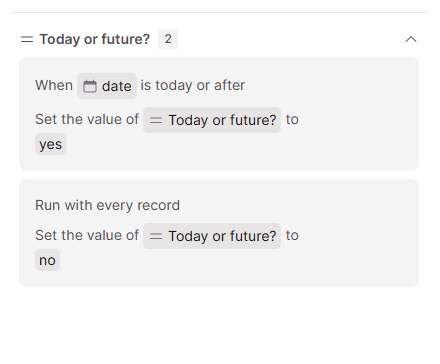
Setting up a conditional rule in Knack to evaluate dates
Learn more: Read about Conditional Rules to customize this logic further.
Solution 2: Use JavaScript in Your Flow (No Extra Fields)
If you want to avoid adding fields to your Knack table, you can add a JavaScript step in your Flow to do the comparison instead.
When to use this:
- You prefer not to add helper fields to Knack
- You're comfortable with adding a code step
- You only need date-level checks (not specific times)
Step-by-Step Setup
Step 1: Add a JavaScript Action
In your Flow, add a JavaScript action after the step that retrieves your date:
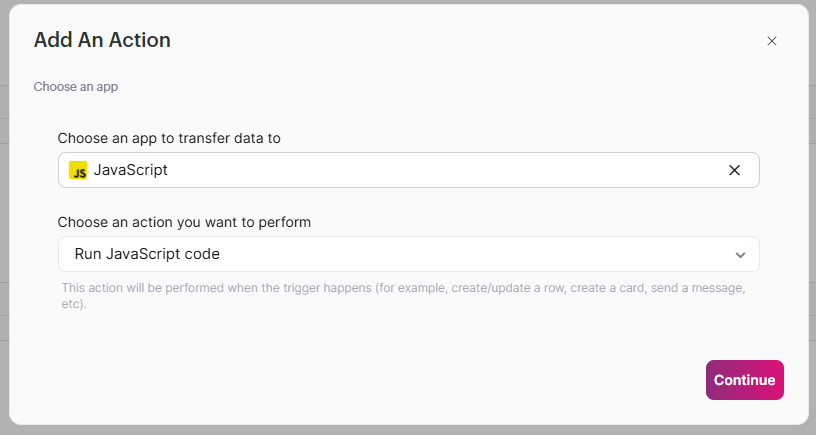
Adding a JavaScript action to your Flow
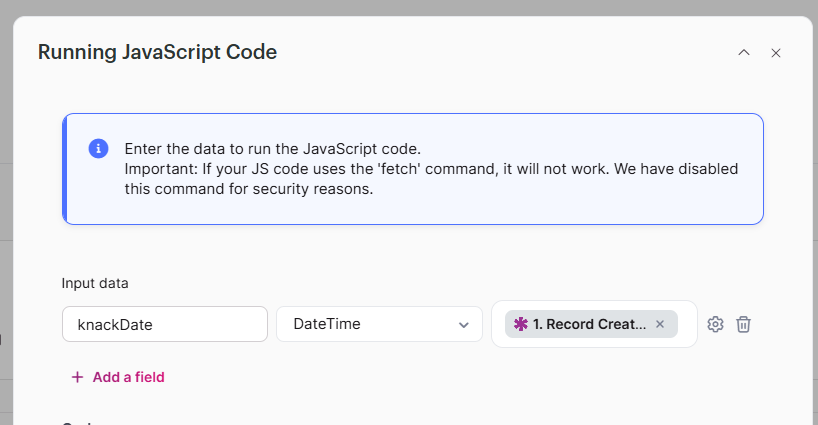
Step 2: Set Up Your Input Variable
In the JavaScript action, go to Input data and add a new input:
- Name:
knackDate(this exact name is important) - Type: Date/Time
- Map to: Your Date/Time field from the previous step
Step 3: Configure the Date Format
Click the gear icon next to knackDate to set the conversion:
- Type: String
- Format:
Y-m-d(remove any time) - Time zone: +00:00
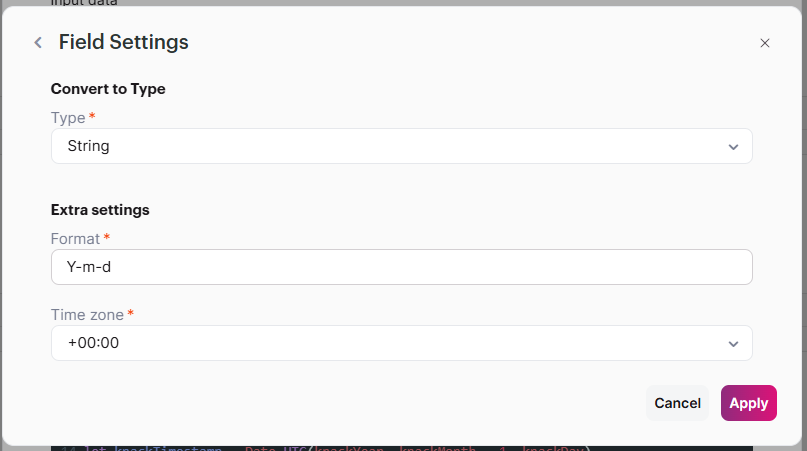
This ensures the date is formatted as 2026-07-09 (not 2026-07-09 10:30:00).
Configuring the date format conversion
Step 4: Add the JavaScript Code
Paste this code into your JavaScript action:
// Checks if a date is today or in the future
// Only compares the date, not the time of day

let continueFlow;

const [yearStr, monthStr, dayStr] = knackDate.split('-');
const knackYear = parseInt(yearStr, 10);
const knackMonth = parseInt(monthStr, 10);
const knackDay = parseInt(dayStr, 10);
const knackTimestamp = Date.UTC(knackYear, knackMonth - 1, knackDay);

const currentDate = new Date();
const currentYear = currentDate.getUTCFullYear();
const currentMonth = currentDate.getUTCMonth();
const currentDay = currentDate.getUTCDate();
const currentDateTimestamp = Date.UTC(currentYear, currentMonth, currentDay);

if (knackTimestamp < currentDateTimestamp) {
  continueFlow = 'false';
} else {
  continueFlow = 'true';
}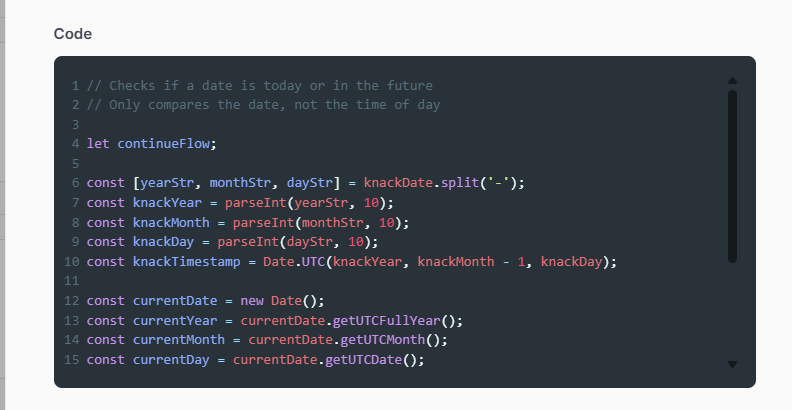
Pasting the date comparison code
Step 5: Set Up the Output Variable
In the Output data section, add:
- Name:
continueFlow - Type: String
The script will output either 'true' or 'false'.
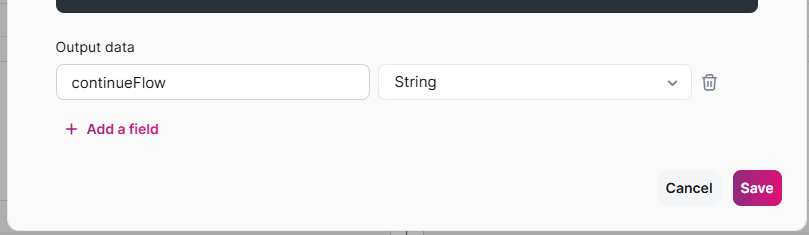
Configuring the output variable
Step 6: Use the Result in Your Next Condition
Add a condition in the next Flow step:
If continueFlow equals true
Then continue with your Flow logic
Else stop, skip, or take another action
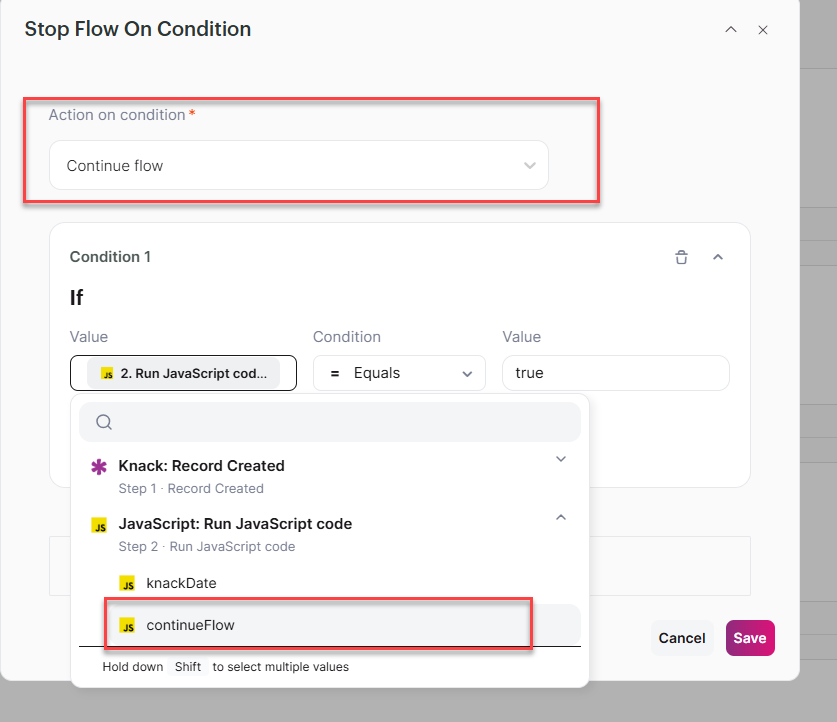
Setting up a condition based on the JavaScript output
How It Works
| Date Status | Result |
|---|---|
| Yesterday or earlier | continueFlow = false |
| Today | continueFlow = true |
| Tomorrow or later | continueFlow = true |
Important Notes
⚠️ This script compares dates only, not the specific time of day. For example, 2026-07-09 3:00 PM is treated the same as 2026-07-09 9:00 AM.
⚠️ The script uses UTC timezone logic.
Common Issues
"The variable name is wrong"
The code expects knackDate exactly. If your input variable has a different name, update every instance of knackDate in the code to match.
"The output is blank"
Make sure continueFlow is added in the Output data section and set to String type.
"All records continue even when they shouldn't"
Check that your date format conversion is set to Y-m-d without time or timezone text.
When to Use Each Solution
| Scenario | Best Choice |
|---|---|
| You want the simplest setup | Helper Field |
| You prefer no additional fields | JavaScript |
| You're comfortable with code | JavaScript |
Real-World Example Workflow
Here's how this works in a complete Flow. Say you want to only update records if the event date is today or in the future:
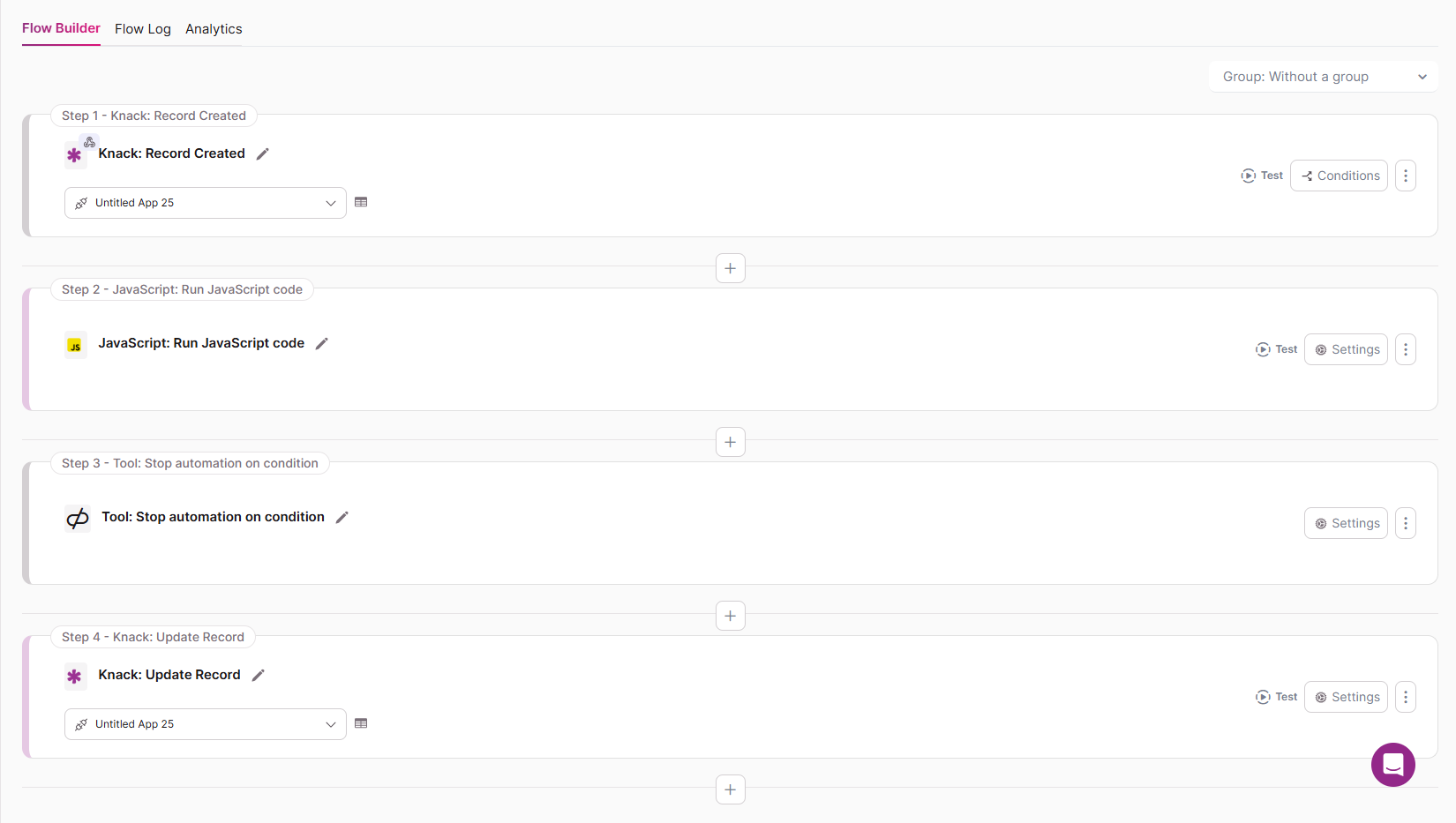
A complete Flow structure using the date check JavaScript
Flow structure:
- Trigger: Record Created (when a new event is created in Knack)
- JavaScript Step: Run the date comparison code
- Input: Map your Date/Time field to
knackDate - Output: Get
continueFlowresult
- Input: Map your Date/Time field to
- Condition: Stop automation if
continueFlowequalsfalse- If the date is in the past, the Flow stops here
- If the date is today or future, it continues
- Action: Update Record (only runs for today or future dates)
- This could update a status field, send a notification, or log the action
Result: Only events with today's date or future dates get processed.
Need help? Check out our Flows Getting Started guide or contact support.
Updated 3 months ago