
NexHealth
Connecting your NexHealth system to Knack Flows allows you to securely send data from NexHealth to your Knack apps.
What You'll Learn
This article explains how to connect NexHealth to Knack Flows using an API key and institution subdomain, and covers every NexHealth trigger and action available once the connection is set up. It also covers common troubleshooting issues for NexHealth. NexHealth is a universal EHR API for dental and healthcare practices, so this connector is built for practices and health tech teams that need to automate appointments, patient records, insurance, and documents.
About NexHealth
NexHealth is a unified API that connects to many practice management and electronic health record (EHR) systems through one standardized interface. It exposes patients, appointments, insurance, documents, and sync status through a single set of endpoints, so an app can work with many different practice systems without building a separate integration for each one. Connecting NexHealth to Knack Flows lets you trigger these actions automatically from your Knack app's data, or respond to NexHealth events as they happen.
Setting Up the NexHealth Connection
Connecting NexHealth to Knack Flows requires an API key and a subdomain from NexHealth.
To get the API key and subdomain, log in to the NexHealth Developer Portal. If you don't have an account, you can register for a developer account.
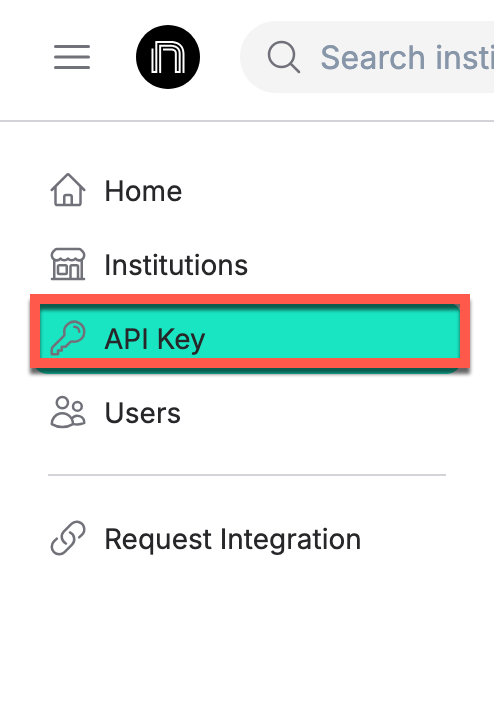
You can get the API key in the Developer Portal by selecting the API Key section. This lets you generate a public or sandbox API key.
API keys are shown only onceThe API key is displayed one time only, and only administrator accounts can view this page. NexHealth issues one key for the sandbox environment and a separate key for production, so make sure you generate and save the right one for your use case.
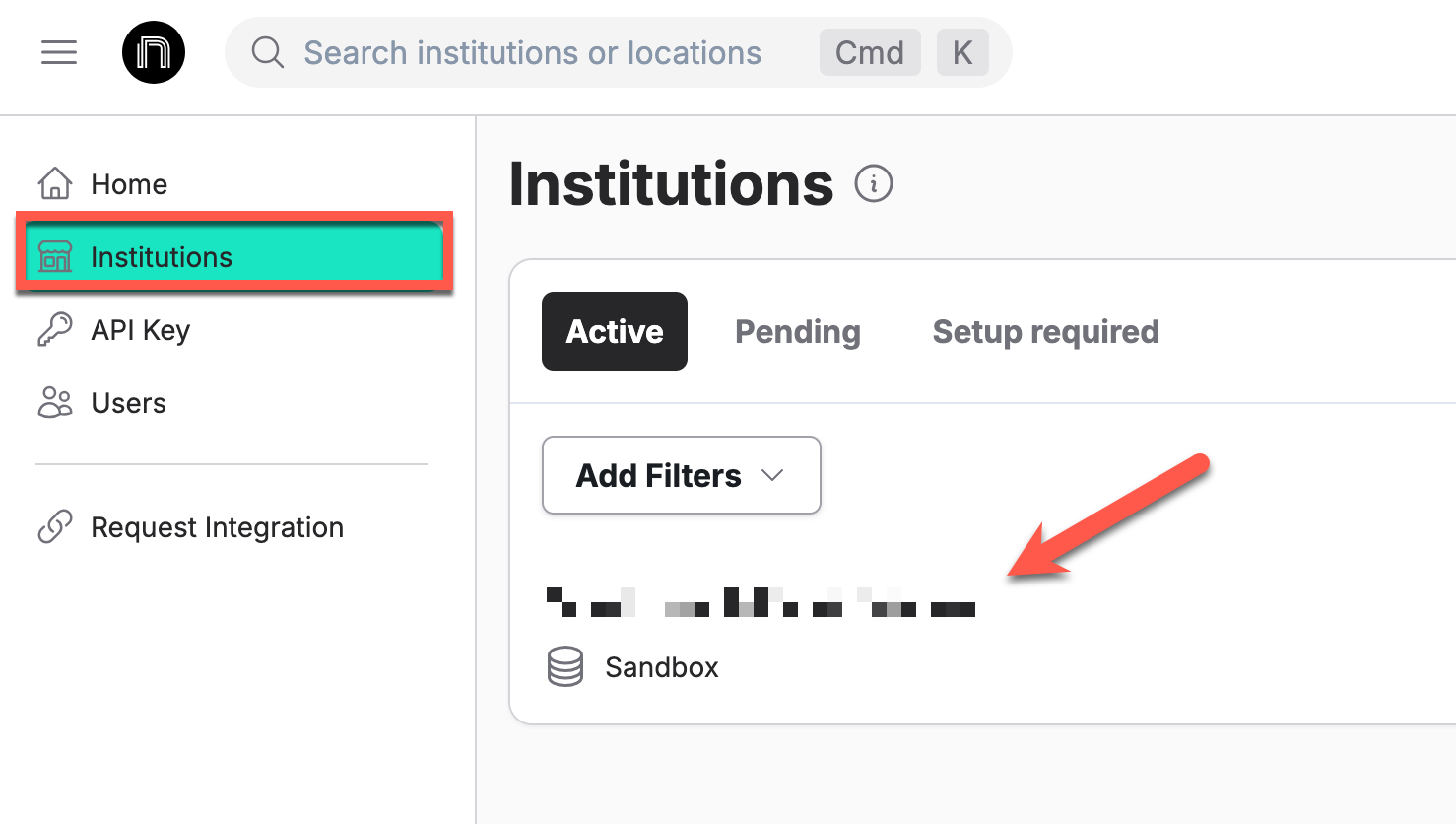
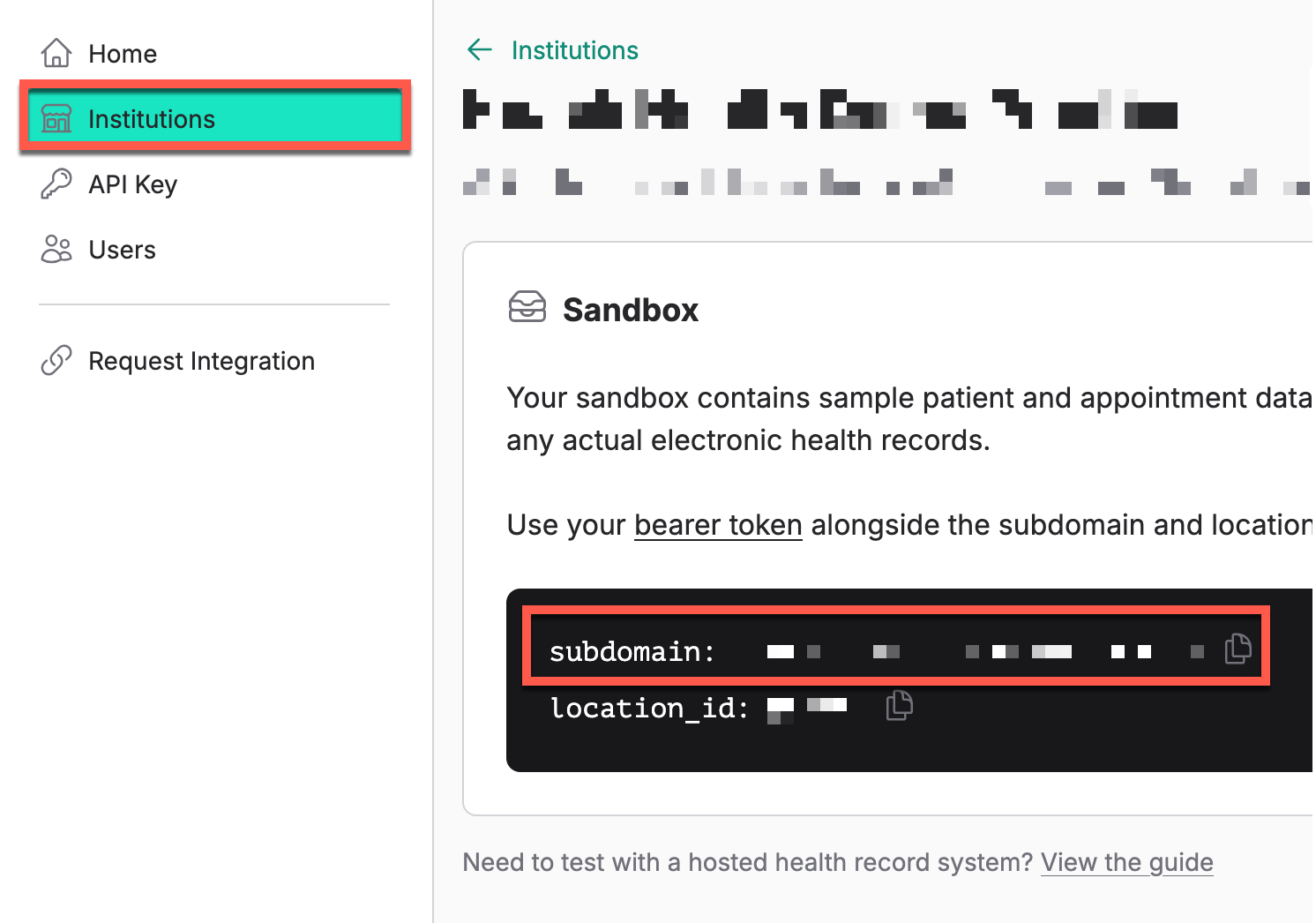
To get the subdomain, go to the Institution area and select the institution you want to connect to your Flow.
NexHealth Triggers
NexHealth offers the following triggers in Flows. You can find full technical detail in NexHealth's API Documentation.
| Trigger | Summary |
|---|---|
| Appointment Insertion Completed | Fires when an appointment insertion finishes. Use this to confirm a booking was saved, then send notifications or start downstream automations. |
| Appointment Requested | Fires when a patient or staff member submits a new appointment request that hasn't been confirmed yet. Use this to review pending requests, check availability, or start an approval workflow. |
| Appointment Updated | Fires when an existing appointment's details change, such as its time, provider, or status. Use this to alert patients and staff about schedule changes as they happen. |
| New Appointment | Fires when a new appointment is created in NexHealth. Use this to send confirmations, update calendars, or notify providers about an upcoming visit. |
| New Patient | Fires when a new patient record is created in NexHealth. Use this to notify staff, start an onboarding workflow, or sync the patient to an external system. |
| Patient Updated | Fires when an existing patient's details change, such as demographics, medical history, or contact information. Use this to keep external databases in sync with NexHealth. |
| Sync Status Changed | Fires when the sync status between NexHealth and a connected practice system changes. Use this to detect sync failures or alert admins to integration issues. |
NexHealth Actions
NexHealth offers the following actions in Flows. You can find full technical detail in NexHealth's API Documentation.
| Action | Summary |
|---|---|
| Create Appointment | Creates a new appointment for a patient in NexHealth. Use this to book visits, assign providers, and sync appointments with external calendars or booking systems. |
| Create Patient | Creates a new patient record in NexHealth. Use this to add patients from external forms, referrals, or other integrations. Search for an existing patient first to avoid creating duplicates. |
| Custom API Request | Sends a request you build yourself to a NexHealth endpoint. The request uses your selected connection and error handling, and it can only target NexHealth's own API addresses. Use this when no built-in action covers what you need. |
| Get Patient by ID | Retrieves the full record for a specific patient using their NexHealth ID. Use this when a Flow needs a patient's details, such as demographics or history, and you already have the ID. |
| Search Appointments (Rows) | Retrieves a list of appointments that match your search criteria. Use this to export schedules, filter by provider or date range, or process several bookings at once. |
| Search Insurance Plans | Searches for insurance plans available at a practice using your criteria. Use this to check whether a plan is accepted or to show plan options during scheduling. |
| Search Patients | Searches for one patient using criteria such as name, date of birth, or other identifiers. Use this to find a patient's record before you update it or book an appointment for them. |
| Search Patients (Rows) | Retrieves a list of patients that match your search criteria. Use this to export, filter, or process several patient records at once for reporting or bulk operations. |
| View Patient Documents | Retrieves documents attached to a specific patient, such as medical records, consent forms, or uploaded files. Use this to access a patient's documents for review or further processing. |
| View Sync Statuses | Retrieves the current sync statuses between NexHealth and connected practice systems. Use this to check data flow health, find failed syncs, or confirm that records transferred successfully. |
What You Can Do with NexHealth and Flows
A few examples of what you can automate by combining NexHealth's triggers and actions:
- Booking notifications. Use the New Appointment trigger to send a confirmation and update a calendar every time a visit is booked.
- Patient intake sync. Use the New Patient trigger to create a matching record in Knack as soon as a patient is added in NexHealth.
- Duplicate-safe patient creation. Use Search Patients to check for an existing record, then run Create Patient only if no match is found.
- Sync health monitoring. Use the Sync Status Changed trigger to alert an admin in Knack when a practice's connection to NexHealth fails.
- Document retrieval. Use View Patient Documents to pull a patient's consent forms or uploaded files into a Knack record for staff review.
Troubleshooting NexHealth Connections
Use the sections below to diagnose common issues with NexHealth actions and triggers. Each heading describes a symptom you might see.
Appointments created in Flows don't appear in the practice's system
An appointment can exist in NexHealth without reaching the practice's health record system. This happens when the insertion setting for that location is turned off, and NexHealth doesn't return an error. Ask the practice to confirm this setting is on for the location you're booking into. Then create a test appointment and check the practice's schedule.
Insurance plans are missing or can't be changed from Flows
NexHealth's insurance data is read-only. The Search Insurance Plans action returns plan information, but NexHealth doesn't provide endpoints to create or update insurance data. Insurance plan support is also limited to certain practice management systems. At the time of writing, NexHealth's insurance plan documentation listed Dentrix, Eaglesoft, and Open Dental, so check the current docs for the systems your practice uses.
A newly created patient doesn't appear in the practice's system
Patients are stored in NexHealth first and only get inserted into the practice's health record system when they book their first appointment. Until then, the patient's foreign ID type is set to nex. This is expected behavior, not a sync failure. If the patient should already be in the practice's system, book an appointment for them or check the patient's record in NexHealth.
Patient search doesn't find an existing patient
Name searches are fuzzy, so they can match similar names but may miss a patient who uses a different legal or preferred name. Searches also miss patients who use a different email address or phone number than the one you search on. Provide as much contact information as you can, such as email, phone number, and date of birth. If your action exposes the inactive and non-patient filters, set both to false when you're searching for patients you can book.
Patient creation fails or the patient's name is shortened
Some practice systems truncate long names. To avoid this, keep first names under 15 characters and last names under 20 characters where you can. Also search for an existing patient before you create one, so you don't add a duplicate record in the practice's system.
Requests return a 401 Unauthorized error
NexHealth requires authentication on every request except the authentication call itself. Requests without a valid token return a 401 status. Bearer tokens are valid for one hour, so a token that worked earlier may have expired. Also confirm you're using the right key for the environment you're targeting. Sandbox and production keys are separate.
A claim lookup returns a 500 error instead of a 404
When a claim ID doesn't exist, or belongs to a location your token can't access, NexHealth's claim lookup returns an HTTP 500 error instead of a 404. Treat a 500 on a claim lookup as "not found or not accessible" rather than as a server failure. Also note that the claim list endpoint needs at least one filter besides location, such as patient, guarantor, provider, updated date, or date of service. A location ID alone isn't enough.
Treatment plan sync skips records
Treatment plans come back ordered by ID, not by the time they were last updated. If your sync logic assumes results are ordered by update time when it uses the updated-since filter, it can skip records. Store the last ID you processed or sort the results yourself, rather than assuming the order. Soft-deleted treatment plans are excluded from results and return a 404 when requested by ID.
Cancelling an appointment returns success when it was already cancelled
If an appointment has already been cancelled, deleted, or broken in the practice's health record system, the cancel request returns success instead of an error. Treat a success response as "the appointment is no longer active," not as proof that your cancellation caused the change. If you need to confirm the current state, search for the appointment after cancelling.
Data is out of sync between NexHealth and the practice's system
Start with the View Sync Statuses action to see whether the connection between NexHealth and the practice's system is healthy. Then check the Sync Status Changed trigger to see whether a status change has been logged recently. If the status shows a failure, contact the practice's administrator or NexHealth support to restore the connection before you retry any Flow actions.
Next Steps
- List of All 600+ connectors within Flows to see other connectors available in Flows.
- NexHealth's API Documentation for full technical reference on every endpoint behind these actions and triggers.
Need help with NexHealth's side of the setup?If you run into issues getting your API key, subdomain, or institution settings, contact NexHealth through the Developer Portal directly.
Want to see an action, trigger, or connection added?We're constantly looking to improve Flows. If you have feedback on the functionality, actions, triggers, or connections, you're welcome to submit feedback to our product team.
Updated 17 days ago