

Adding Inline Editing to Tables
Enable inline editing on a Table Element to let users edit record values directly in the table, and learn how to control which columns allow inline editing.
What You'll Learn
Inline editing lets users modify record values directly from a Table Element in the Live App without navigating to a separate edit form. This article covers how to enable inline editing on a Table, how to disable it for specific columns, and which field types don't support it.
What is Inline Editing?
When inline editing is enabled, users can click any editable cell in the Table to update its value. A small edit form appears over the cell. Users make their change and save without leaving the page.
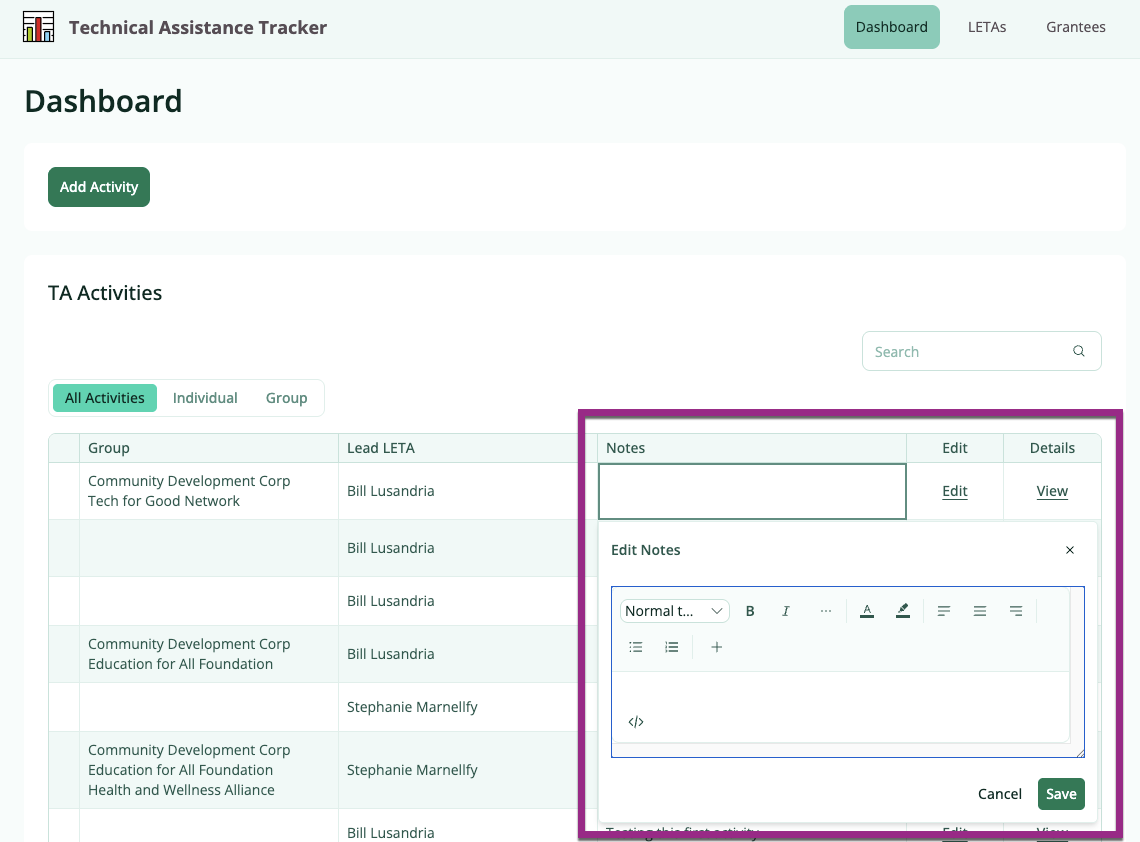
Enabling Inline Editing
- Select the Table Element in the center panel of the builder to open the settings panel on the right
- Go to General Settings
- Toggle on Edit records inline under User options
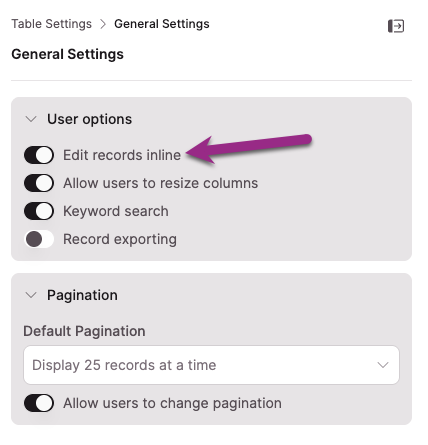
Once enabled, inline editing is active for all columns that support it. Columns with unsupported field types are automatically excluded. See Non-Editable Fields below.
Disabling Inline Editing for Specific Columns
You can turn off inline editing for individual columns while keeping it on for the rest of the Table.
- Click the column in the Table preview to select it
- Select the pen icon in the column toolbar to open Column Properties
- Expand Inline Edit Options
- Toggle Allow inline editing off
Repeat for any other columns you want to exclude.
NoteThe Inline Edit Options section only appears in Column Properties when Edit records inline is enabled at the Table level.
Non-Editable Fields
The following field types can't be edited inline regardless of your settings. These restrictions are enforced by the system:
- Auto-increment fields
- Formula fields
- Equation fields
- Text formula fields
- Fields with a conditional rule set to Run with every record
Conditional rules and inline editingA field with a conditional rule set to Custom conditions can be edited inline when the conditions are not met. If the conditions are met at save time, the rule fires and overrides the inline edit. See Conditional Rules for details on trigger types and how each one affects field editability.
Next Steps
- Table Column Settings for configuring Inline Edit Options per column, including filters for connection field dropdowns
- Table Elements: Restricted Connection Filters for restricting which connected records appear when users edit a connection field inline
- Table Element Settings for managing all Table-level settings including pagination and filtering
Updated 5 months ago