

Managing Page Access by Role
Use the Page Access tab in the Knack Builder to audit, view, and edit which user roles can access which pages in your app.
The Page Access tab gives you a centralized, read-only view of which user roles can access which pages in your app. Use it to audit permissions, spot misconfigurations, and jump directly to a page's access settings to make changes.
What You'll Learn
- How to open the Page Access tab
- How to view access across all users or a specific role
- How to edit access permissions from the tab
- How to restrict the page menu based on user role
Pro plan and aboveThe Page Access tab is available on Pro plans and above.
How to Access the Page Access Tab
- Go to the Builder and click into the Users section.
- Select either All Users or User Roles.
- Click the Page Access tab from the top navigation bar.
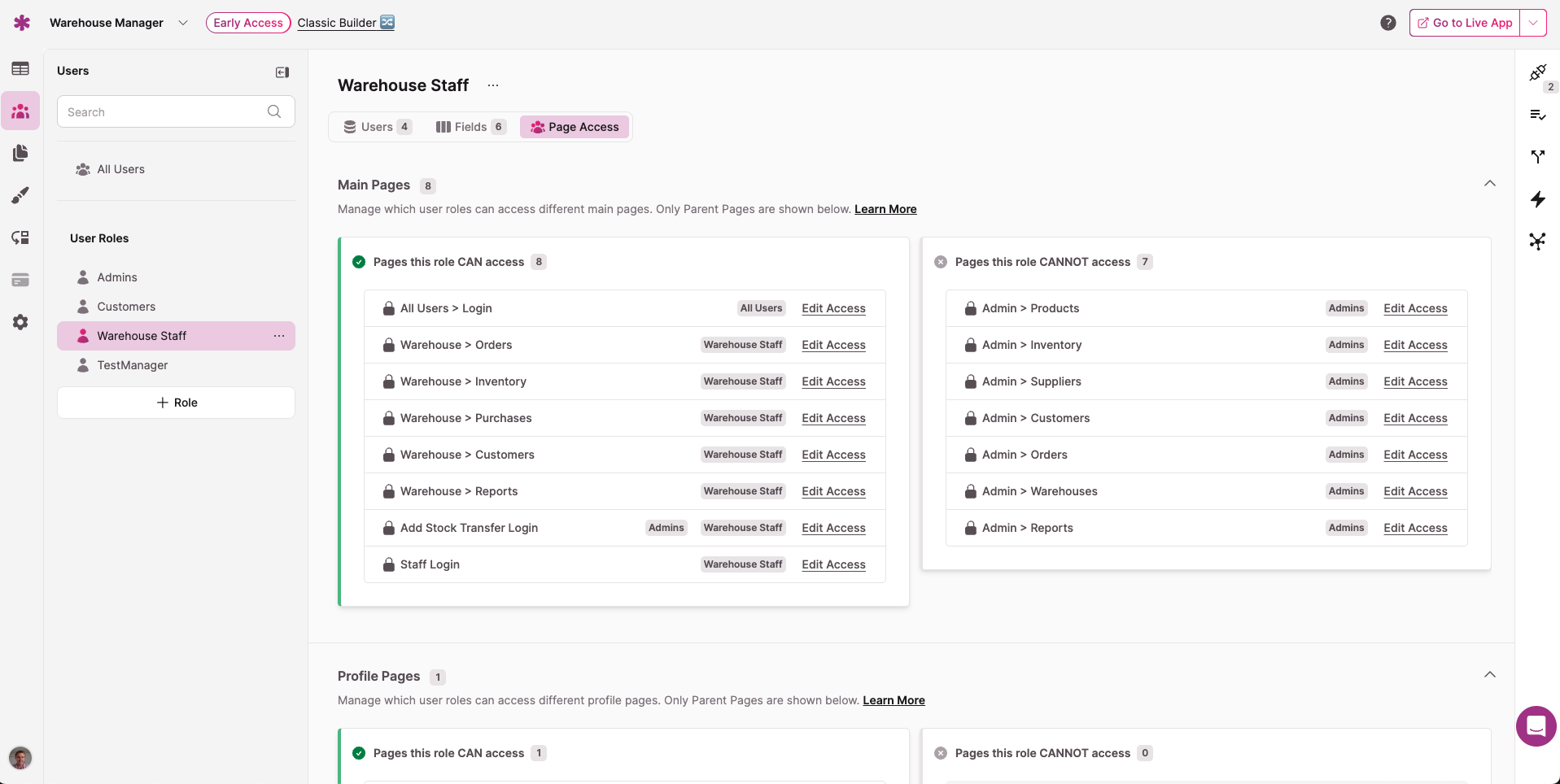
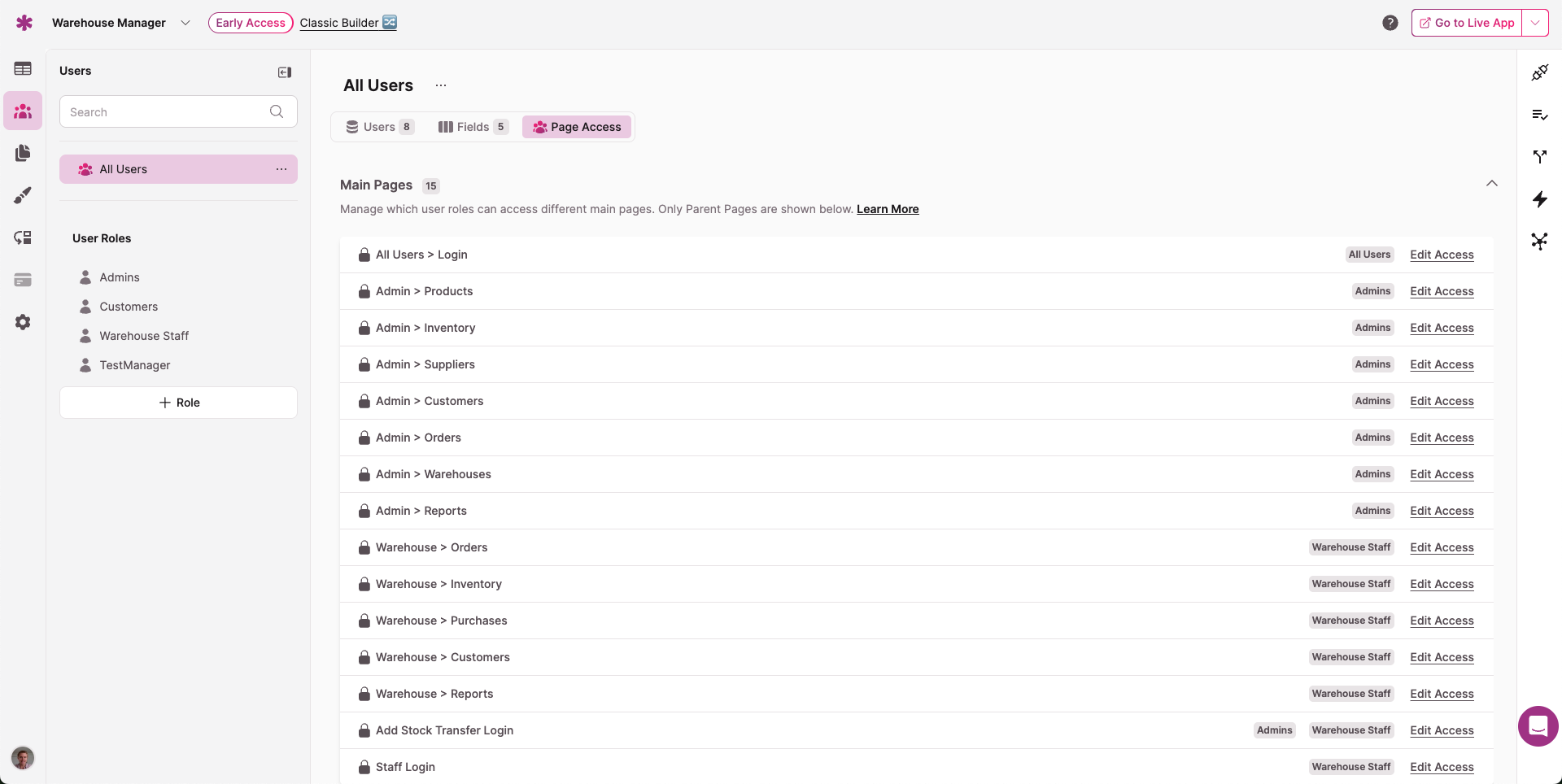
Viewing Access for All Users
When viewing the All Users table, each parent page is listed as a row with badges showing which roles have access. An Edit Access link is available for each row.
This table does not display child pages.
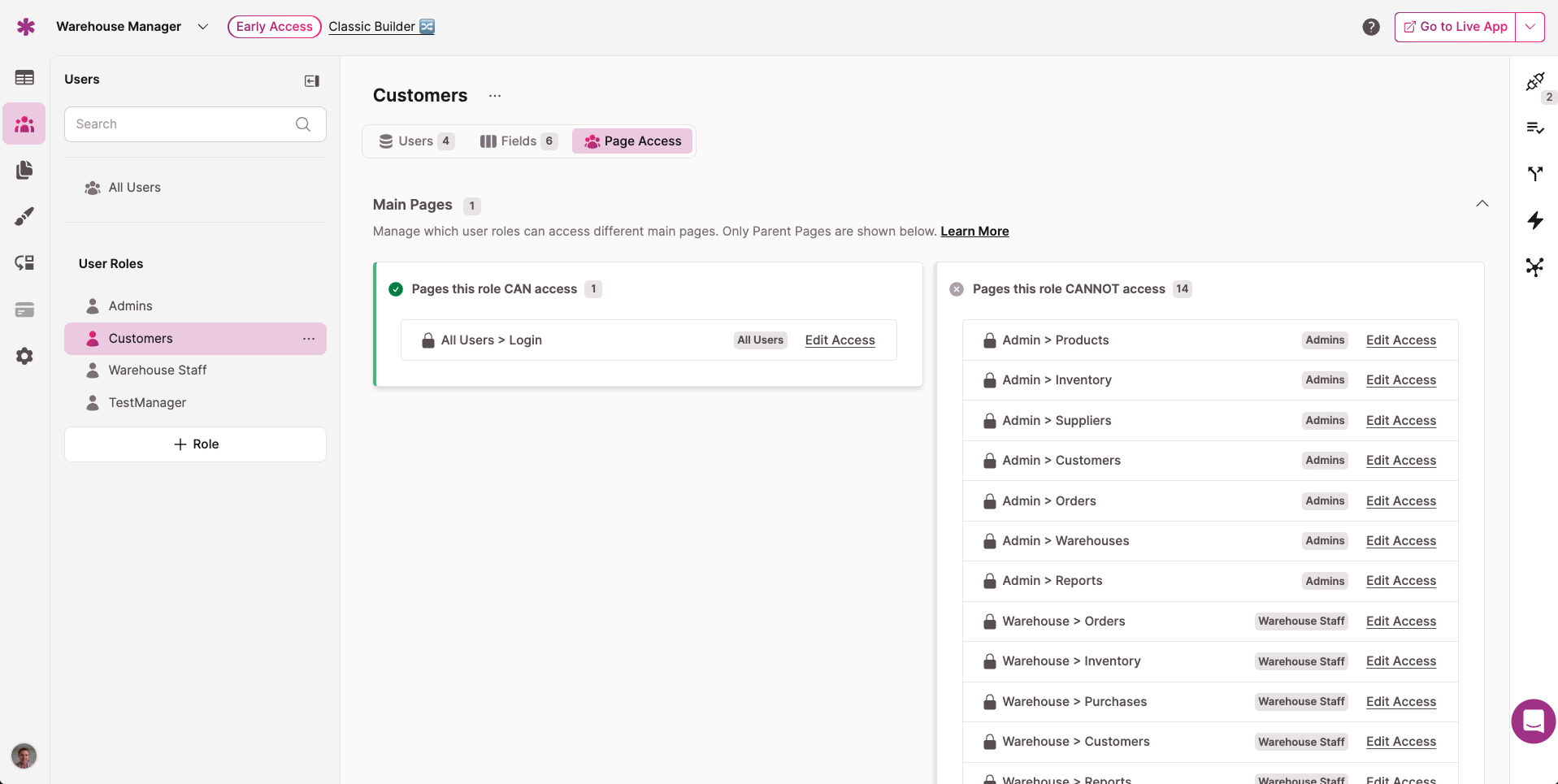
Viewing Access for a Specific Role
In the User Roles section, select a role to view its access. The Page Access tab shows a two-column layout. The left column shows pages the role can access (highlighted in green). The right column shows pages the role cannot access (highlighted in gray).
Editing Access Permissions
Click Edit Access from any row in the Page Access tab to open that page's settings with the Access panel preloaded. The "Specific roles" card is automatically highlighted so you can immediately update permissions.
Restricting the Page Menu by User Role
The Page Access tab controls which roles can access a page. The page menu setting controls which page tabs are visible in the navigation bar when a user is logged in.
By default, all page tabs are visible to all users. You can restrict the page menu so users only see tabs for pages their role has access to.
To enable this:
- Go to Settings in the left menu.
- Select Live App Design.
- Open Header and Page Menu.
- Check the Page Menu Options checkbox.
When enabled, logged-in users will only see tabs for pages that match their user role. They'll also see tabs for any pages that aren't protected with a login.
Page menu may not appear with only one accessible pageIf a user role only has access to a single page, the page menu won't display. To fix this, add a public homepage that all users can access. This gives every role at least two pages, which triggers the page menu to appear.
What You'll See in Blank or New Apps
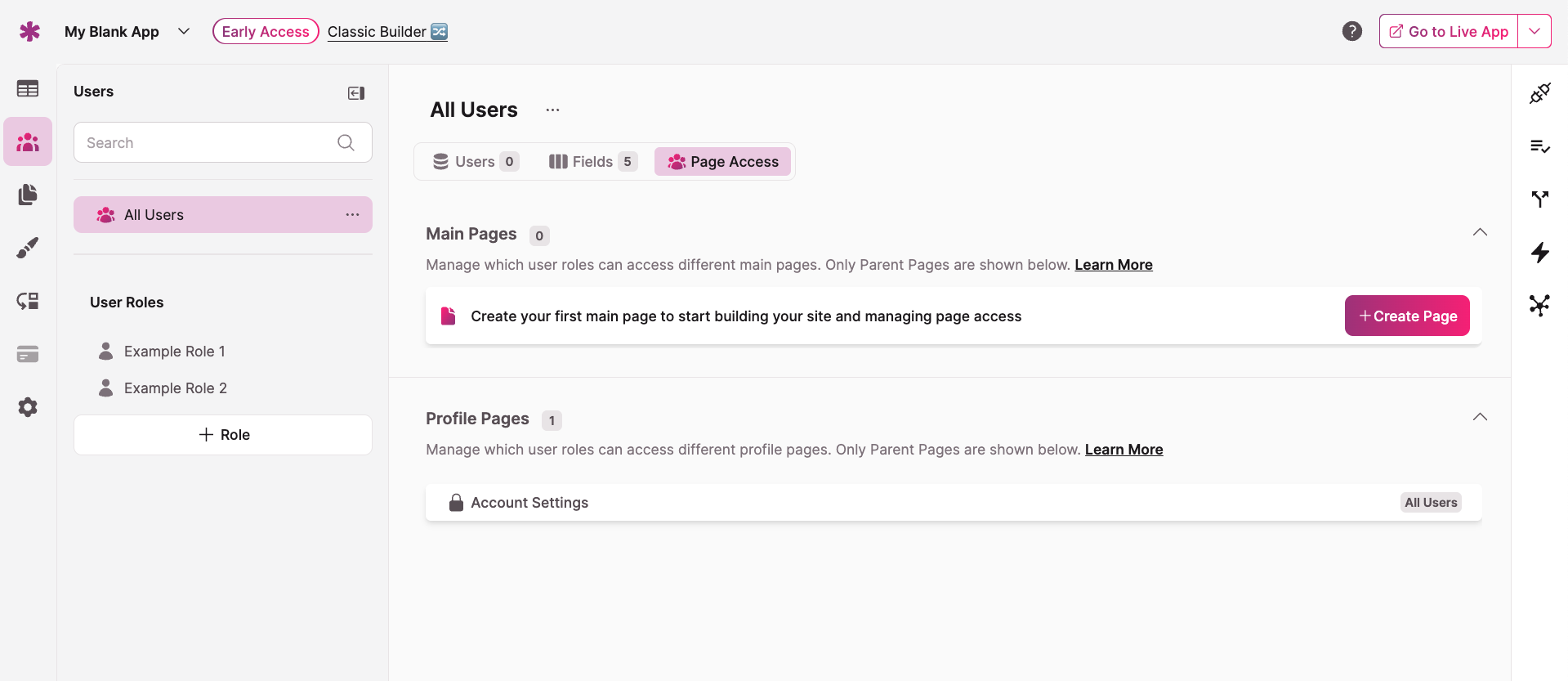
If your app doesn't have pages or login-required content yet, the Page Access tab displays prompts based on the app's current state:
| App State | What You'll See |
|---|---|
| No pages | "You have no pages! Add a page to get started." with a link to Pages |
| No protected pages | Prompt to add a protected page, with an optional tutorial |
| Public or private pages | An "Edit Access" button next to each top-level page |
Additional Details
The Page Access tab includes a few extra features to help with larger apps. A fixed + Add Role button appears when you have 12 or more roles. Tooltips on the All Users and User Roles tables clarify what each view shows.
Page access data is pre-aggregated for faster load times. If you don't see a recent change, try refreshing the page.
Next Steps
- How to Manage User Role Access for configuring page-level access controls
- How to Create a Login-Protected Page to set up protected pages from scratch
Updated 6 months ago