

Knack Dashboard
The Knack Dashboard is your central hub for managing your apps, billing, and account settings.
What you'll learn:
- How the Dashboard is organized and how to move between sections
- How to manage your plan, add-ons, and billing details
- How to update your account, personal, and security settings
Dashboard Overview
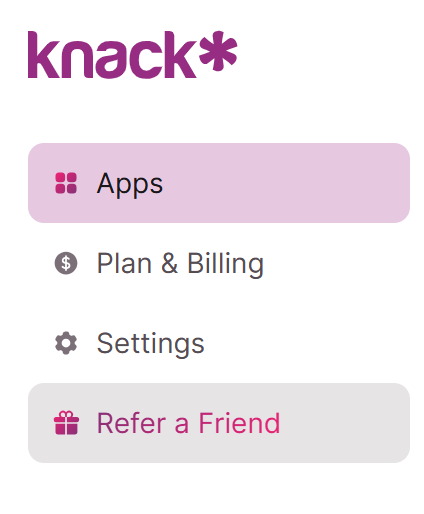
When you log in to Knack, you land on the Dashboard. From the left-hand navigation, you can access:
- Apps – create, open, and manage your applications
- Plan & Billing – manage your subscription, add-ons, payment method, and invoices
- Settings – manage account-level configuration, your personal profile and security, and critical actions
- Refer a Friend – share Knack with others
A Resources section is also available at the bottom of the navigation, with quick links to Getting Started, Help Articles, Hire an Expert, and the Knack Community.
Plan & Billing
The Plan & Billing section is organized into five tabs: Overview, Plans, Add-Ons, Payment, and Invoices.
Overview
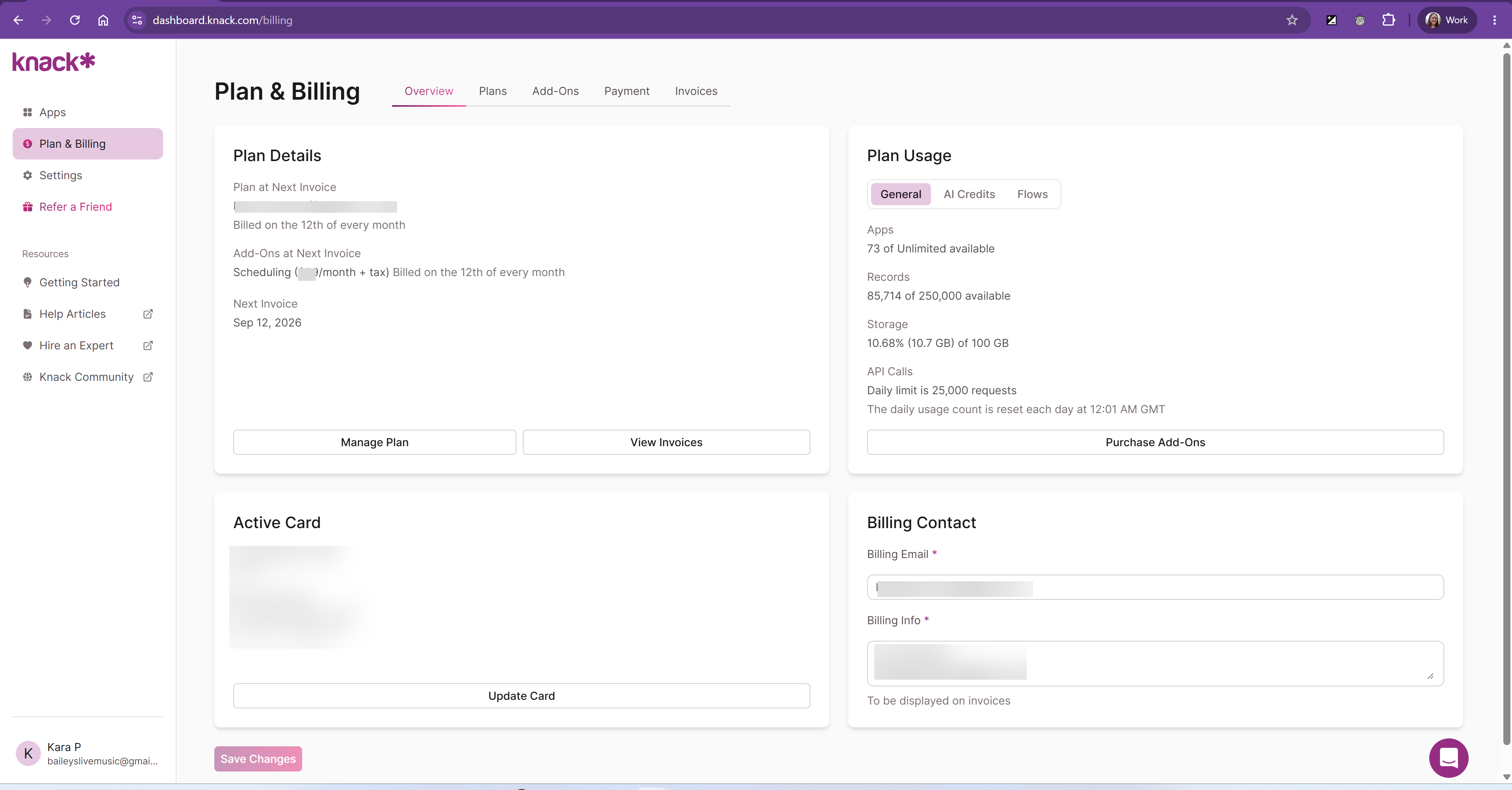
The Overview tab summarizes your current plan and usage at a glance:
- Plan Details – your plan at next invoice, any active add-ons, and your next invoice date. Use Manage Plan to change your subscription, or View Invoices to jump to your billing history.
- Plan Usage – toggle between General, AI Credits, and Flows to see how much of your apps, records, storage, and daily API call limit you've used. Use Purchase Add-Ons to increase any of these limits.
- Active Card – the payment method currently on file and its billing address.
- Billing Contact – the billing email and billing info that appear on your invoices.
Tip: Your daily API call count resets at 12:01 AM GMT, so a temporary spike in usage doesn't require an add-on if it clears by the next reset.
Plans
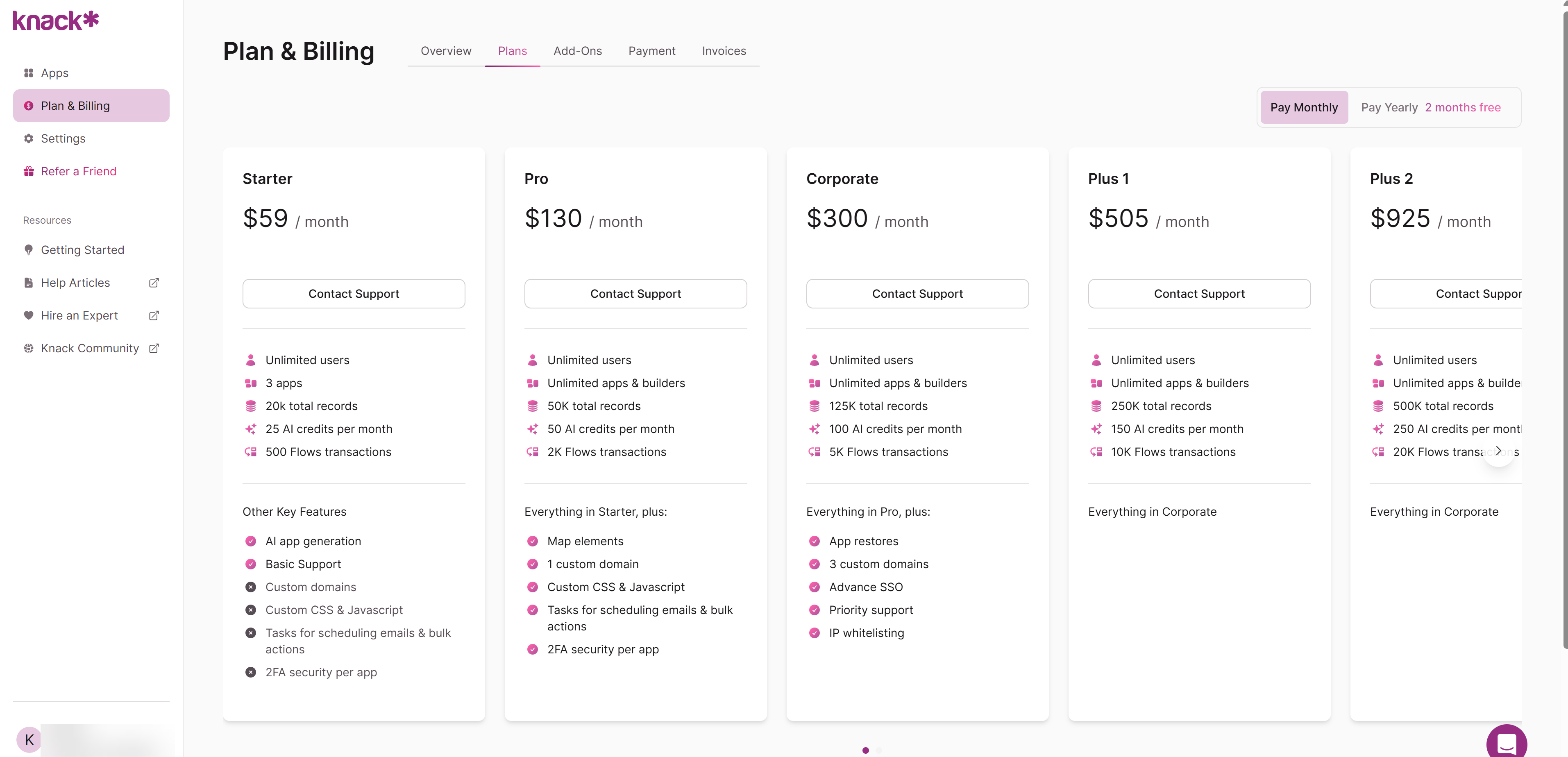
The Plans tab lets you compare available plan tiers side by side, with a toggle to view monthly or yearly pricing (yearly billing includes two free months). Each plan card lists its user, app, record, AI credit, and Flows transaction allowances, along with the key features included at that tier. On some plan types, you can change the plan type yourself. On others, Select Contact Support to change your plan.
Add-Ons
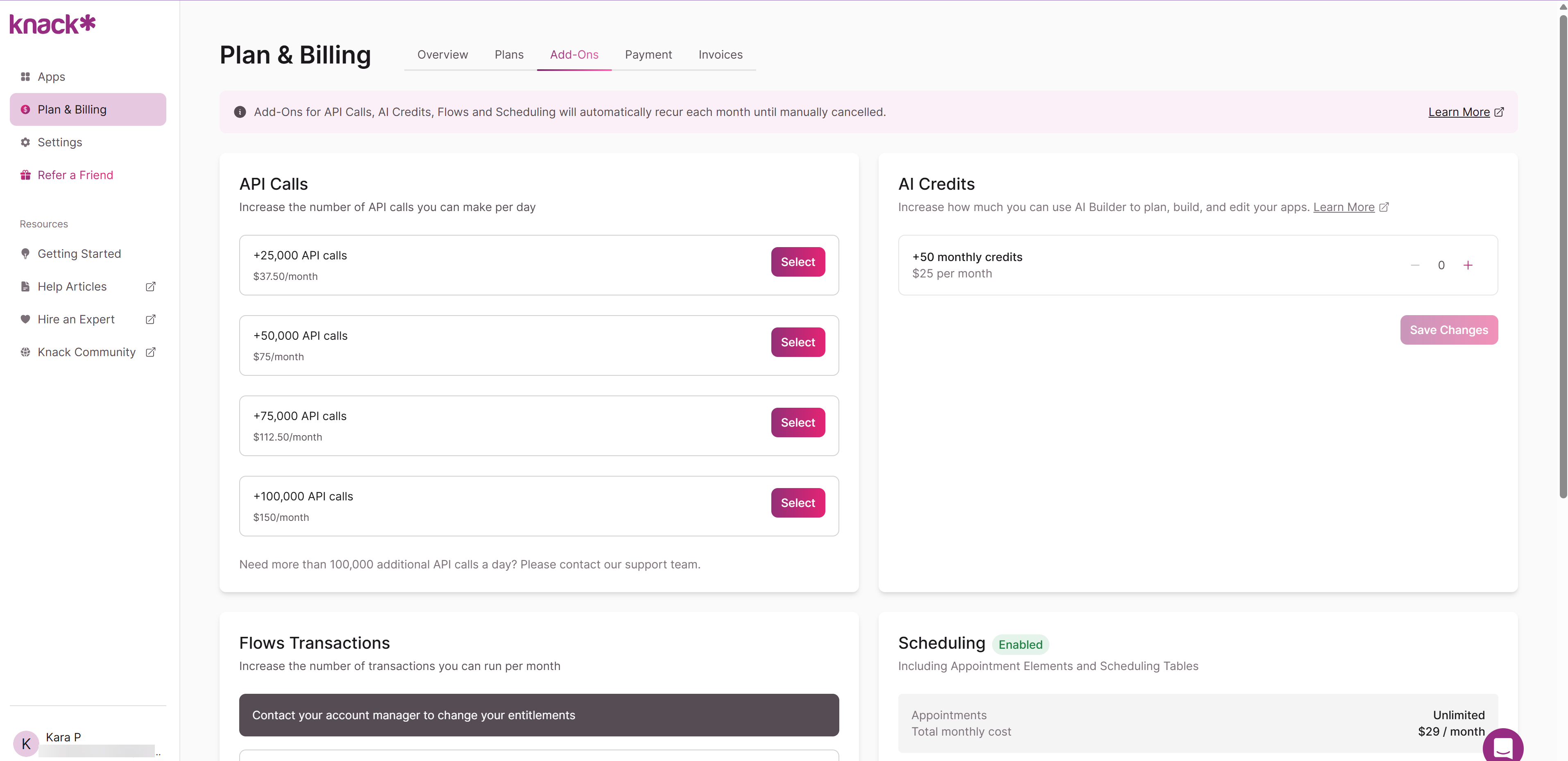
The Add-Ons tab lets you increase specific limits without upgrading your entire plan:
- API Calls – add blocks of additional daily API calls
- AI Credits – increase your monthly AI Builder credit allowance
- Flows Transactions – increase the number of Flows transactions you can run per month
- Scheduling – enable the Scheduling add-on, which includes Appointment elements and Scheduling tables
Note: Add-ons for API Calls, AI Credits, Flows, and Scheduling recur automatically each month until you manually cancel them.
Payment
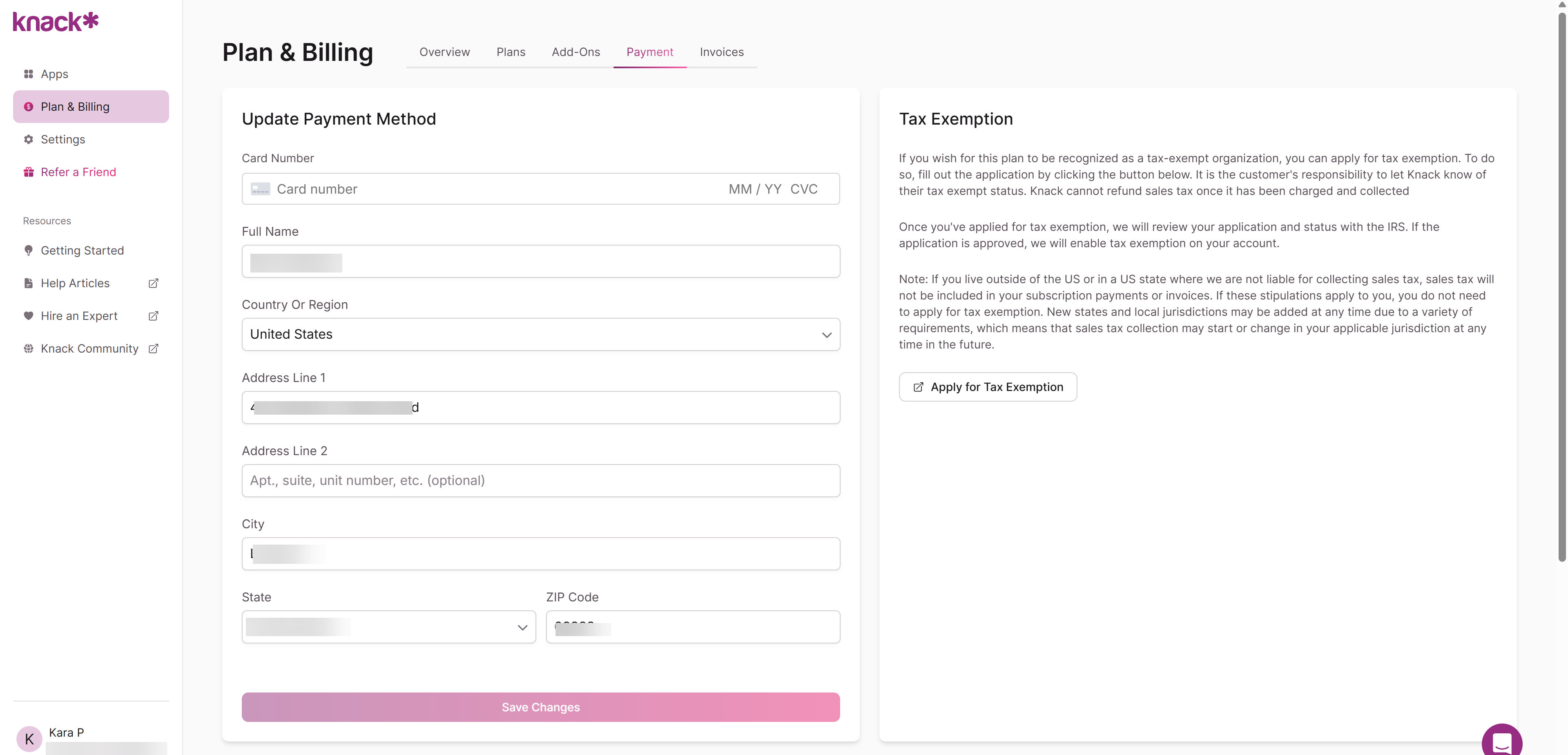
The Payment tab lets you update your payment method (card number, name, billing address) and apply for tax-exempt status if your organization qualifies. Tax exemption applications are reviewed manually, and Knack cannot refund sales tax that has already been charged and collected.
Invoices
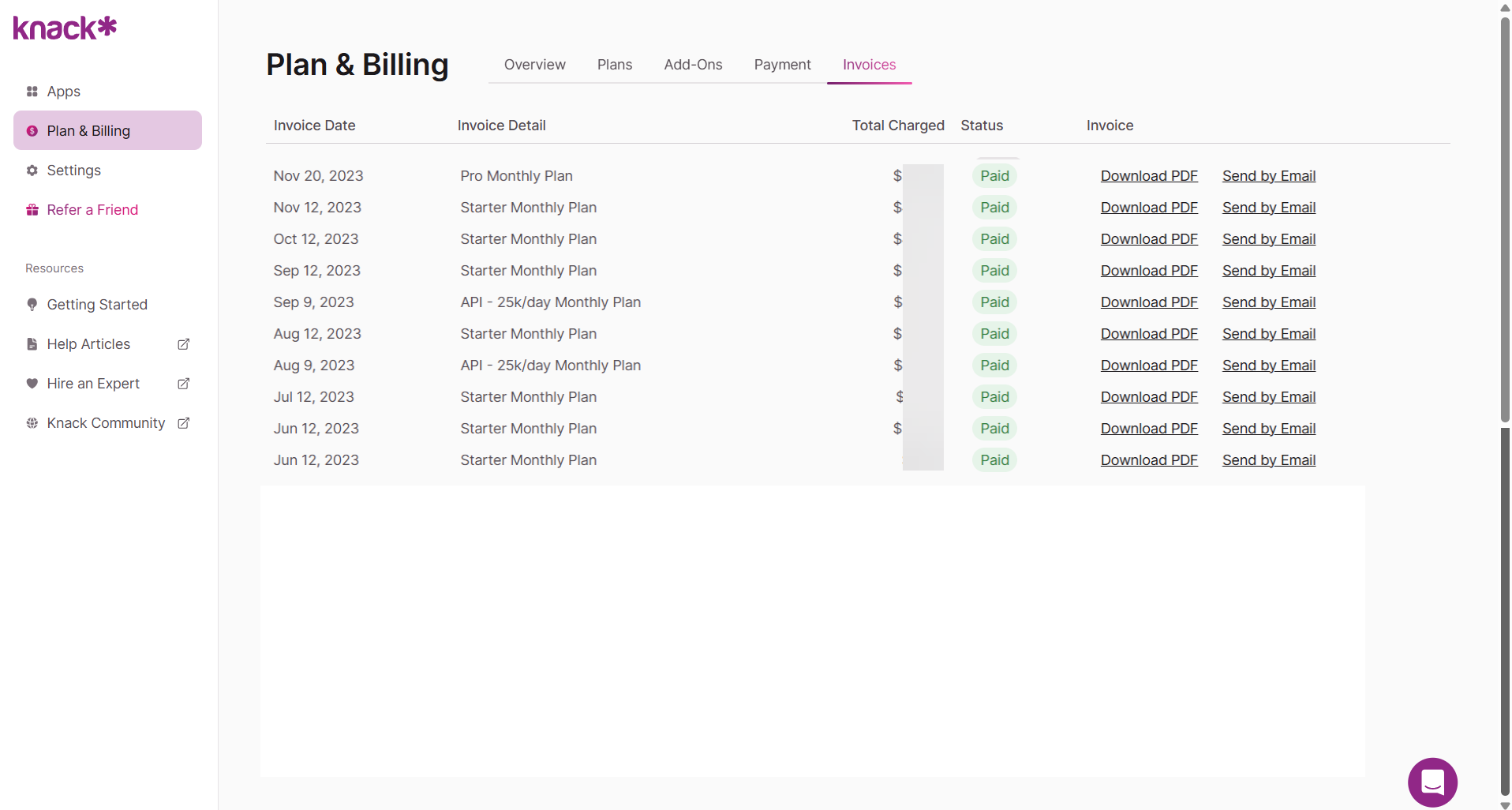
The Invoices tab lists your billing history, including the invoice date, a description of the charge, the total charged, and its status (Paid or Open). You can download a PDF or send any invoice by email directly from this list.
Settings
The Settings section is organized into three tabs: Account, Personal, and Critical Actions.
Account
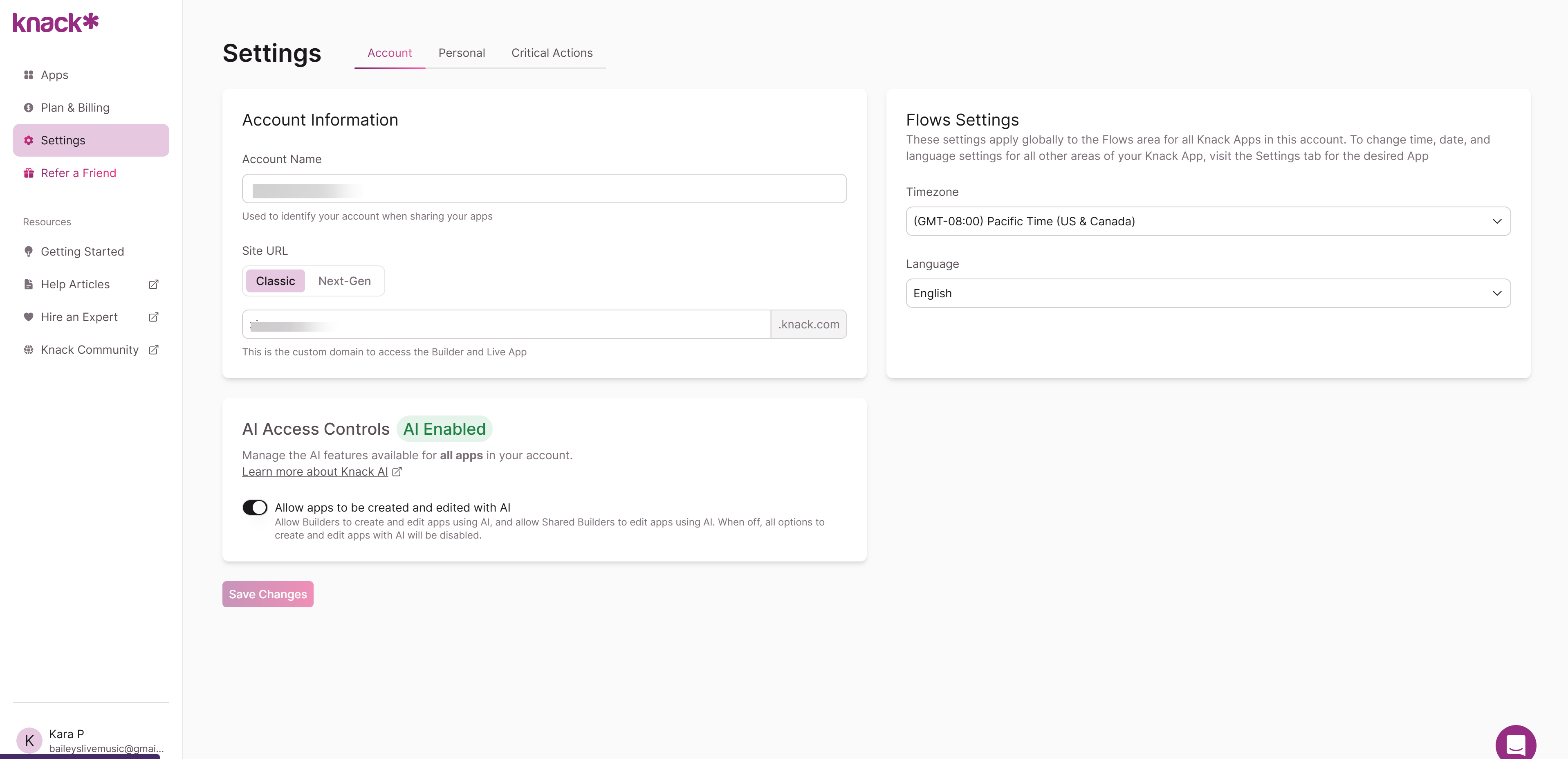
The Account tab manages configuration that applies across your Knack account:
- Account Information – your account name, and your Site URL, which you can set to use either the Classic or Next-Gen experience along with your custom subdomain
- Flows Settings – the default timezone and language used across the Flows area for all apps in your account
- AI Access Controls – a toggle that determines whether Builders and Shared Builders can create or edit apps using AI across your account
Personal
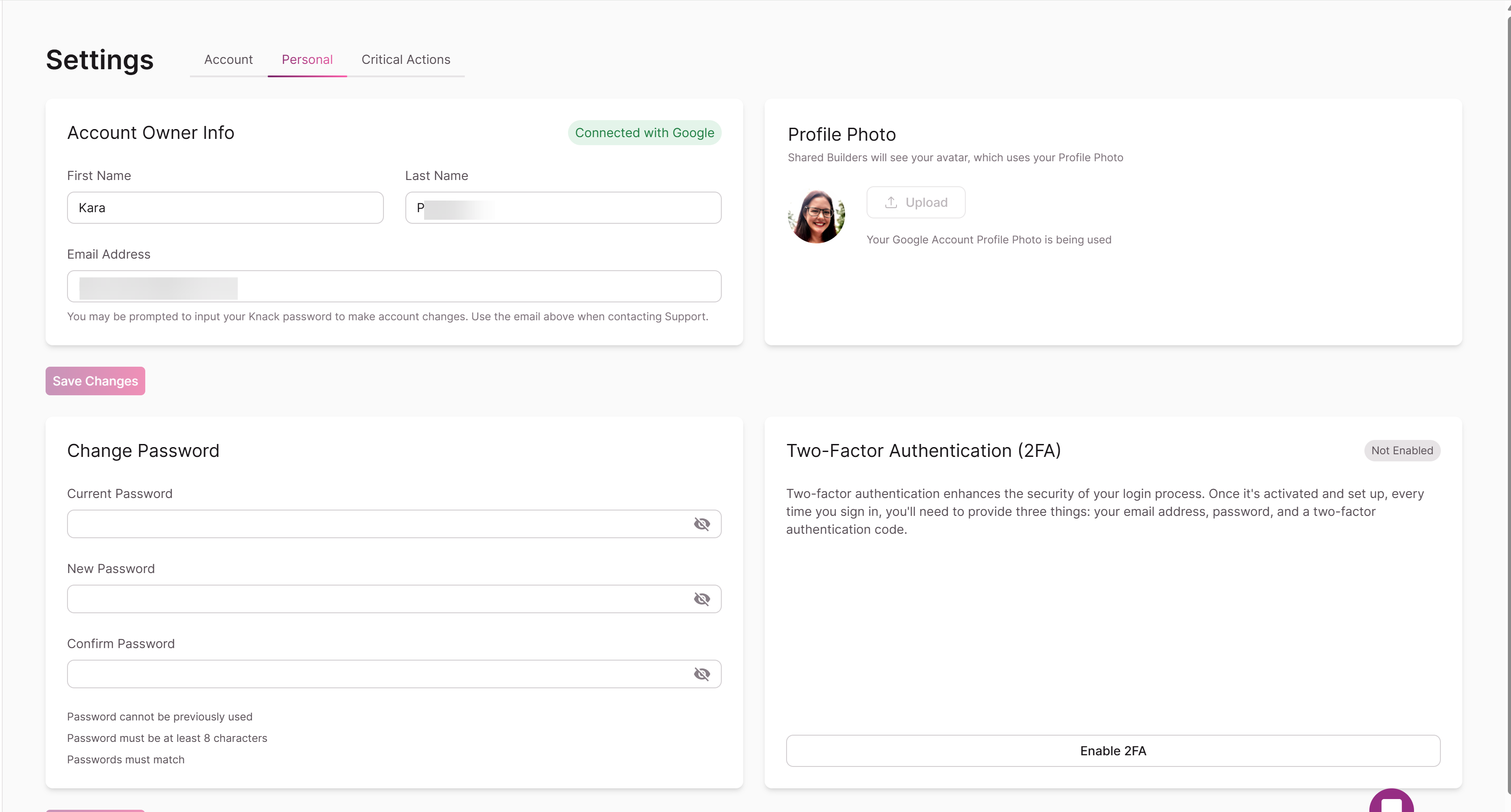
The Personal tab manages your individual profile and login security:
- Account Owner Info – your name and email address. If your account is connected via SSO (for example, Google), this is indicated here.
- Profile Photo – your avatar, visible to Shared Builders. If your account is connected via SSO, your photo is pulled from that provider automatically.
- Change Password – update your password. New passwords must be at least 8 characters, differ from your previous password, and be entered twice to confirm.
- Two-Factor Authentication (2FA) – enable 2FA to require an authentication code in addition to your email and password at login.
Critical Actions
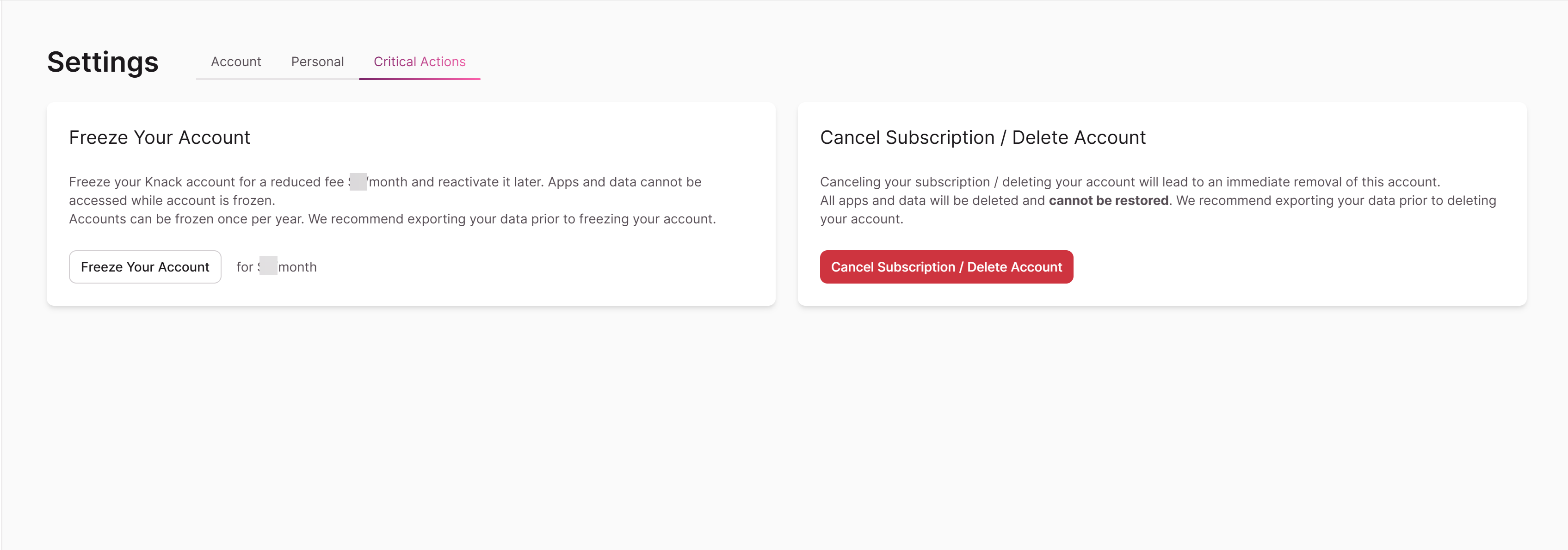
Warning: The actions on this tab are destructive and, in most cases, irreversible. Review them carefully before proceeding.
- Freeze Account – temporarily pause your account. [Confirm exact behavior, wording, and any billing impact with product/engineering before publishing — this wasn't captured in the screenshots provided.]
- Cancel Subscription / Delete Account – permanently deletes your account and all associated apps and data. This cannot be undone. Knack recommends exporting your data before deleting your account. Select Contact Support to proceed.
Refer a Friend
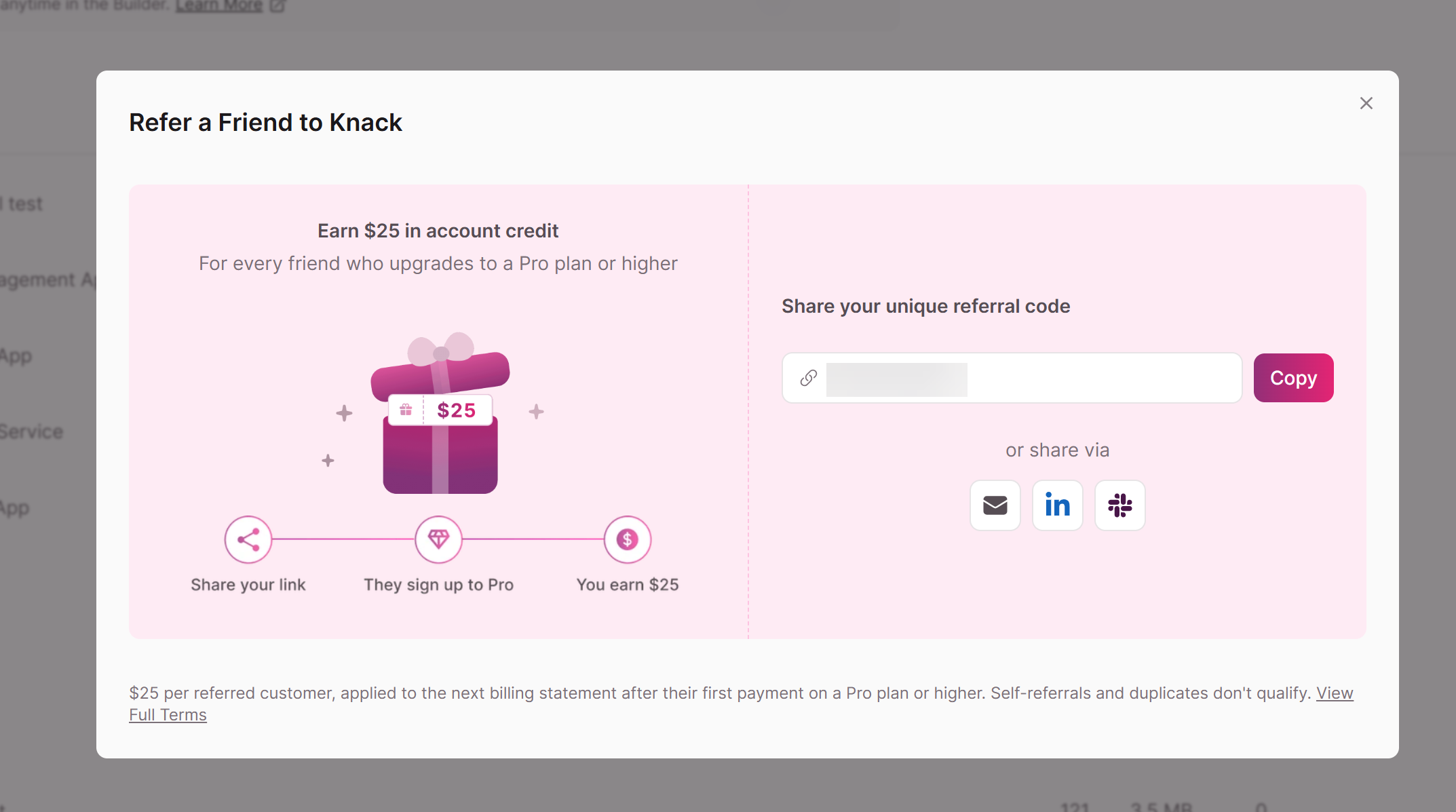
Use this section to invite others to Knack.
Updated 2 months ago