

Record Actions
Record Actions automatically update, insert, or modify records in the background when users submit a form or edit a table inline. Use them to automate workflows, track changes, and maintain data relationships without manual intervention.
What You'll Learn
Record Actions let you automate behind-the-scenes updates when users submit a form or edit a record inline in a Table Element. This article covers how to add and manage Record Actions, how to configure each setting, and how actions execute.
What are Record Actions?
A Record Action is a rule that runs automatically when a form is submitted or an inline edit is saved. Each action defines what Knack updates, under what conditions, and with what values, all without requiring any action from the user beyond their normal interaction.
Record Actions can:
- Update the record the element is working with
- Update connected records
- Insert new connected records
Common use cases include:
- Tracking which user created or last updated a record
- Recording the date and time of a submission
- Creating a new receipt or log record when a form is submitted
- Changing a record's status when a field value is updated
NoteSimilar automation can be configured using Action Links. See Actions for details.
Accessing Record Actions
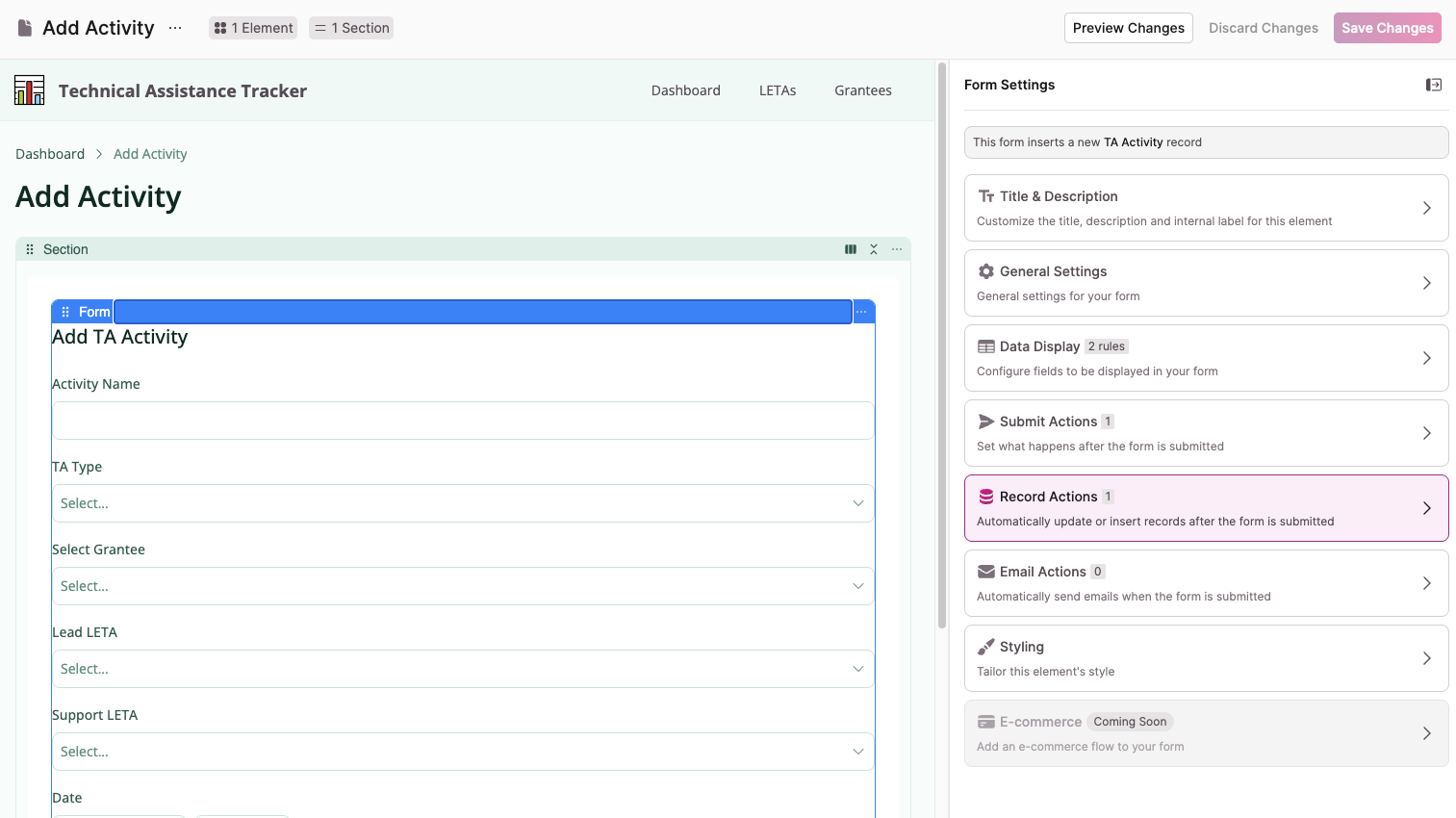
On a Form Element
- Select the form element in the builder to open the settings panel on the right
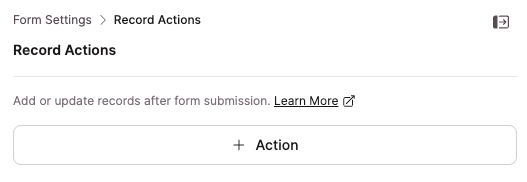
- Select Record Actions
- Select + Action to add a new Record Action
On a Table Element
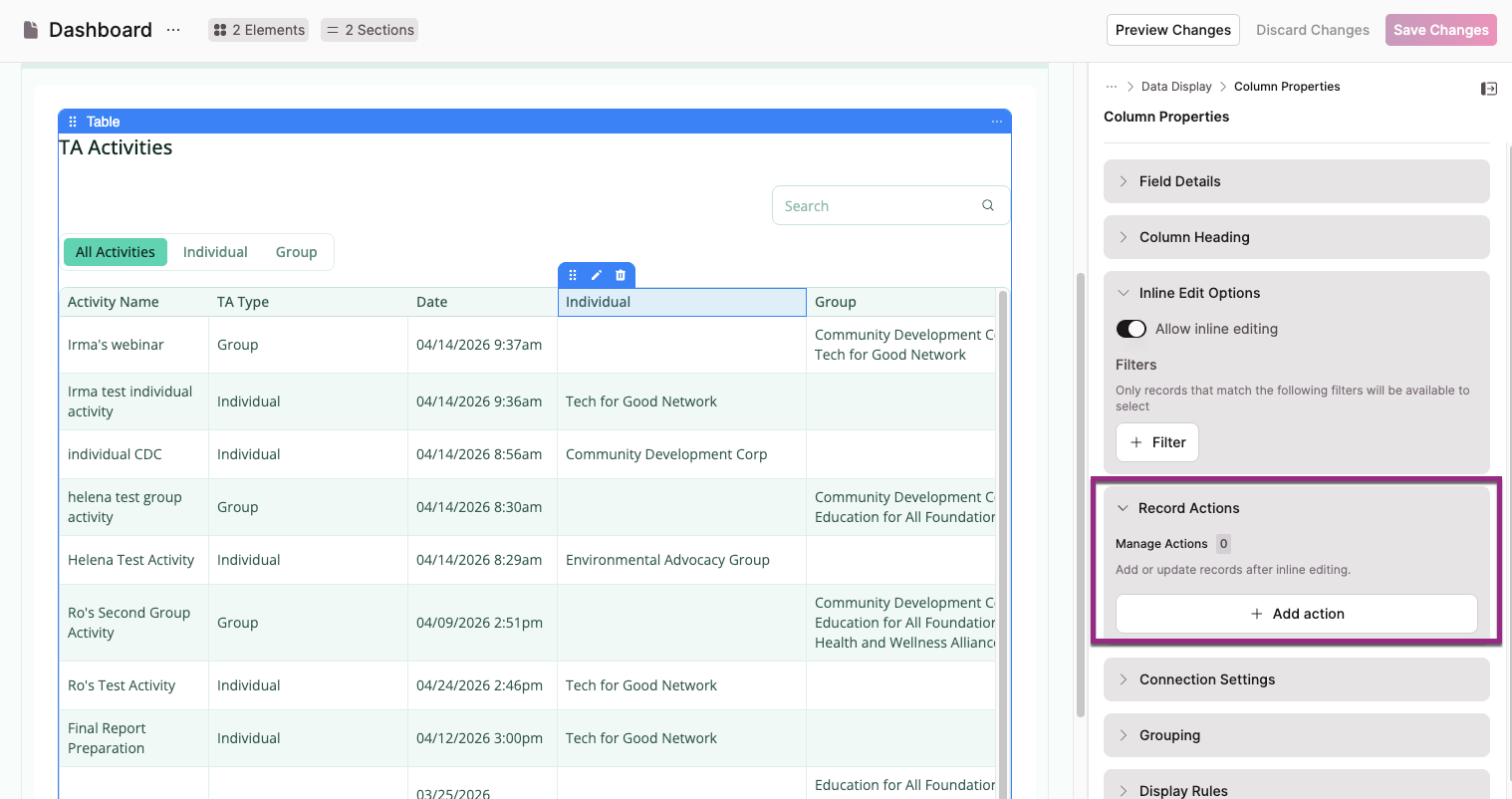
Record Actions on a Table Element are configured at the column level and require inline editing to be enabled first.
- Enable Edit records inline in the Table Element's General Settings. See Adding Inline Editing to Tables.
- Click a column in the Table preview to select it
- Select the pen icon to open Column Properties
- Expand Inline Edit Options
- Select + Add action in the Record Actions section
Managing Record Actions
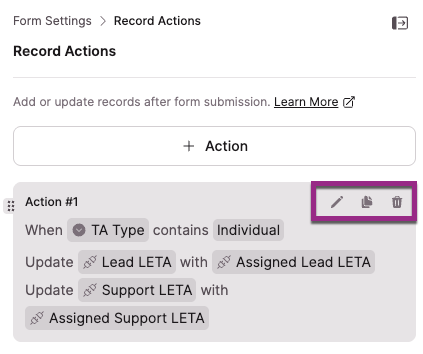
Each Record Action appears as a card showing a summary of its conditions and values. Use the icons on the card to manage it:
- Pen icon: Edit the action
- Copy icon: Duplicate the action
- Trash icon: Delete the action
- Drag handle: Reorder actions by dragging
NoteReordering Record Actions does not change their order of execution. See Order of Execution for details.
Configuring a Record Action
Selecting + Action opens the Add Record Action modal. Each action has three sections: On Submission, Update Field Values, and Conditions.
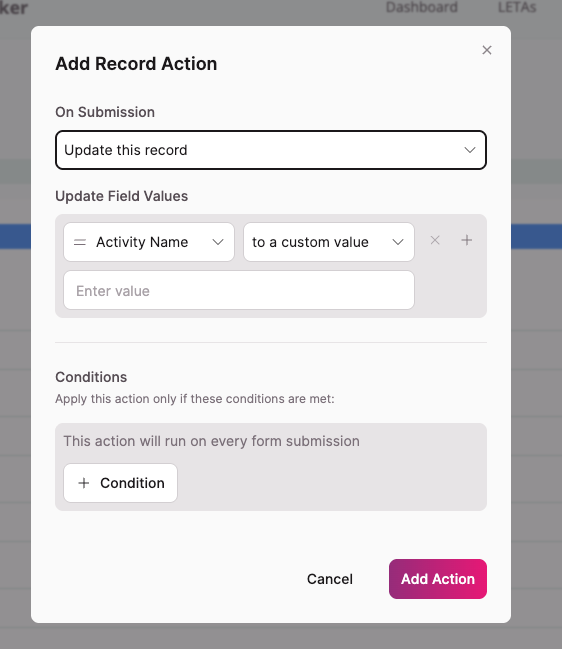
On Submission
The On Submission dropdown defines what Knack does when the action runs. There are three options:
Update this record: Updates the primary record the element is working with. Use this to set status fields, assign the logged-in user, or update any field on submission.
Update connected records: Updates records connected to the form's record. After selecting this option, choose which connected table to update.
Insert a connected record: Adds a new record to a connected table. After selecting this option, choose which connected table to insert into. Useful for creating log entries, receipts, or version history records on submission.
Update Field Values
The Update Field Values section defines which fields get updated and what values they're set to. Select + to add additional field/value pairs, or × to remove one.
For each field, choose a value type from the dropdown:
- To a custom value: Enter a value manually. For multiple choice fields and many-to-many connection fields, you can also choose how the value is applied: By replacing with (replaces the current field value), By adding (appends to existing values), or By removing (removes the value if it exists).
- To a field value: Use the value of another field, such as a form input or a field on the same record.
- To a connected value: Use a value from a connected record. Connection fields can only be set from another connection value, not from a name or auto-increment field.
NoteThe options available for each field depend on its data type and how your tables are connected. For example, date fields may offer a "current date" option, and user role connections may offer a "logged-in user" option.
Conditions
The Conditions section controls when the action runs. By default, the action runs on every form submission.
Select + Condition to add one or more conditions. The action only runs when all conditions are met.
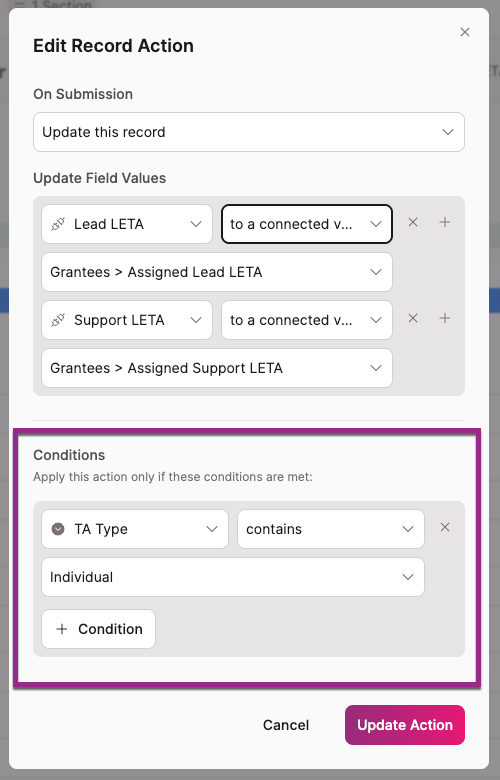
Available condition filters:
| Filter | Description |
|---|---|
| contains | Triggers when the field contains the set value |
| does not contain | Triggers when the field does not contain the set value |
| is | Triggers when the field equals a specific value |
| is not | Triggers when the field does not equal a specific value |
| starts with | Triggers when the field starts with a specific value |
| ends with | Triggers when the field ends with a specific value |
| is blank | Triggers when the field is empty |
| is not blank | Triggers when the field contains any value |
| has changed | Triggers when the field has changed from its previous value |
| has changed to | Triggers when the field has changed to a specific new value |
| has changed from | Triggers when the field has changed from a specific previous value |
Which Form Should Your Record Action Live On?
Where you add a Record Action determines when it runs and whether users can override the value it sets. This is one of the most important decisions when configuring Record Actions.
Knack has two separate form elements for most records: an Add form (creates a new record) and an Edit form (updates an existing record). Record Actions are configured independently on each. Adding a Record Action to one has no effect on the other.
Record Action on the Add form: auto-populate with override
When a Record Action is added to the Add form only, it fires once when the record is first created. After that, the field it populates behaves like any other field. Users can edit it manually on subsequent visits.
Use this pattern when:
- You want to set a default or calculated value at creation time
- Users should be able to change that value later
- You're capturing a snapshot of connected data at the moment of creation (for example, pulling the current price of an item into a line item record so historical pricing is preserved if the item price changes later)
Record Action on both the Add and Edit form: always enforced
When a Record Action is added to both the Add form and the Edit form, it fires every time the record is saved. The field gets overwritten on every submit, so any manual change a user makes will be replaced the next time the record is edited.
Use this pattern when:
- The field should always reflect a calculated or connected value
- Manual overrides should never persist
- You're keeping a field in sync with connected data every time the record changes
If users can't keep their editsIf a field keeps resetting after users update it, check whether a Record Action on the Edit form is overwriting the value. Removing the Record Action from the Edit form will restore the ability to manually override.
Conditional Record Actions
Both patterns can be made conditional using the "Conditions" section of the Record Action. This lets you fire the action only when specific field values are met, giving you finer control without needing separate forms.
Order of Execution
All Record Actions on a form run simultaneously on submission, not top to bottom. There are some exceptions:
- Update this record actions run before formula and equation fields are recalculated. If the action depends on a formula or equation, it uses the field's previous value.
- Insert connected record and Update connected record actions run after formulas and equations are recalculated, so they use updated field values.
- Emails are not sent until all Record Actions have completed. If an email isn't sending, check whether a Record Action is changing a field value that the email condition depends on.
Troubleshooting
- Connection fields can only be set to another connection value. Setting one to a name or auto-increment field won't work.
- If you can't assign the logged-in user as a value, confirm that the login restriction for the page allows that user role.
- Equation fields on the form's own record can't be used to set values on that same record in an "Update this record" action. They can be used in "Insert connected record" actions.
- If a Record Action configured to retrieve data from a connected record isn't working, check that the record is actually connected. If the connection field is empty, the action has nothing to pull from.
- Conditional rules can override Record Actions targeting the same field. A rule set to Run with every record always overrides the Record Action. A rule set to Custom conditions overrides only when the conditions are met at save time. See Conditional Rules for details.
Updated 2 months ago