

How to Allow Users to Add New Options in Forms
Learn how to let users add new choices to multiple choice fields and new records to connection fields directly from a form, without needing a builder to predefine every option.
What You'll Learn
You'll learn how to configure Form Elements so users can add new options to a multiple choice field or create new records in a connected table without leaving the form. This feature is useful when you can't predict every option a user might need, or when adding connected records mid-workflow keeps users from having to jump between pages.
How This Works on Multiple Choice vs. Connection Fields
The feature works differently depending on the field type. Both use a toggle in the field's properties panel, but the toggle label and behavior are different.
| Field Type | Toggle Label | What Happens When a User Adds an Option |
|---|---|---|
| Multiple Choice | Allow users to add new options | A new choice gets added to the field's list of options. The new option is selected on the current form. |
| Connection | Allow users to create new records | A new record gets created in the connected table. The new record is selected on the current form. |
Connection fields create full recordsWhen a user adds a new option on a connection field, they're creating a new record in the connected table. That means the form for adding the new option may include multiple fields, not just a single input. You can customize what fields appear on that form in the Builder.
Enabling the Feature on a Multiple Choice Field
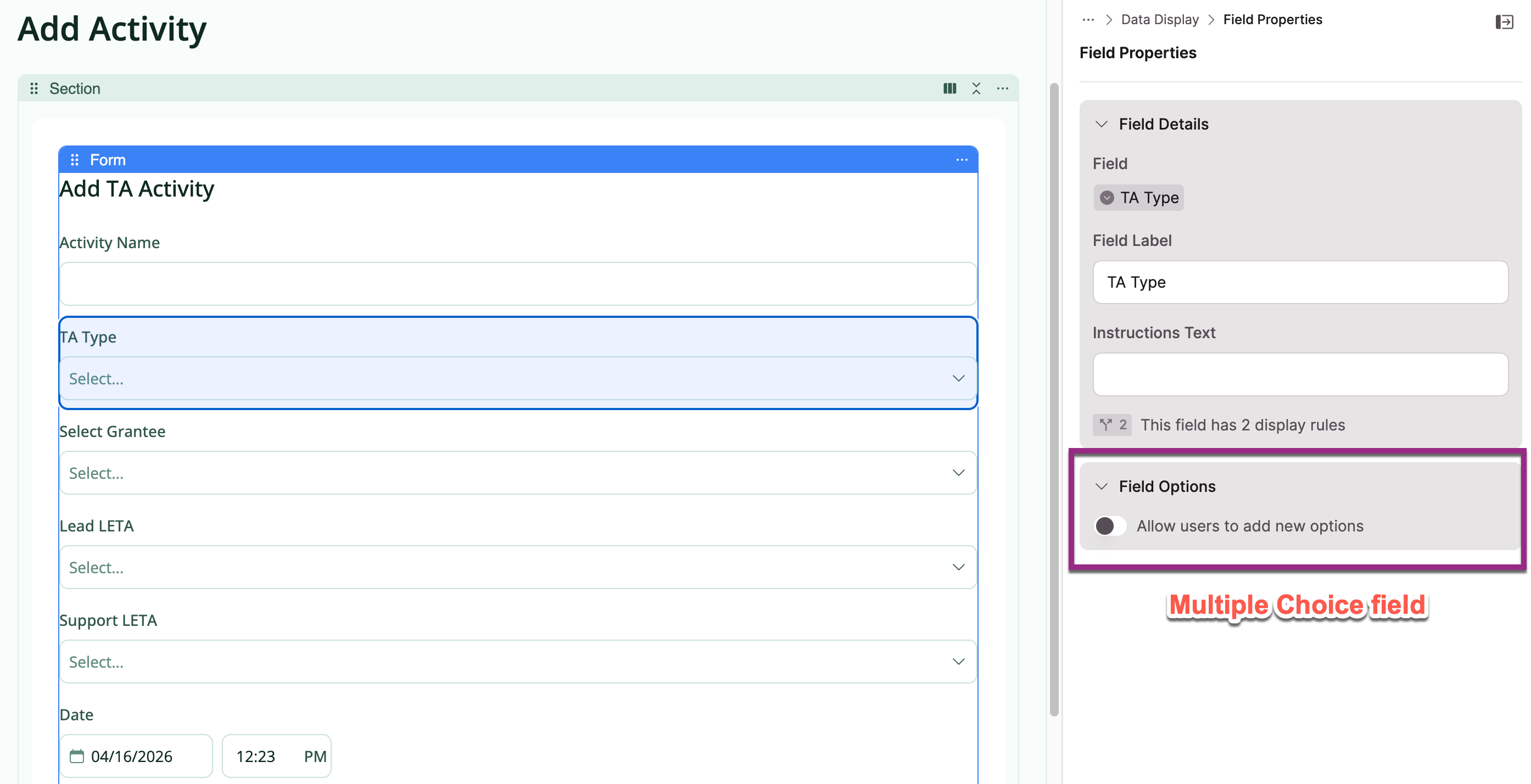
- In the Pages section of the Builder, select the page with the form
- Click the Form Element to open Form Settings
- In the center panel, click the multiple choice field to open Field Properties
- Under Field Options, toggle on Allow users to add new options
- Click Save Changes on the page
Enabling the Feature on a Connection Field
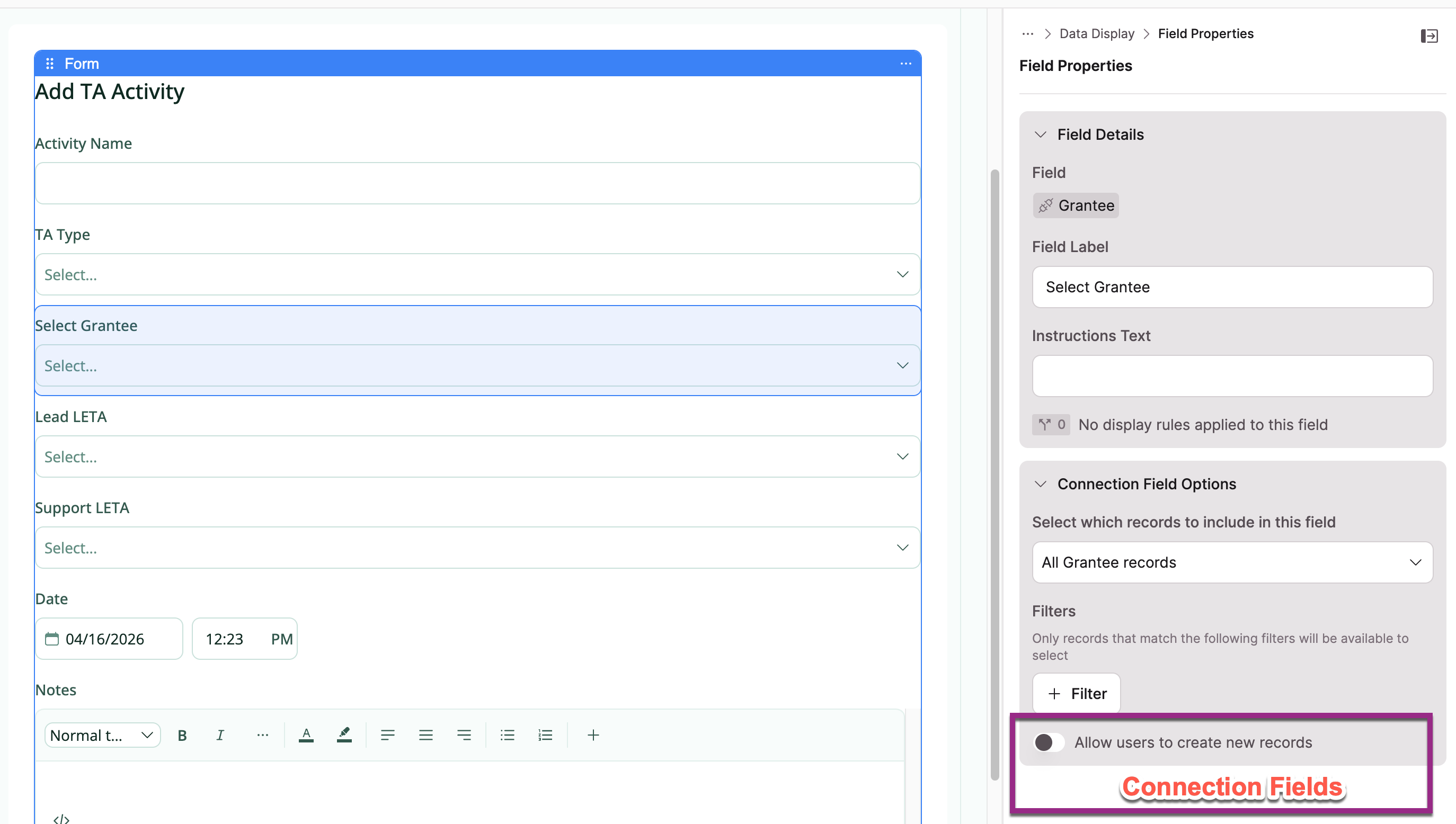
- In the Pages section of the Builder, select the page with the form
- Click the Form Element to open Form Settings
- In the center panel, click the connection field to open Field Properties
- Under Connection Field Options, toggle on Allow users to create new records
- Click Save Changes on the page
What Users See on the Live App
After you enable the feature, users will see an Add a new option link below the field input on the live form.
When a user clicks the link, a popup appears where they can enter the new value (for multiple choice fields) or fill out a form to create the new connected record (for connection fields). When they submit, the new option is selected on the current form automatically.
Customizing the Add Form for Connection Fields
When you enable this feature on a connection field, Knack creates a form for adding new records in the connected table. You can customize which fields appear on that add form from the Builder.
In the Field Properties panel for the connection field, select the edit button next to Allow users to create new records to open and customize that form.
Multiple choice fields don't have an editable add formFor multiple choice fields, users enter a single value and that's it, so there's no separate form to customize.
Next Steps
- Form Elements. Learn about all the ways to configure a form element.
- How to Add Instructions to a Form. Guide users with clear field-level and form-level instructions.
- Connection Types. Understand how connection fields link tables together.
Updated 5 months ago