

Managing Your Account Settings
Your account settings control your organization details, security options, and account status, all managed from the Settings section of your Knack Dashboard.
What you'll learn:
- How to update your account-level configuration and AI access controls
- How to manage your personal profile and login security
- How to freeze or permanently delete your account
Settings Overview
The Settings section of your Dashboard is organized into three tabs: Account, Personal, and Critical Actions. To access these settings, go to your Knack Dashboard and select Settings. This layout is the same whether you're working in a Classic or Next-Gen app.
Account
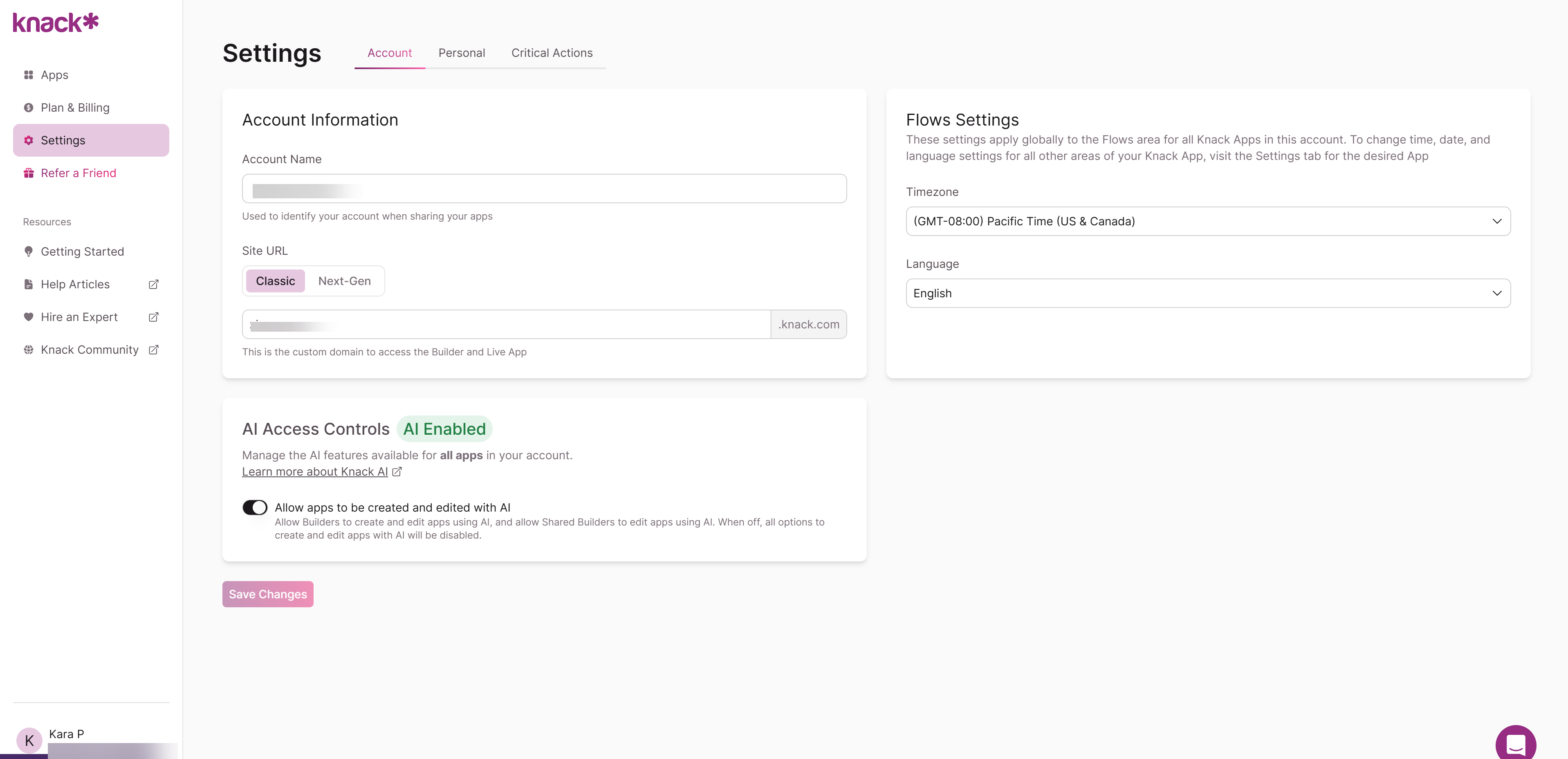
The Account tab manages configuration that applies across your entire Knack account.
Account Information
The Account Information card displays your account name, which identifies your account when sharing apps, and your Site URL. Your Site URL determines whether the Builder and Live App load the Classic or Next-Gen experience, along with the custom subdomain (yoursubdomain.knack.com) used to access them.
Flows Settings
The Flows Settings card controls the default timezone and language used across the Flows area for all apps in your account.
AI Access Controls
The AI Access Controls card gives Account Owners a single toggle — Allow apps to be created and edited with AI — to enable or disable AI-powered app creation and editing across the entire account. When off, all AI creation and editing options are disabled account-wide; manual app building and all other non-AI functionality are unaffected.
Personal
The Personal tab manages your individual profile and login security.
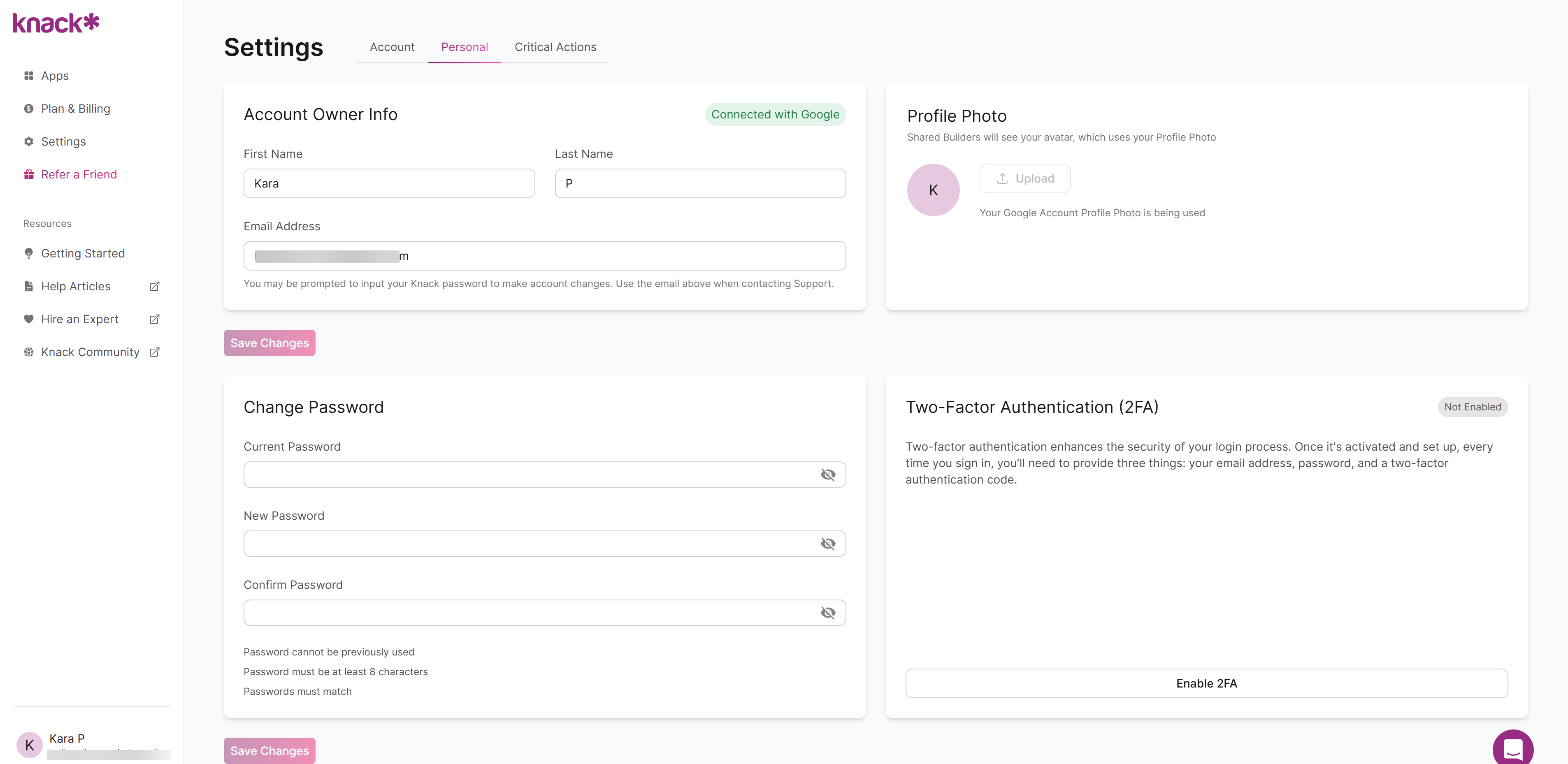
Account Owner Info
Update your first name, last name, and email address here. If your account is connected via single sign-on (for example, Google), that connection is indicated on this card, and your name and email are managed through your SSO provider.
Profile Photo
Your profile photo is visible to Shared Builders as your avatar.
Change Password
Update your password from this card. New passwords must:
- Be at least 8 characters
- Differ from your previously used password
- Match when entered in both the New Password and Confirm Password fields
Two-Factor Authentication (2FA)
Enable 2FA to require a verification code in addition to your email and password at login.
Critical Actions
Warning: The actions on this tab affect your entire account and, in the case of deletion, cannot be undone. Review each option carefully before proceeding.
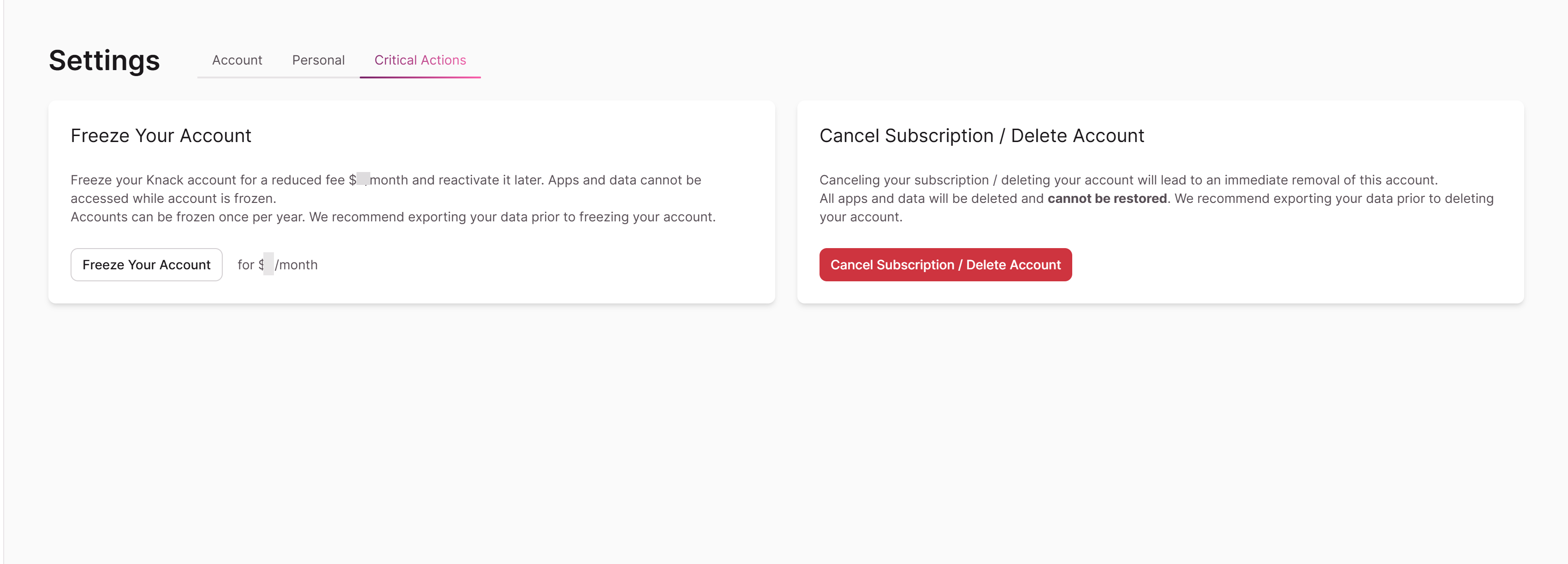
Freeze Account
If you're not currently using your app but expect to need it again in the future, you can freeze your account at a discounted monthly rate instead of canceling. Freezing preserves all of your apps and data until you're ready to pick back up.
| Plan | Frozen Rate |
|---|---|
| Starter | $12/mo |
| Pro | $25/mo |
| Corporate | $40/mo |
| Plus 1 | $65/mo |
| Plus 2 | $100/mo |
| Plus 3 | $200/mo |
You can only freeze a paid account once per rolling year.
Cancel Subscription / Delete Account
Canceling your subscription deletes your account immediately, including all apps and data. This cannot be restored. Knack recommends exporting your data before deleting your account.
Knack is unable to delete your account on your behalf — select Contact Support on this tab to proceed with cancellation yourself.
Updated 29 days ago