

Managing Your Brand Assets in the Theme Builder
Learn how to upload and configure your logos and favicon to create a professional, recognizable app that reflects your organization's visual identity.
What you'll learn:
- How to upload and manage your primary and minimal logos
- How to ensure your branding looks great in both Light and Dark modes
- How to optimize your favicon for browser tabs and bookmarks
- Best practices for maintaining high-quality brand assets
Accessing Brand Assets
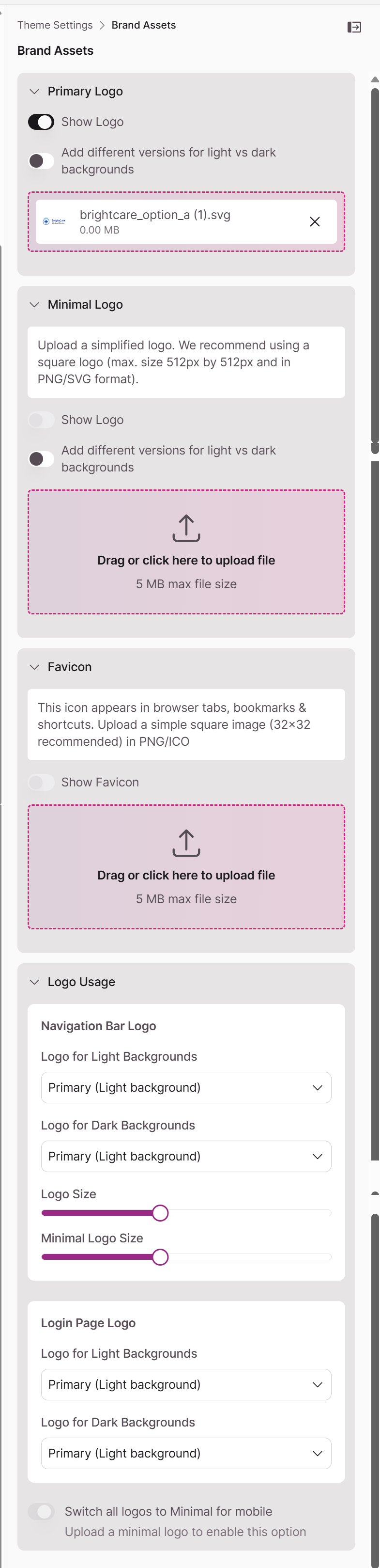
From the main Theme Builder interface, click the Brand Assets section in the right-hand settings panel. This is where you'll upload and manage all the visual elements that represent your brand.
Setting Up Your Primary Logo
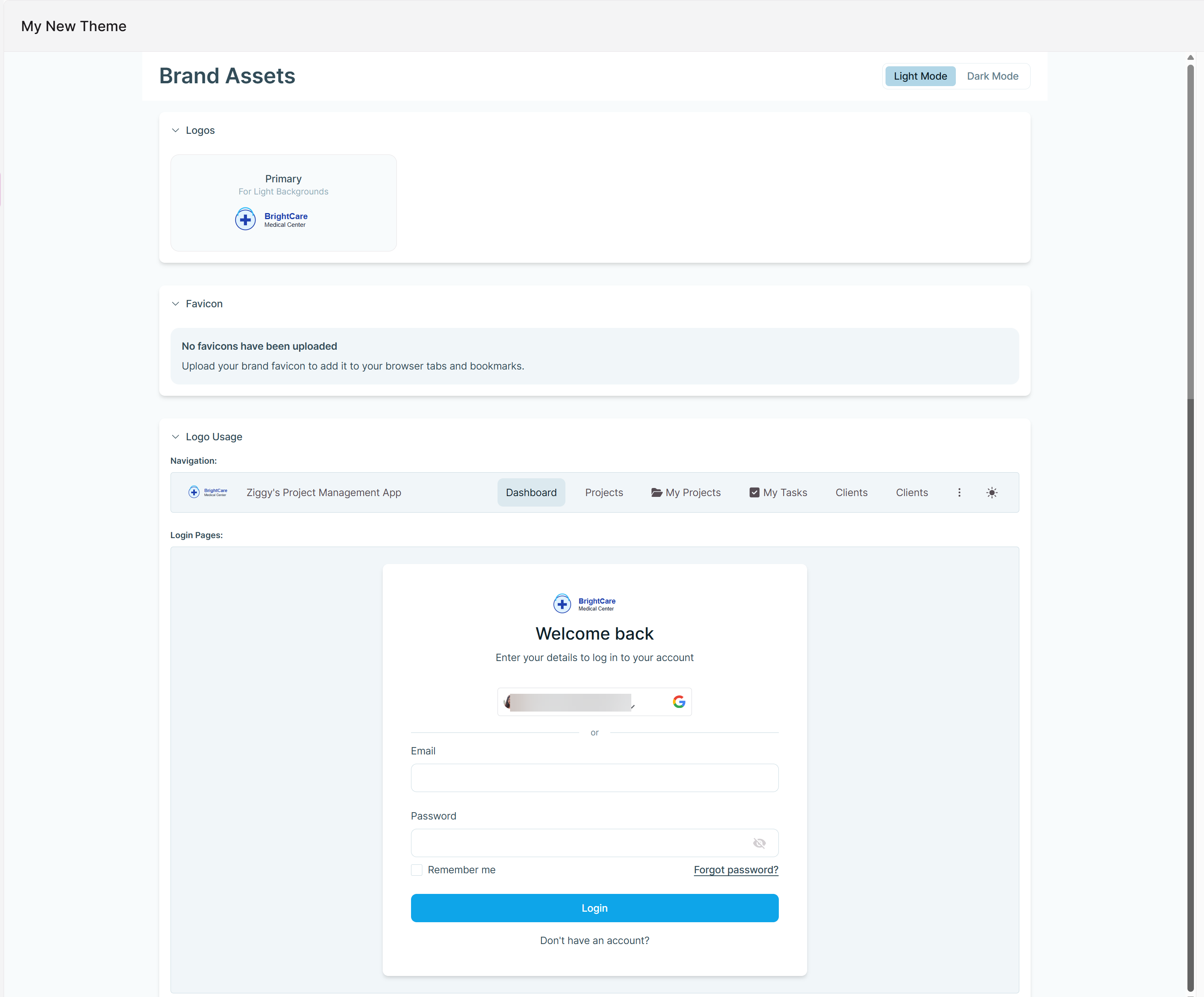
Your primary logo is your app's main visual signature—it appears in the navigation bar and on login pages, making it the first thing users see when they interact with your app.
Displaying Your Logo
- Show Logo: Toggle this on to display your logo, or off to hide it
Uploading Your Logo
Drag and drop your logo file or click to browse and upload. The maximum file size is 5 MB.
Tip: Optimizing for Light and Dark Mode
If your logo doesn't stand out on both light and dark backgrounds, enable the "Add different versions for light vs dark backgrounds" toggle. This lets you upload two separate logo files, ensuring your branding always looks crisp and professional regardless of your users' mode preference.
Adding a Minimal Logo
Your minimal logo is a streamlined version of your primary logo—think of it as your brand's compact signature. It's typically an icon or monogram used when space is tight, particularly on mobile devices.
Recommended specifications:
- Square format (PNG or SVG)
- Maximum size: 512x512 pixels
- Simple, recognizable design that works at small sizes
Just like your primary logo, you can upload different versions for light and dark backgrounds to maintain visibility across all themes.
Configuring Your Favicon
A favicon is the tiny icon that appears in browser tabs, bookmarks, and shortcuts. It's a small detail that makes a big difference in helping users quickly identify your app among dozens of open tabs.
Best practices:
- Upload a simple, square image in PNG or ICO format
- Recommended size: 32x32 pixels
- Use high contrast and avoid fine details that won't be visible at small sizes
Controlling Logo Usage
The Logo Usage section lets you fine-tune when and where different logo versions appear.
Use minimal logo on mobile
Enable this toggle to automatically switch to your minimal logo on smaller screens. This ensures your branding remains clear and recognizable on mobile devices without overwhelming limited screen space.
Best Practices for Brand Assets
Use High-Quality Images
Upload logos and favicons in the highest quality possible to prevent pixelation, especially on high-resolution displays.
Prefer SVG Format
Whenever possible, use SVG (Scalable Vector Graphics) files for your logos. SVGs are lightweight and scale perfectly to any size without losing clarity—ideal for responsive designs.
Optimize File Sizes
While the upload limit is 5 MB, smaller files load faster and improve your app's performance. Use compression tools to reduce file size without sacrificing visual quality.
Test in All Modes
After uploading your assets, use the Theme Preview panel to check how they appear in both Light and Dark modes. Make sure your logos are always visible, legible, and aligned with your brand standards.
Note: Your brand assets are cached for performance, so it may take a few moments for changes to appear across all pages of your app.
Updated 9 months ago