

System Fields
System fields provide essential record metadata that tracks when records are created and modified, giving you powerful insights into your data's lifecycle.
What you'll learn:
- How system fields automatically track record activity
- Which system fields are available and their purposes
- How to show, hide, and configure system fields
- Best practices for using system fields in your app
What Are System Fields?
System fields are special, automatically-managed fields that Knack adds to every table in your newly created app. These fields capture essential metadata about your records without requiring any setup or maintenance from you.
Available System Fields
Your tables include these system fields:
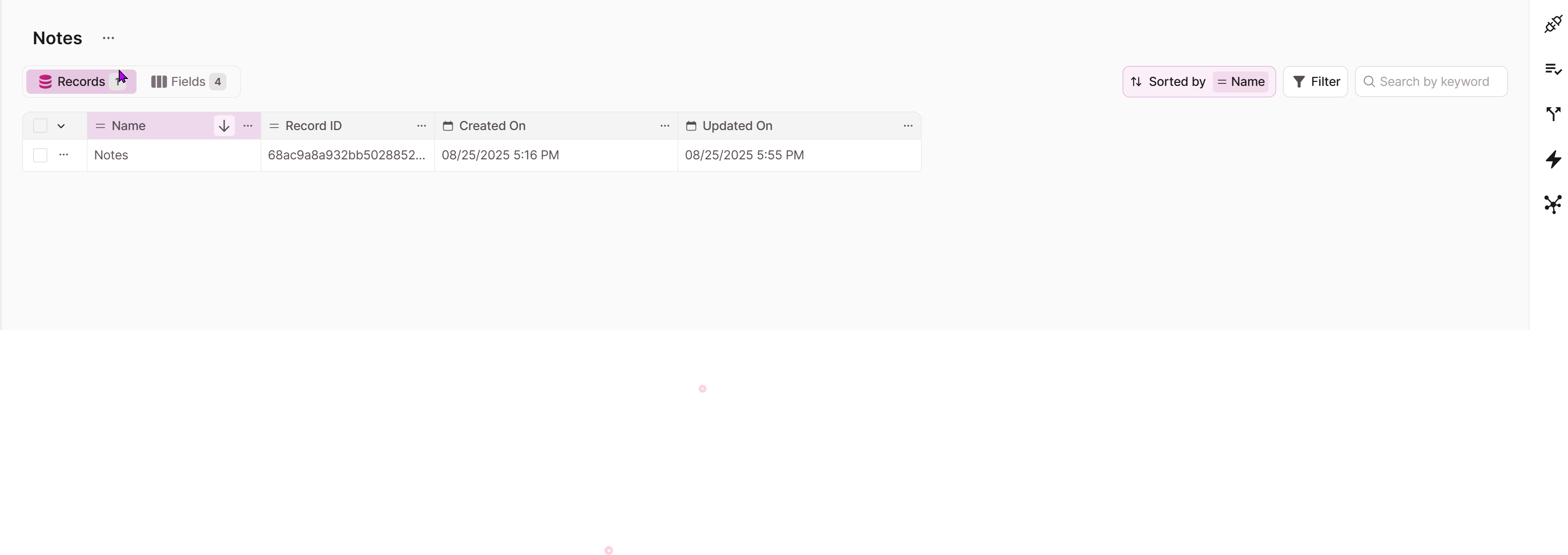
- Record ID - A unique identifier automatically assigned to each record
- Created On - Date and time when the record was created (available on apps created after November 18, 2025)
- Updated On - Date and time when the record was last modified (available on apps created after November 18, 2025)
Note: System fields are automatically populated and cannot be manually edited. They update automatically as users interact with your records.
Managing System Fields Visibility
Default Behavior
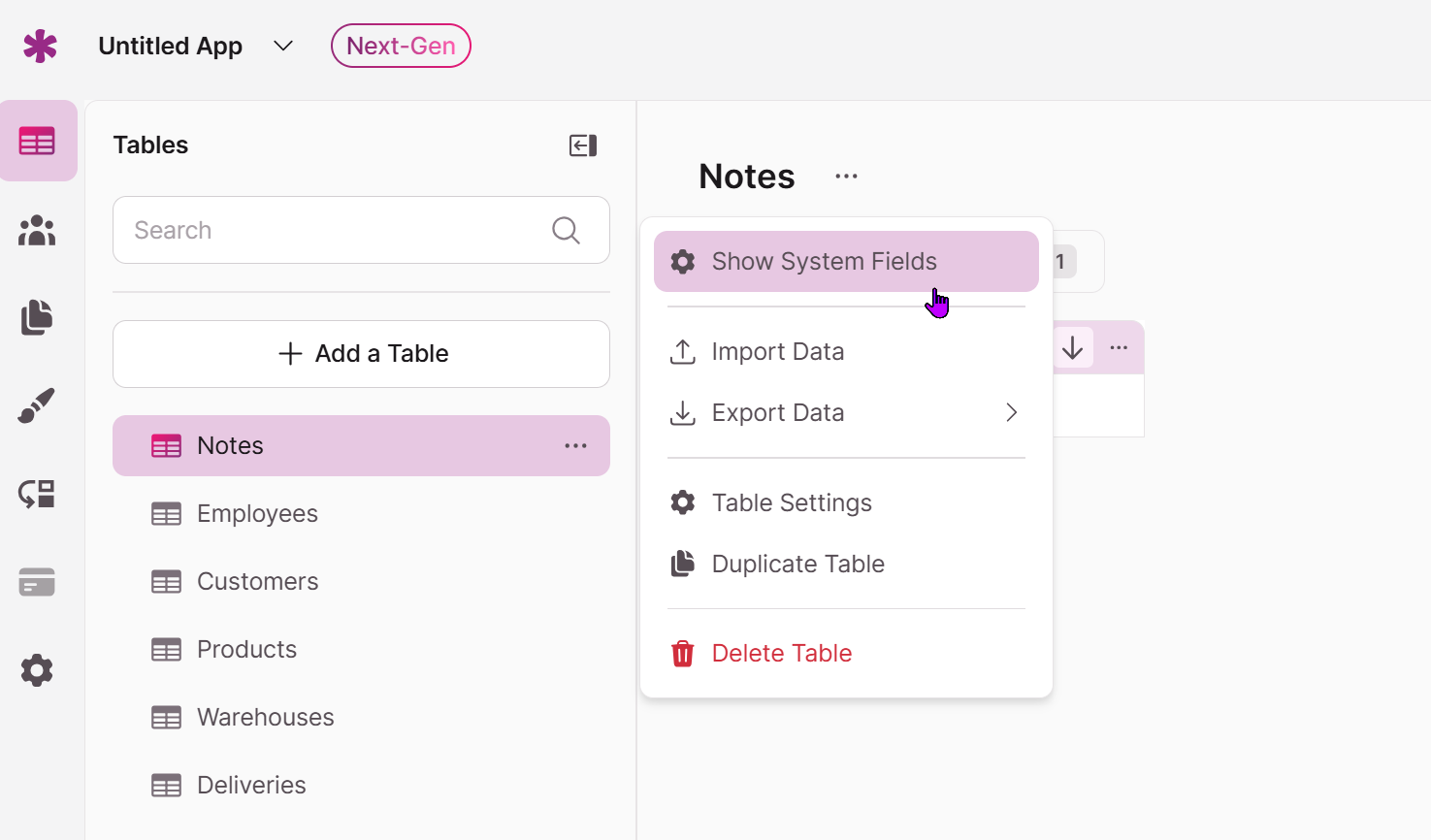
System fields are hidden by default in your DataTable to keep your workspace clean and focused on the fields you've added. This helps maintain clarity during typical building tasks while keeping the system fields available when you need them.
Showing System Fields
To make system fields visible in a specific table:
- Navigate to your table in the Builder
- In the DataTable Settings, look for the Show/Hide System Fields toggle
- Enable the toggle to display system fields
- System fields will appear at the end of your field list
Table-Specific Visibility
The show/hide setting is table-specific, meaning:
- Each table can have its own system field visibility setting
- Different builders can have different preferences per table
- Your visibility choices don't affect other tables in your app
Configuring System Fields
Editable Properties
You can customize certain aspects of system fields:
Field Name (Display Label)
- Change how the field appears in your app
- Customize labels to match your workflow needs
Field Description
- Add helpful context for other builders
- Document specific use cases or requirements
Date/Time Formatting (for Created On and Updated On)
- Adjust date format display
- Modify time format settings
Restricted Properties
These settings cannot be changed for system fields:
- Field Type - System fields maintain their data type
- Required Setting - All system fields are inherently required
- Delete Option - System fields cannot be deleted from tables
Using System Fields in Your App
In Views and Pages
System fields work seamlessly throughout your app:
- Display in tables - Show creation dates, last modified info
- Filter and search - Find records by date ranges
- Sort records - Order by creation date, modification time, or Record ID
Date Range Filtering
Created On and Updated On fields support:
- Specific date ranges - "Between January 1 and March 31"
- Relative dates - "Last 7 days," "This month," "Past year"
- Standard date sorting - Chronological organization
Record ID Operations
The Record ID field enables:
- Text-based filtering - Search for specific record identifiers
- Sorting operations - Organize by unique record numbers
- API integration - Reference specific records programmatically
In Formulas and Rules
System fields are fully available for:
- Formula calculations - Reference creation dates, user information
- Conditional logic - Create rules based on record age or modification history
- Field relationships - Use as display fields in connections
Data Management Features
Export and Import
Exporting Data:
- System fields are included in data exports when visible
Importing Data:
- System fields are not available for mapping during import
- Record ID, Created On, and Updated On are automatically generated
API
System Fields can be retrieved through API GET requests, just like any other field type.
Best Practices and Use Cases
Audit Trails
Use system fields to create comprehensive record histories:
- Track when important records were created
- Monitor when critical data was last updated
- Identify patterns in record creation and modification
Data Analysis
System fields provide valuable insights:
- Record age analysis - Find oldest or newest records
- Update frequency - Identify frequently modified records
Workflow Automation
Build rules and automations using system fields:
- Send notifications for records not updated in X days
- Assign tasks based on record creation dates
- Filter views to show only recent activity
Troubleshooting Common Issues
System Fields Not Appearing
If you don't see system fields:
- Check that the Show System Fields toggle is enabled
- Verify you're looking in the correct table
- Remember that visibility is table-specific
Cannot Modify System Field Values
This is expected behavior:
- System fields update automatically
- Manual editing would compromise data integrity
Tip: System fields are most valuable when you need to track record history. Consider making them visible in tables where timeline tracking is important to your workflow.
Updated 9 months ago