

Auto-Capture User Location on Form Submit
Use a Record Action to automatically capture a user's location when they submit a form. Useful for HIPAA clock in and out, field service check-ins, incident reporting, and audit trails. ---
What You'll Learn
You'll learn how to set up a Record Action that automatically captures a user's location when they submit a form. This is useful for HIPAA-compliant clock in and out workflows, field service check-ins, incident reporting, and any scenario where you need to verify or log where a record was created.
Why Capture User Location
Auto-capturing location removes a manual step from the user and creates a reliable record of where a submission happened. The most common use case is HIPAA-compliant clock in and out workflows, where capturing the user's location at the moment they clock in or out provides an audit trail that protects both the worker and the organization.
Other common use cases:
- Field service check-ins. Capture where a technician arrived for a job.
- Incident reporting. Record where an incident was logged for emergency response or compliance.
- Audit trails. Document where records were created or updated for review.
- Attendance verification. Confirm a user was on-site when they submitted a form.
- Inspection logging. Track where inspections took place.
How It Works
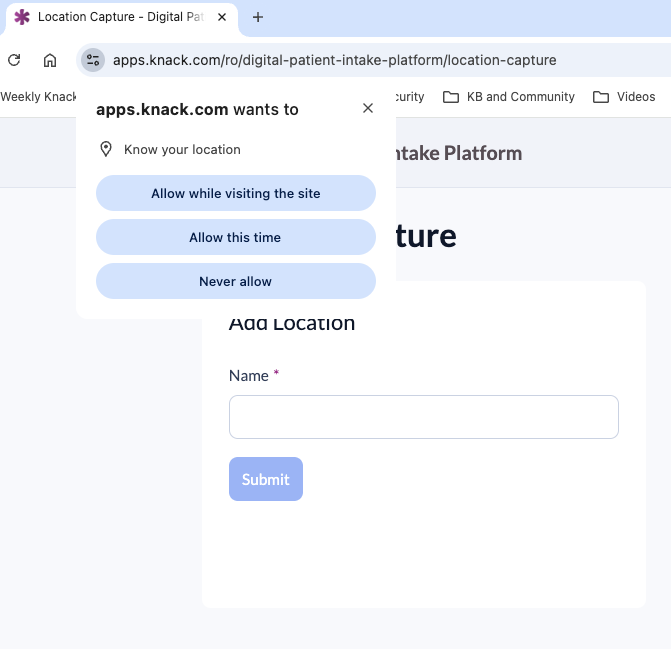
When a form with a location-capture Record Action loads, the user's browser prompts them to share their location. If they allow it, their device's coordinates are passed to Knack. When the user submits the form, Knack geocodes those coordinates into an address and stores it on the record.
A few things to know:
- The browser prompt appears when the form page loads, not at submit time.
- The user does not need to be logged in for this to work.
- If the user denies the permission prompt, the form still submits, but no location is captured.
- The output format depends on the Address field's Input type. Address Input type stores the location as a street address. Latitude/Longitude Input type stores it as coordinates.
Before You Start
You'll need:
- A table with an Address field where the location will be stored
- A form element on a page where users will submit the location
- A device with location services enabled in the browser
NoteLocation services are a browser and device setting, not a Knack setting. If a user is having trouble with location capture, check that their browser has location permission enabled for your app's URL and that their device's location services are turned on.
Step 1: Set Up the Address Field
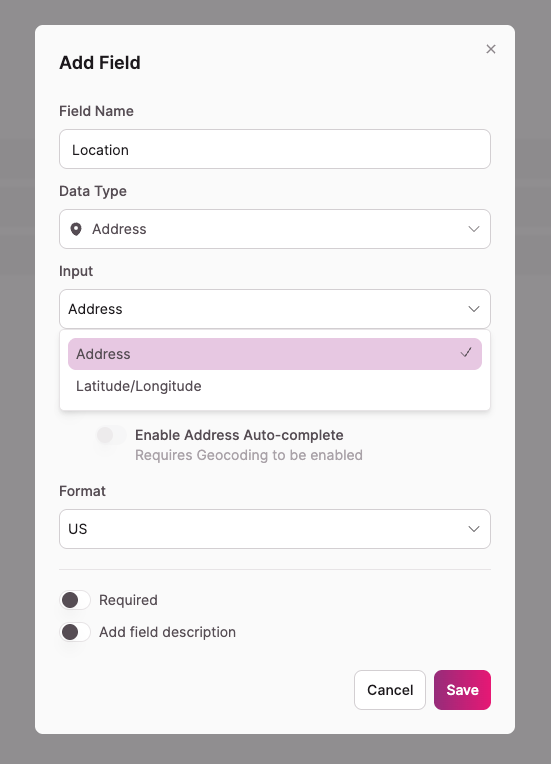
Add an Address field to the table where the captured location will be stored.
- Open the table in the Builder
- Add a field and set the Data Type to Address
- Choose the Input type that matches how you want the location displayed:
- Address stores the location as a street address (Street, City, State, Zip)
- Latitude/Longitude stores the location as coordinates
Either Input type works with the location-capture Record Action. The Input type controls what gets stored on the record: a street address or latitude and longitude coordinates.
Geocoding is not required for location captureThe Enable Geocoding toggle on the Address field is only needed if you plan to use the location with a Map element. Location capture via Record Action works whether geocoding is on or off.
Step 2: Add the Record Action to the Form
- Open the page that contains the form element
- Select the form to open its settings
- Select Record Actions
- Select + Action
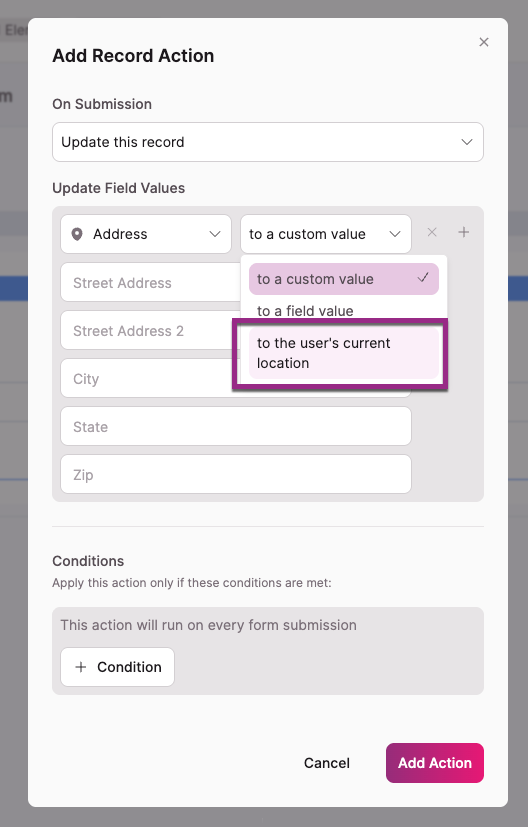
- Set On Submission to Update this record
- Under Update Field Values, choose your Address field
- From the value type dropdown, select to the user's current location
- Select Add Action
- Save your changes
Step 3: Test the Form in the Live App
- Open the live app and navigate to the form
- When the page loads, your browser will prompt you to share your location
- Select Allow while visiting the site or Allow this time
- Fill out the form and submit
- Open the table and confirm the Address field on the new record contains your location
Notes and Troubleshooting
- Location is not captured. Check that the user allowed the browser location prompt. If they selected "Never allow," they'll need to update their browser permissions for your app's URL.
- No browser prompt appears. The user may have already granted or denied permission for your app on a previous visit. Check the browser's site settings for your app's URL.
- Location is inaccurate. Browser-based location accuracy varies by device. Mobile devices with GPS tend to be more accurate than desktops, which often estimate location based on IP address or Wi-Fi network.
- Form still submits when location is denied. This is by design. Denied permission does not block submission. The Address field will be left blank for that record.
- Capturing location for HIPAA workflows. Location capture pairs well with HIPAA-compliant clock in and out apps. See HIPAA Compliance for the broader compliance setup.
Updated 5 months ago