

How to Configure Registration Settings for Protected Pages
Control whether new users can register for access to your protected pages, and configure approval workflows for new account requests.
Goal
Use this guide when you want to control whether new users can create accounts to access your protected pages, and what approval process they must follow. For example, allowing open registration for a community portal, requiring approval for a member directory, or disabling registration entirely for an internal employee app.
Prerequisites
- You must have a protected page already created (see How to Create a Login-Protected Page)
- You must have access to the Builder to modify page settings
Step-by-Step Instructions
Configuring Registration During Page Creation
When creating a new protected page, registration settings are configured in the + Page dialog:
-
After enabling the Protect page toggle, locate the "Can new users register to access this page?" section.
-
Choose one of the following options:
No (Default): Prevents new user registration entirely. Users can only be added manually by administrators. Best for internal applications, sensitive data, and controlled user bases.
Yes: Allows new users to register and immediately access the page. Users complete the registration form and gain instant access. Best for public-facing applications, community platforms, and customer portals.
Yes, pending approval: Allows registration with administrator review. Users complete registration but cannot access protected content until approved. Administrators receive notification and must manually approve each account. Best for member directories, applications requiring verification, and controlled onboarding.
-
Click Save to apply your registration settings.
Modifying Registration Settings for Existing Protected Pages
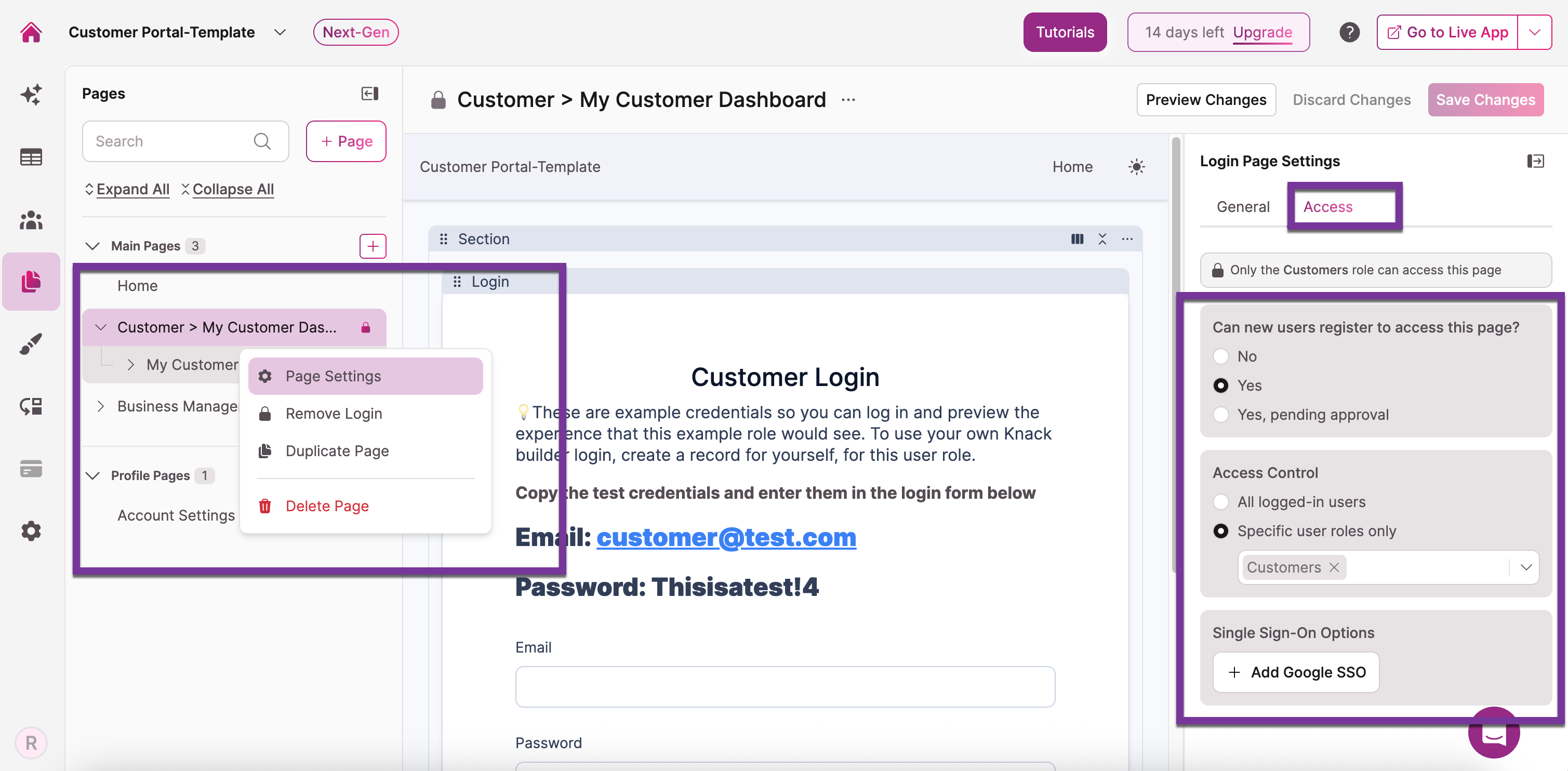
To change registration settings after a page is created:
-
Navigate to the Pages section in the Builder.
-
Click on the protected page you want to modify.
-
Click the Access tab in the page settings panel on the right.
-
Locate the "Can new users register to access this page?" section.
-
Select your desired registration option (No, Yes, or Yes, pending approval).
-
Click Save to apply the changes.
Customizing the Registration Form
When you enable registration, a "Sign Up" link appears below the login form. This link leads to the registration form, but it won't appear as a child page in the Pages panel on the left-hand side.
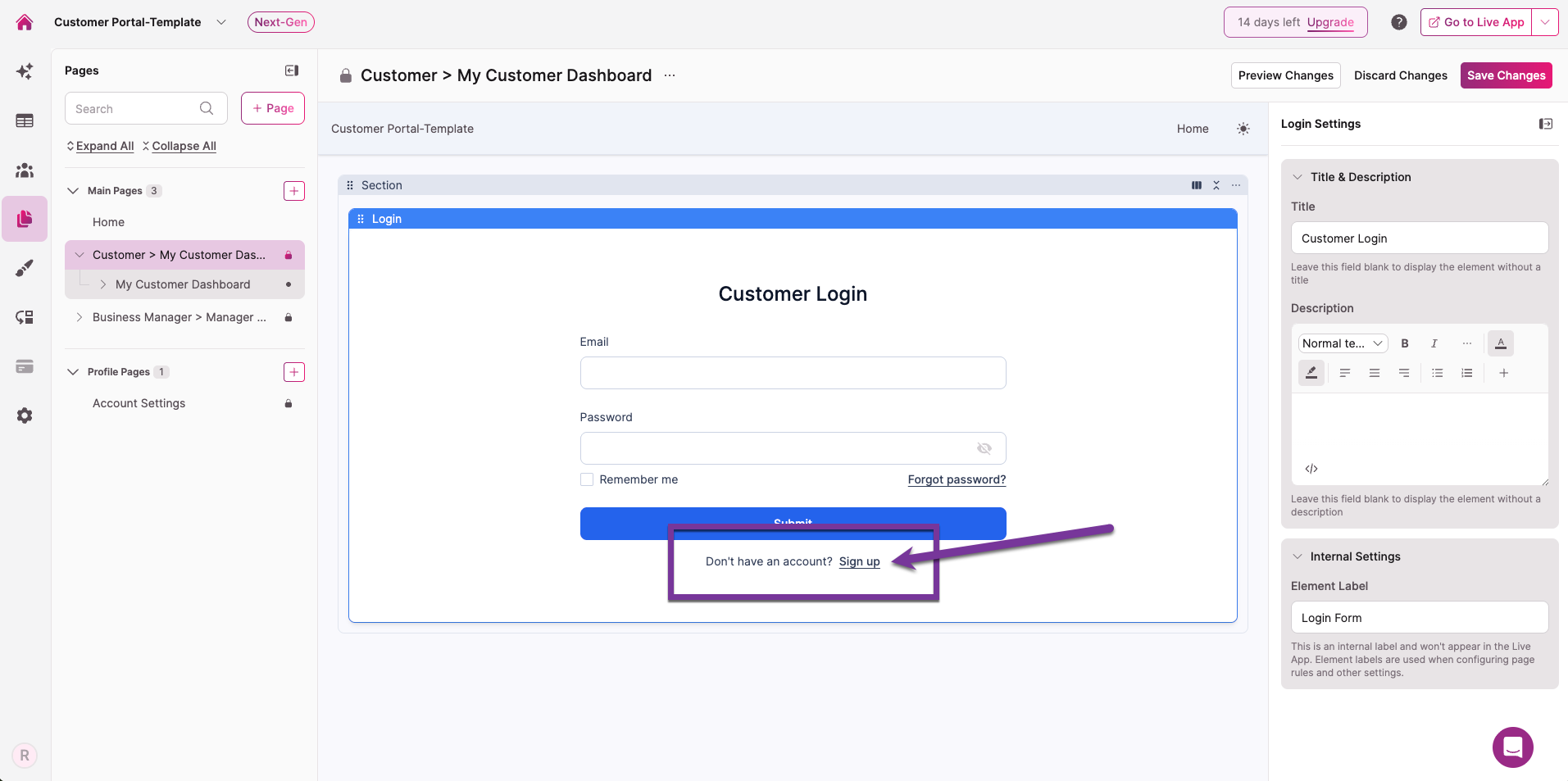
To access and customize the registration form:
- Navigate to your login page in the Builder.
- Look for the Sign Up link below the login form.
- Click the Sign Up link to open the registration form.
- Click on the registration form element to edit it in the right-hand panel.
- Add, remove, or modify fields as needed. Email and Password fields are required by default. You can add custom fields like Name, Company, Phone, and others.
- Click Save Changes to update the registration form.
Registration form is not visible in the page treeYou must click the Sign Up link on the login form to access and edit the registration form. It won't appear in the Pages panel on the left.
Managing Pending Approvals
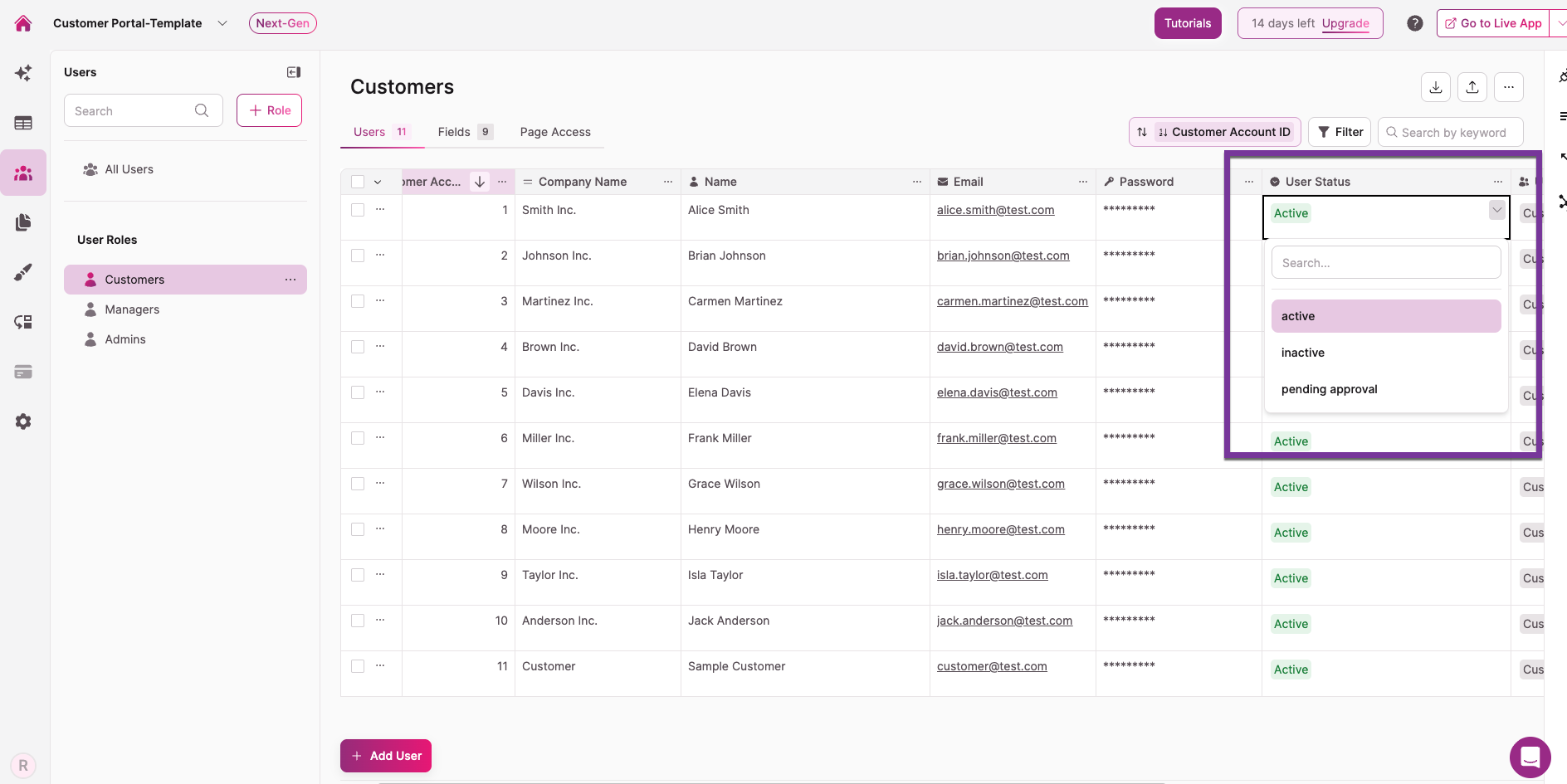
If you've enabled "Yes, pending approval," you'll need to approve new user registrations before they can access your app.
To approve users in the Builder:
- Navigate to the Users section in the Builder.
- Select the appropriate user role table (e.g., Customers, Members).
- Locate users with a pending status.
- Edit the user record by clicking the three dots next to the user's checkbox and selecting Edit User, or click directly into the User Status field to edit inline.
- Change their user status to Active.
- Save the changes. The user will now be able to log in and access protected pages.
To approve users in the Live App:
If you'd like to manage approvals from within your live application, you'll need to build pages that allow you to view and update user records. This typically involves adding a page that displays users from your user role table and adding an edit action or enabling inline editing to update the user's status field.
Result
Your registration settings are now configured. Depending on your choice, only manually added users can access the page (No registration), new users can create accounts and immediately access the page (Open registration), or new users can register but must wait for administrator approval before accessing protected content (Pending approval).
Users will see the appropriate registration form (or no form at all) when they attempt to access your protected page.
Next Steps
- How to Manage User Role Access to restrict pages to specific roles
- Managing User Records for more on managing user accounts and statuses
Updated 6 months ago