

How to Display Logged-In User Details on a Page
Learn how to use a Details element to show a logged-in user's information - like name, title, and department - on any login-protected page in your Knack app.
Overview
A Details element lets you display fields from a single record on a page. When that page is login-protected, Knack automatically scopes the Details element to the logged-in user's record - so each user sees their own information when they log in.
Use this to display things like name, title, department, or any other fields stored on the user table.
Prerequisites
Before you start:
- Your app has a user role set up with at least one user table
- The page where you want to display user details is login-protected (permissions are enabled and assigned to a user role)
- The fields you want to display (Name, Title, Department, etc.) exist on the user table
Add a Details Element to a Login-Protected Page
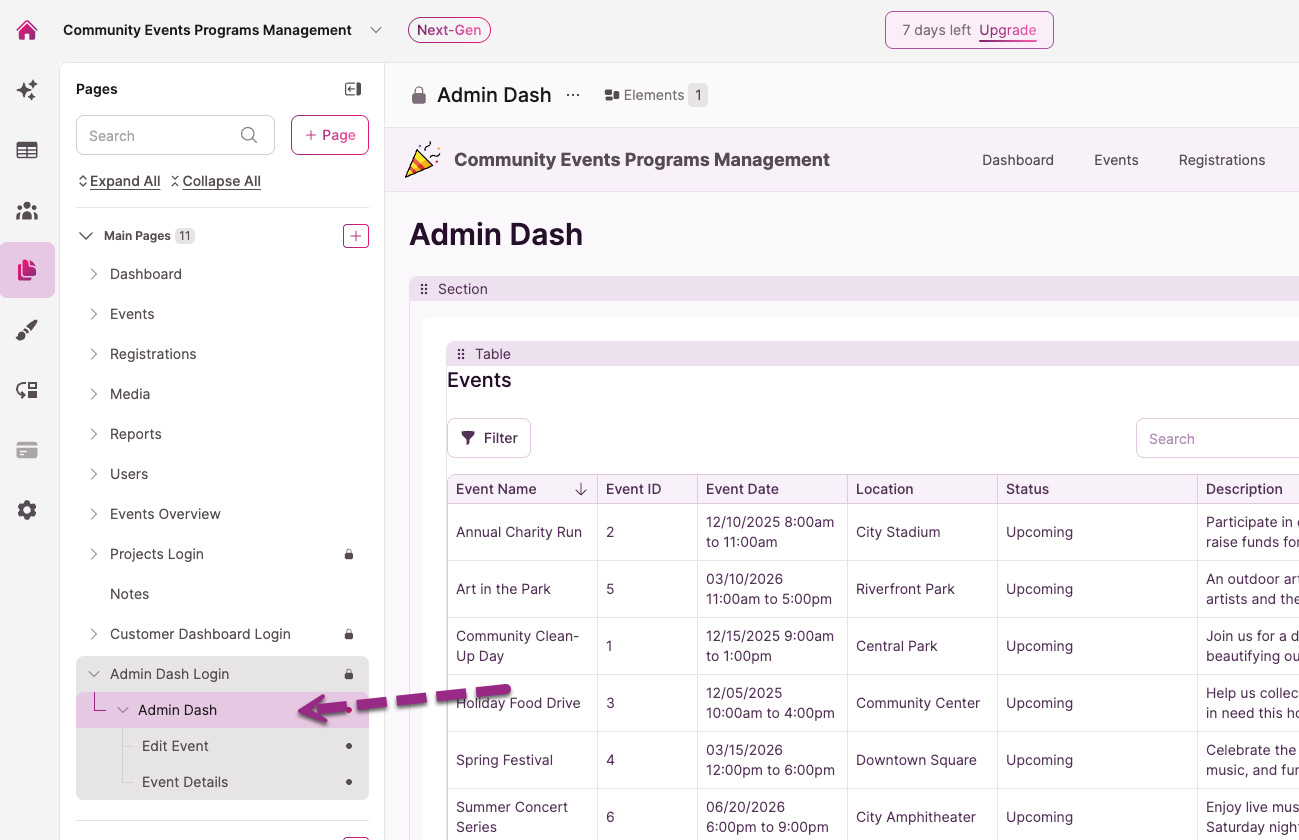
- Open your app in the Builder and navigate to the login-protected page
- Click Add Element
- Select Details
- When prompted to choose a data source, select your user table (e.g., "Accounts" or whatever your user table is named)
- Choose the fields you want to display (Name, Title, Department, etc.)
- Click Save
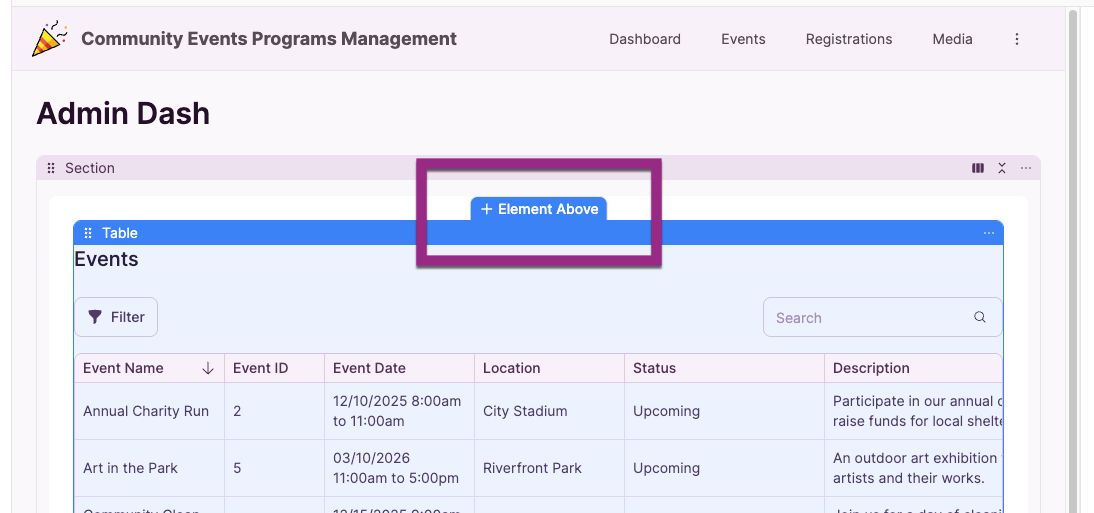
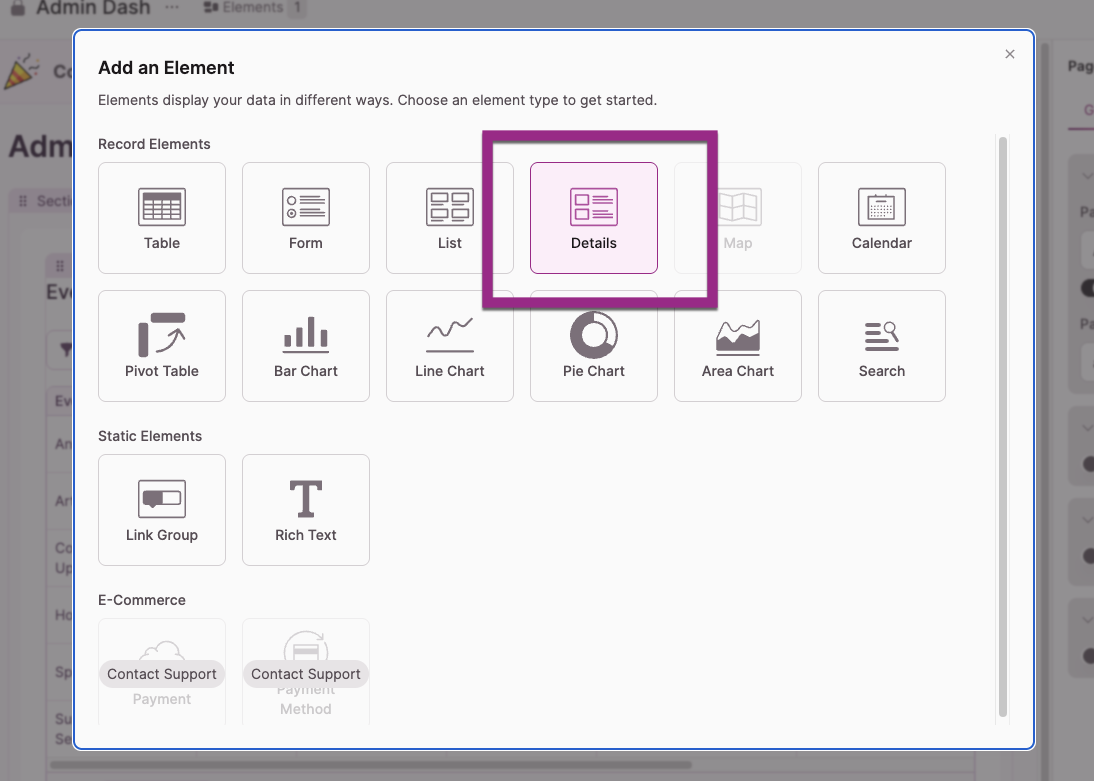
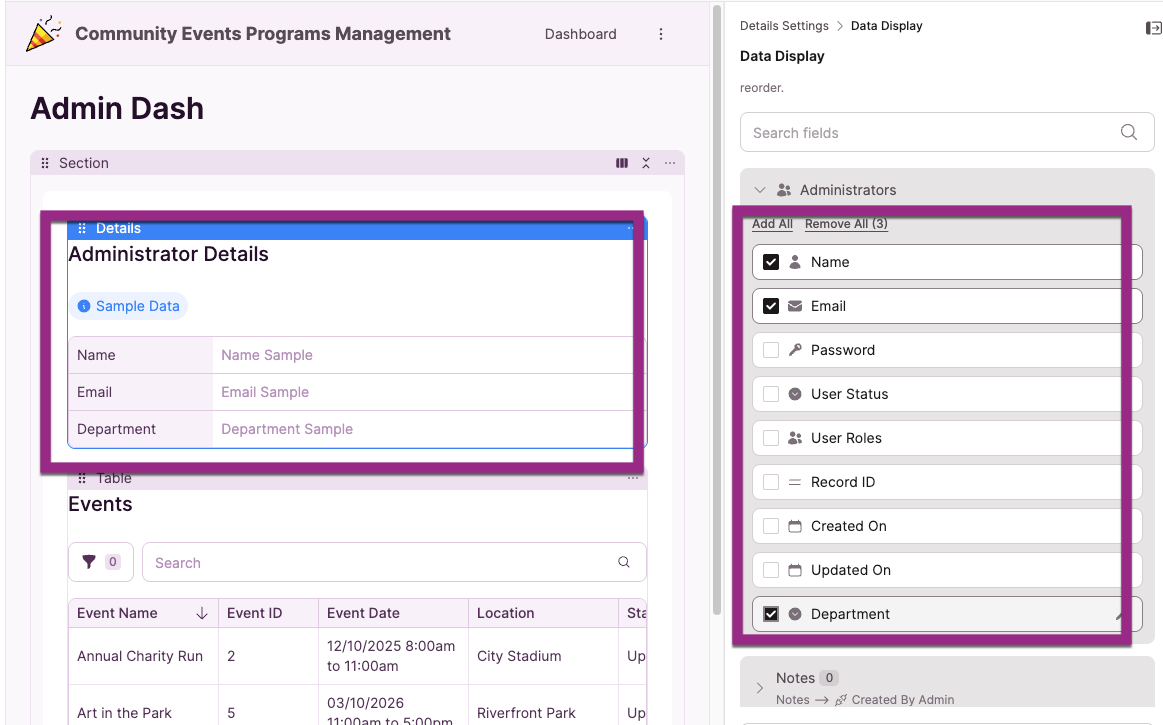
When a user logs in, the Details element automatically pulls their record and displays only their information.
Optional: Add a Personalized Greeting
If you want to display something like "Hello, Jane!" instead of just a name field, you can build that message using a Text Formula field.
Step 1: Add a Text Formula Field to the User Table
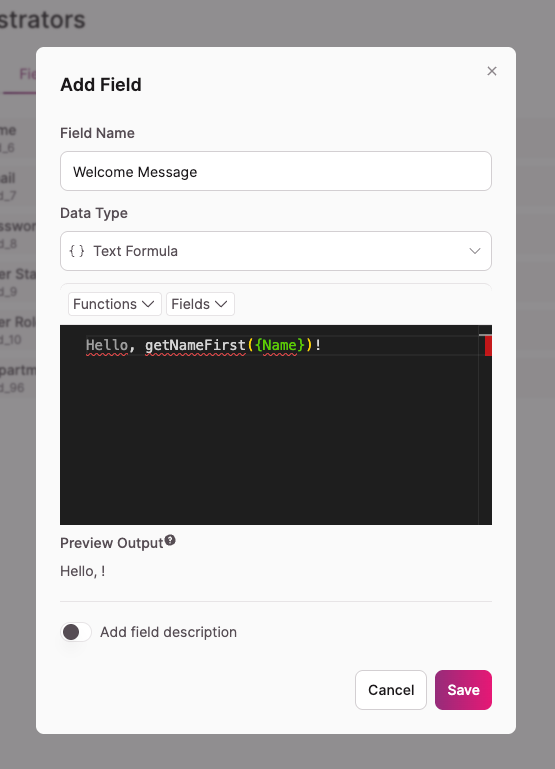
- Go to Tables and open your user table
- Click Add Field
- Select Text Formula
- Name it something like "Welcome Message"
- Build your formula — for example:
- Type
Hello,(with a space) - Insert the Name field or use a function to grab the first name from the Name field
- Add
!at the end
- Type
- Save the field
Step 2: Add the Greeting Field to Your Details Element
- Go back to your login-protected page
- Edit the Details element or add another
- Add the Greeting Message field to the display
- Save Changes
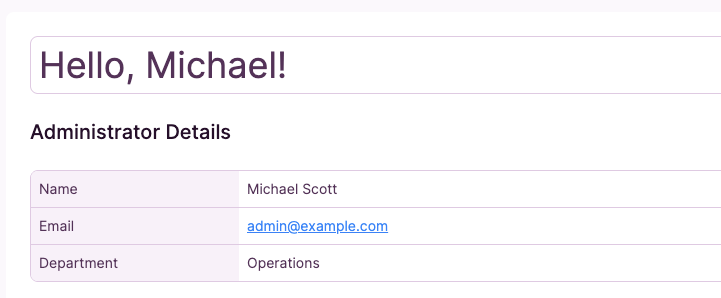
Now when a user logs in, they'll see their personalized greeting alongside their other details.
How It Works
The Details element works this way because the page is scoped to the logged-in user. Knack knows which user is active in the session and automatically filters the Details element to show only that user's record - no extra configuration needed.
Updated 6 months ago