

How to Automatically Generate Expiration Dates
Use a date field, a number field, and an equation field to auto-calculate expiration dates on records in your Knack app.
What You'll Learn
How to set up a Knack table to automatically calculate an expiration date based on a start date and a validity period. This is useful for tracking certifications, contracts, document reviews, equipment inspections, or anything else with a recurring expiration cycle.
Use Case
Say you manage employee certifications. Each certification has an issue date and a validity period (1 year, 2 years, 3 years). You want Knack to automatically calculate when each certification expires so you don't have to do the math manually.
This same pattern works for contracts, training renewals, insurance policies, equipment service intervals, or any record that needs an expiration tied to a start date.
Before You Start
If this is your first time building in Knack, review Knack Overview for the basics on tables, fields, and pages.
This article uses three field types: date/time, number, and equation. For background on field types, see Field Types.
Step 1: Add a Date/Time Field for the Start Date
In the table where you want to track expiration, add a date/time field to capture the start date.
For the certification example, this is the Issue Date.
Step 2: Add a Number Field for the Validity Period
Add a number field to capture how long the record is valid for. The unit you store here (days, weeks, years) needs to match the Date Type you'll set on the equation field in Step 3.
For the certification example, this is Validity Period In Days. Records can hold values like 365 (one year), 730 (two years), or 1095 (three years).
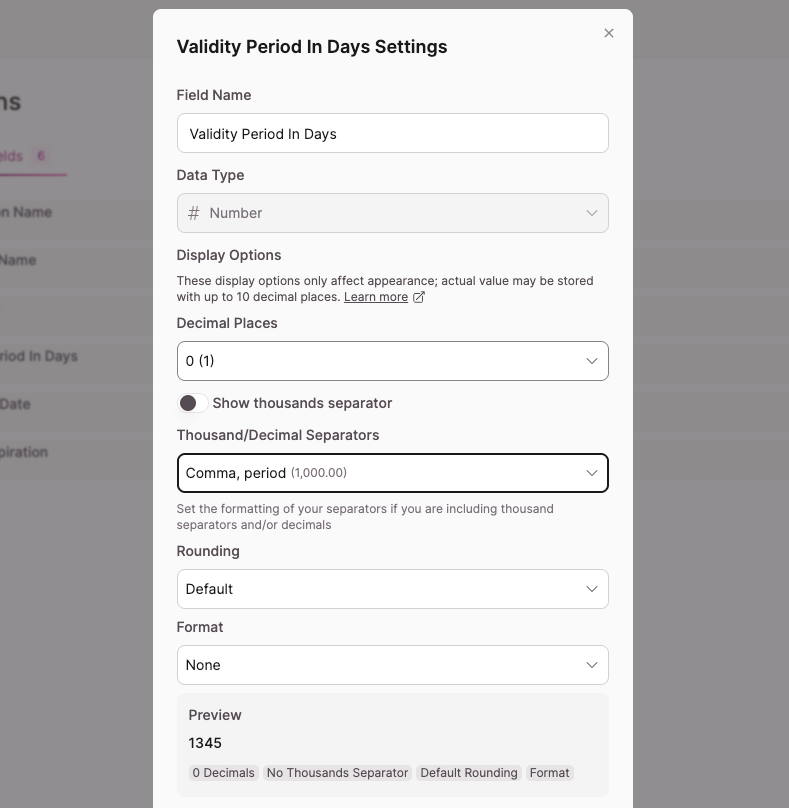
Skip this step if your validity period is fixedIf every record expires after the exact same amount of time (for example, all certifications are good for one year), you don't need a number field. You can hardcode the value directly into the equation field. See the tip in Step 3.
Step 3: Add an Equation Field to Calculate the Expiration Date
Add an equation field to the table. This is where the auto-calculation happens.
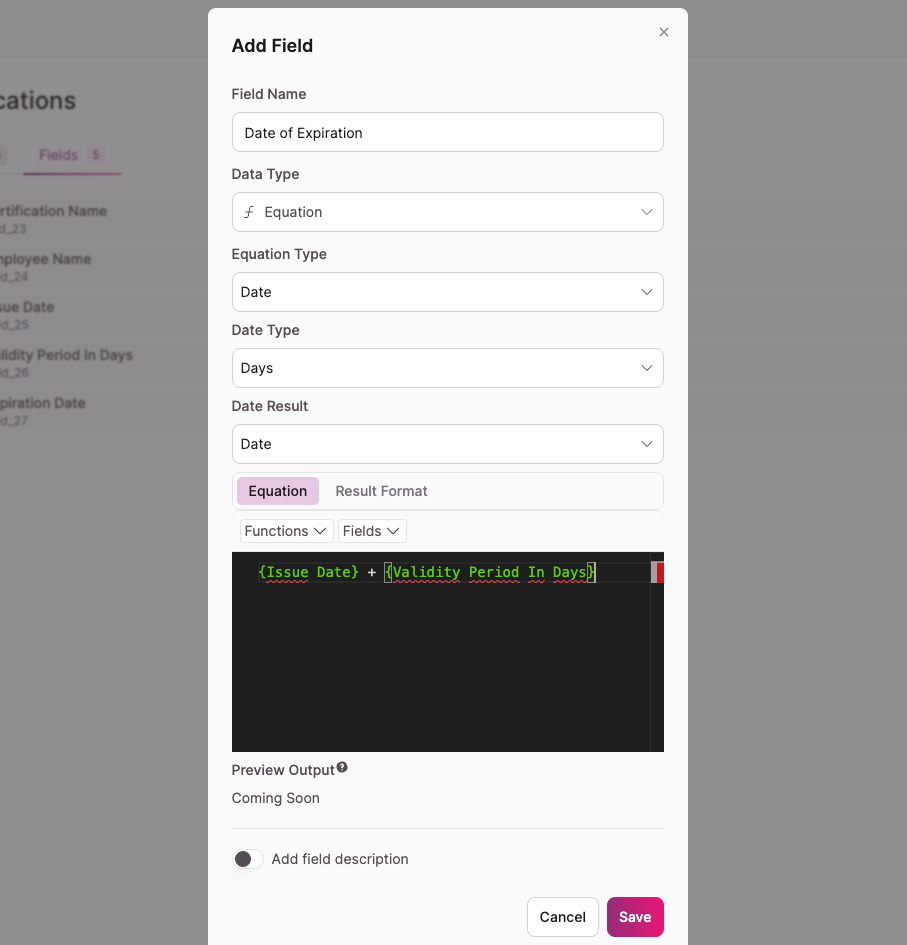
Configure the equation field as follows:
- Field Name: Date of Expiration (or whatever fits your use case)
- Data Type: Equation
- Equation Type: Date
- Date Type: Days
- Date Result: Date
- Equation:
{Issue Date} + {Validity Period In Days}
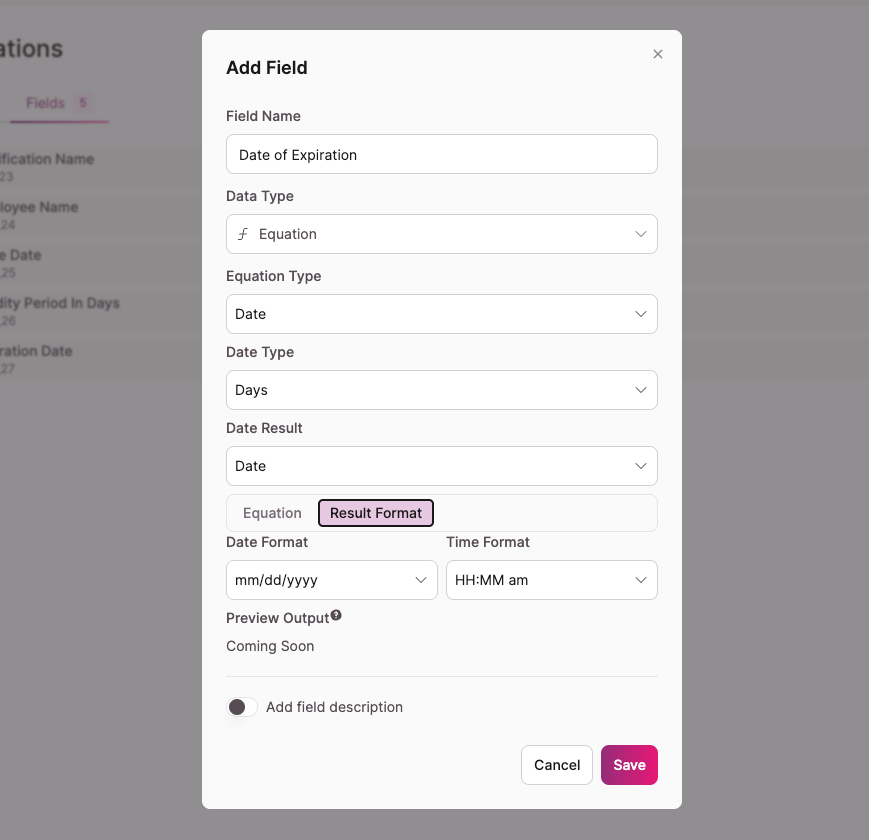
On the Result Format tab, set your preferred Date Format and Time Format.
Hardcoding a fixed validity periodIf you skipped the number field in Step 2, replace
{Validity Period In Days}with a literal number in the equation. For example,{Issue Date} + 365for a one-year expiration when Date Type is set to Days, or{Issue Date} + 1when Date Type is set to Years.
Date Type Options
The Date Type dropdown controls the unit your equation uses. Pick the one that matches what you stored in the number field (or what you want to add in a hardcoded equation).
- Hours
- Days
- Days (Epoch Time)
- Weeks
- Years
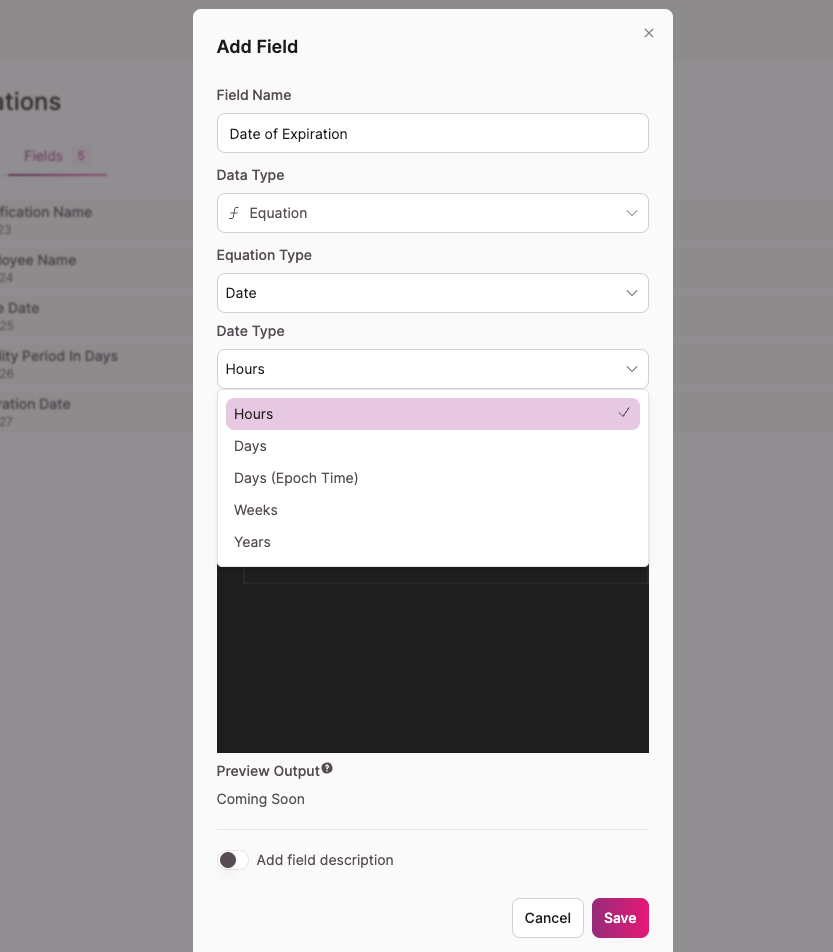
Need to track hourly expiration?If your records expire in hours rather than days (think short-term passes, time-limited access codes, or short equipment checkouts), set Date Type to Hours. Make sure your start date field is configured to capture time as well, and set the Time Format on the Result Format tab so the expiration time displays correctly.
Step 4: Test the Equation Field
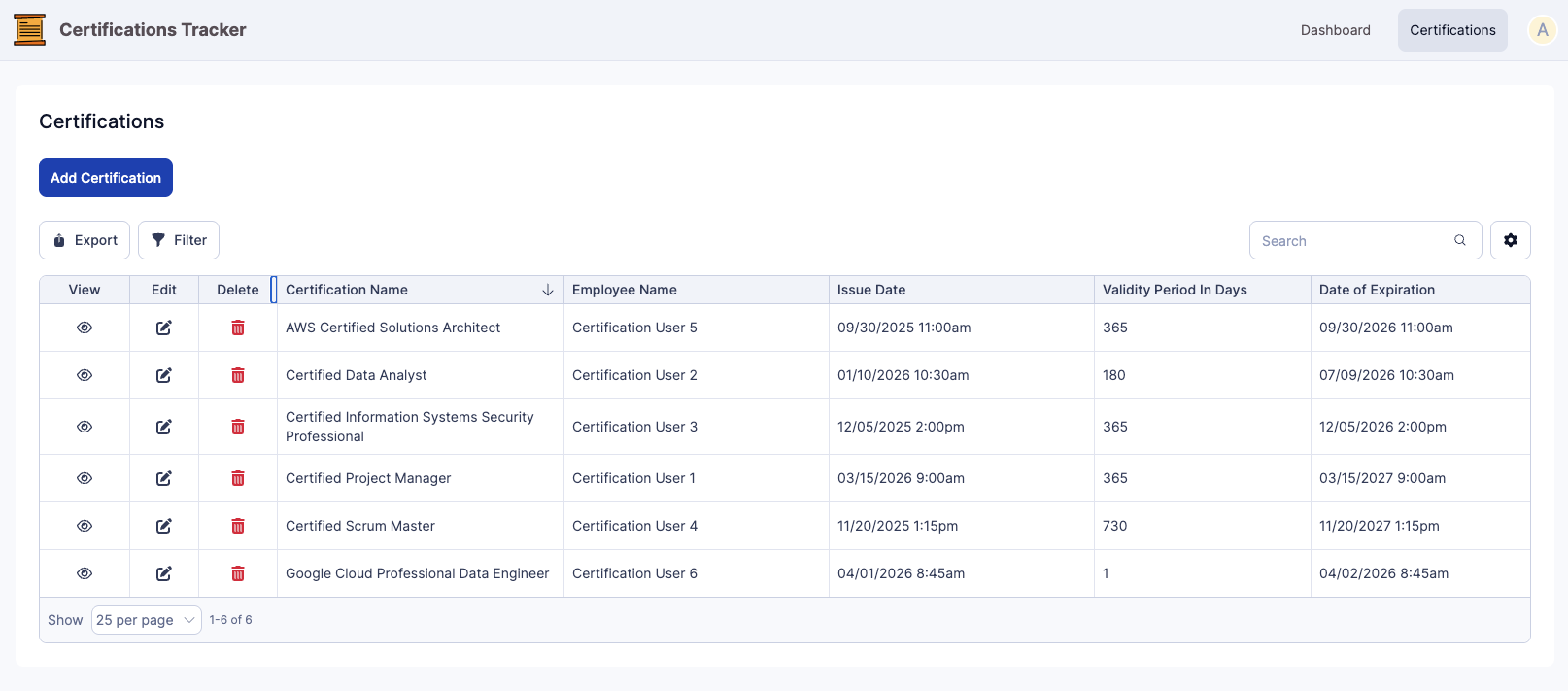
Add a record to confirm the calculation works as expected. You can do this in the Builder or by submitting through a form in the Live App.
For the certification example, add a record with an Issue Date of 01/15/2026 and a Validity Period In Days of 365. The Date of Expiration should populate automatically as 01/15/2027.
Common Mistakes
- Date Type doesn't match the number field unit. If your number field stores days but Date Type is set to Years, your math will be way off. Match the unit.
- Start date field doesn't capture time when using Hours. If you set Date Type to Hours but your date/time field is set to Ignore Time, the equation can't calculate hours accurately.
- Trying to use the Numeric Equation Type for date math. Numeric is for math on number fields. For date math, the Equation Type must be Date.
Next Steps
- Field Types covers every field type available in Knack, including more on date/time, number, and equation fields.
- Conditional Rules can flag records as expired or expiring soon based on the calculated date.
- Display Rules can highlight expired records in your table elements so they stand out visually.
Updated 5 months ago