

Show Records Connected To The Logged-In User's Company Or Other Group
Set up group-level filtering so logged-in users see records shared within their company, department, division, or other group.
Displaying records shared within user groups lets logged-in users see records that belong to their company, department, division, or other group — not just records connected directly to them. For example, all sales reps in the same division can view and manage the same pool of leads, or all teachers in a department can access shared student records.
This article walks through how to set up a shared group connection so that an element on a login-protected page displays records connected to the logged-in user's group.
Before you startThis guide assumes you already have:
- A user role set up in your app. See User Management Fundamentals for details.
- A login-protected page for that user role. See How to Create a Login-Protected Page for details.
- A basic understanding of connections. See About Connections for details.
How Group-Level Filtering Works
Group-level filtering relies on a shared connection between two tables through a common group table. Instead of connecting records directly to a user, both the user role and the records table connect to the same group table (like a Division, Department, or Company).
When a user logs in, Knack follows the connection path: logged-in user → group → records. The element displays all records that share the same group as the logged-in user.
Example: A Sales Rep is connected to the "West" Division. The Contacts table is also connected to the "West" Division. When that Sales Rep logs in, they see all Contacts in the West Division — including leads assigned by other reps in the same division.
Set Up the Group Connection
You need three tables with two connections:
- A group table (e.g., Divisions, Departments, Companies)
- A user role connected to the group table (e.g., Sales Reps, Managers)
- A records table connected to the same group table (e.g., Contacts, Sales Leads)
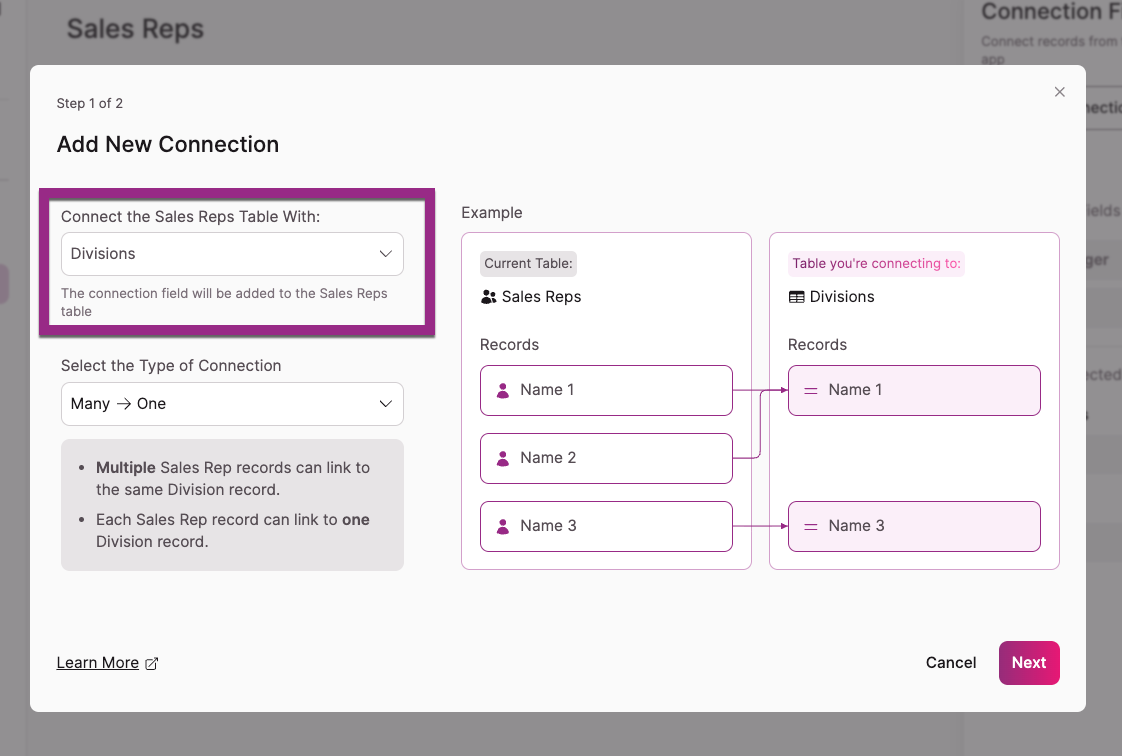
1. Connect the user role to the group table
Add a connection field on your user role that links to the group table. Typically this is a many-to-one connection — many users belong to one group.
2. Connect the records table to the same group table
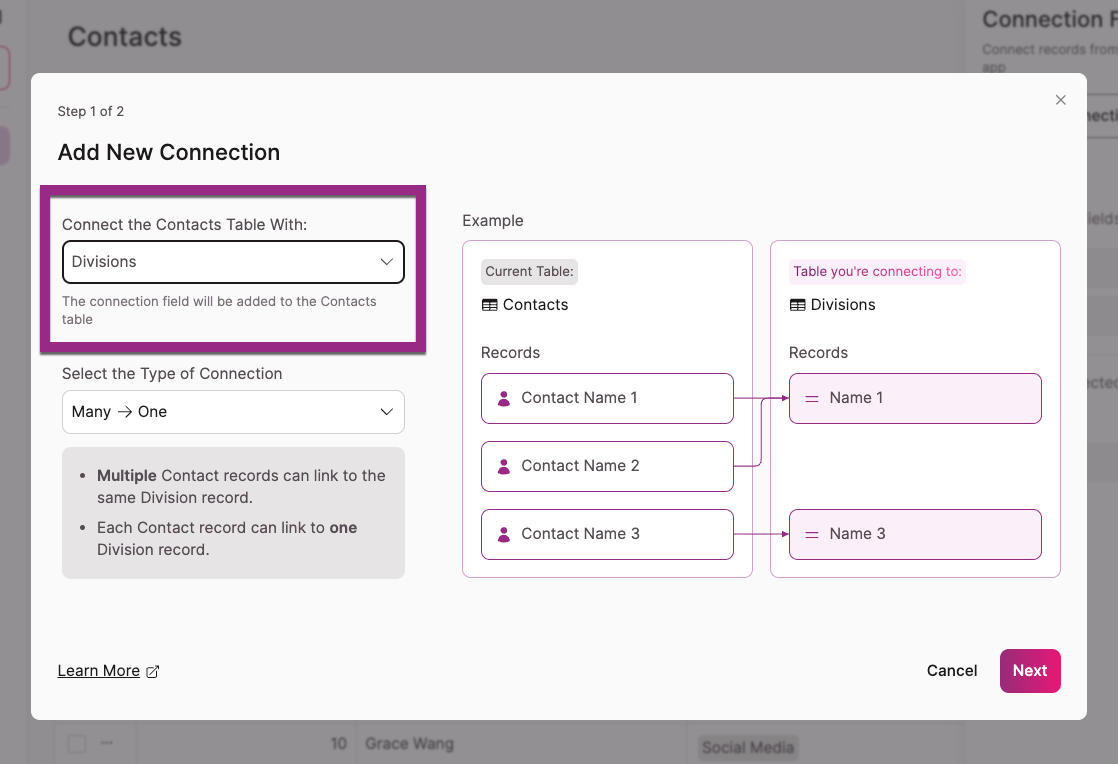
Add a connection field on your records table that also links to the group table. This creates the shared link. Each record connects to one group, and each group connects to many records.
3. Assign groups to your records
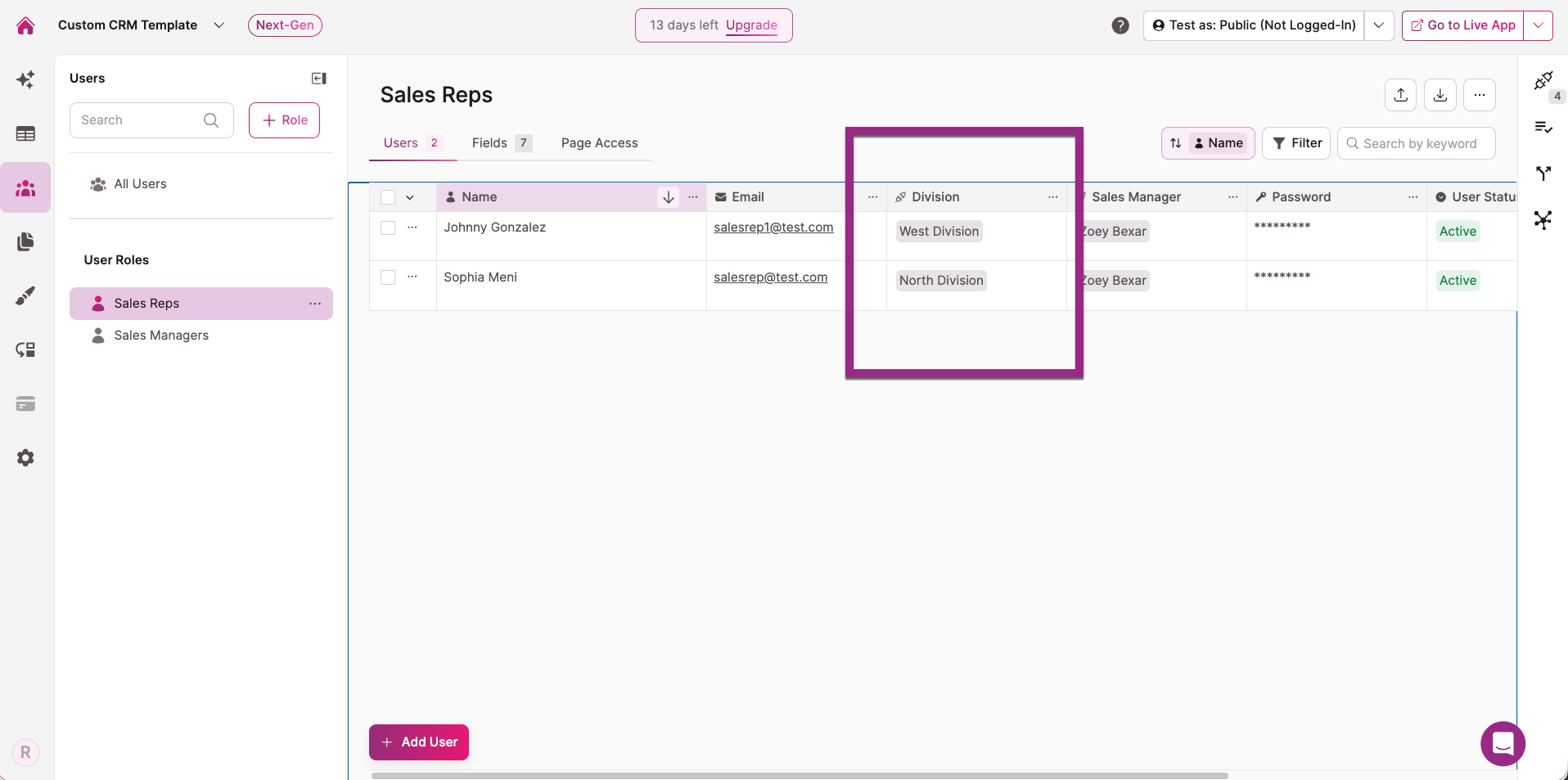
Make sure both your user records and your data records have their group connection field populated. Each user should be assigned to a group, and each record should be assigned to a group.
Key conceptThe group table is the common link. Both the user role and the records table connect to it independently. Knack uses this shared connection to determine which records to display for the logged-in user's group.
Add an Element That Shows Group-Connected Records
1. Navigate to the login-protected page for the relevant user role in the Pages section of the Builder.
2. Click "Add Element" to start the element setup process.
3. Select the element type and the records table you want to display.
4. Choose the option to show records connected to the logged-in user's group.
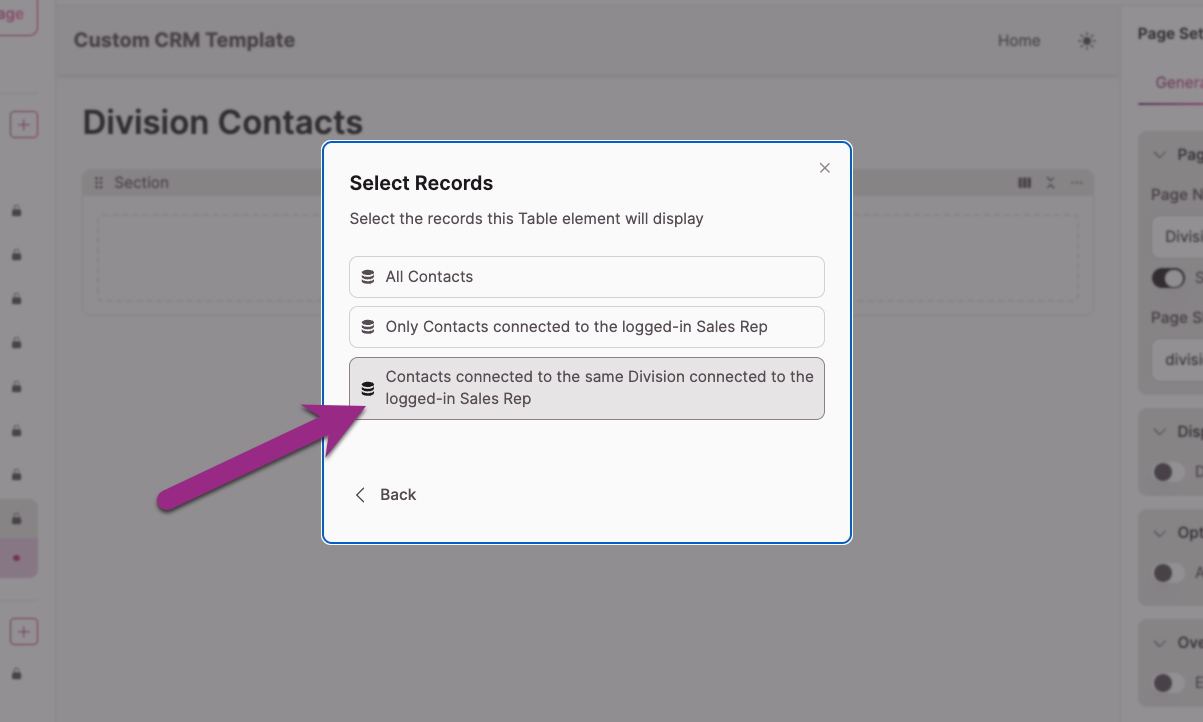
During element setup, when prompted to select which records to display, you'll see an option to show records connected through the group table. Select this option.
For example, if your Sales Rep user role connects to a Division, and your Sales Leads table also connects to that Division, you'll see an option like "Sales Leads connected to the same Division as the logged-in Sales Rep."
5. Complete the setup and click "Confirm."
Your element now displays all records that share the same group as the logged-in user.
Don't see the group connection option?This option only appears when both the user role and the records table have a connection to the same group table, and the page is login-protected for that user role. Verify that all three connections are in place.
Test the Configuration
Use the Test As feature to quickly verify your setup. Test As lets you preview your live app as any specific user without needing their login credentials — just select a user from the Builder and see exactly what they see.
See Test As: Quickly Preview & Test Your App as Any User for details on how to use it.
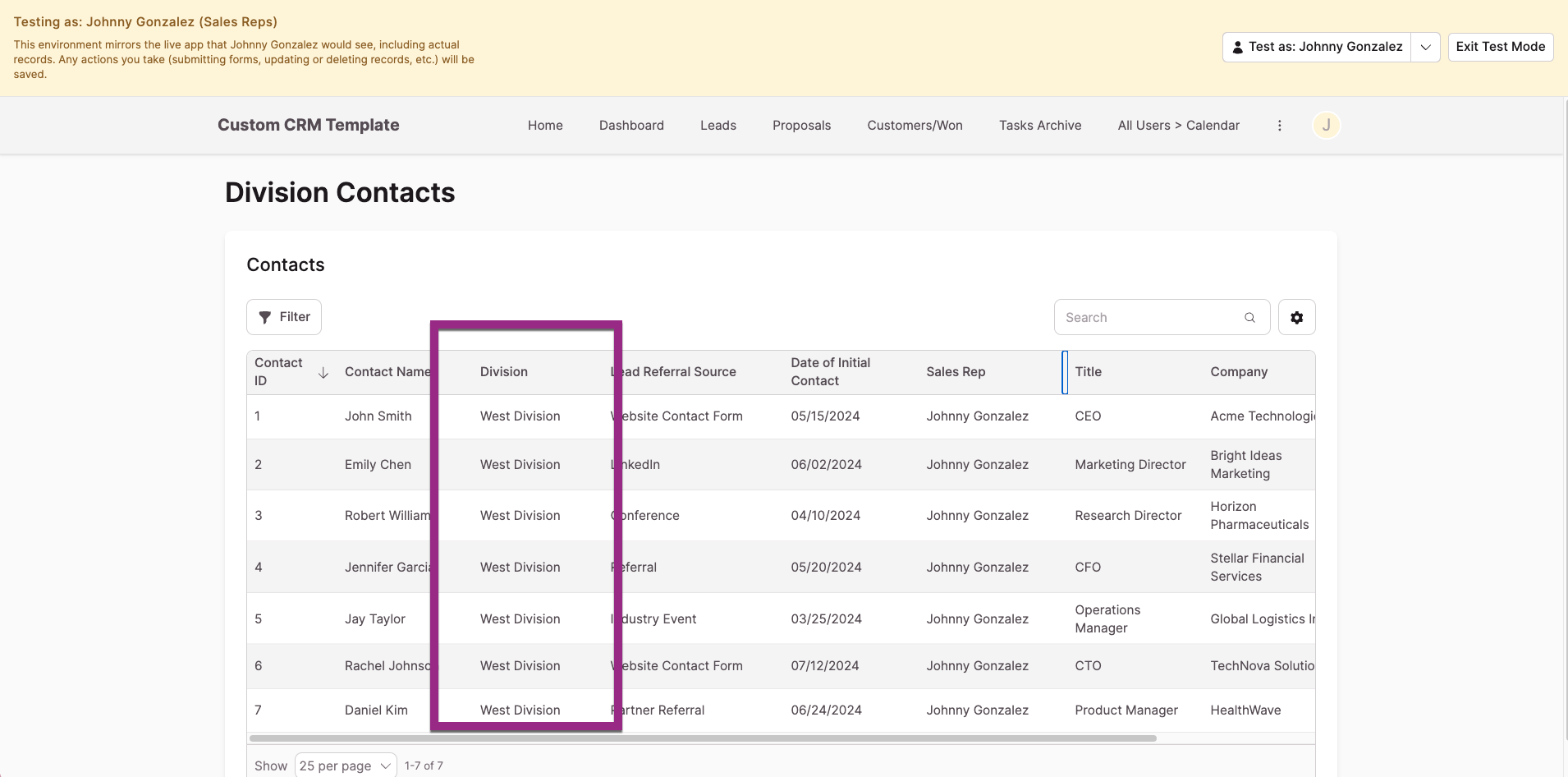
Verify that:
- The logged-in user sees all records connected to their group — not just their own.
- Records connected to other groups are not visible.
- A different user in the same group sees the same set of records.
Troubleshooting
The group-connected records option doesn't appear during element setup.
This means one or more connections are missing or the page isn't configured correctly:
- Confirm the page is login-protected for a specific user role — not open to all users.
- Confirm the user role has a connection field to the group table.
- Confirm the records table also has a connection field to the same group table.
- Confirm both connections point to the same group table. If the user role connects to "Divisions" but the records table connects to a different "Departments" table, the shared link won't exist.
Updated 5 months ago