Data Access Control

This guide will help you understand how Data Access Control works, how to configure it for different User Roles, and how to enable enforcement in your Live App.

This document provides a comprehensive review of the Data Access feature based on the official Knack documentation. It outlines how the feature works, its primary benefits, and key architectural considerations to support your product planning.

At a Glance

The Data Access Control feature introduces centralized, data-layer security for tables in Knack applications. Instead of managing permissions strictly at the UI layer (e.g., page-by-page access rules), builders can now enforce security rules directly on the underlying tables. This ensures that security policies are automatically and consistently applied across all pages, views, search functions, API endpoints, and data exports.

📘

Initially, Data Access Control is available on newly created apps.

How Data Access Control Works

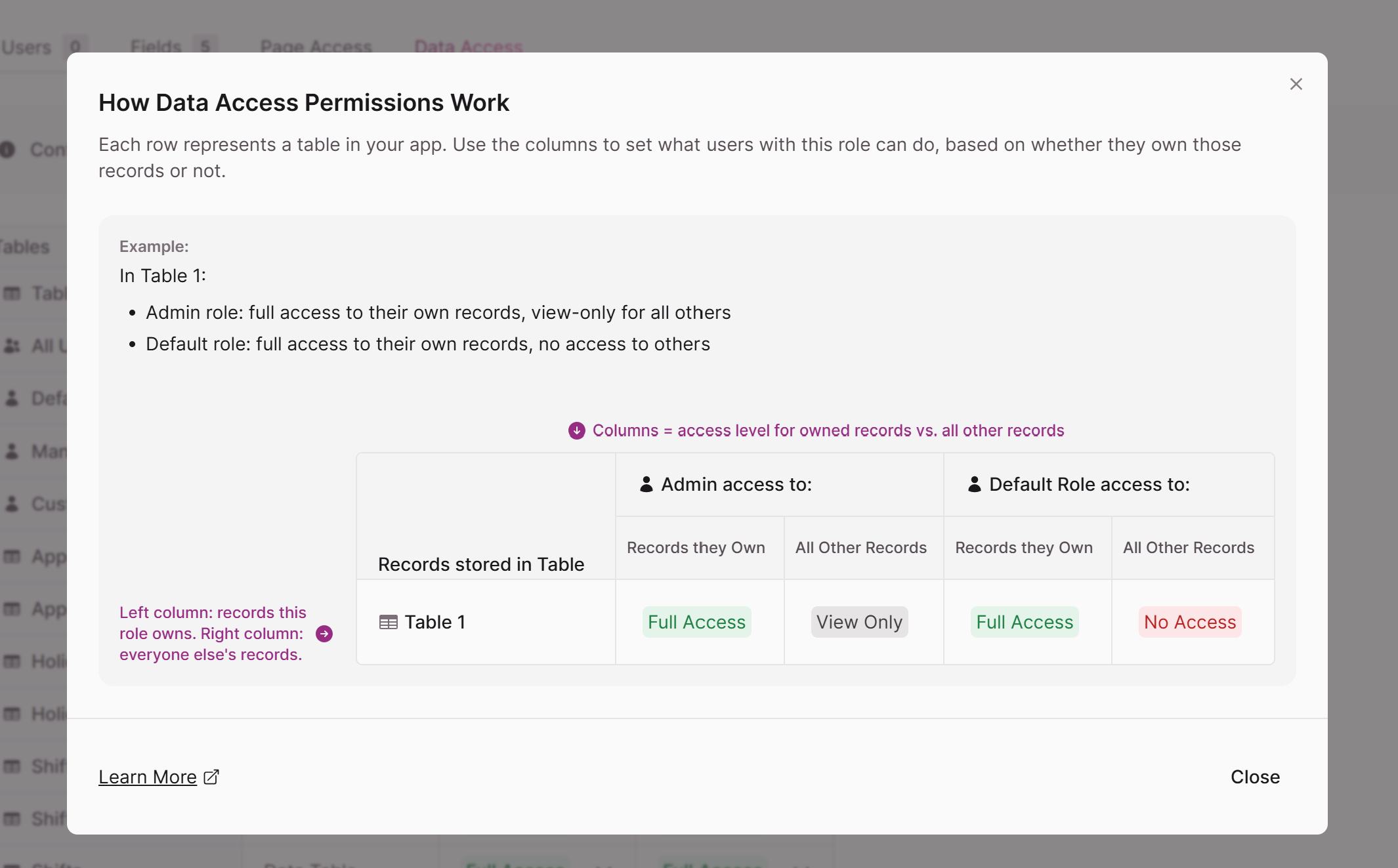
Permissions are defined at the User Role level and applied to every table in your app. For each role and table combination, you configure two settings:

  1. "Owned By" User: Controls what a user can do with records they created or are assigned to.
  2. All Other Records: Controls what a user can do with records belonging to other users.

Access Levels

For each of the two settings above, you can assign one of the following access levels:

Access LevelAllowed OperationsScope Availability
Full AccessCreate, edit, view, and delete records."Owned By" & "All Other Records"
Edit OnlyCreate, edit, and view records (cannot delete)."Owned By" & "All Other Records"
View OnlyView records only."Owned By" & "All Other Records"
No AccessCannot view or interact with records at all.Only available for "All Other Records"
📌

Note: Live App users always retain at least some level of access to records they own; therefore, No Access cannot be applied to the "Owned By" User category.


Core Setup Workflow

1. Initial Setup

When you open the Data Access tab for the first time (Users > All Users > Data Access), you click Start Setup. This creates the centralized Data Access Grid and sets default permissions for all existing roles and tables.

2. Configuration & Default Permissions

  • The Grid: A multi-dimensional configuration interface where tables are rows and User Roles are column groups (split into Owned by User and All Other Records).
  • Role Filtering: Builders can filter the grid to focus on specific roles or individual roles to simplify management.
  • Public Role: The Public (Not Logged-In) role defaults to No Access for All Other Records on all tables, ensuring a secure-by-default posture for unauthenticated traffic.
  • Table Defaults: To streamline scaling, builders can set default permissions for new tables under User Role Settings. Any newly created table automatically inherits these defaults.

3. Safe Enforcement

Configuring rules does not immediately impact active users. A yellow Action Required banner is displayed until the builder explicitly toggles Enforce data access rules for App to ON in the All Users Table. This allows for safe, offline drafting and validation of security policies.

4. Reversibility

Enforcement can be toggled off at any time. When disabled, users access records as if no rules are in place, but the configured grid settings are preserved so they can be re-enabled instantly.


Key Benefits

  • Unified Security Model (Data-Layer Enforcement): Security is enforced at the database level. Rules automatically apply to Classic and Next-Gen Live Apps, as well as searches, API endpoints, and data exports, eliminating the risk of security gaps from missed page-level permissions.
  • Separation of Concerns: Page Access Permissions continue to control where users can go (UI navigation), while Data Access Permissions control what records they can see and manipulate once they get there.
  • Safe Drafting & Testing: The separation between configuration and enforcement allows builders to design and review complex security grids without disrupting live production environments.
  • Secure-by-Default Defaults: Automated default rules (like Public defaulting to No Access) prevent accidental data leaks when new tables are created or when unauthenticated users browse the app.

Getting Started

Step 1: Start Setup

When you open the Data Access tab for the first time after creating a new app (via Users > All Users > Data Access), you will see a prompt to begin setup. Click Start Setup to open the setup modal.


The modal explains the two core concepts — "Owned By" User and All Other Records — and describes each access level. It also includes an important note:

📘

Data Access Rules apply to Live App users in both Classic and Next-Gen. Page Access Permissions continue to apply and control which pages each Role has access to. Data Access Permissions control what data each user sees on each page, and what permissions each user has for each record.

Click Start Setup to activate Data Access for your app. This creates the Data Access grid and sets default permissions for all your existing roles and tables.

👍

Your Live App is not affected until you've had a chance to configure and review all permissions, and then selecting the option to Enforce data access rules for the app.


Step 2: Configure Permissions

Once Data Access is enabled, you will land on the All Users Data Access grid. This is your central configuration surface, showing all tables as rows and all User Roles as column groups, each split into Owned by User and All Other Records sub-columns.

You can quickly compare permissions across roles, use the search bar or dropdown picker to find specific tables, and adjust dropdowns directly in the grid.

On this grid, you can adjust any permission by clicking the dropdown in the relevant cell.

Filtering by Role

If your app has many roles, you can use the role filter dropdown in the upper right of the grid to focus on specific roles. Click the dropdown to see a checklist of all your User Roles, use Select all to show or hide all roles at once, or check and uncheck individual roles to narrow the view. Selected roles appear as tags above the grid.


Configuring a Single Role

To focus on one role at a time, select it from the dropdown filter or the left-hand role list. The role-specific Data Access tab shows the same grid filtered to just that role, with the same dropdowns for each table.

Tip: The Public (Not Logged-In) role defaults to No Access for All Other Records on all tables. This keeps your data secure by default for unauthenticated users.

Setting Default Permissions for New Tables

As your app grows, you can ensure new tables automatically receive the right permissions for each role without manual configuration each time.

  1. Navigate to Users > All Users, click the ellipsis (...) in the upper right, and select User Role Settings.
  2. Select a role from the left-hand list.
  3. Scroll down to Default Permission for Records Owned by User and Default Permission for All Other Records.
  4. Set your preferred defaults and click Save.

Any new table you create will automatically inherit these defaults for that role.

📘

Every app must have at least one user role.


Step 3: Enforce Data Access Rules

After enabling Data Access, configuring permissions does not affect your Live App until you explicitly turn on enforcement. This is intentional. It gives you the freedom to set up, review, and refine your entire security model — across every role and every table — without any risk of disrupting active users or accidentally locking someone out. You can take your time, test different configurations, and make sure everything looks right before a single rule goes live.

While enforcement is off, role-specific Data Access pages display a yellow Action Required banner:

Permissions can be configured on this table but will not take effect until 'Enforce' is toggled on in Configuration Step 2 in the All Users Table.

You can click the Enforce Permissions in the All Users Table button in the banner to navigate directly to the enforcement toggle.

When you are ready to go live with your rules:

  1. Navigate to Users > All Users > Data Access.
  2. In the Step 2: Apply box, toggle Enforce data access rules for App to ON.

Your rules are now active for all Live App users, in both Classic and Next-Gen.


Turning Off Data Access Rules

You can turn off enforcement at any time. When you toggle enforcement off, a confirmation modal appears:

Turn Off Data Access Rules

By turning off data access rules, all users in your Live App will be able to access records as if there are no access rules in place.

Your current data access configuration will continue to be saved, and can be enforced again at any time.

Click Turn Off to confirm, or Keep On to cancel. Your configured permissions are never deleted — they are simply paused and can be re-enforced whenever you are ready.


✏️

Coming Soon

Sometimes a user needs to select a record from a table they don't have access to. For example, a user might need to pick a value from a connected field in a form, even if their role has No Access to the linked table.

Soon, we will have a new Connected Field Selection toggle, to handle this gracefully.

When enabled, users will be able to select values from a connected field even without access to the linked table. They will only see the display field in the dropdown and will be blocked from viewing or navigating to the full record.

If you turn this toggle OFF, users will be completely blocked from interacting with connected fields that link to tables they cannot access.