

Managing Payments in the Builder
View and work with your payment data, transactions and saved cards, directly in the Builder.
What you'll learn:
- Where your payment data lives and how to read it
- What transaction and saved-method statuses mean
- How to build on your payment tables without breaking them
Where your payment data lives
Your payment data is stored in the two tables Knack creates when you connect Stripe:
- Customer Transactions — One record per payment, with its outcome.
- Saved Customer Payments — The cards your users have saved.
You work with this data in the Builder just like any other table — opening it to view records, filtering, and adding your own fields. For how these tables are structured and what's locked, see Your Payment Tables: Customer Transactions and Saved Customer Payments.
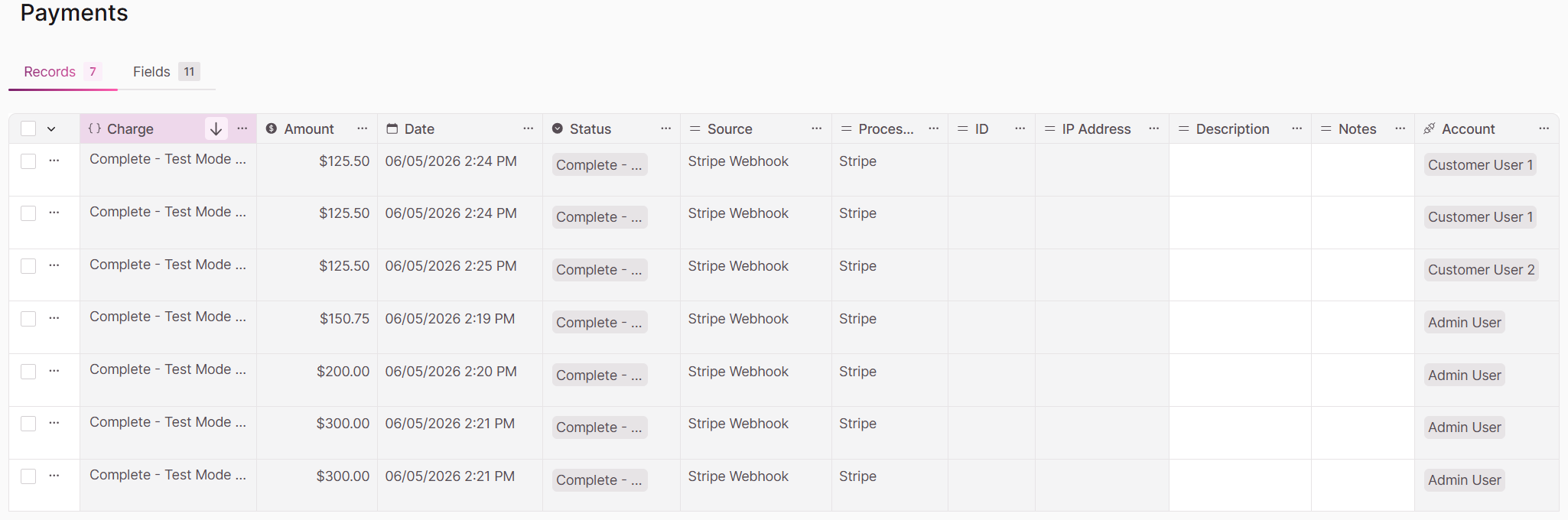
Reading transaction records
Each payment your app processes creates a record in Customer Transactions. The status tells you the outcome:
- Complete — The payment was processed successfully.
- Failed — The payment didn't go through (for example, the card was declined).
Because every transaction is connected back to the record it was made for, you can trace a payment to the order, invoice, or item it belongs to using the system connection field.
Tip: Add your own fields to the Customer Transactions table — like a category or internal note — to make reporting and filtering easier for your team. Just remember the default fields are managed by Knack and can't be changed.
Viewing saved payment methods
The Saved Customer Payments table holds the cards your users have stored. Each saved card is tied to the user who saved it.
When a user removes a card, the saved method is removed, and the record is not deleted, so other fields stay intact.

What you can and can't do
These tables are system-managed to keep your payment data reliable:
- You can view records, filter and sort them, and add your own fields to extend the tables.
- You can't manually create records in these tables or edit the locked default fields — records are created automatically as payments and saved methods happen in your live app.
Note: If an action isn't available on a system-controlled field, Knack shows a tooltip explaining why.
Troubleshooting
- A transaction is missing. Records are created when a payment is attempted in the live app. If you don't see one, confirm the payment was submitted and check whether it was made in Test or Live Mode.
- I want to add a record manually. Records in these tables are created automatically and can't be added by hand. To store extra information, add your own fields instead.
Updated 3 months ago