

Managing App Storage: Deleting Unused Assets
Free up storage space in your Knack app by removing files and media that are no longer referenced anywhere in your app.
What you'll learn:
- What unused assets are and how they accumulate
- How to access and use the Delete Unused Assets option from your dashboard
- What happens to deleted assets and how to recover them if needed
What Are Unused Assets?
As you build and update your app, files and images can become "unused" — meaning
they were once uploaded to your app but are no longer referenced by any record,
field, or page. Common examples include:
- Files attached to records that have since been deleted
- Images attached to records that have since been deleted
Knack retains these assets automatically in case your app ever needs to be
restored. Over time, however, unused assets can accumulate and consume meaningful
storage space.
The Delete Unused Assets option gives you an easy way to clear out this
accumulated storage without affecting any active files in your app.
How to Delete Unused Assets
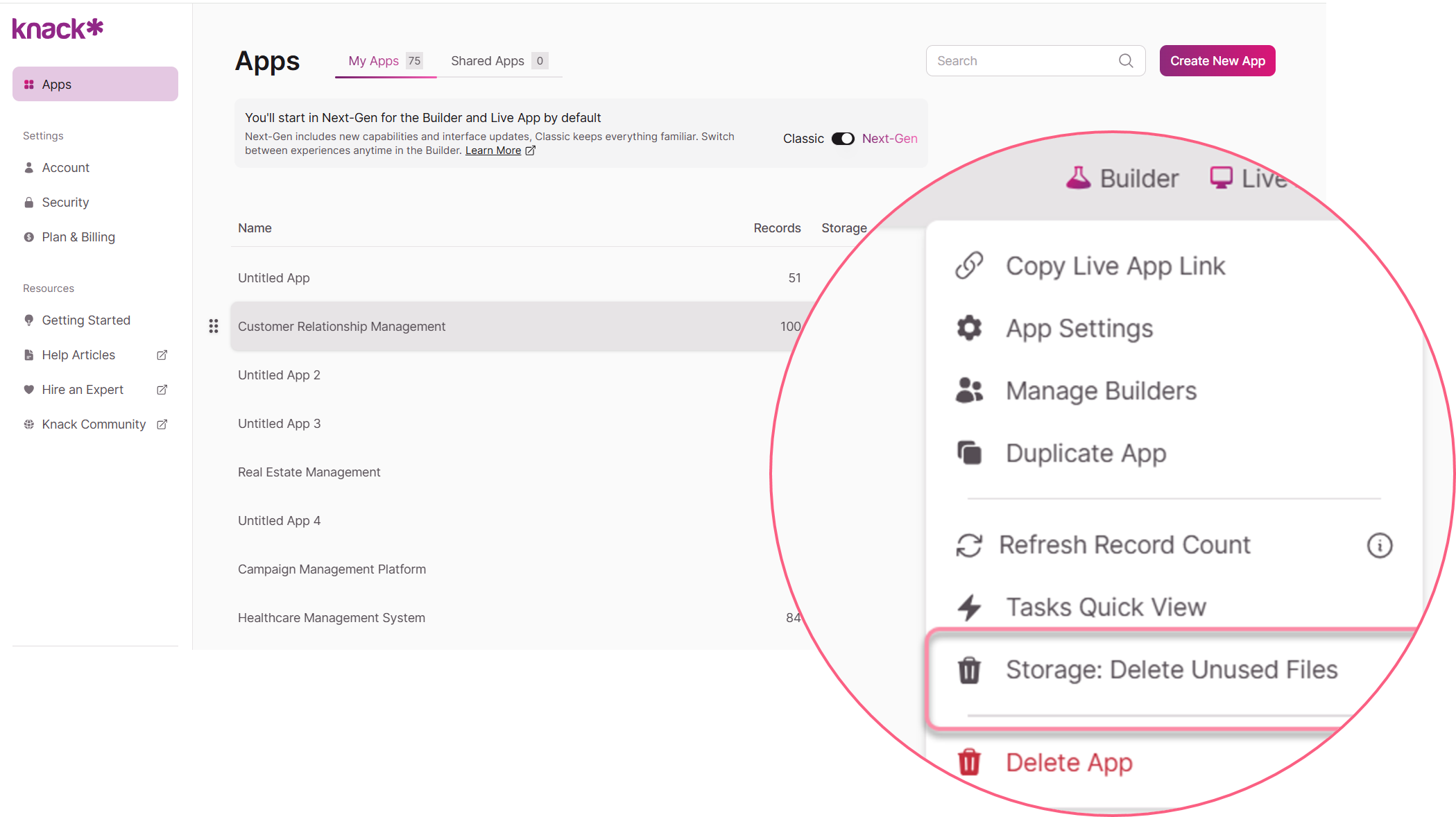
You can access this option directly from your app's dashboard menu.
- Go to your Dashboard and locate the app you want to manage.
- Click the three-dot menu (⋯) on the right side of the app row.
- Select Storage: Delete Unused Files from the dropdown.
- Review the confirmation dialog, then click Delete Files to proceed.
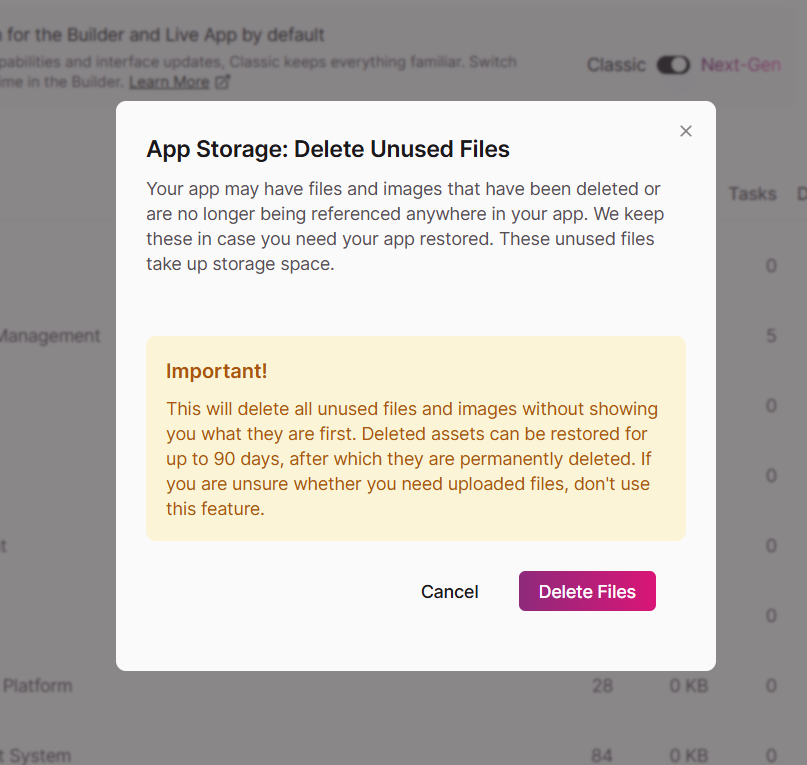
⚠️ Warning: This action deletes all unused files and images immediately,
without showing you a preview of what will be removed. If you're unsure whether
any of your uploaded files are still needed, don't use this option — contact
Knack Support for guidance before proceeding.
Recovering Deleted Assets
Deleted assets are soft-deleted, meaning they aren't permanently removed right
away. You have a 90-day window to request recovery if you realize you need
a file after deletion.
To recover deleted assets:
- Contact Knack Support within 90 days of deletion.
- After 90 days, deleted assets are permanently removed and cannot be recovered.
Note: Asset recovery requires a support request — there is no self-serve
restore option for deleted storage assets at this time.
When to Use This Feature
Delete Unused Assets is most useful when:
- Your app's storage usage is approaching or has exceeded your plan limit
- You've done significant restructuring — deleting records, tables, or file
fields — and want to reclaim the space those assets occupied - You're cleaning up a test or staging app before launch
Tip: Check your app's Storage column on the Dashboard before and after
running this action to confirm storage space has been freed.
Updated 3 months ago