

Adding and Configuring the Save & Edit Payment Method Element
Let logged-in users securely save and update a card on file, so future checkouts are faster.
What you'll learn:
- Where the Save & Edit Payment Method element can be used
- How to add it to a page or a form
- How to configure its checkout settings and rules
What this element does
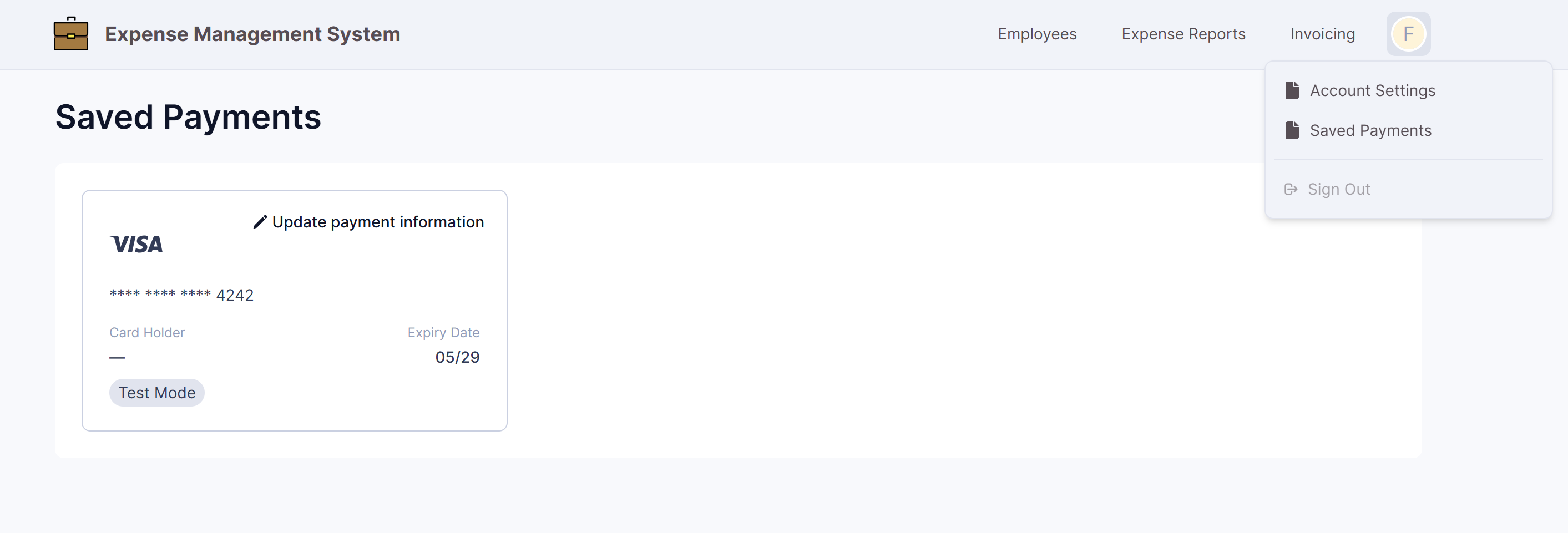
The Save & Edit Payment Method element gives your logged-in users a place to securely store a card and keep it up to date. Once a card is saved, it can be selected at checkout, so users don't have to re-enter their details every time.
Saved cards are stored in your Saved Customer Payments table and are scoped to the individual logged-in user.
Where you can use it
This element is only available on login-protected pages, because a saved card has to belong to a specific logged-in user. This element generally is placed in a Profile Page.
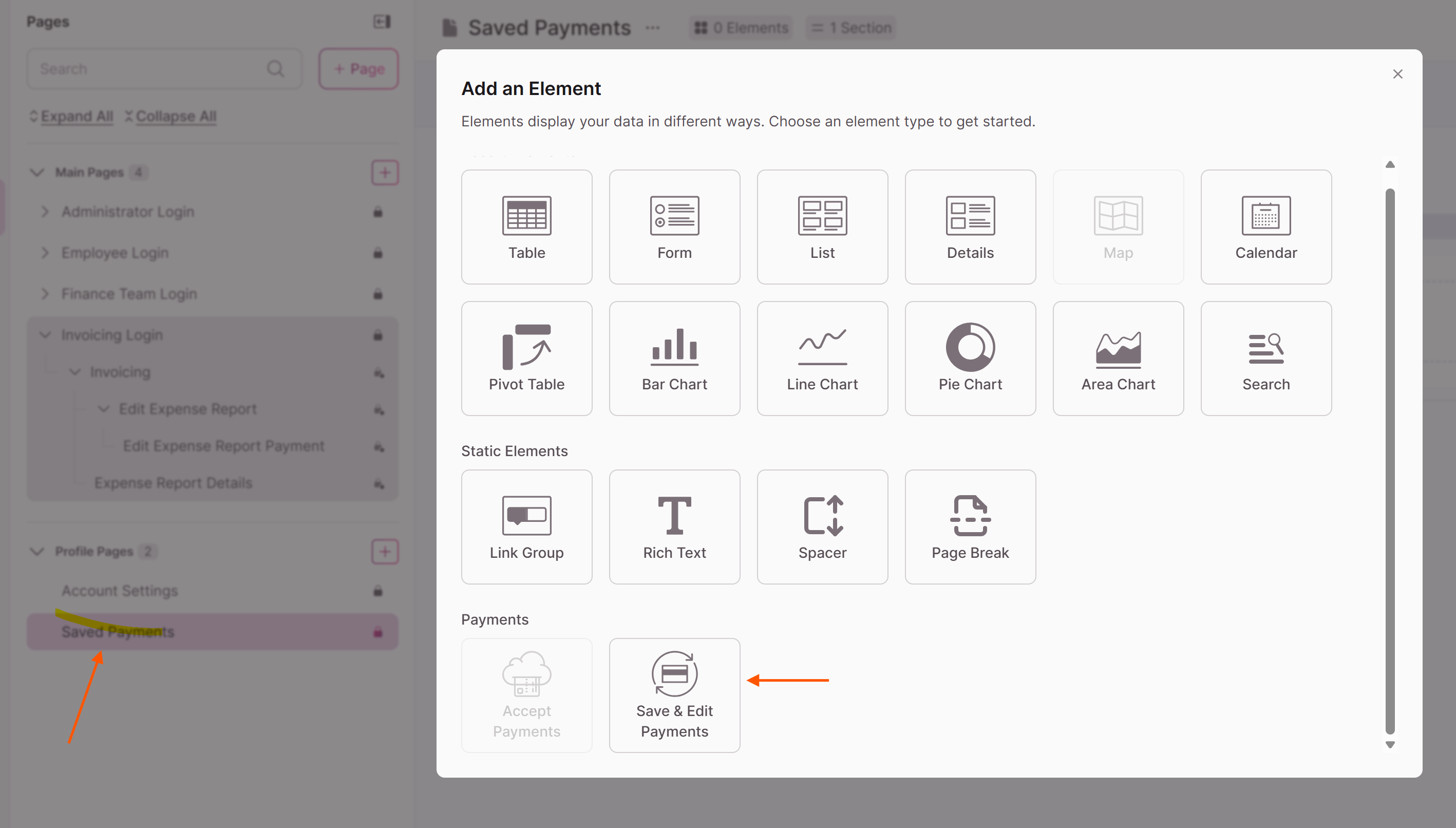
Note: On a public page, the Save & Edit Payment Method option won't be available. Hover over it to see the tooltip: "This element is available for logged-in users. Login requirements can be added in the page's access settings." Add a login requirement in the page's access settings to use it.
Adding the element
You can add the Save & Edit Payment Method element the same way you add an Accept Payment element:
- From the element picker, on a login-protected page.
- From a form on a login-protected page.
Configuring checkout settings
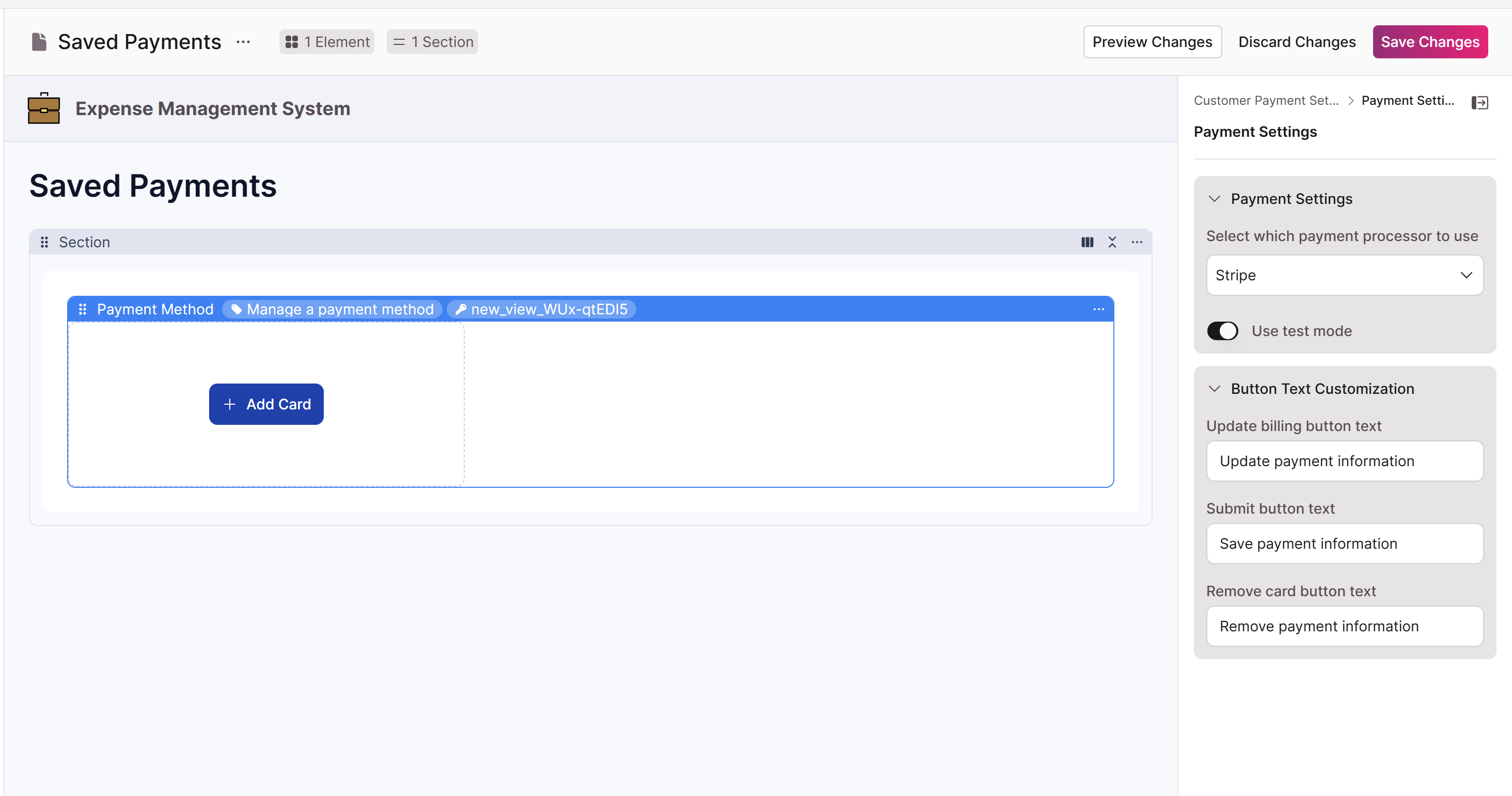
The checkout settings let you tailor the processor, mode, and button labels:
- Payment processor — Choose the processor to use.
- Test/Live Mode — Select the mode (subject to your plan and the keys you entered).
- Submit Payment button text — The label for saving a new card.
- Update Billing button text — The label for updating an existing card.
- Remove payment information button text — The label for removing a saved card.
Tip: Clear button labels reduce confusion. Consider wording like "Save card," "Update card," and "Remove card" so users know exactly what each action does.
Automating with rules
The Save & Edit Payment Method element supports some of the same rule types as the Accept Payment element, following the standard Builder patterns:
- Submit Actions — Show a confirmation message, show a link to reload the form, automatically reload the form, or redirect to a parent page, an existing page, another website, or a new child page.
- Email Actions — Trigger emails on any field or condition, with merged fields supported in the subject and body. Emails fire for both Test and Live Mode based on your plan, and a View email history link is available based on your plan.
Troubleshooting
- The element isn't available on my page. It only appears on login-protected pages. Add a login requirement in the page's access settings.
- A user can't see their saved card. Saved cards are scoped to the individual logged-in user, so each user only sees their own.
Updated 3 months ago