

Making Payments in Your Live App
A walkthrough of what your users experience when they pay, save a card, or update their saved payment methods in your live app.
What you'll learn:
- What the checkout looks like and how a payment is completed
- How users save and reuse a card for faster checkout
- How users update or remove their saved payment methods
What your users see at checkout
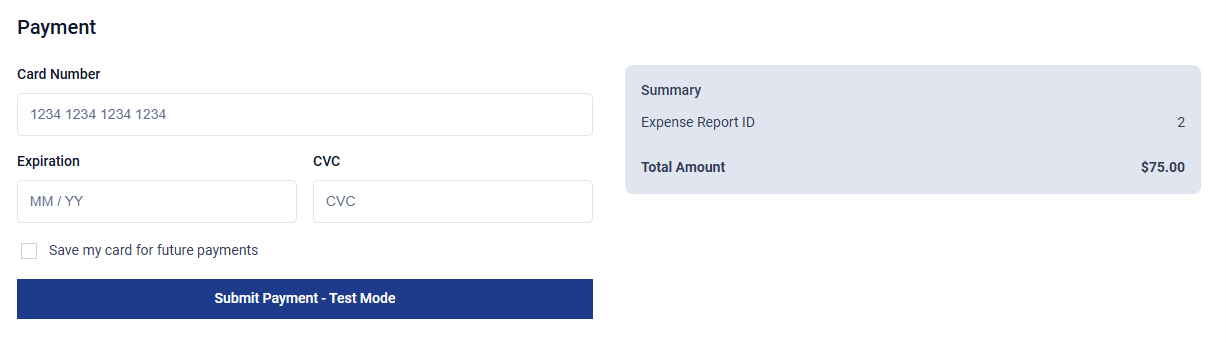
When a user opens a page with an Accept Payment element, they see a checkout that includes:
- The checkout title and description you configured.
- A read-only summary of what they're paying for, including the amount, currency, and any line items or additional details you added.
- Secure card fields for card number, expiration, and CVC (powered by Stripe).
- A submit button with the label you set.
The total is read-only — it comes from the record being paid for and can't be changed at checkout.
Completing a payment
- The user enters their card details.
- They select the submit button. The button shows a loading state while the payment is processed.
- The card is securely handled by Stripe and processed through Knack.
On success, the user sees a success message, a transaction record is created with a status of Complete, and any submission, record, and email rules you set up run automatically.
On failure, the user sees a clear, non-technical error message, and the transaction record shows a status of Failed.
Note: In Test Mode, the checkout accepts Stripe's test cards so you can try the full flow without real charges.
Saving a card at checkout
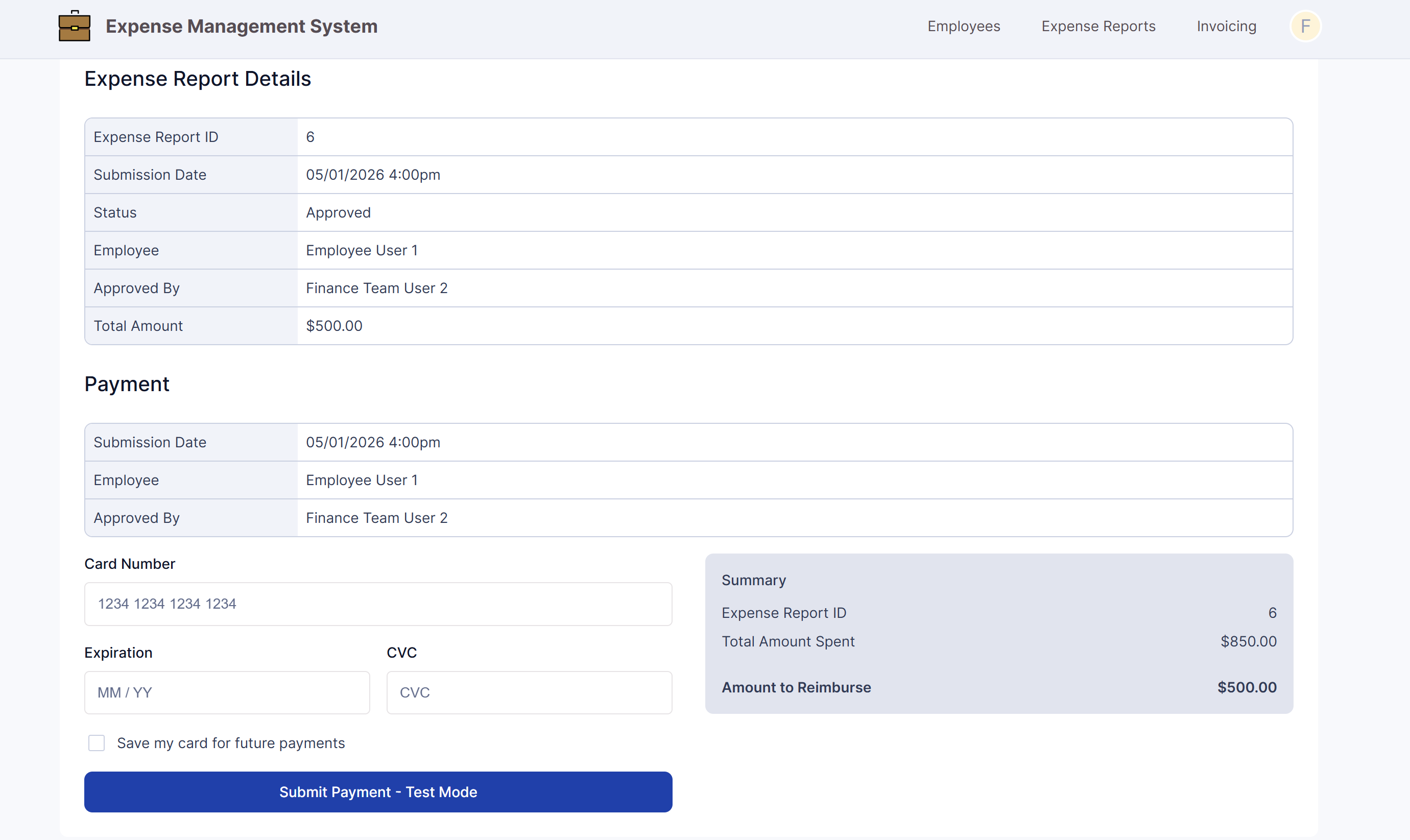
If you set Save Payment Method to Optional, the user can choose to save the card they just used for future checkouts. Their saved card is stored against their logged-in account.
Selecting a saved card
Returning users can check out faster by selecting a card they've already saved.
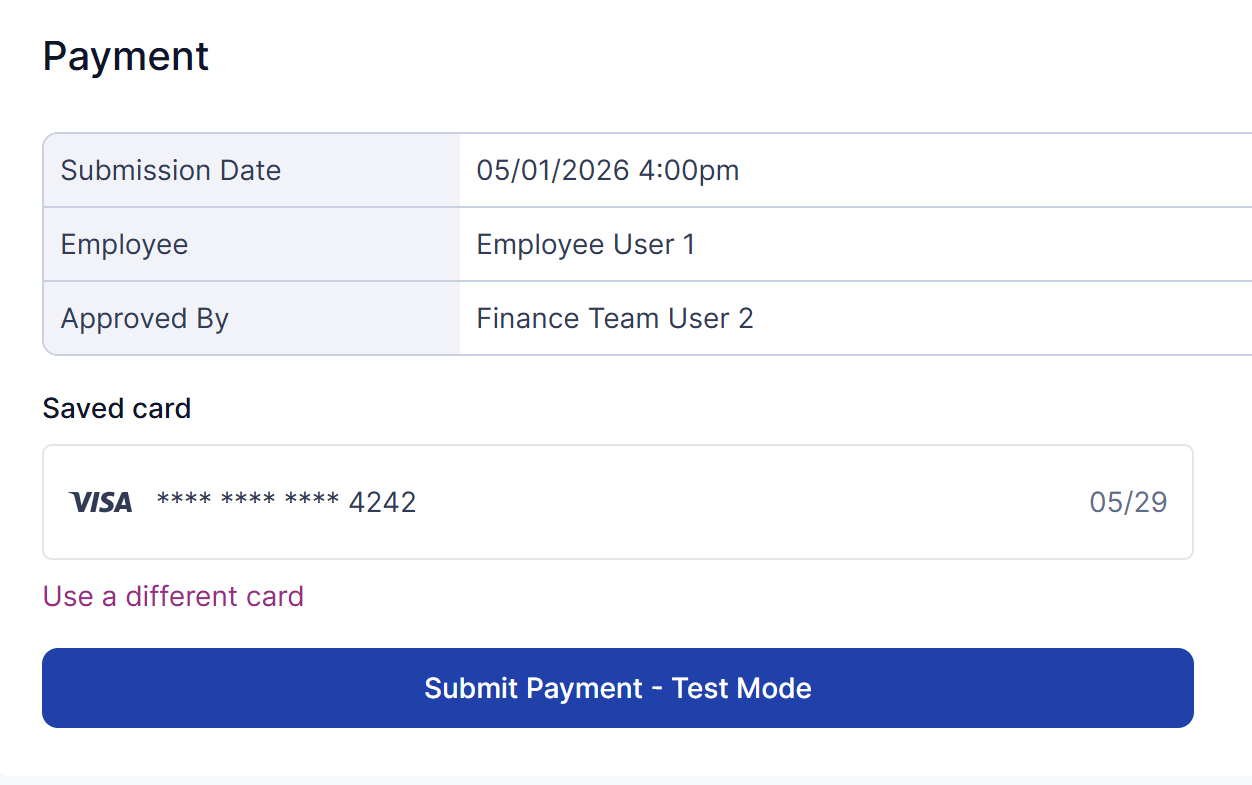
- If the user has saved cards and Save Payment Method is set to Yes or Optional, their saved cards appear at checkout, showing only the card brand, last 4 digits, and expiration.
- The user can pick a saved card or choose to enter a new one.
- If they have no saved cards, only the new-card fields appear.
Saved cards are private to each user — they only ever see their own.
Note: Selecting a previously saved card at checkout applies when using Live Mode. Saved-card selection isn't available in Test Mode.
Updating a saved payment method
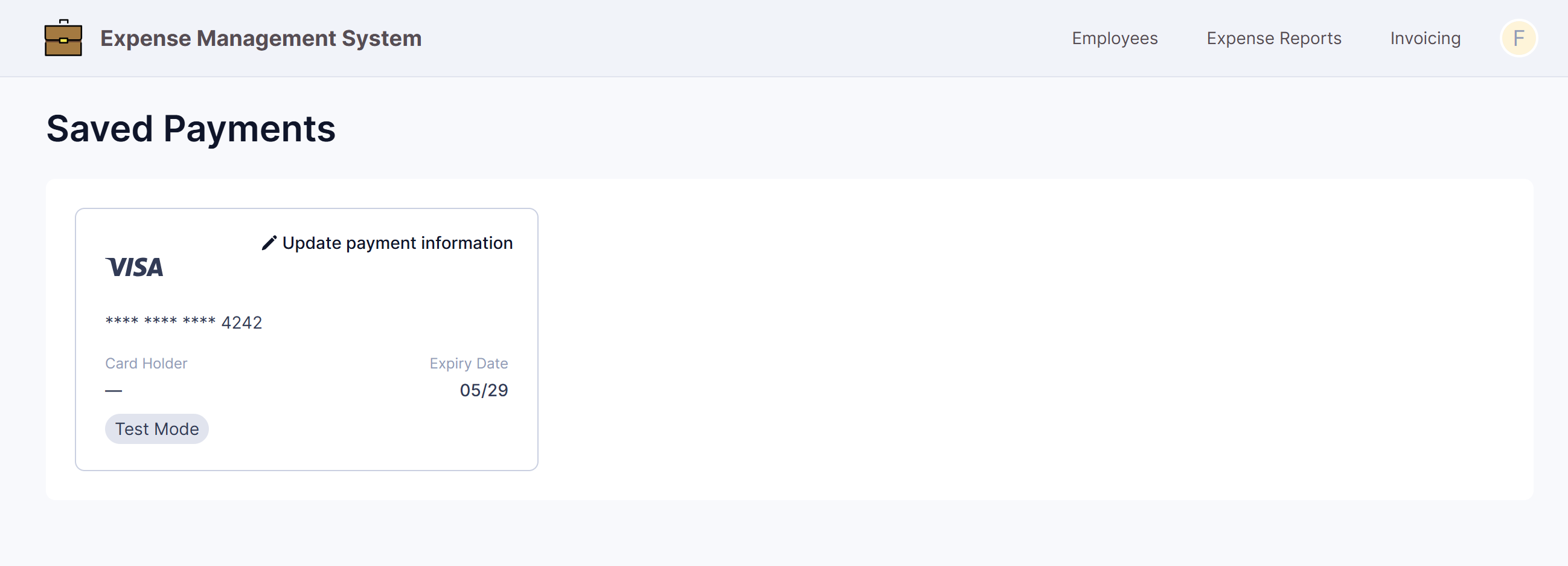
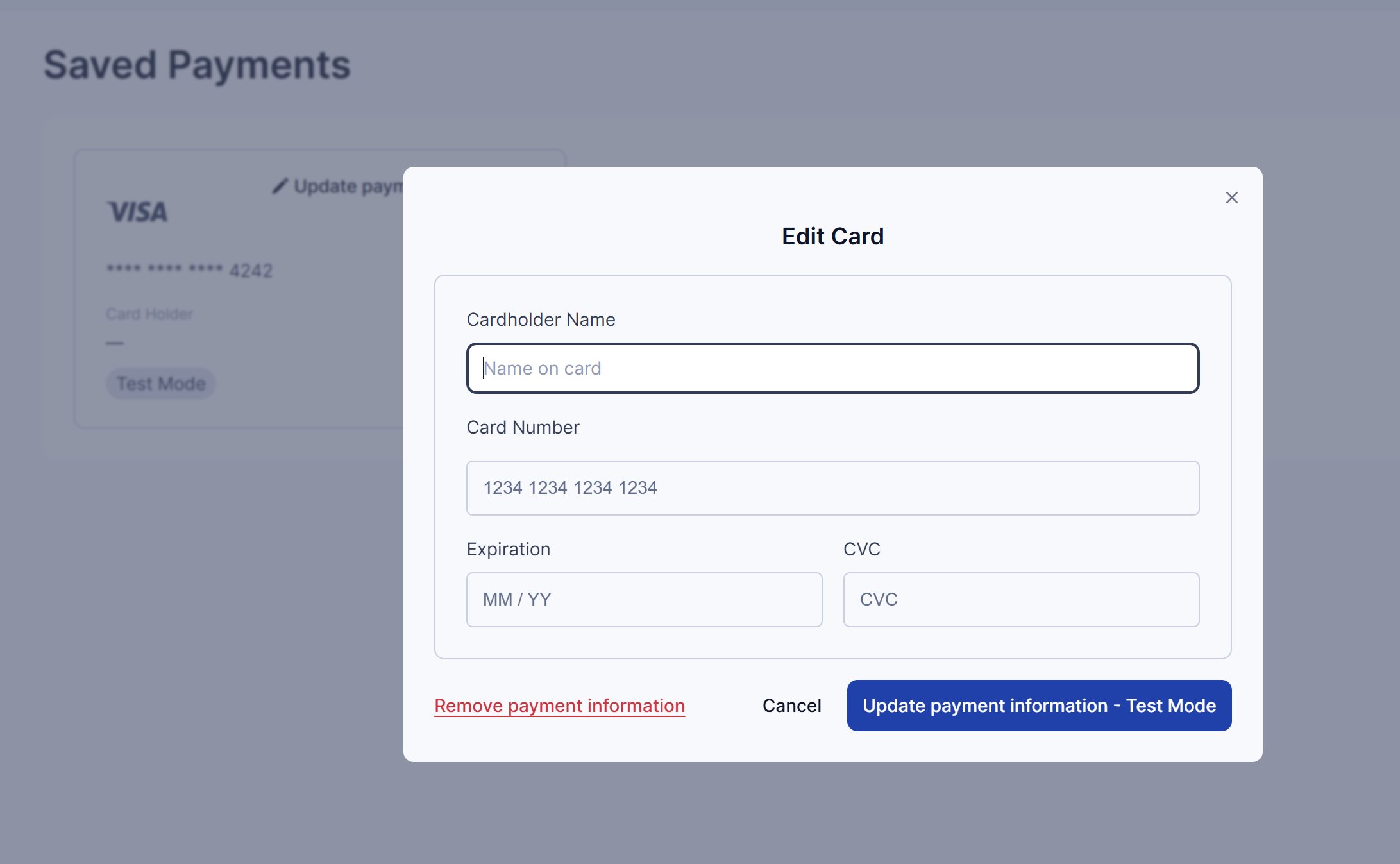
Logged-in users can keep their card details current from their account or billing area, wherever you've placed a Save & Edit Payment Method element.
- The user opens their payment settings and sees their current card on file (last 4 digits and expiration).
- They enter a new card number, expiration date (MM/YY), and CVC. All three are required.
- Knack validates the entries — the card number must pass a validity check, the expiration can't be in the past, and the CVC must match the expected length.
- On success, the user sees a confirmation, and their updated card's last 4 digits and expiration are reflected in their account.
Important: For security, the CVC is never shown back to the user after saving.
If a save fails (for example, the card is declined or there's a network error), the user sees a clear, non-technical message, their previous card stays on file unchanged, and they can correct and retry.
Removing a saved payment method
Users can remove a saved card from their account profile.
- The user selects to remove a saved card.
- A confirmation prompt appears.
- On confirmation, the card is detached from Stripe and the saved method is marked Inactive, so it no longer appears in their list of cards.
Troubleshooting
- A user doesn't see saved-card options at checkout. Saved cards appear in Live Mode when Save Payment Method is set to Yes or Optional, and only if the user has previously saved a card.
- A payment failed. Failed payments create a transaction record marked Failed. The user can review their card details and try again.
- A user can't see another user's saved card. This is expected — saved cards are scoped to each individual logged-in user.
PayPal and "Test As User"When you are in Test As User mode, your browser may block the PayPal flow from appearing. If this happns, you can go to the Live App to test the PayPal flow.
Updated 3 months ago