

HIPAA Security Settings
Configure live app security settings for your Knack HIPAA plan — including inactivity logout, password policies, failed login lockout, IP whitelisting, and secure browser.
What You'll Learn
This article covers the live app security settings available on Knack HIPAA plans. These settings control how your app handles user sessions, passwords, failed login attempts, IP restrictions, and browser security. Some are enabled by default and can't be disabled. Others are optional but recommended.
Where to Find These Settings
All security settings are located in the Builder under two areas:
- Settings > User Logins — Inactivity logout, 2FA, passwords, and failed logins
- Settings > General > Security — IP whitelisting and secure browser
Users must be enabled before the User Logins settings are available. See User Management Fundamentals for help enabling users.
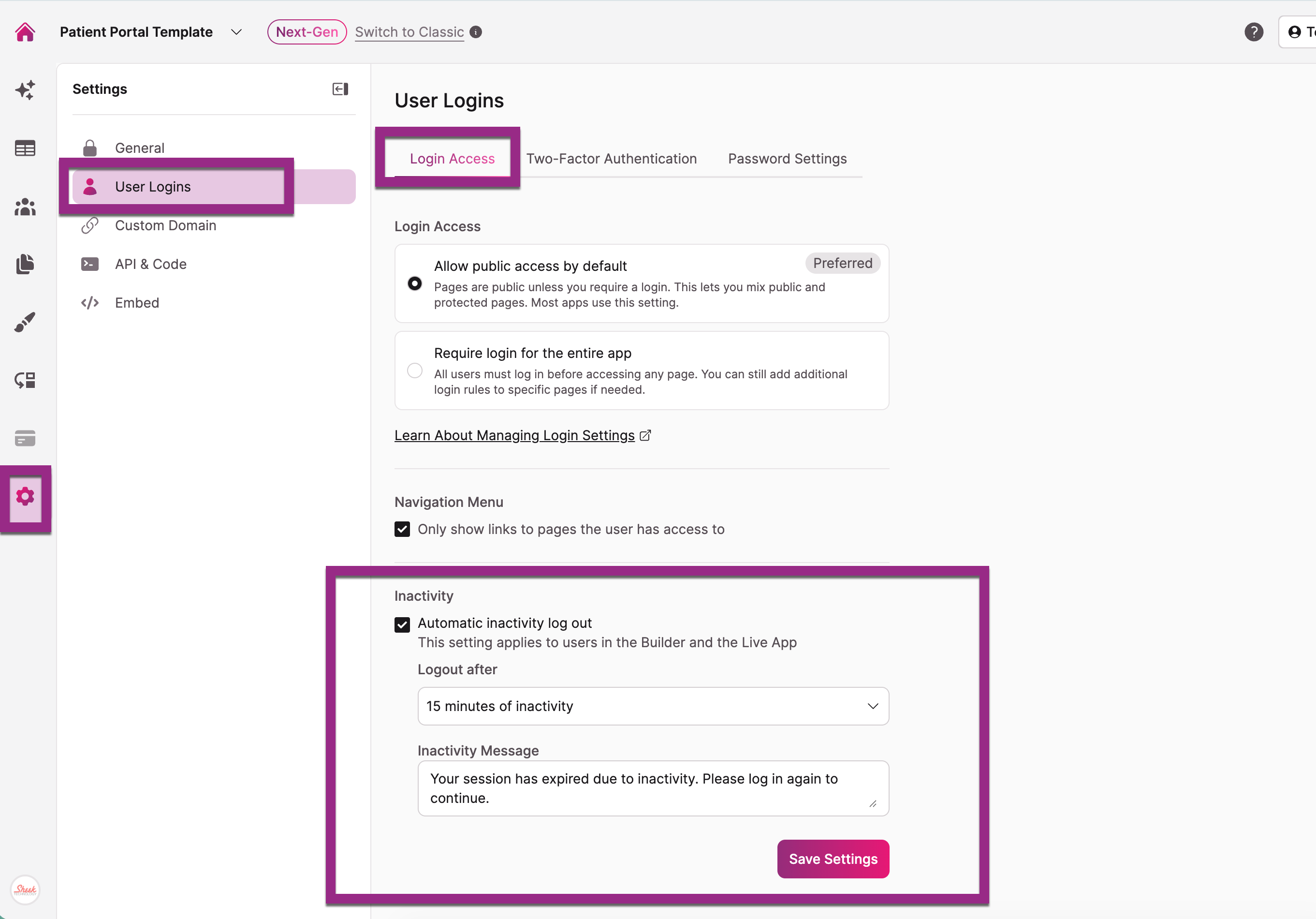
Inactivity Logout
Inactivity logout automatically ends a user's session after a period of no activity. This prevents unauthorized access when someone walks away from their screen.
Default: Enabled. Users are logged out after 15 minutes of inactivity.
Options: You can set the timeout to 1, 5, 10, 15, 30, or 60 minutes. You can also customize the on-screen message that appears one minute before logout.
Can it be disabled? Yes, but this is not recommended for HIPAA apps. Leaving sessions open indefinitely creates a significant risk of unauthorized access to PHI.
What to know:
- The inactivity timer you set for the live app also applies to the Builder. Account owners and shared builders will be logged out on the same schedule.
- For most HIPAA apps, 15 minutes or less is appropriate. Clinical environments with shared workstations may benefit from shorter timeouts.
Passwords
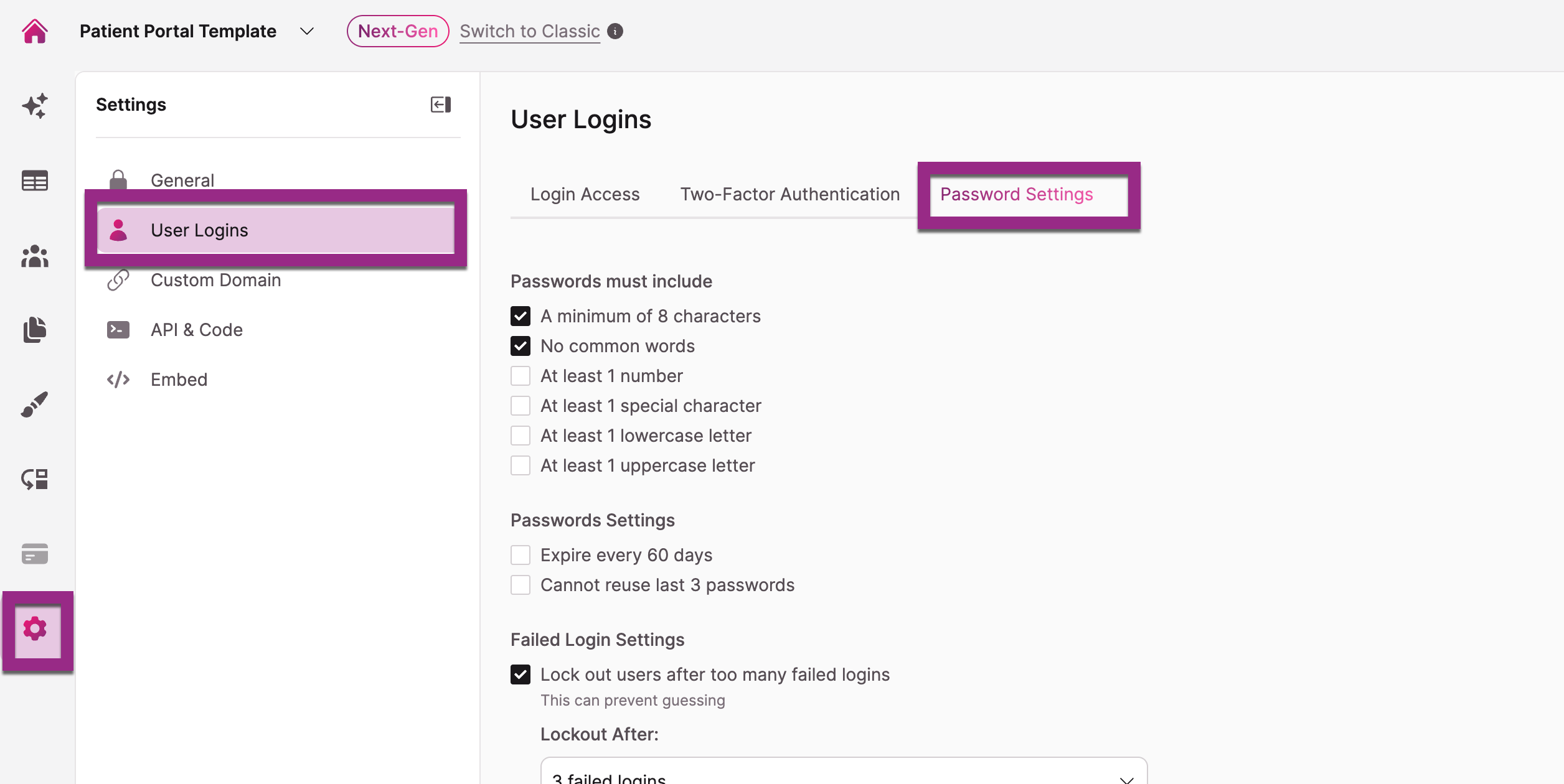
Password settings control the complexity and rotation requirements for your live app users.
Defaults (cannot be disabled):
- Minimum 8 characters
- No common passwords
Optional settings (disabled by default):
- Must include at least 1 number
- Must include at least 1 special character
- Must include at least 1 uppercase letter
- Must include at least 1 lowercase letter
- Password expires every 60 days (message is customizable)
- Cannot reuse last 3 passwords (message is customizable)
Recommendation: Enable all optional settings for HIPAA apps. HIPAA requires strong password policies, and 12+ character passwords with a mix of uppercase, lowercase, numbers, and symbols are a best practice. Password expiration and reuse prevention add additional layers of protection.
Failed Logins
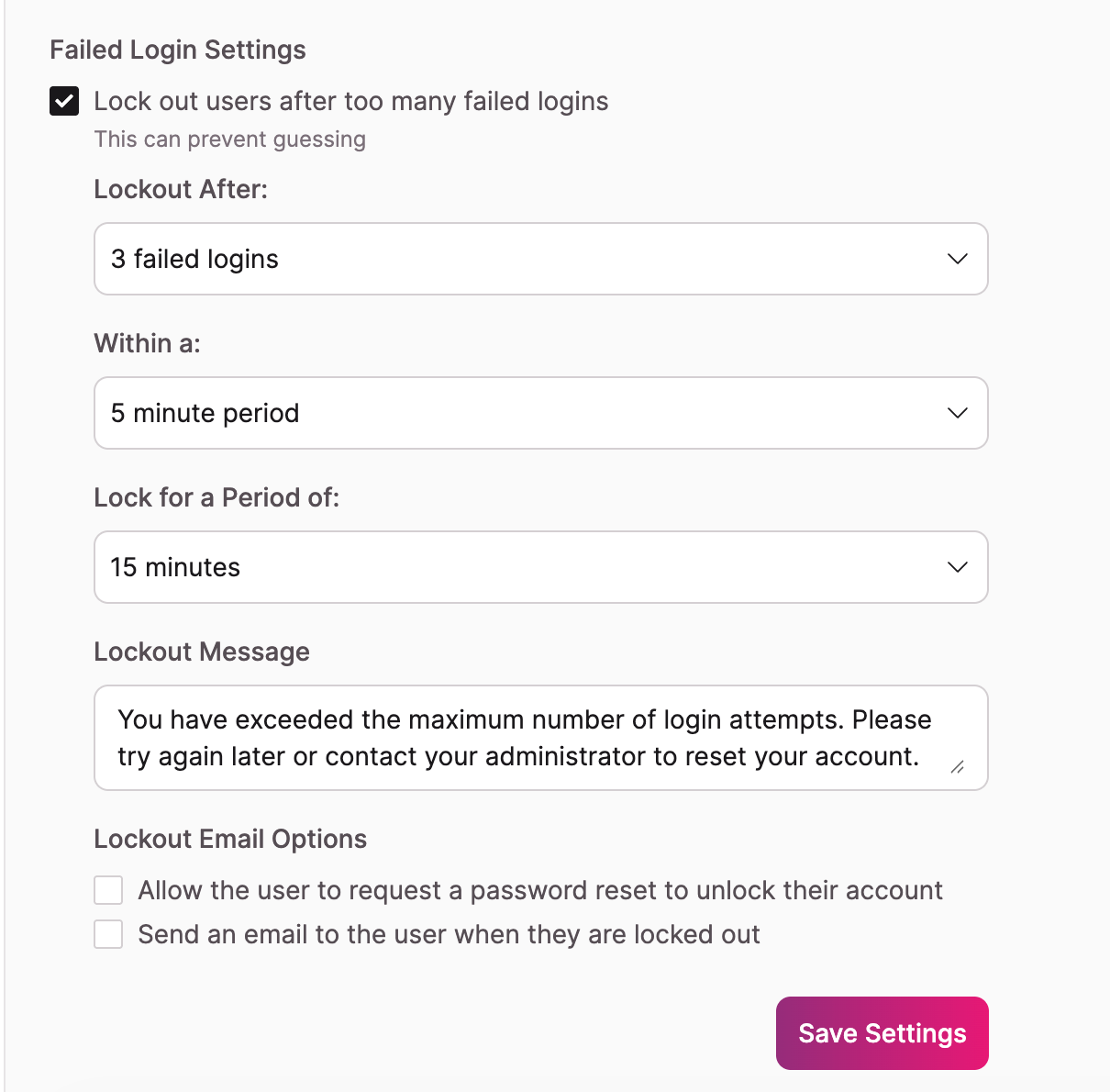
Failed login settings protect your app against brute force attacks — repeated login attempts designed to guess a user's password.
Default (cannot be disabled): Lock out users after 3 failed attempts within a 5-minute period for 15 minutes.
Configurable options:
- Failed attempts before lockout: 3, 5, or 10
- Time period for counting attempts: 1, 5, 15, or 60 minutes
- Lockout duration: 5 minutes, 15 minutes, 60 minutes, 1 day, or forever
- Lockout message: Customizable
- Send the user an email when locked out: Enabled by default
- Email message: Customizable
- Allow users to request a password reset to unlock their account: Disabled by default
What to know:
- If you set the lockout duration to "forever," the user's status is set to "locked" and can only be reversed by sending them a password reset email.
- If "Allow user to request password reset to unlock account" is enabled, users can unlock themselves using the "forgot?" link on the login page.
Secure Browser
Secure browser forces all traffic to your live app through HTTPS, which encrypts the connection between the user's browser and your app.
Default: Enabled on HIPAA plans. When a user accesses your app on http://, they are automatically redirected to https://.
Can it be disabled? Yes, but this is strongly discouraged. Disabling this setting allows users to access your app over an unencrypted connection, which means data — including login credentials and PHI — could be intercepted in transit.
Where to enable: Settings > App Settings > Security. Check the box next to "Force the browser to use HTTPS to encrypt all traffic."
Keep this enabled. There is no good reason to disable HTTPS on a HIPAA app. Unencrypted connections put PHI at risk.
IP Whitelisting
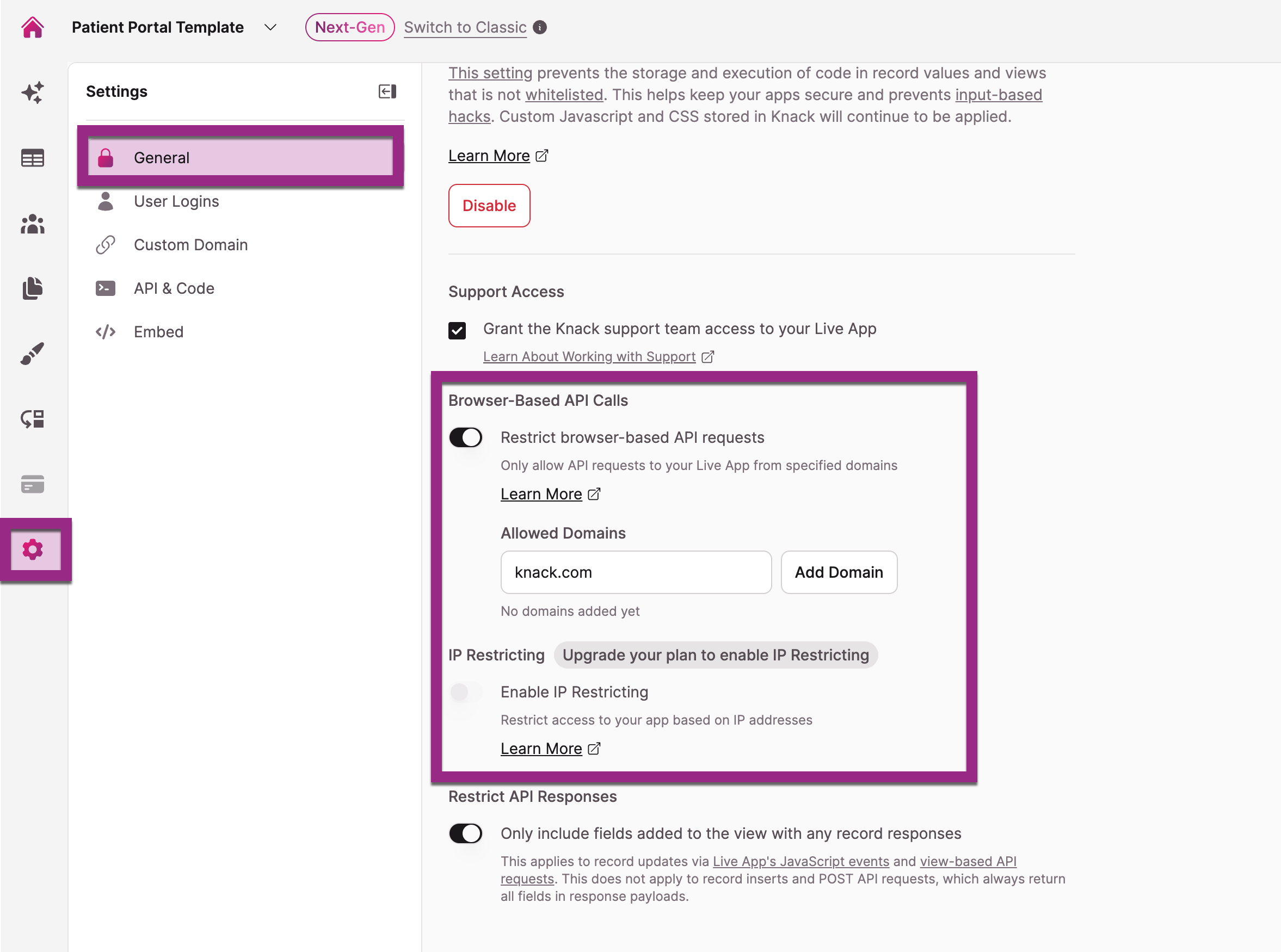
IP whitelisting lets you specify which IP addresses can access your live app. Only users connecting from an approved IP address will be able to reach the app, whether it's hosted or embedded.
Default: Not enabled. No IP restrictions are applied.
What to know:
- This setting restricts access to the live app only. It does not affect API access (the API is protected by API keys separately).
- This feature allows specific IP addresses. It does not support blocking specific addresses or ranges.
- IP whitelisting is useful for apps that should only be accessible from specific office locations or networks.
Where to enable: Settings > App Settings > Security. Check the box and add your approved IP addresses.
Settings Summary
| Setting | Default on HIPAA Plans | Can Be Disabled? | Location |
|---|---|---|---|
| Inactivity Logout | 15 minutes | Yes (not recommended) | Settings > User Logins |
| Passwords (8 char + no common) | Enabled | No | Settings > User Logins |
| Passwords (advanced options) | Disabled | N/A (opt-in) | Settings > User Logins |
| Failed Logins | 3 attempts / 5 min / 15 min lockout | No | Settings > User Logins |
| IP Whitelisting | Disabled | N/A (opt-in) | Settings > Security |
| Secure Browser (HTTPS) | Enabled | Yes (not recommended) | Settings > Security |
Additional Notes
- For builder-level security settings available on all Knack plans (not just HIPAA), see App User Login and Security.
- For a broader view of security best practices, see Authentication Best Practices.
Next Steps
- User Roles and Permissions for HIPAA — Control who can access what in your app
- Authentication Best Practices — 2FA, SSO, and password guidance for HIPAA
- HIPAA and the Knack API — Secure your API access
This is not legal advice. Knack provides a HIPAA-eligible platform. Confirming your own compliance obligations is your responsibility. Check with your legal counsel or compliance officer.
Updated 2 months ago