

Data Access Control: Frequently Asked Questions
What is Data Access Control?
Data Access Control is a centralized security feature that lets you set permissions directly on your database tables. Instead of managing rules on every single page, you can define what each User Role is allowed to do with your data at the foundation level. These rules automatically protect your data across all pages, search functions, API endpoints, and exports.
Is Data Access Control available for my app?
Currently, Data Access Control is available on newly created apps. If you recently created a new app, you will find the Data Access tab under the Users section in your Builder.
Starting in August 2026 we are rolling out the ability to enable Data Access Control for existing apps.
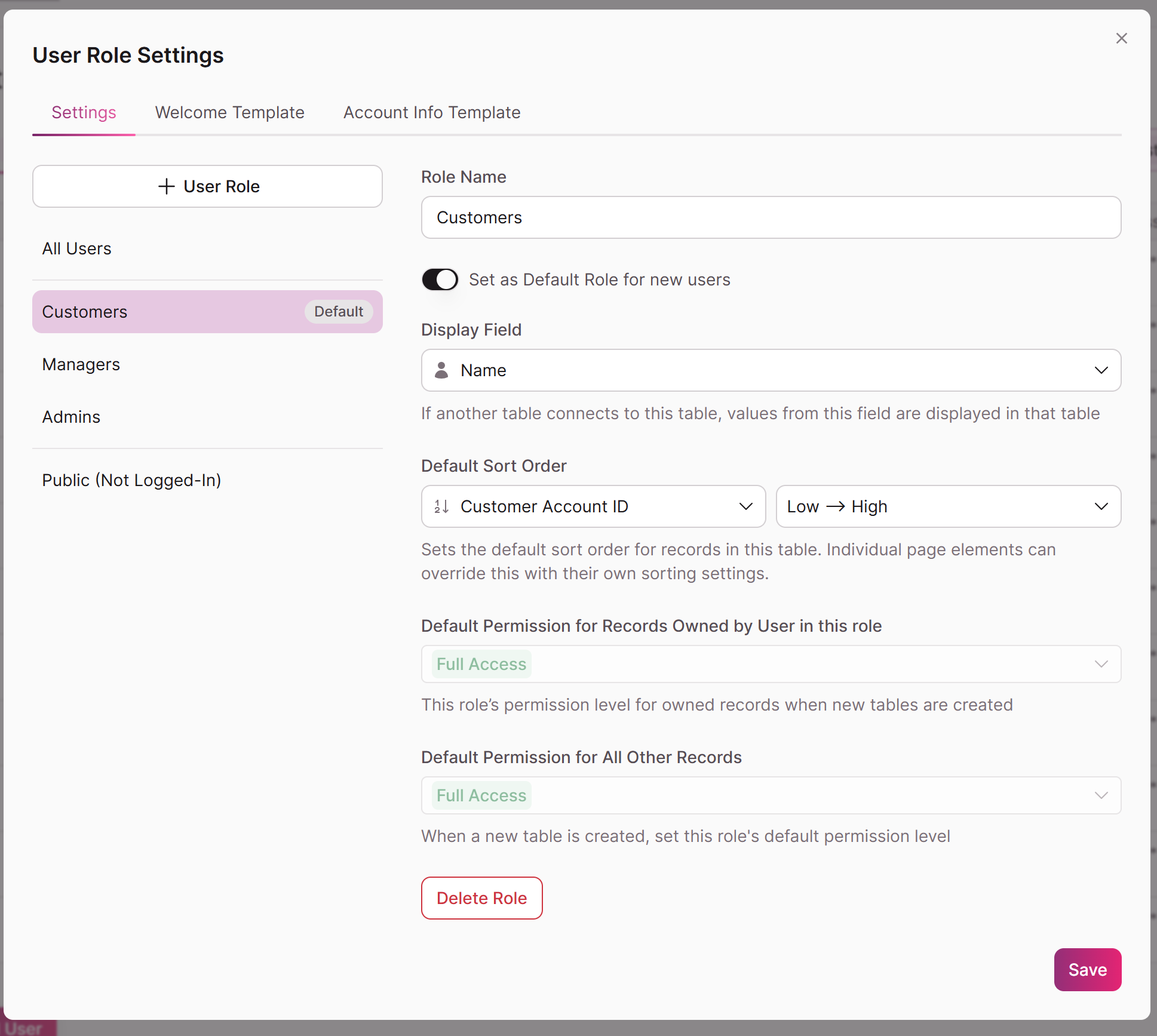
What is a default role?
If a user is created without being assigned a specific role, either from a page registration, or manually set, they will be assigned to a default role.
How is Data Access different from Page Access rules?
Think of it as a two-layer security system:
- Page Access controls where your users can navigate in your app.
- Data Access controls what records they can see and interact with once they get there.
Data Access ensures that even if you forget to add a rule to a specific page, your underlying data remains secure.
Will configuring these rules break my Live App?
No. You can configure your entire Data Access Grid safely without affecting your active users. Your rules only take effect when you explicitly toggle "Enforce data access rules for this App" to the ON position in Step 2 of the setup panel.
I made a mistake and users are locked out. How do I fix it quickly?
You can easily pause your rules. Navigate to Users > All Users > Data Access and toggle the enforcement switch to OFF. Your Live App will immediately behave as if no rules are in place, allowing users back in. Your grid configuration is saved, so you can adjust your settings and re-enforce them when you are ready.
Why can't I select "No Access" for records owned by a user?
In Knack, Live App users always retain at least some level of visibility into records they own or are assigned to. Therefore, the "No Access" option is only available for the "All Other Records" category. You can restrict owners to "View Only" or "Edit Only," but you cannot completely hide their own records from them.
How do I protect my data from users who aren't logged in?
When you enable Data Access Control, the Public (Not Logged-In) role defaults to No Access for "All Other Records" on all tables. This ensures your app is secure by default against unauthenticated traffic.
I added a new table, but my users can't see it. What happened?
New tables automatically inherit default Data Access permissions to keep your app secure as it grows. You can check and adjust these defaults by navigating to Users > All Users, clicking the ellipsis (...) menu in the upper right, and selecting User Role Settings.
How do connected fields behave when Data Access Control is enabled?
Connected fields respect the user's permission level for the linked table:
- Full Access, Edit Only, or View Only: The connected field value is visible. Users with Full Access or Edit Only can also edit it; View Only users see it as read-only.
- No Access: The connected field appears blank. The user cannot see or interact with it at all.
This means that if you want users to be able to see a connected field value, they need at least View Only access to the linked table.
Connected Field Selection:
Enable this toggle to improve the No Access experience. Users with No Access to a linked table will be able to select a value from a connected field dropdown in a form — without being granted access to view or navigate to the full linked records.
Updated 1 day ago