

Scheduling and Timezones
Overview
How times are displayed in your Scheduling app depends on whether your app is in Single Timezone mode or Multi-Timezone mode. These two modes behave very differently, and understanding the distinction is important for builders who have resources or end-users operating across multiple timezones.
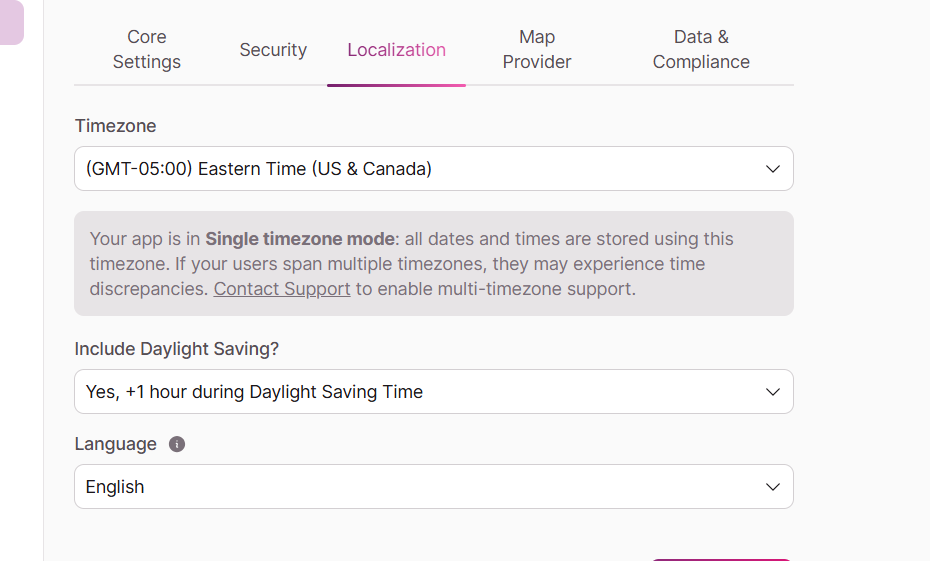
To check which mode your app is in, go to Settings > Localization in the Builder after setting up Scheduling. If you see a message prompting you to contact Support to enable multi-timezone support, your app is in Single Timezone mode.
How to Check Your Timezone Mode
You can see your app's current timezone mode in two places:
-
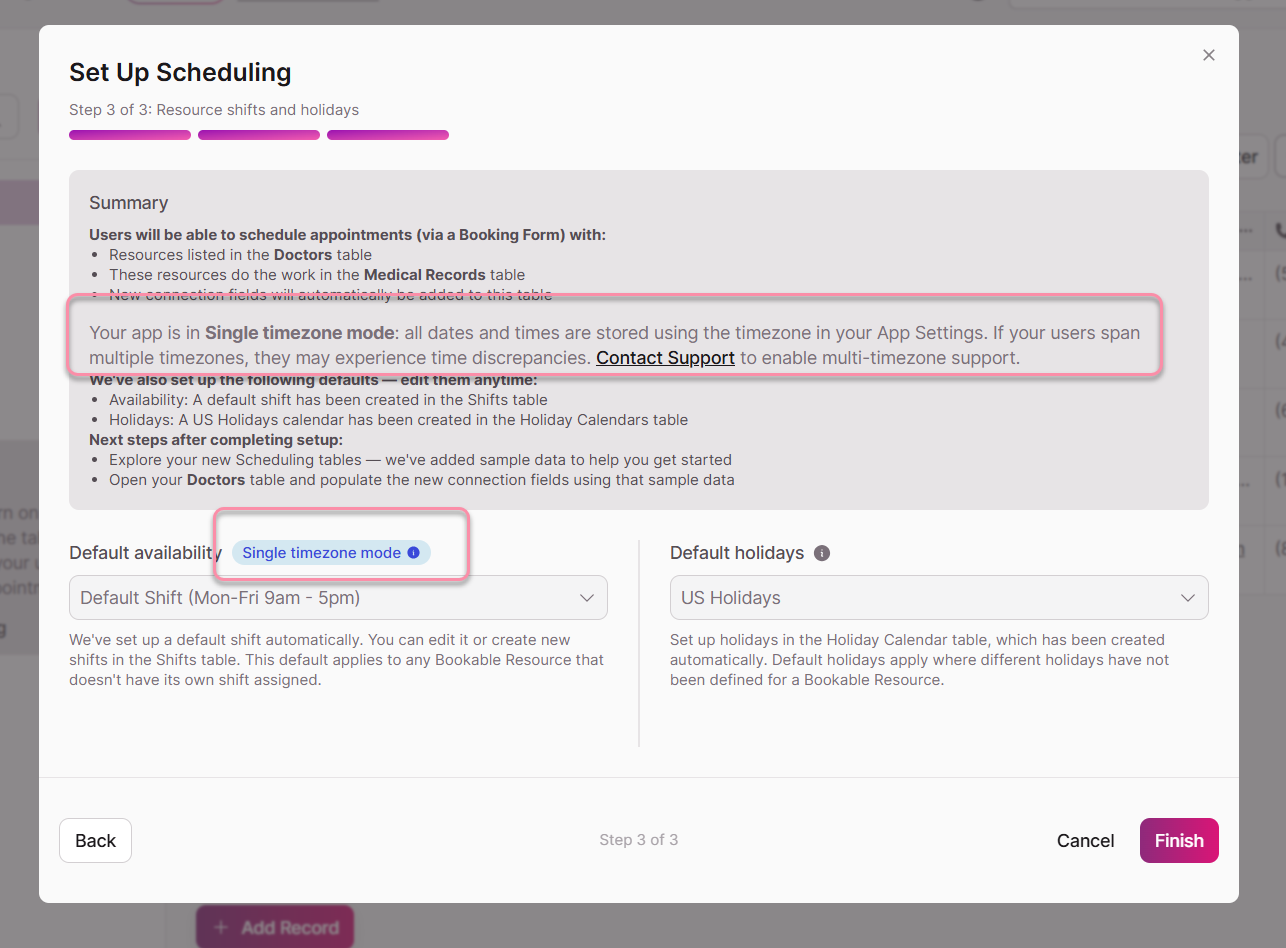
During setup: Step 3 of the Scheduling setup wizard displays a banner indicating whether your app is in Single Timezone mode.
After setup: Navigate to Settings > Localization in the Builder. Your current timezone mode is shown there.
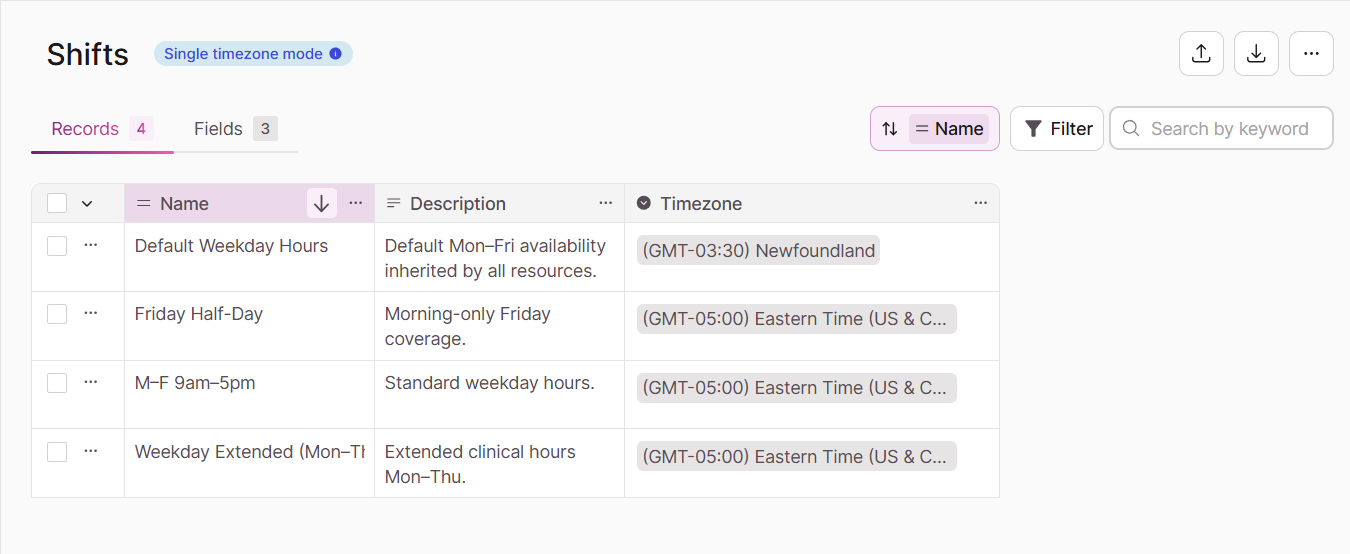
After setup: Navigate to the Shifts table. If your app is in Single timezone mode, you'll see a blue badge.
The Shift Timezone Field
Before covering the two timezone modes, it is important to understand the Timezone field on each Shift record, in the Shifts table. This field tells the underlying scheduling engine what timezone the Shift Segments within that Shift are defined in. The engine uses it to correctly calculate resource availability and generate valid booking slots.
Builders should set the Shift timezone deliberately. The Shift timezone must reflect the timezone in which those Shift Segments are actually scheduled. If the Shift timezone is set incorrectly, the engine will misinterpret when the resource is available.
Example: Your app's Localization is set to Eastern Time, and you have a team of doctors, which are resources, in Los Angeles. Their Shift Segments are written as 9am–5pm. Set the Shift timezone to Pacific Time so the engine correctly interprets those segments as 9am–5pm Pacific and not 9am–5pm Eastern.
The Shift timezone field is an engine setting. What it does not control is what end-users or builders see on screen — that is determined by the timezone mode described below.
Single Timezone Mode
In Single Timezone mode, all times are displayed in the timezone set in your App Settings (Settings > Localization) — for everyone, in both the Builder and the Live App. This includes:
- Time slots shown to end-users on the booking form
- Appointment records in the Builder data view
- Any date/time fields related to Scheduling
The Shift timezone field still controls how the engine interprets availability, but it does not affect what is displayed.
What this means in practice
If your App Settings timezone and your Shift timezone match, everything will appear consistent and intuitive.
If they differ, displayed times will appear offset from what you might expect. For example:
Scenario: Your app's Localization is set to Eastern Time (GMT-5). You have a Shift configured with a Shift timezone of Pacific Time (GMT-8), with Shift Segments running 9am–5pm. The scheduling engine correctly understands the resource is available 9am–5pm Pacific. However, end-users on the booking form will see those slots displayed as 12pm–8pm — because all displays are based in the app's Localization timezone (Eastern). The slots are correctly staffed, but they will appear to start late and end late from the end-user's perspective.
Importantly, no timezone conversion is applied to stored values in Single Timezone mode. If an end-user books the 7pm Eastern slot, the appointment is recorded in the Appointments table as 7pm — exactly as displayed. There is no conversion to 4pm Pacific. What you see is what is stored.
This is the expected behavior of Single Timezone mode when the app timezone and the Shift timezone differ.
When Single Timezone mode works well
Single Timezone mode is appropriate when:
- All of your resources and all of your end-users are in the same timezone, or
- You intentionally want all times displayed in one fixed timezone regardless of where users are located.
When to consider Multi-Timezone
If your resources or end-users span multiple timezones and you want each person to see times in their own local timezone, contact Support to enable Multi-Timezone mode.
In Single Timezone mode, a builder in Eastern Time and an end-user in Pacific Time are looking at the same stored value with no automatic conversion and no indication that their clocks differ. This creates a real risk of misread appointment times that can appear to be a system error but are not.
Multi-Timezone mode eliminates this risk entirely: because appointment times are stored in UTC and converted for each viewer, a 9am Pacific booking is always correctly displayed as 12pm Eastern to a builder in New York with no manual adjustment and no ambiguity. For any app where builders and end-users may be in different timezones, upgrading to Multi-Timezone mode is strongly recommended.
Multi-Timezone Mode
In Multi-Timezone mode, everyone sees times in their own detected timezone — both end-users in the Live App and builders working in the Builder. The display adapts to the viewer's local timezone automatically, based on their browser's detected location.
This applies to:
- Time slots shown to end-users on the booking form
- Appointment records and date/time fields visible in the Builder
- Any scheduling-related times visible to the logged-in or public user
How storage works in Multi-Timezone mode: Appointment times are stored in UTC. Each viewer sees that UTC value converted to their own detected timezone. This means the same appointment record will display a different clock time depending on where the viewer is located — but it always represents the same moment in time.
The Shift timezone still controls the underlying availability logic. What changes is the display layer: each viewer sees the same UTC moment expressed in their own local timezone.
What this means in practice
Scenario: Your app's Localization is set to Eastern (GMT-5). You have a Shift with a timezone of Pacific Time (GMT-8), with Shift Segments running 9am–5pm Pacific. An end-user in Pacific Time books a 9am slot. The appointment is stored in the database as 5pm UTC. When that same end-user views the appointment, they see 9am PT. When a builder in Eastern Time (GMT-5) views the same appointment record in the Builder, they see 12pm ET, the same UTC moment, converted to their timezone. Both views are correct; they are both correct representations of the same appointment. The app's localization setting does not drive the display.
The booking form timezone label
In both modes, the booking form displays a label confirming which timezone the times are shown in — for example, "All times are shown in Pacific Time"
- In Single Timezone mode, this label shows the App Settings (Localization) timezone.
- In Multi-Timezone mode, this label shows the viewer's own detected timezone.
Side-by-Side Comparison
| Description | Single Timezone Mode | Multi-Timezone Mode |
|---|---|---|
| What end-users see | App Settings (Localization) timezone | Their own detected timezone |
| What builders see in the Builder | App Settings (Localization) timezone | Their own detected timezone |
| Shift timezone field | Controls engine availability calculation | Controls engine availability calculation |
| Display adapts to viewer | No - fixed to app timezone | Yes - adapts to each viewer |
| Timezone label on booking form | App Settings timezone | Viewer's detected timezone |
| Best for | Single-timezone apps | Apps with users or resources across multiple timezones |
| How to enable MTZ | Contact Support | Already enabled |
Enabling Multi-Timezone
Multi-Timezone mode is not self-serve. To enable it, send a request to Support via the help icon in the builder. Learn more here.
Key Recommendations for Builders
Always set the Shift timezone to match the timezone your Shift Segments are written in. This is critical for correct availability calculation regardless of which mode your app is in. If your Shift Segments are written as 9am–5pm and your resources are in Pacific Time, the Shift timezone must be set to Pacific Time.
In Single Timezone mode: The App Settings (Localization) timezone is what all users will see — in the Builder and in the Live App. If your resources and users are in different timezones from the app setting, be aware that displayed times may appear offset from what you expect. Focus on setting the Shift timezone correctly so the engine calculates availability accurately.
In Multi-Timezone mode: Each viewer sees times in their own timezone automatically. You do not need to manage display timezones manually. Focus on setting the Shift timezone correctly so the engine calculates availability accurately.
Updated about 2 months ago