

How to Create Dynamic Dropdowns in Forms
Learn how to limit one connection field in a form based on another connection field selection.
What You'll Learn
In this article, you’ll learn how to create dynamic dropdowns in a Form Element.
Dynamic dropdowns, also called dependent or cascading dropdowns, let one connection field update based on another connection field selection. This is useful when you want users to select a parent record first, then only see related child records in the next dropdown.
For example, if a user selects an Employee, the next dropdown can show only the Projects connected to that Employee instead of every Project in your app.
When to Use Dynamic Dropdowns
Use dynamic dropdowns when you have related records and want to keep form options relevant.
Common examples include:
- selecting a Company, then only showing Contacts connected to that Company
- selecting a Project, then only showing Milestones connected to that Project
- selecting an Employee, then only showing Projects assigned to that Employee
- selecting a Category, then only showing Products in that Category
Dynamic dropdowns work with connection fields in forms. They rely on the relationships between your tables.
How Dynamic Dropdowns Work
A dynamic dropdown uses two connected fields on the same form:
- A parent connection field that the user selects first
- A child connection field that updates based on the parent selection
For the child dropdown to update dynamically, the child records must already be connected to the selected parent record.
Example:
- Employees table
- Projects table
- Tasks table
Each Project is connected to an Employee. When a user creates a Task, they first select an Employee. Then the Project dropdown only shows Projects connected to that Employee.
Before You Begin
Before setting up dynamic dropdowns, make sure:
- your app has the tables you need
- the related tables are connected
- the records you want to display are already connected correctly
- your form includes the connection fields needed for the dynamic dropdown
- the field you want to filter is a connection field
If you are new to connections, review these articles first:
https://docs.knack.com/docs/understanding-table-relationships
https://docs.knack.com/docs/creating-connections
Example Setup
This example uses three tables:
| Table | Purpose |
|---|---|
| Employees | Stores employee records |
| Projects | Stores project records |
| Tasks | Stores task records created from the form |
The goal is to create a Task form where users:
1. select an Employee
2. select a Project connected to that Employee
3. submit the Task
Step 1: Create the Parent Table
Create the parent table first.
For this example, create an Employees table.
Suggested fields:
| Field | Field Type |
|---|---|
| Name | Name or Short Text |
Add a few Employee records so you can test the form later.
Step 2: Create the Child Table
Create the child table next.
For this example, create a Projects table.
Suggested fields:
| Field | Field Type |
|---|---|
| Project Name | Short Text |
| Employee | Connection field connected to Employees |
The Employee connection field is what connects each Project to an Employee.
For this example, each Project belongs to one Employee. This is typically set up as a Many → One connection from Projects to Employees.
Add a few Project records and connect each one to the correct Employee.
Step 3: Create the Form Source Table
Create the table that the form will submit records into.
For this example, create a Tasks table.
Suggested fields:
| Field | Field Type |
|---|---|
| Task Name | Short Text |
| Employee | Connection field connected to Employees |
| Project | Connection field connected to Projects |
| Due Date | Date/Time |
The form will create new Task records.
The important part is that the form includes both:
the parent connection field, such as Employee the child connection field, such as Project
Step 4: Add a Form Element
Go to the page where users should create the record.
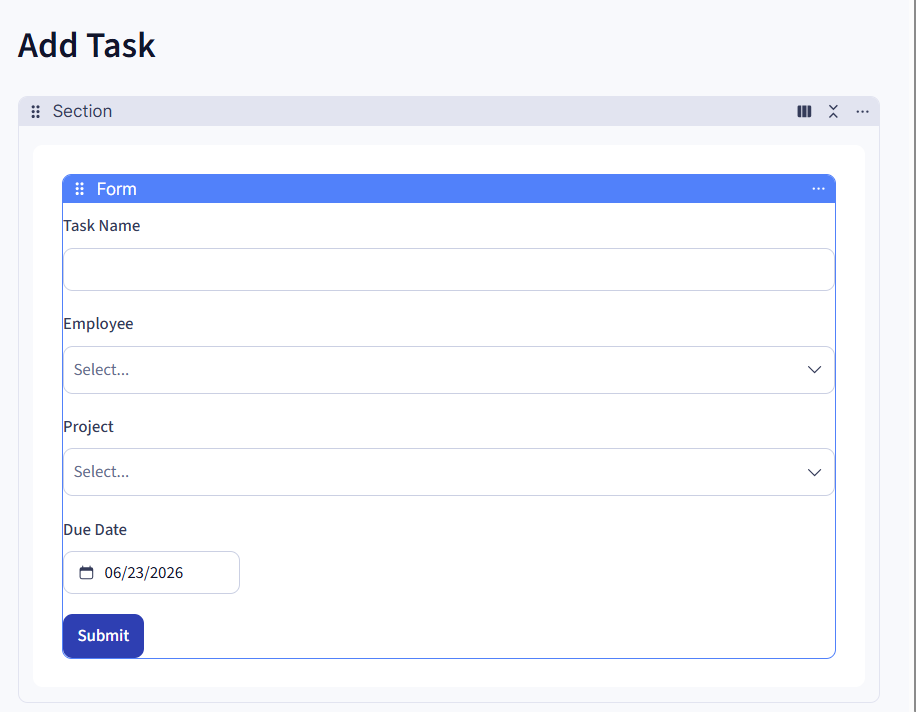
Add a Form Element that creates a new record in the source table.
For this example, the Form Element should create a new Task record.
Add the fields users need to complete the form, including:
- Task Name
- Employee
- Project
- Due Date
Place the parent connection field before the child connection field. In this example, place Employee before Project so users select the Employee first.
Step 5: Edit the Child Connection Field
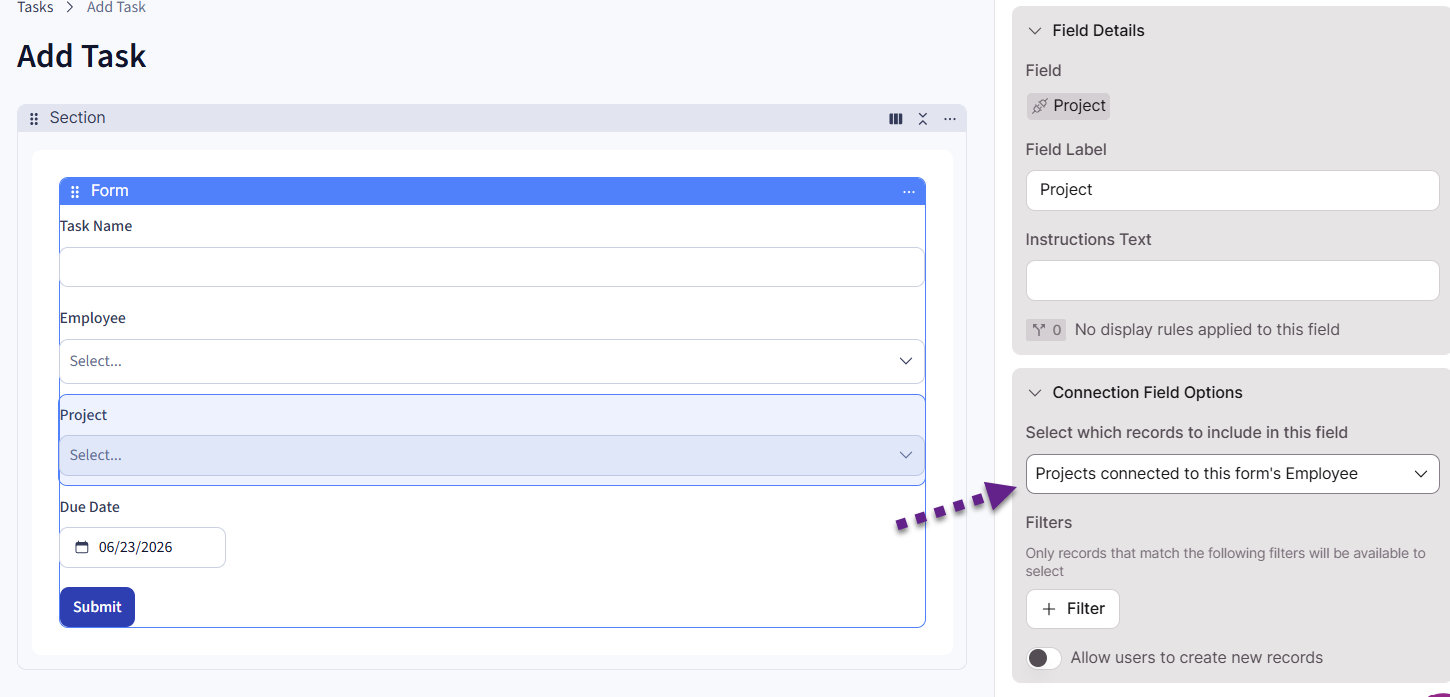
In the Form Element editor, select the child connection field.
In this example, select the Project connection field.
Look for the option that limits the available connected records based on another connection field on the form.
Configure the Project field so it only shows Projects connected to the selected Employee.
Step 6: Save and Test the Form
Save the form and open the page in the Live App.
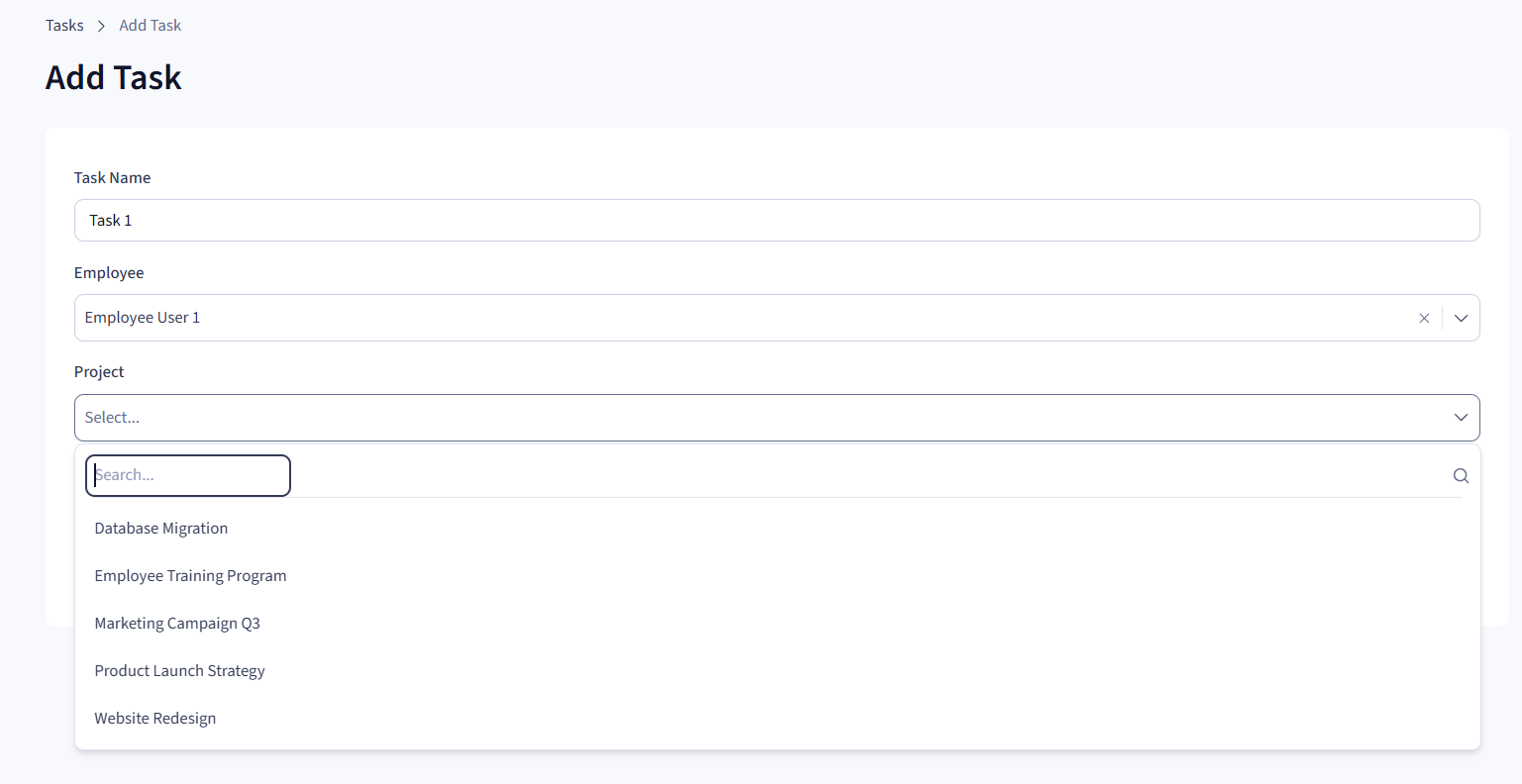
Test the workflow:
1. Select an Employee.
2. Open the Project dropdown.
3. Confirm that only Projects connected to the selected Employee appear.
4. Change the selected Employee.
5. Confirm that the Project dropdown updates to show Projects connected to the newly selected Employee.
If the Project dropdown still shows all Projects, review the connection setup and confirm that the child records are connected to the parent records.
Dynamic Dropdowns vs. Connection Field Filters
Dynamic dropdowns and connection field filters are related, but they are not the same thing.
A dynamic dropdown changes based on another connection field selected in the same form.
A connection field filter limits which connected records can appear based on fixed filter conditions.
For example:
- Dynamic dropdown: show only Projects connected to the selected Employee
- Connection field filter: show only Projects where Status is Active
You can use connection field filters to further limit which records appear in the dropdown.
Connection field filters use AND logic, which means all filter conditions must be true for a record to appear.
Notes and Troubleshooting
I do not see the option to limit records based on another field
Check the following:
- The field you are editing must be a connection field.
- The form must include multiple connection fields that are related to each other.
- The child table must be connected to the parent table.
- The connection should be set up on the correct table.
- The parent connection field should appear on the form before the child connection field.
The dropdown is empty
If the child dropdown is empty, check that:
- child records already exist
- child records are connected to the selected parent record
- the parent record selected on the form has related child records
- any additional connection field filters are not excluding all records
For example, if you select an Employee but that Employee has no connected Projects, the Project dropdown may be empty.
The dropdown shows too many records
If the child dropdown still shows unrelated records, check that:
- the dynamic dropdown setting is enabled on the child connection field
- the child records are connected to the correct parent records
- you are editing the correct connection field on the form
- the connection between the parent and child tables is set up correctly
The connection type looks different from Classic
In Next-Gen, new connection fields use updated connection type labels such as:
- Many → One
- Many → Many
- One → One
The old Classic One → Many option is deprecated for new connection creation, although existing connections continue to work.
For dynamic dropdowns, the most important part is that the records are connected in a way that supports the parent-child selection you want users to make.
Related Articles
Form Elements:
https://docs.knack.com/docs/form-elements
Understanding Table Relationships:
https://docs.knack.com/docs/understanding-table-relationships
Creating Connections:
https://docs.knack.com/docs/creating-connections
Connection Updates: What’s Changed and Why:
https://docs.knack.com/docs/connection-updates-whats-changed-and-why
Table Elements: Restricted Connection Filters:
https://docs.knack.com/docs/table-elements-restricted-connection-filters
Updated 4 months ago