Connecting Base44 to Knack: Complete Setup Guide
Build a custom frontend in Base44 with your data, users, and security living in Knack.
Companion video: Connect Base44 to Knack (4:35)
Time to complete: 45 to 90 minutes for your first build
Skill level: No coding required
Before You Start
What you need
| Requirement | Details |
|---|---|
| Base44 account | base44.com, free tier works for building |
| Knack account | knack.com, a trial is enough to start |
| Knack Builder login | The email and password you use at dashboard.knack.com |
Your Knack login must have Builder access to the app you want to work with. Account admin access is recommended.
If you are building healthcare
Use test data for every practice build. Before your app holds any real patient information, you need a Knack HIPAA plan with a signed Business Associate Agreement in place. Contact Knack about a Health plan before you go live.
How the two tools split the work
- Knack holds your tables, your users, your roles, and your security rules
- Base44 builds and hosts the screens your users see
The connection between them is called an MCP server. You do not need to understand what that means to use it. Practically speaking, it lets Base44 build things inside your Knack account when you ask it to, in plain English.
One boundary worth knowing up front: the connection builds your data model in Knack, meaning tables, fields, and relationships. It does not build Knack's own page screens. Base44 handles all of the screens.
Step 1: Connect Knack to Base44
This is an account-level connection. You do it once and every Base44 app you build afterward can use it.
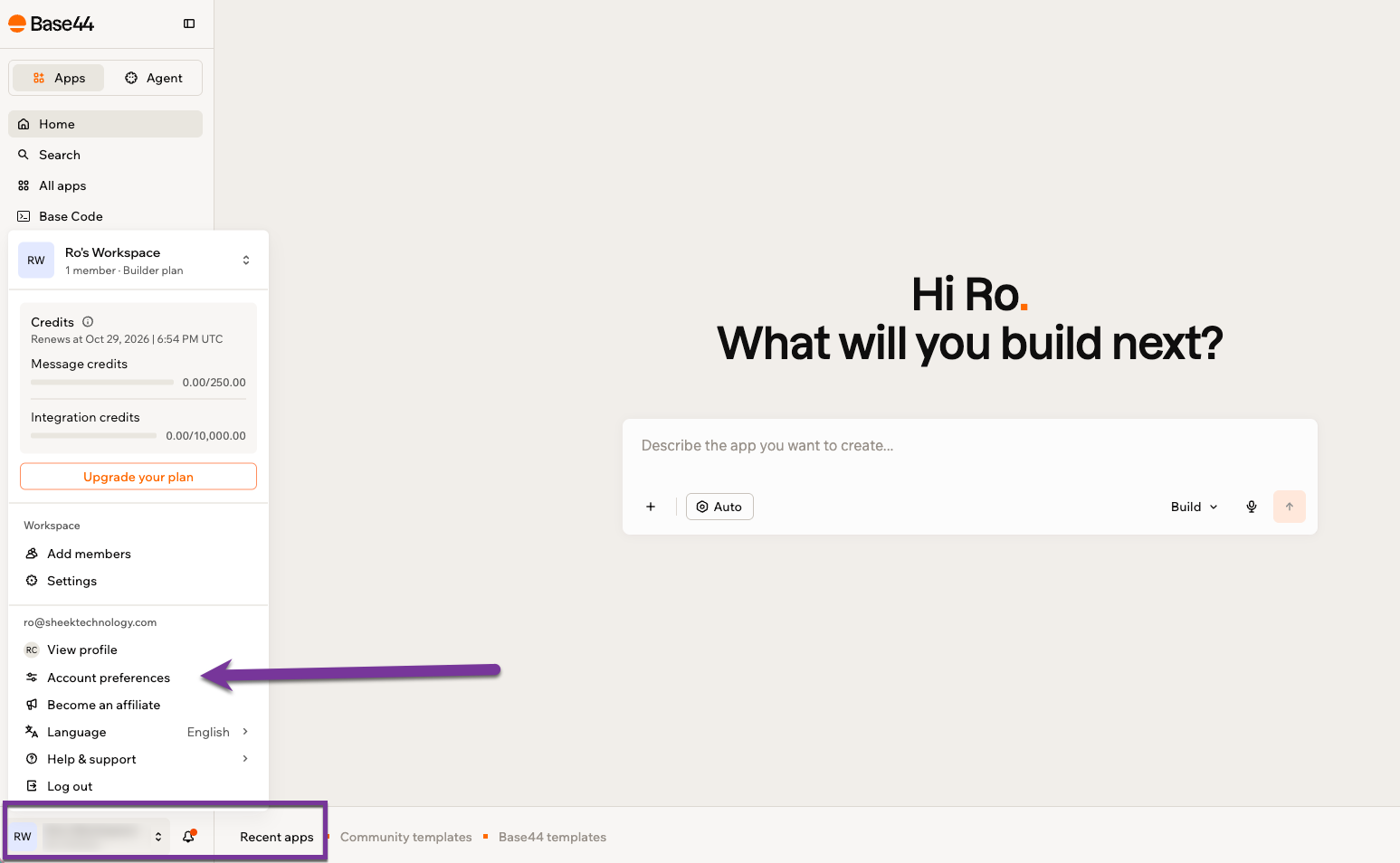
- In Base44, click your account menu and open Account Settings
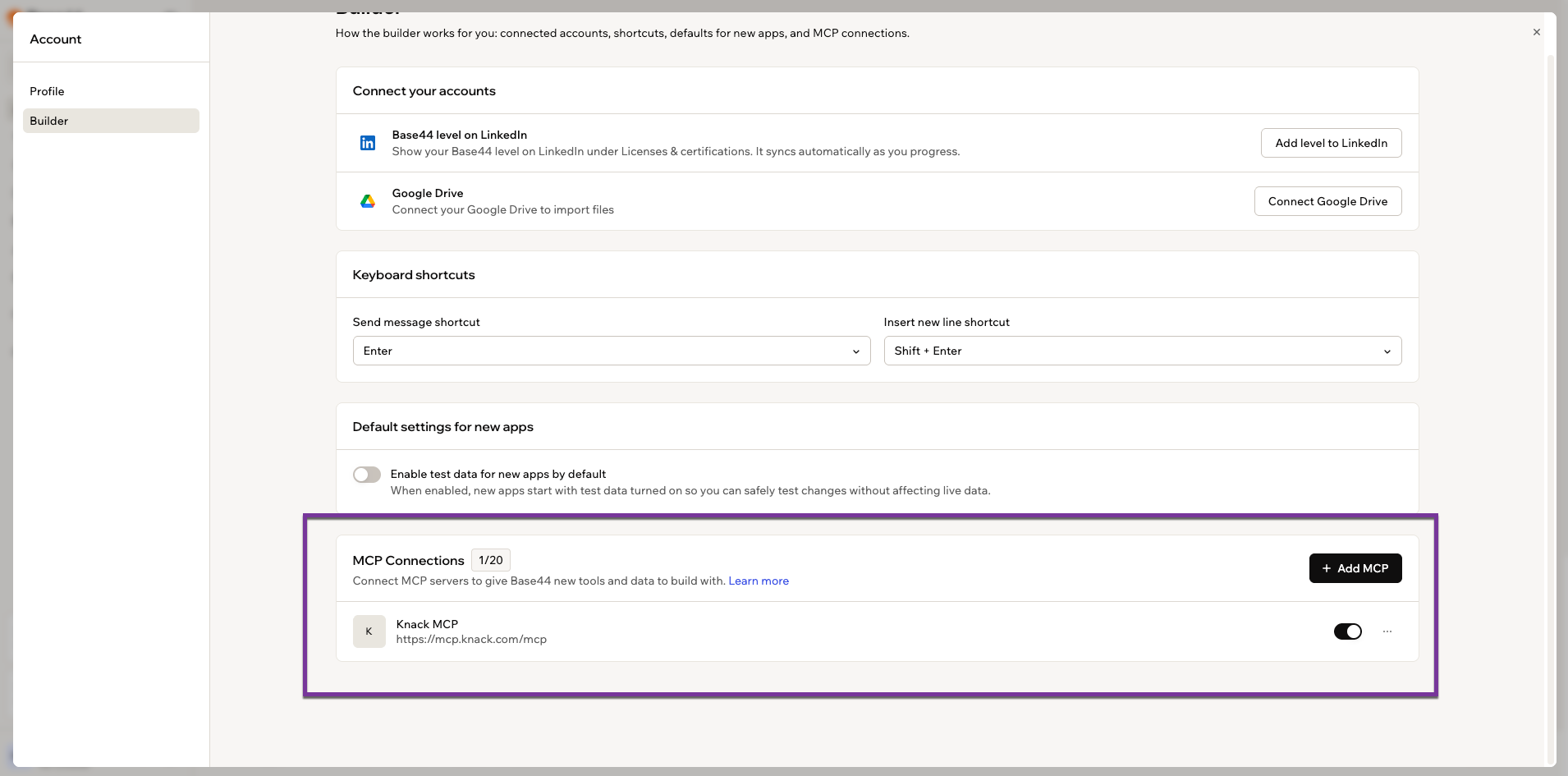
- In the left menu, click MCP Connections
Important: Base44 also has an area called Connectors. It is not the same place and the Knack connection will not work from there. Make sure you are in MCP Connections.
-
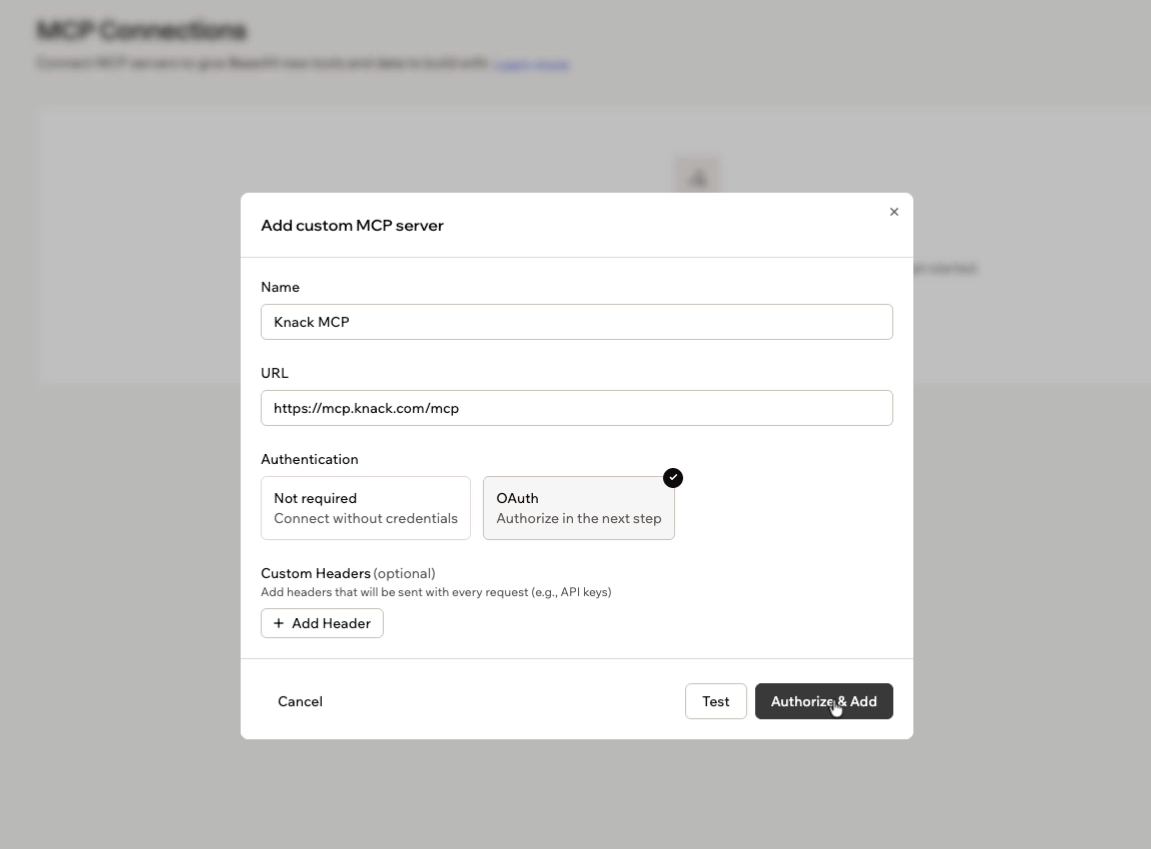
Click Add MCP
-
Name the connection. Knack MCP works fine.
-
In the URL field, enter:
https://mcp.knack.com/mcp -
Set the authentication method to OAuth
-
Click Authorize and Add
-
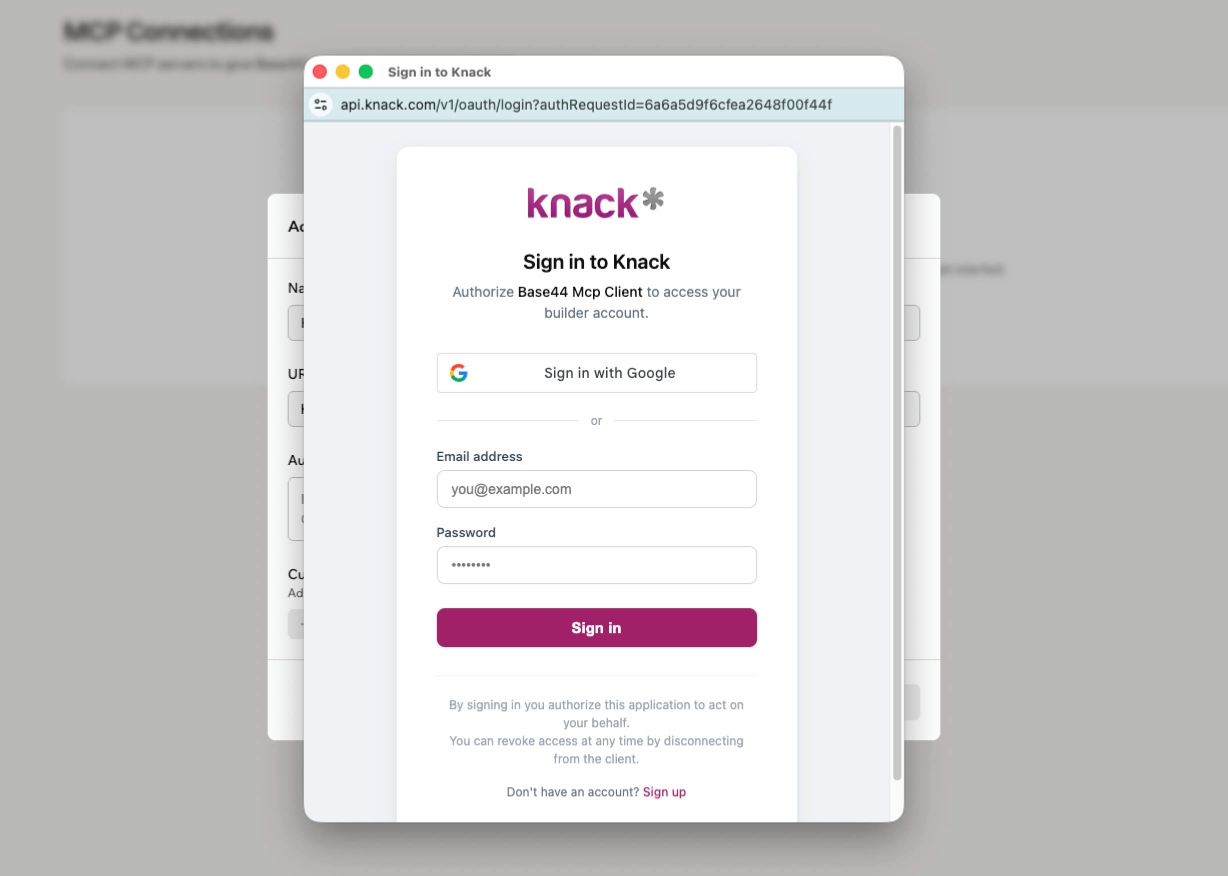
A Knack login window opens. Sign in with your Knack Builder credentials.
-
Approve the authorization on the consent screen.
-
You should now see the connection listed as active.
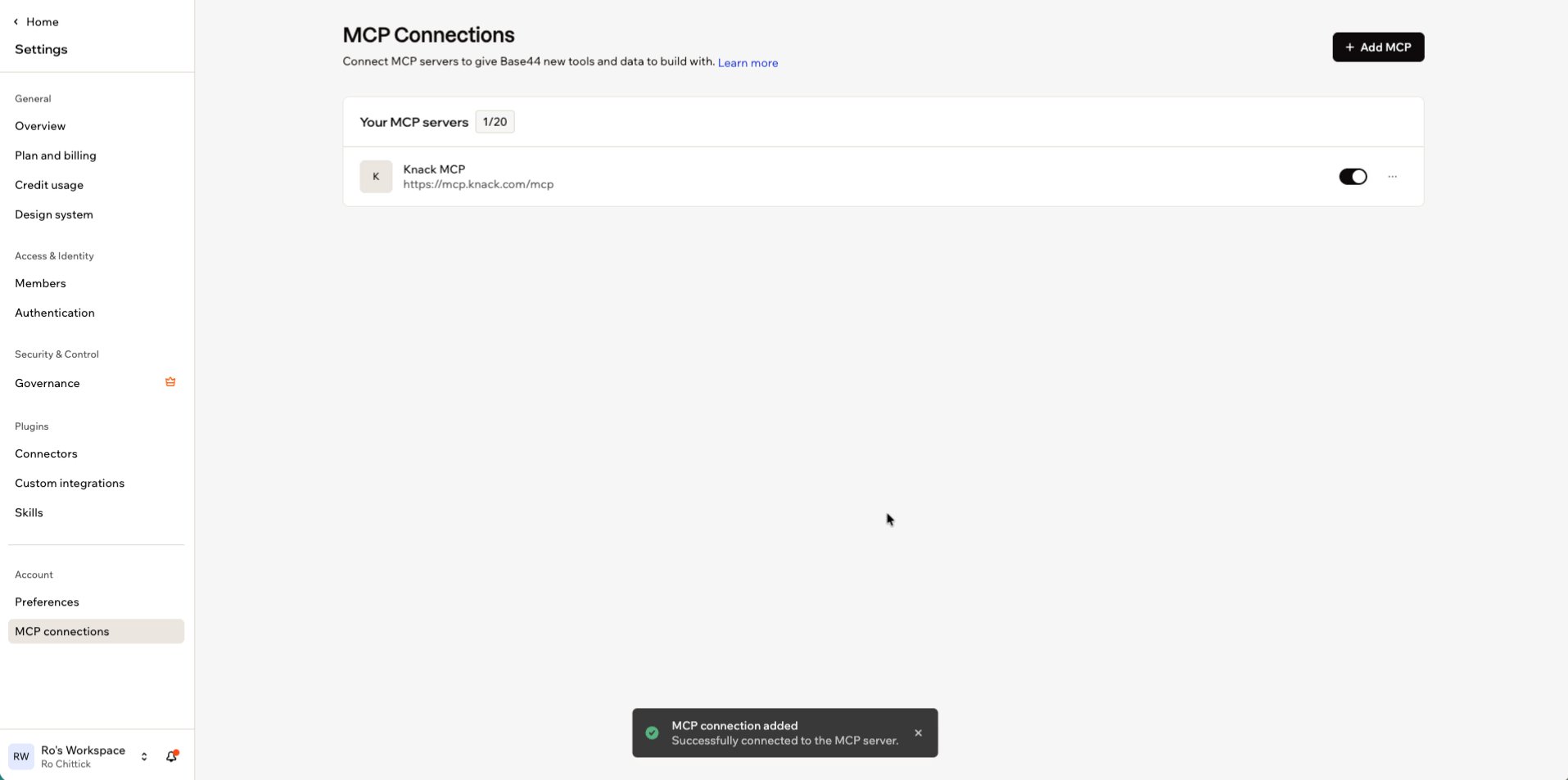
If you use two-factor authentication
You will be asked for your six digit code from your authenticator app during the login step. This is normal.
How long the connection lasts
Your access refreshes automatically in the background. After 30 days of no use you will be asked to sign in again. Nothing is lost, you just reconnect.
Step 2: Understand One Thing About Knack Users
This is the single concept that causes the most confusion, and it takes one minute to learn.
In Knack, a person who logs in exists on two tables at once.
- The Accounts table. Every user has a record here. This is what handles logging in.
- Their role table, for example Caregivers or Patients. This is where their role-specific information lives, and what connects them to other records.
So one caregiver is one person, two records, two different ID numbers.
Why it matters to you: when you later ask Base44 to do something like "show this caregiver their own visits," it needs to use the right ID. Most confusing bugs in these builds trace back to the wrong one being used. If something looks broken in a way you cannot explain, this is the first place to look.
Step 3: Describe Your App
Open a new app in Base44 and describe what you want. Be specific. Longer prompts produce better results than short ones.
Here is the prompt used for the home health tracker in the video:
Using the Knack MCP Server, create a new Knack app called Home Health
Tracker and build the backend.
Create three user role tables, not data tables: Admins, Caregivers,
and Patients. Each one gets its own login.
Create a Visits table connected to both Caregivers and Patients, with
visit date, visit type, duration, status (Scheduled, In Progress,
Completed, Missed), and visit notes.
Then build the frontend in Base44 with a dashboard for admins, and use
Knack for login.
Add a few fictional patients, caregivers, and visits. No real patient
information.
The most important line in that prompt
"User role tables, not data tables."
In Knack there are two kinds of tables:
- A data table holds information. Visits, invoices, equipment.
- A user role table holds people who log in.
You choose which one a table is at the moment it is created, and you cannot convert one into the other afterward.
If the AI builds Patients as a data table, the app will look completely correct. Records will be there. The dashboard will render. But no patient will ever be able to log in, and the only fix is to delete that table and rebuild it, which means losing anything already in it.
State it explicitly in your prompt every time you have people logging in. This is the most common expensive mistake in these builds.
Connecting to an existing Knack app instead
If you already have a Knack app you want to use, include your App ID in your first message. You can find it in your Knack Builder under API settings.
If you already have a Base44 project and want to move its backend to Knack, start with:
"Migrate the backend tables and user roles to be based in Knack. Create a new Knack app in my account using the Knack MCP Server."
What to expect while it builds
The build takes several minutes. You will see Base44 make a series of calls to Knack as it creates tables and fields. This is normal. Let it finish before you start changing things.
Step 4: Verify What Was Actually Built
Do not skip this. Open your Knack Builder and confirm reality matches what Base44 reported.
Check your user role tables
In your Knack Builder tables list, your people tables should be visually marked as user roles.
If any table that should hold logins looks like a plain data table, fix it now. Ask Base44:
The [Patients] table was created as a data table, not a user role table.
Delete it and recreate it as a user role table, then reconnect anything
that pointed to it.
The earlier you catch this, the less there is to rebuild.
Check your connections
Open your main data table and confirm the connection fields exist and point where you expect.
A habit worth building
If Base44 ever tells you to go turn something on inside Knack, verify that setting exists before you go looking for it. It understands Knack's data model very well, and it will occasionally describe a Knack screen or toggle that does not exist. Trust what you can see in your Builder over what the chat tells you.
Step 5: Turn On Data Access Control
Your app has roles. That controls which screens people reach. It does not, by itself, control which records they can pull.
Data Access Control is the Knack feature that enforces record-level access at the data layer, so "patients only see their own visits" is true no matter how someone reaches your data.
This is currently a manual step in the Knack Builder.
-
In your Knack Builder, open Data Access Control
-
Click Start Setup


-
Work through the setup and enforce data access rules for this app
-
For each role, choose whether they see only records they own, or everything

By default, roles see everything. You narrow it deliberately.
Testing that it worked
Log into your live app as a patient and count what you see. Log in as an admin and count again. The numbers should differ.
If a patient can see other patients' records, come back to this step before you go any further.
Step 6: Decide Who Owns Each Record
Data Access Control works on ownership. So for any table holding sensitive records, you need to decide who owns them.
In the home health example, visits are owned by the patient. The patient is the person whose privacy is at stake, so making them the owner locks their records down at the data layer.
Caregivers then need broader read access, and their app filters to show only the visits assigned to them.
That tradeoff is worth understanding: the caregiver role can technically reach more data than their screens display. For an internal team app that is usually acceptable. For an app where caregivers are outside contractors, think carefully, and consider whether a different ownership model fits your situation better.
There is no universally correct answer here. The point is to make the choice deliberately rather than accept whatever the AI defaulted to.
Step 7: Registration and Approval
If your app lets people sign up, Knack's built-in account status controls whether they can actually get in.
Use Knack's native account status for approval. Do not have Base44 build a custom "pending" field and rely on that instead.
The difference is significant:
- Native account status blocks login at Knack's authentication layer. A pending user cannot sign in at all and receives no access to anything.
- A custom status field is just data. Your app can read it and show a message, but nothing stops a determined person from reaching your data around your screens.
If Base44 builds you a registration flow, ask it directly:
Does this registration use Knack's native account status for approval,
or a custom status field? Show me which.
Step 8: Publish
- Click Publish in Base44
- Your app goes live on a Base44 address immediately
- Add a custom domain later in settings if you want one
Final end-to-end test
Open the live URL on your desktop or any mobile devices. Log in, make a change, then refresh your Knack Builder and confirm the change landed.
Troubleshooting
A user can log in but sees an error or a blank state
They likely have an Accounts record without a matching role record, or the two are not linked. See Step 2.
A user sees no records at all when they should see some
Ownership is probably not set the way you expect. Check who owns those records in Knack.
A user sees records that belong to someone else
Data Access Control is either not enabled or not enforcing on that table. Return to Step 5 immediately.
Someone cannot log in even though you approved them in your app
Check Knack's native account status, not just your app's status display. See Step 7.
Base44 tells you to click something in Knack that you cannot find
It may not exist. Verify in your Builder before you spend time hunting.
A table was built as the wrong type
User role tables cannot be converted. Delete and rebuild. See Step 4.
You are asked to sign in to Knack again
Normal after 30 days of inactivity. Reconnect and continue.
What This Connection Does and Does Not Do
Does:
- Create and modify tables, fields, and relationships in your Knack app
- Read your existing app structure
- Create sample records
- Set up authentication so your Base44 frontend can log users in against Knack
Does not:
- Build Knack's own page screens or themes
- Change an existing field's type (delete and recreate instead)
- Create connection or formula fields in the same step as the table (they get added after)
- Access any Knack account other than the one you signed in with
Reference
- Knack MCP server documentation: docs.knack.com/docs/mcp
- Data Access Control: docs.knack.com/docs/data-access
- Knack HIPAA and Health plans: docs.knack.com/docs/knack-health-hipaa-plans
- Server address:
https://mcp.knack.com/mcp
Updated 2 days ago