

Connecting Lovable to Knack: Complete Setup Guide
Build a custom frontend in Lovable with your data, users, and security living in Knack.
Companion video: Connect Lovable to Knack (about 3:00)
Time to complete: 45 to 90 minutes for your first build
Skill level: No coding required
Before You Start
What you need
| Requirement | Details |
|---|---|
| Lovable account | lovable.dev, free tier works for building |
| Knack account | knack.com, a trial is enough to start |
| Knack Builder login | The email and password you use at dashboard.knack.com |
Your Knack login must have Builder access to the app you want to work with. Account admin access is recommended.
If you are building healthcare
Use test data for every practice build. Before your app holds any real patient information, you need a Knack HIPAA plan with a signed Business Associate Agreement in place. Contact Knack about a Health plan before you go live.
How the two tools split the work
- Knack holds your tables, your users, your roles, and your security rules
- Lovable builds and hosts the screens your users see
The connection between them is called an MCP server. You do not need to understand what that means to use it. Practically speaking, it lets Lovable build things inside your Knack account when you ask it to, in plain English.
One boundary worth knowing up front: the connection builds your data model in Knack, meaning tables, fields, and relationships. It does not build Knack's own page screens. Lovable handles all of the screens.
One Lovable-specific thing to know first
Lovable ships with its own built-in backend, called Lovable Cloud. It is on by default and it will happily create its own database and its own login system without asking you.
If you want Knack to be your backend, you have to say so, in your first message, every time. If you do not, you can end up with two databases and two sets of users that do not know about each other.
Step 1: Connect Knack to Lovable
This is an account-level connection. You do it once and every Lovable project you build afterward can use it.
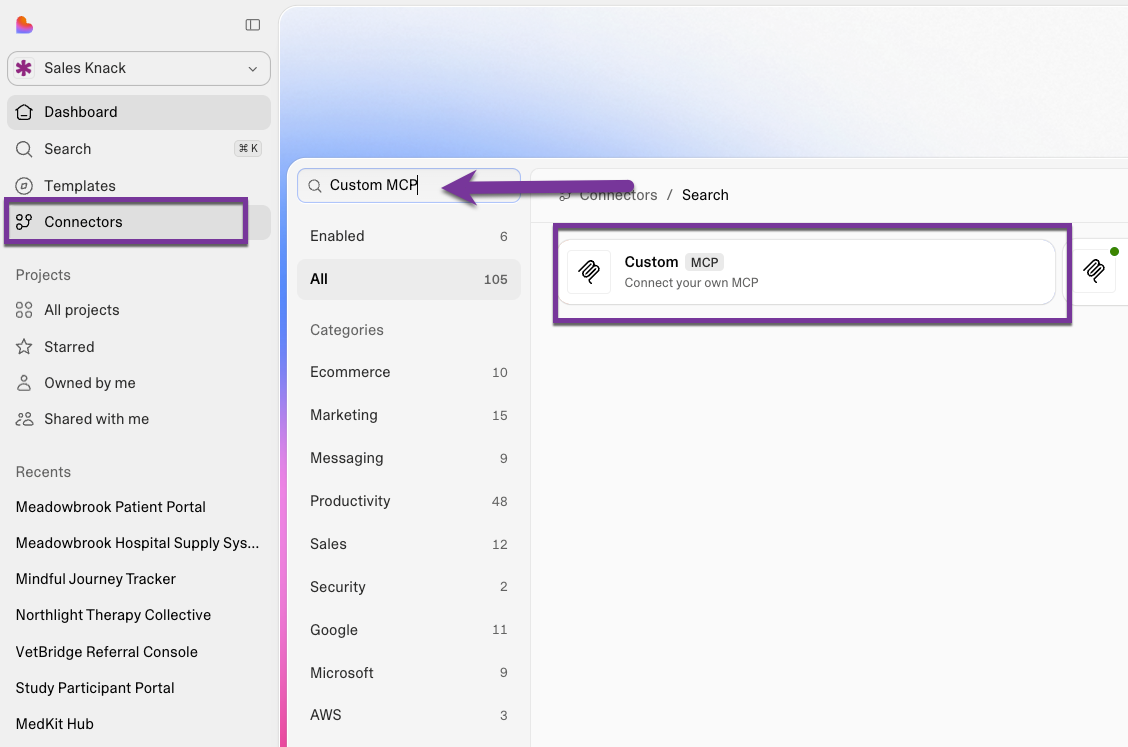
- In Lovable, open Connectors from your account or project menu
- Look for Custom MCP. Search for it, or scroll to the bottom of the connector list where it sits
-
Name the connection. Knack MCP Server works fine.
-
In the Server URL field, enter:
https://mcp.knack.com/mcpWatch for extra spaces at the front or back when you paste. A trailing space is the single most common reason this step fails.
-
Set the authentication method to OAuth
-
Click Add and authorize
-
A Knack login window opens. Sign in with your Knack Builder credentials.
-
Approve the authorization on the consent screen.
-
You should now see the connection listed as active.
Set your tool permissions before you build
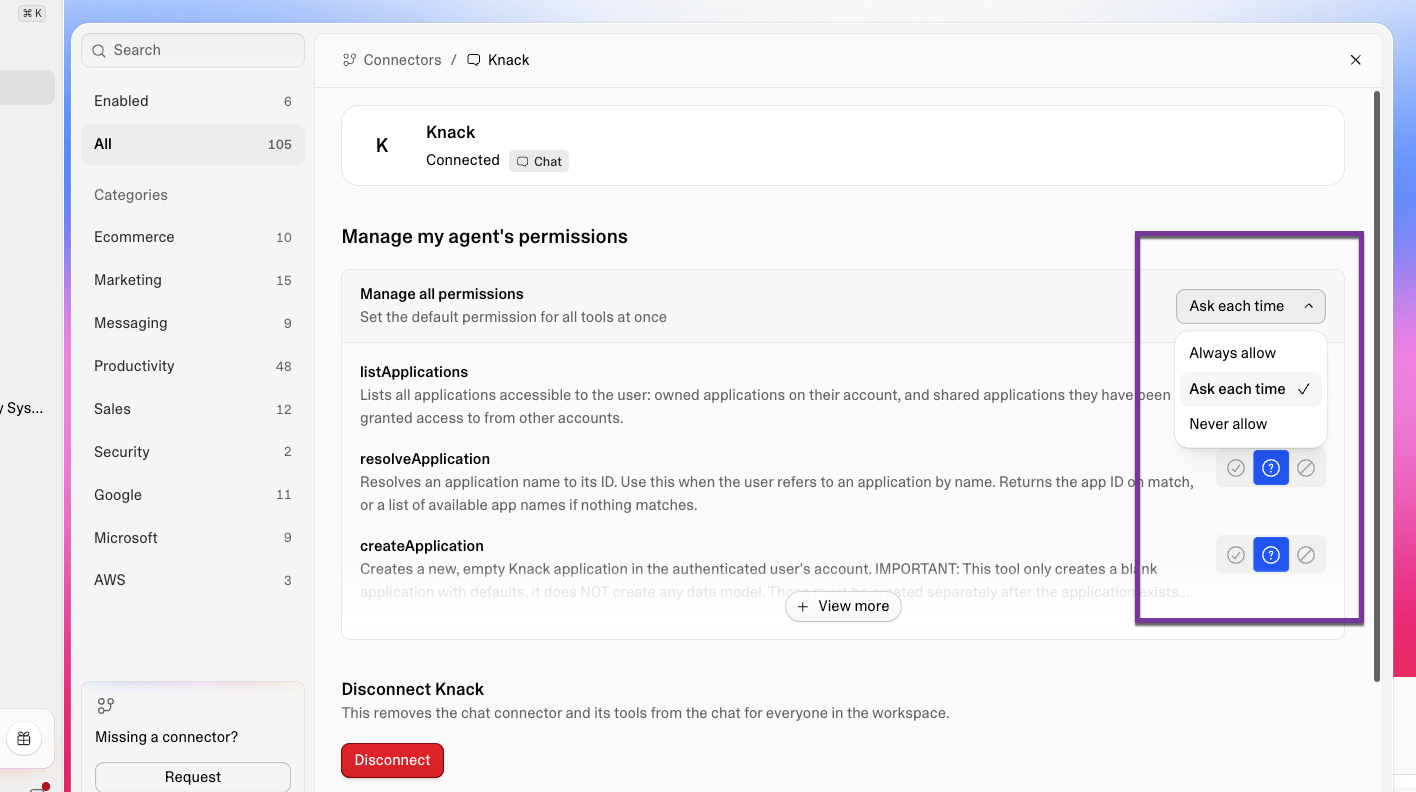
Once connected, Lovable lets you decide how much freedom the AI has. Each Knack action can be set to ask each time or always allow.
Leave it on ask each time.
The connection includes actions that delete tables, delete fields, delete all records in a table, and delete entire applications. There is no undo. Ask mode costs you a few extra clicks and prevents the one mistake you cannot recover from.
Turn on always allow with tools you're comfortable with later, if you ever do, and only on an app you would not mind losing.
If you use two-factor authentication
You will be asked for your six digit code from your authenticator app during the login step. This is normal.
How long the connection lasts
Your access refreshes automatically in the background. After 30 days of no use you will be asked to sign in again. Nothing is lost, you just reconnect.
Step 2: Understand One Thing About Knack Users
This is the single concept that causes the most confusion, and it takes one minute to learn.
In Knack, a person who logs in exists on two tables at once.
- The Accounts table. Every user has a record here. This is what handles logging in.
- Their role table, for example Patients or Staff. This is where their role-specific information lives, and what connects them to other records.
So one patient is one person, two records, two different ID numbers.
Why it matters to you: when you later ask Lovable to do something like "show this patient their own records," it needs to use the right ID. Most confusing bugs in these builds trace back to the wrong one being used. If something looks broken in a way you cannot explain, this is the first place to look.
Step 3: Describe Your App
Open a new Lovable project and describe what you want. Be specific. Longer prompts produce better results than short ones.
Here is the shape of a prompt that works:
Use the Knack MCP Server as the backend for this project. Do not use
Lovable Cloud. All data, user accounts, and authentication live in Knack.

Create a new Knack app called Meadowbrook Family Clinic and build the
backend first.

Create four user role tables, not data tables: Admins, Staff, Doctors,
and Patients. Each one gets its own login.

Create an Intake Forms table connected to Patients, with submission
date, status (Draft, Submitted, Under Review, Approved), and the intake
fields.

Add a few fictional patients and intake forms. No real patient
information.

Build the backend in one phase and stop. Do not build the frontend yet
and do not test it. I will verify in Knack before we continue.
The most important line in that prompt
"User role tables, not data tables."
In Knack there are two kinds of tables:
- A data table holds information. Intake forms, invoices, equipment.
- A user role table holds people who log in.
You choose which one a table is at the moment it is created, and you cannot convert one into the other afterward.
If the AI builds Patients as a data table, the app will look completely correct. Records will be there. The dashboard will render. But no patient will ever be able to log in, and the only fix is to delete that table and rebuild it, which means losing anything already in it.
State it explicitly in your prompt every time you have people logging in. This is the most common expensive mistake in these builds.
The second most important line
"Build in one phase and stop. I will verify."
Lovable will keep going if you let it. It will build your backend, your frontend, your login flow, and your dashboards in one long run, and if something went wrong in the first two minutes you will not find out until you are forty minutes deep in work built on top of it.
Ask for one phase. Check it. Then ask for the next. Every build in this guide that went badly went badly because someone chained three prompts together.
Connecting to an existing Knack app instead
If you already have a Knack app you want to use, include your App ID in your first message. You can find it in your Knack Builder under API settings.
If you already have a Lovable project on Lovable Cloud and want to move its backend to Knack, start with:
"Migrate the backend tables and user roles to be based in Knack. Create a new Knack app in my account using the Knack MCP Server. Do not use Lovable Cloud for data or authentication."
What to expect while it builds
The build takes several minutes. You will see Lovable make a series of calls to Knack as it creates tables and fields, and if you left permissions on ask each time you will be approving them as they go. This is normal. Let it finish before you start changing things.
Step 4: Verify What Was Actually Built
Do not skip this. Open your Knack Builder and confirm reality matches what Lovable reported.
The chat summary is a report of what the AI intended. It is not evidence of what exists. These two disagree more often than you would expect.
Check your user role tables
In your Knack Builder tables list, your people tables should be visually marked as user roles.
If any table that should hold logins looks like a plain data table, fix it now. Ask Lovable:
The Patients table was created as a data table, not a user role table.
Delete it and recreate it as a user role table, then reconnect anything
that pointed to it.
The earlier you catch this, the less there is to rebuild.
Check that your test users actually exist
Open your user role tables and count the records.
Test users are the thing most likely to be reported as created when they were not. If the chat says it added five patients and your Patients table is empty, believe the table. Create the accounts yourself in the Knack Builder, or through your app's sign-up page once it exists.
An empty user table is also the most common reason a brand new app cannot log anyone in. There is nothing wrong with the connection. There is just nobody to log in as.
Check your connections
Open your main data table and confirm the connection fields exist and point where you expect.
A habit worth building
If Lovable ever tells you to go turn something on inside Knack, verify that setting exists before you go looking for it. It understands Knack's data model very well, and it will occasionally describe a Knack screen or toggle that does not exist. Trust what you can see in your Builder over what the chat tells you.
Step 5: Turn On Data Access Control
Your app has roles. That controls which screens people reach. It does not, by itself, control which records they can pull.
Data Access Control is the Knack feature that enforces record-level access at the data layer, so "patients only see their own records" is true no matter how someone reaches your data.
Your AI builder can configure this through the MCP server, including turning enforcement on. You can also set it up by hand in the Knack Builder. Either way, open the Builder afterwards and confirm what actually got set.
One related setting is not available through the MCP server. "Allow connected field lookup without table access" controls whether someone can see the name of a connected record in a table they cannot otherwise read. Set that one in the Builder.
To manually configure in the Knack Builder:
- In your Knack Builder, open Data Access Control
- Click Start Setup
- Work through the setup to build your access grid
- For each role, choose whether they see only records they own, or everything
- Turn on the setting to enforce data access rules for this app
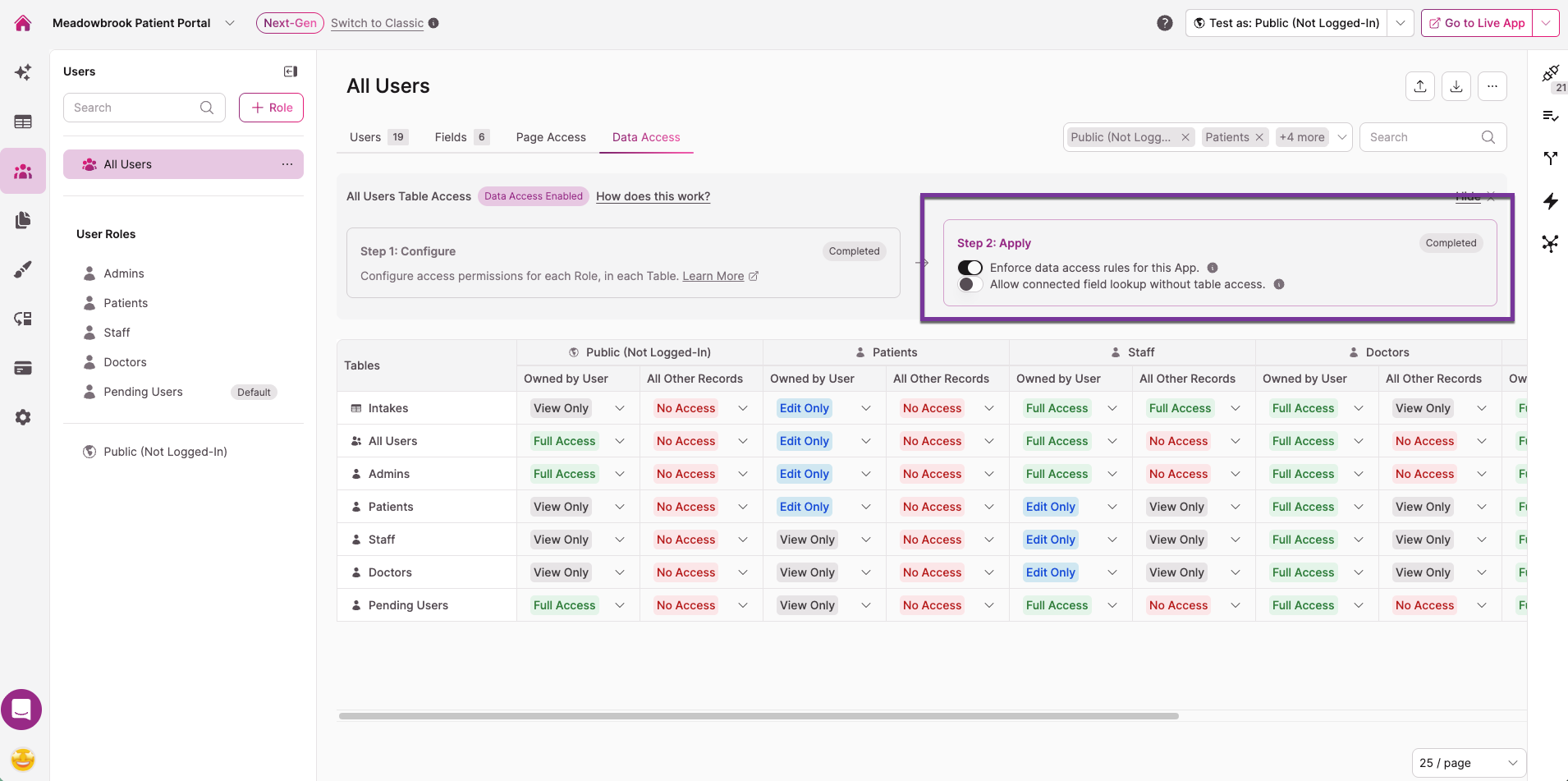
Step 5 is separate from step 2 and it is the one people miss. A grid that is fully configured but not enforced looks finished and protects nothing. Confirm the enforcement setting is on before you move forward.
By default, roles see everything. You narrow it deliberately.
Testing that it worked
Log into your live app as a patient and count what you see. Log in as an admin and count again. The numbers should differ.
If a patient can see other patients' records, come back to this step before you go any further.
Step 6: Decide Who Owns Each Record
Data Access Control works on ownership. So for any table holding sensitive records, you need to decide who owns them.
In the clinic example, intake forms are owned by the patient. The patient is the person whose privacy is at stake, so making them the owner locks their records down at the data layer.
Staff then need broader read access, and the app filters to show only what is relevant to them.
That tradeoff is worth understanding: a staff role can technically reach more data than their screens display. For an internal team app that is usually acceptable. For an app where those users are outside contractors, think carefully, and consider whether a different ownership model fits your situation better.
There is a term worth learning here, because it is the difference between an app that looks secure and one that is:
- Frontend-only filtering means Lovable asked for everything and showed a subset. The screen looks right. The data was still sent.
- Enforcement means Knack only sent that user's records in the first place.
Ownership plus Data Access Control is what turns the first into the second.
One more ownership caution
Knack's ownership grants work one step at a time. If you want a supervisor to see records belonging to the clinicians they supervise, a connection from supervisor to clinician to record will not grant access on its own.
The solution is to also connect the supervisor directly to the record at the moment it is created. Ask Lovable to write that connection when the record is created, and check that it did.
Step 7: Registration and Approval
If your app lets people sign up, Knack's built-in account status controls whether they can actually get in.
Use Knack's native account status for approval. Do not have Lovable build a custom "pending" field and rely on that instead.
The difference is significant:
- Native account status blocks login at Knack's authentication layer. A pending user cannot sign in at all and receives no access to anything.
- A custom status field is just data. Your app can read it and show a message, but nothing stops a determined person from reaching your data around your screens.
If Lovable builds you a registration flow, ask it directly:
Does this registration use Knack's native account status for approval,
or a custom status field? Show me which.
Where people actually sign up
Knack hosts the sign-up and sign-in pages. Your Lovable app sends people there and Knack sends them back once they are signed in. Your app never handles anyone's password.
Set your app's web address before you register it
Part of connecting login is registering your app's address with Knack. Every time that address changes, you get a brand new registration, and the old one stops working.
Practically: decide on your published Lovable URL first, then have the login flow set up once against that address. Changing it later signs out everyone who is currently using the app.
Step 8: Publish and Test
- Click Publish in Lovable
- Your app goes live on a Lovable address immediately
- Add a custom domain later in settings if you want one
Test in a real browser tab, not the chat preview
The preview panel next to the Lovable chat is not a full browser. Sign-in flows that redirect out to Knack and back will often fail there for reasons that have nothing to do with your app.
Before you report a login problem, open your published URL in a normal browser tab and try again. A large share of "authentication is broken" reports come down to this alone.
Final end-to-end test
Open the live URL on your desktop and on a phone. For each role:
- Sign in
- Confirm you see only what that role should see
- Make a change
- Refresh your Knack Builder and confirm the change landed
Test the role that has the most restricted access last, and count records. That is the test that tells you whether your security is real.
Working With Lovable Day to Day
A few habits that make the difference between a build that goes smoothly and one that does not.
One phase per prompt. Ask for a piece, verify it, then ask for the next. Never chain "build this, then build that, then test it."
Ask for evidence, not a verdict. "It works" is not information. Better prompts:
Show me the exact request you sent and the exact response you got back.Is this reading live from Knack, or from data stored in the app?Watch for silent fallbacks. If the AI writes a backup path for when something fails, the app can run entirely on that backup and look completely healthy. If you see a fallback, ask whether the main path was actually used.
Turn a fix into a rule. When something breaks and gets fixed, write down what the failure looked like and what the rule is now. Paste that list into your next project. A short list of corrections is worth more than the app you built while learning them.
Troubleshooting, Tips, and Tricks
When I try to navigate to the Login-page of my lovable app, or after I sign into the app I built in lovable, then I see "Internal Server Error" or "Redirect URI not registered".
Often times Lovable wont properly register a callback URL for your end-users to sign into the app. To resolve this, simply ask Lovable to register the missing callback URL within Knack for all Lovable areas.
Lovable built its own database instead of using Knack
Lovable Cloud is on by default. Say Knack explicitly in your first message and ask it to remove what it created on Lovable Cloud.
Login fails only inside the Lovable chat preview panel
Open the published URL in a normal browser tab. The preview panel is not a full browser context. See Step 8.
Login fails with a connection or network error in a real browser
Ask Lovable: "What exact URL are you calling for authentication? Show me the full address." Then confirm it matches what is in the Knack documentation, including the version segment of the address.
Nobody can log in on a brand new app
Check whether any user records actually exist. See Step 4.
A user can log in but sees an error or a blank state
They likely have an Accounts record without a matching role record, or the two are not linked. See Step 2.
A user sees no records at all when they should see some
Ownership is probably not set the way you expect. Check who owns those records in Knack.
A user sees records that belong to someone else
Data Access Control is either not enabled or not enforcing on that table. Confirm the enforcement setting is on, not just the grid. See Step 5.
A filter looks like it is being ignored and every record comes back
Ask Lovable to show you the exact request it is sending for that list, then confirm the filter is present and readable in it.
Everyone gets signed out at once after a change to the app's address
Expected. Re-registering the app's login address replaces the old one. See Step 7.
Someone cannot log in even though you approved them in your app
Check Knack's native account status, not just your app's status display. See Step 7.
Lovable tells you to click something in Knack that you cannot find
It may not exist. Verify in your Builder before you spend time hunting.
A table was built as the wrong type
User role tables cannot be converted. Delete and rebuild. See Step 4.
You are asked to sign in to Knack again
Normal after 30 days of inactivity. Reconnect and continue.
What This Connection Does and Does Not Do
Does:
- Create and modify tables, fields, and relationships in your Knack app
- Read your existing app structure
- Create sample records
- Set up authentication so your Lovable frontend can log users in against Knack
- Configure Data Access Control, including permissions per role and the enforcement setting
Does not:
- Build Knack's own page screens or themes
- Change an existing field's type (delete and recreate instead)
- Create connection or formula fields in the same step as the table (they get added after)
- Create or edit individual records beyond sample data
- Access any Knack account other than the one you signed in with
Reference
- Knack MCP server documentation: docs.knack.com/docs/mcp
- Data Access Control: docs.knack.com/docs/data-access
- Knack HIPAA and Health plans: docs.knack.com/docs/knack-health-hipaa-plans
- Server address:
https://mcp.knack.com/mcp
Updated 10 days ago