

Can I use a barcode or credit card scanner with Knack?
Learn how to use USB or Bluetooth barcode and credit card scanners to add or search for data in your Knack app, plus options for mobile device cameras.
What You'll Learn
Barcode and credit card scanners can add or search for data in your Knack app. This article explains which scanner types work, how they behave, and what's possible on mobile devices. QR code scanning is not currently supported.
How Scanners Work With Knack
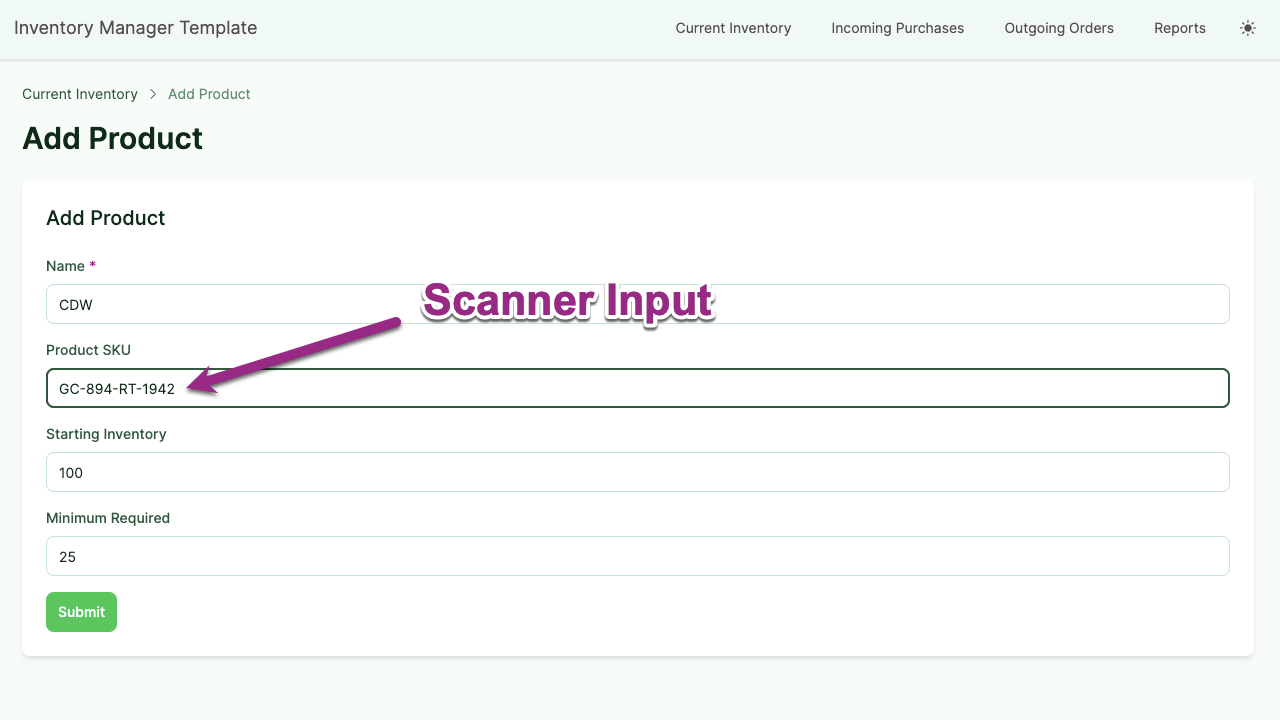
Most USB-connected scanners act like a keyboard. They send scanned data into whatever input field your cursor is focused on, one field at a time.
To use a scanner with Knack:
- Click into the field you want to populate (either a record field or a search field).
- Scan the barcode or card.
- The scanned value appears in that field.
Bluetooth scanners that behave the same way (as keyboard input) should also work, though they haven't all been tested.
Credit card scanner limitationA credit card scanner only captures the card number. Expiration date, CVV, and name must be entered manually.
Common Use Cases
You can use a scanner anywhere a form field or search field accepts typed input. Examples:
- Scanning barcodes to track inventory in and out of a warehouse
- Scanning credit cards at an event to record ticket purchases
- Scanning product codes to search for a matching record
- Scanning ID cards to look up attendees or employees
The Inventory Manager app template is a good starting point for scanner-based inventory workflows.
Choosing a Scanner
Any USB or Bluetooth scanner that functions as a keyboard input device should work with Knack. Specific models have not all been tested, so check return policies before buying.
If you're generating your own barcodes from Knack data, see Number Fields for how auto-increment numbers work.
Using a Mobile Device Camera
Using a mobile device camera as a scanner requires custom code. Most mobile cameras don't read barcodes or QR codes natively.
To add this functionality, you'll need to:
- Use a JavaScript barcode library that reads codes from a phone camera.
- Integrate that library into your Knack app using custom code.
These libraries aren't 100% accurate and may not support every device, so results will vary.
See the Developer Documentation for how to add custom code to your app.
Working With a Knack Expert
If you'd rather not build the custom code yourself, you can hire a developer from the Knack Expert Network. Experts provide estimates and you negotiate terms directly with them.
Next Steps
- Number Fields — Covers auto-increment fields, which are the foundation for generating your own barcode values.
- Form Elements — Set up forms that a scanner can populate.
- Search Elements — Set up searches that a scanner can trigger.
Updated 5 months ago