

Security Basics for a Custom Frontend
Set up the Knack security settings every custom frontend app should have, including record history, two-factor authentication, deactivating users, and locking down public access.
What You'll Learn
These security basics apply to any app built with a custom frontend, using a frontend builder like Lovable, Base44, or Claude Code with Knack as your backend. Each one is a setting in Knack that protects your data no matter which screens your users see. Set them up before you add real data.
Turn On Record History
Record history logs every change to a record, including changes made from your custom frontend. It shows what changed, when, and who made the change, so you can trace any edit back to a user.
To turn it on, go to Settings > General in the Knack Builder, scroll to Record History, and turn it on.
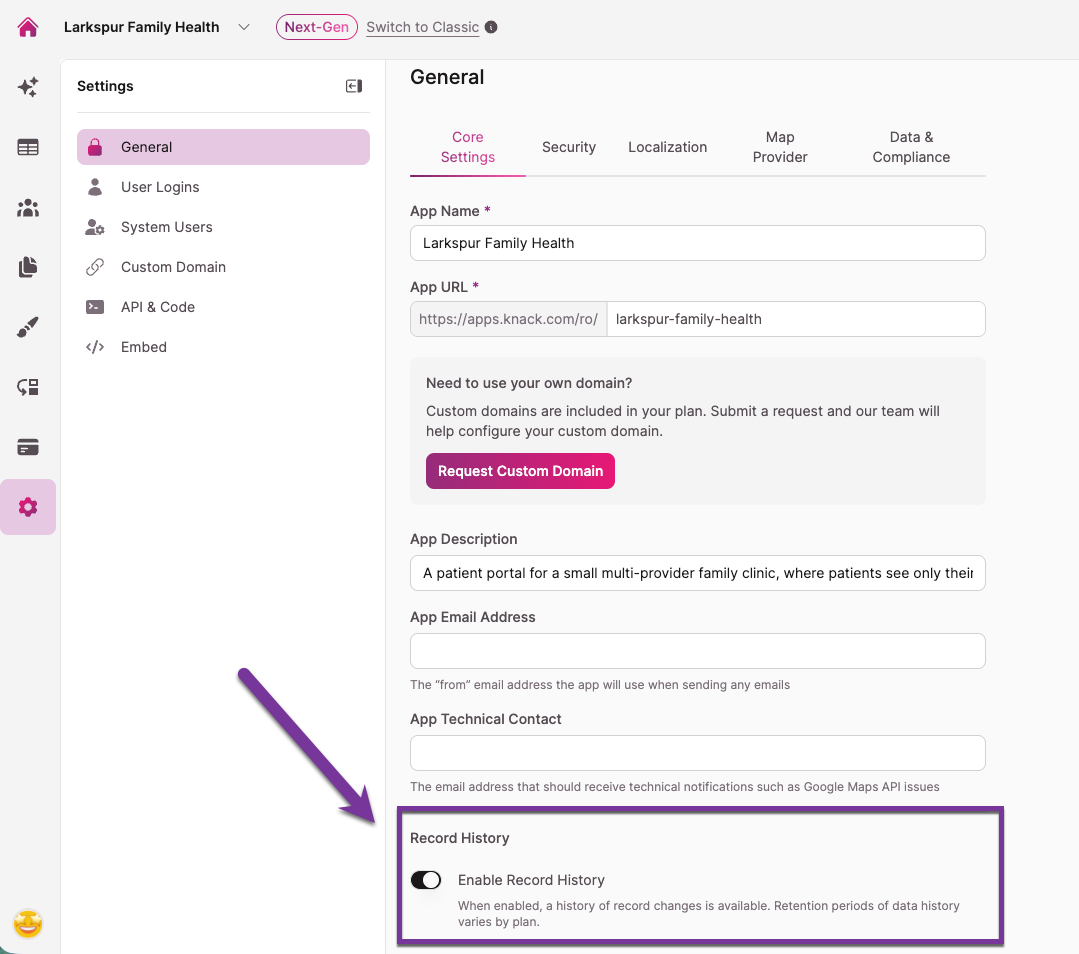
Turn it on from day oneRecord history only captures changes made after it's turned on. Changes before that aren't logged, so turn it on before your users start working in the app. Record history keeps data for three months. For a longer record, see Building Audit Trails in Knack.
Require Two-Factor Authentication for Your Users
Two-factor authentication (2FA) asks users for a code from an authenticator app each time they sign in. Even if someone's password is stolen, they can't get in without the code.
To turn it on, go to App Settings in the Knack Builder and open the Two-Factor Authentication tab. Once it's on, it applies to your custom frontend automatically. You don't need to change anything in your frontend builder.
Here's what your users will see:
- The next time they sign in, Knack asks them to set up 2FA by scanning a QR code with an authenticator app.
- After that, they enter a 6-digit code from the app each time they sign in.
Users who sign in through single sign-on (SSO) follow their SSO provider's sign-in steps instead.
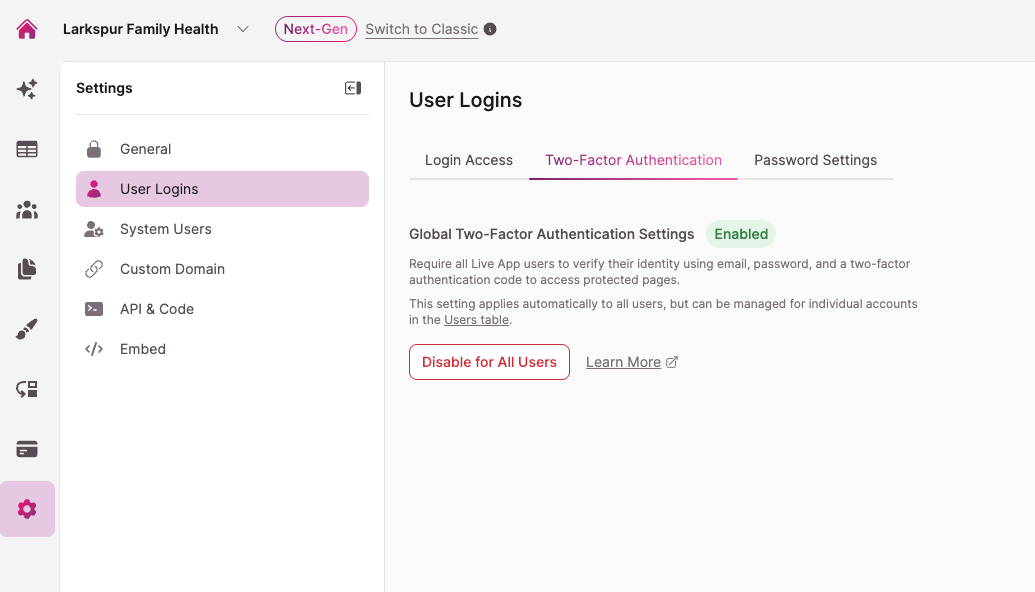
Help your users get set upLet your users know 2FA is coming and which authenticator app to use. A short message in your app or an email before you turn it on makes the first sign-in smoother.
For details on managing 2FA for individual users, see Two-Factor Authentication (2FA): Setup, Management & Live App Experience.
Turn On 2FA for Your Knack Account
Your Knack account controls your app's tables, settings, and access rules, so protect it too. Builder 2FA is separate from your users' 2FA. It applies when you sign in to the Knack Builder.
Turn it on from the Security section of your Knack Dashboard. Every person with their own Knack account who works on your app should turn it on. See Builder Two-Factor Authentication for steps.
Deactivate Users Who Leave
When someone leaves your organization, deactivate their user account in Knack right away. Once deactivated, they see a message that their account has been deactivated when they try to sign in to your custom frontend.
To deactivate a user, open their record in the Knack Builder and change their status to Inactive.
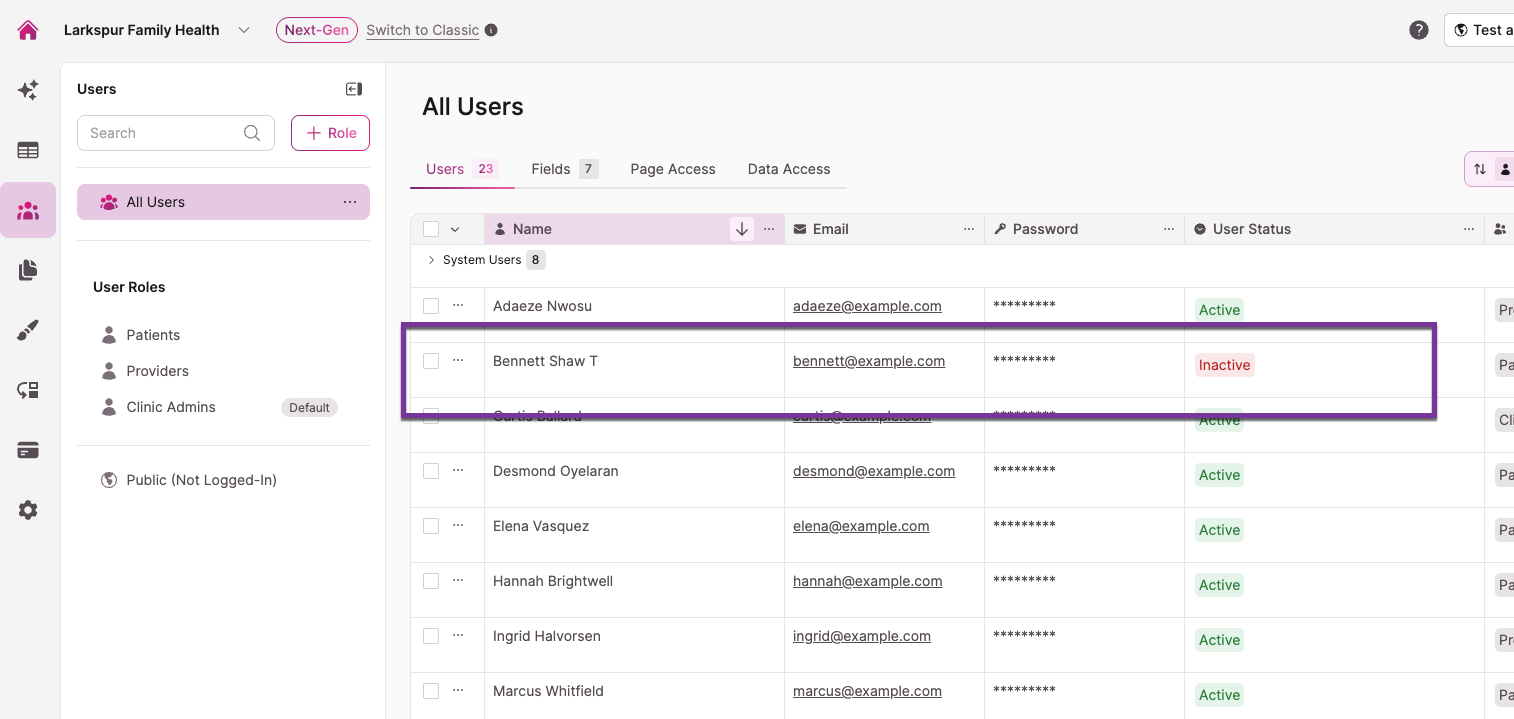
Deactivate instead of deleteDeactivating keeps the user's records and history intact. The records they created stay in your app, and their changes still show in record history.
Lock Down Access for Signed-Out Visitors
The Public role covers anyone who isn't signed in. Unless a table is meant to be public, set the Public role to No Access on every table in Data Access Control.
Then make sure enforcement is turned on. Setting up access and turning it on are separate steps.
Check Your Security Setup
After setting things up, test them the way your users will experience them.
- Create a test login for each role in Knack, using fictional details.
- Sign in to your published app as each test user, not inside your frontend builder's preview.
- Confirm 2FA asks for a code when a test user signs in.
- Deactivate a test user and confirm they can't sign in.
- Make a change from your frontend, then check that it appears in the record's history in the Knack Builder.
Next Steps
- Checking That Your Access Rules Actually Work: Confirm Knack is enforcing who can see and change your records.
- Authentication Best Practices: Recommendations for sign-in security, including HIPAA apps.
- Choosing a Default User Role for a Custom Frontend: Decide what new users can access before they're assigned a role.
Updated about 5 hours ago