

Customizing the Knack Sign-In Screen
Change the logo, colors, and heading on the Knack hosted sign-in screen your users see when your app uses Knack as a backend.
What You'll Learn
The Knack sign-in screen is the hosted page where your users enter their email and password when your app uses Knack as a backend. This article covers what you can change on that screen, how to change it, and how to confirm your changes worked.
Which Sign-In Screen This Article Covers
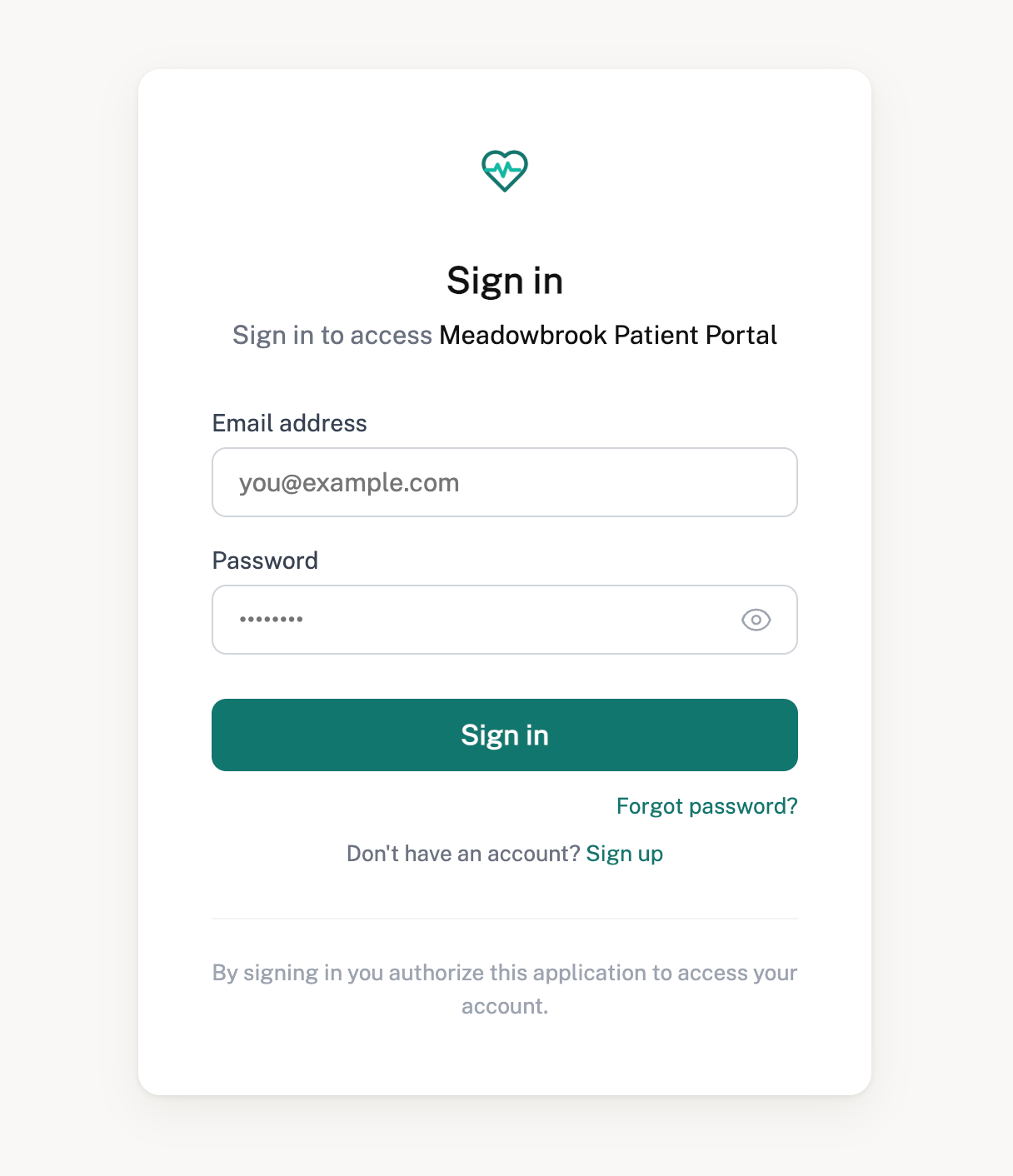
Knack hosts the sign-in form. When someone signs in, they leave your app and land on a page hosted by Knack. The web address changes to one starting with api.knack.com. After they sign in, Knack sends them back to your app.
That hosted screen is what this article covers. Anything your own app shows is separate, and you change that the same way you change any other part of your app.
This applies to any frontend: Lovable, Base44, Claude Code, or code you wrote yourself.
Be Specific When You Ask an AI Builder for Help
If you say "customize the sign in page," your AI builder has to guess which page you mean. It'll often change something inside your app instead, tell you it's done, and never touch the Knack screen. Nothing looks broken. You just don't get what you asked for.
Name the screen every time:
- "Update the Knack sign-in screen colors to..."
- "Change the logo on the Knack hosted login screen to..."
Naming the screen isn't enough on its ownYour builder can name the right screen and still change the wrong thing. Check the page yourself after every change. See Check Your Changes below.
What You Can Change on the Sign-In Screen
| Element | Can you change it? |
|---|---|
| Logo | Yes |
| Main color for buttons and links | Yes |
| Background color | Yes |
| Heading text | Yes, by renaming your app |
| Font | Standard fonts only |
| Web address | No |
| Browser tab text | No |
| Browser tab icon | No |
Plan requirementCustomizing the sign-in screen requires a Pro plan or higher. On lower plans the change may not take effect.
The Heading Shows Your Knack App Name
The sign-in screen reads "Sign in to access" followed by your Knack app name. Your users see this.
So if you named your app for your own convenience, like "Client portal v2" or "TEST," that's what customers read while signing in.
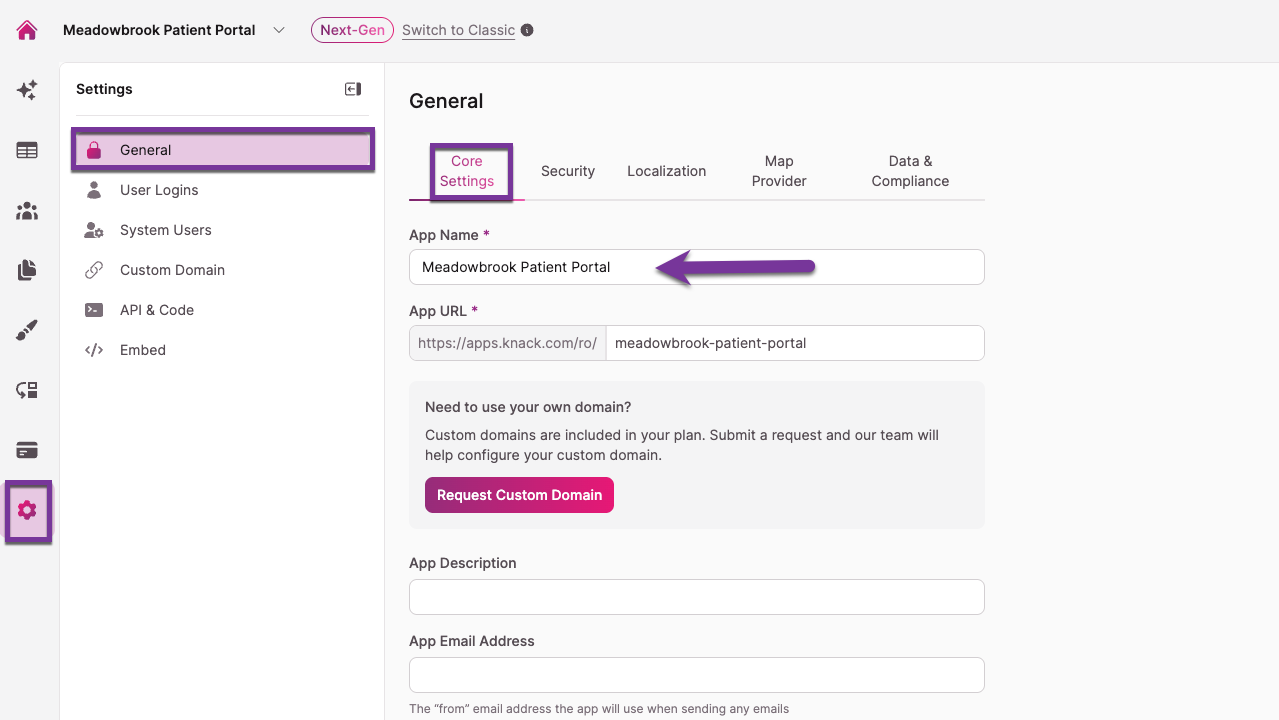
Check your app name before you go live. In your Knack app, go to Settings, then General Settings, and change the name to something you'd want a customer to see.
One catch: this is also the name you use to find your app in your Knack account. If you have several apps, pick a name that works in both places.
How to Change the Colors and Logo
Ask your AI builder in plain language. Include your color values and your logo's web address:
"Update the Knack hosted sign-in screen. Use #0f766e as the main color and #faf8f5 as the background. Use this logo: [your logo URL]"
Your Logo Has to Be a Web Address
The sign-in screen needs a link to your logo, not a file. There are two ways to get one.
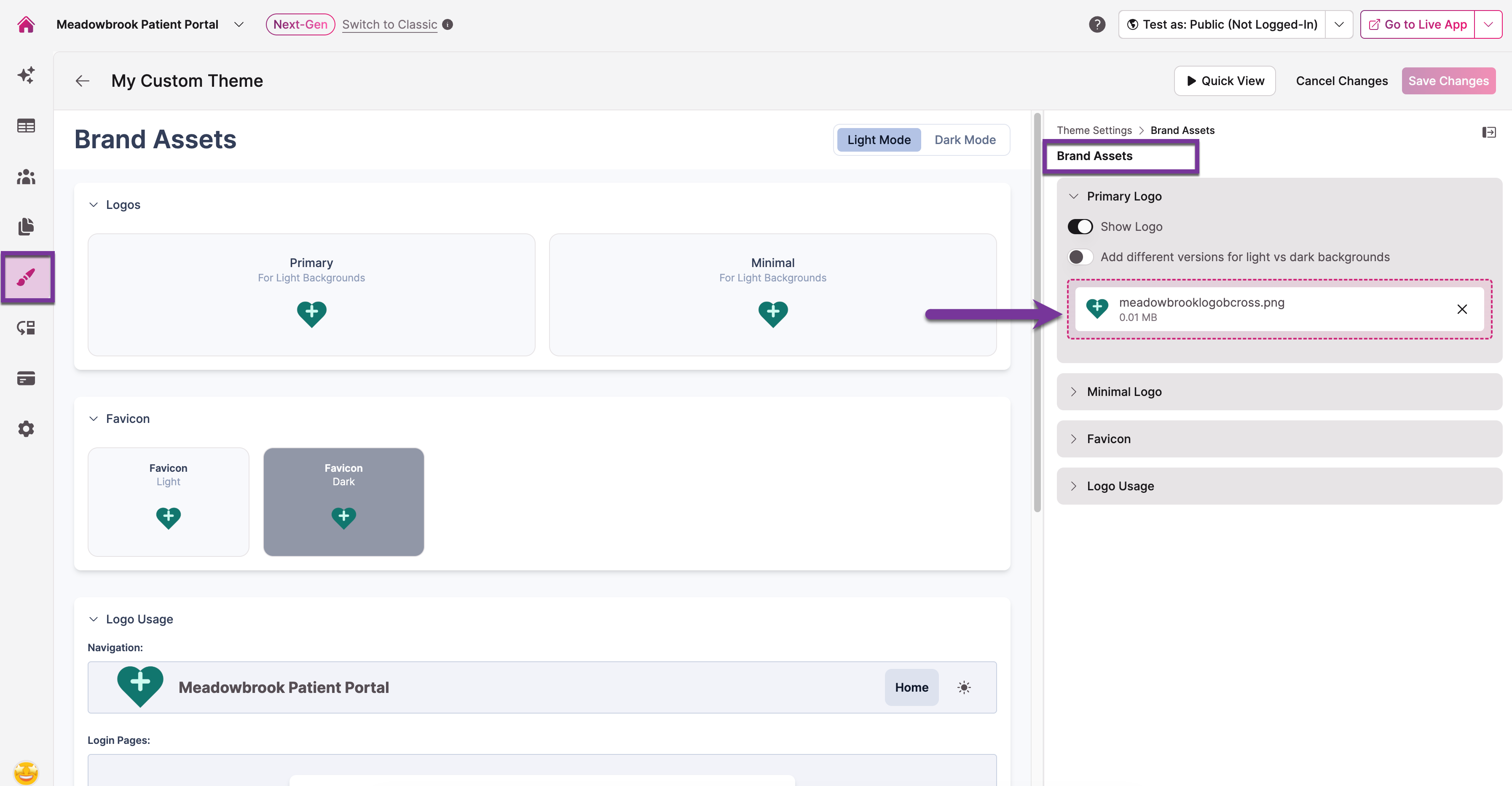
Host it in Knack. Upload your logo in the Knack Builder under Themes. Then ask your AI builder to find it: "Find the logo URL from my Knack app theme and use it on the Knack sign-in screen." Your builder can read the logo from your theme and apply it, so you never have to find the address yourself. This keeps your logo on Knack's servers, so it stays working no matter what happens to your frontend project.
Upload it to your AI builder. Some builders let you drop an image into the chat and will host it for you. This is faster, but your logo now depends on that platform. If you stop using it or delete the project, your sign-in screen logo breaks.
Hosting it in Knack is the safer choice.
Size Your Logo for a Small Space
The logo displays about 32 pixels tall. A square icon works well. A wide logo with your company name in it will be hard to read at that size.
The Themes logo and the sign-in screen logo are separateUploading to Themes is only a way to get a web address. It doesn't connect the two settings. If you later change your Themes logo, your sign-in screen keeps showing the old one. Change both if you want both updated.
Your AI builder can read the logo from your Knack theme, but it can't change it. To swap the logo stored in your theme, upload a new one in the Knack Builder yourself.
Fonts on the Sign-In Screen
Only standard fonts work on the sign-in screen. If you set a custom brand font it likely won't show up for your users, even if the page looks fine when you check it.
Use a common font here and keep your brand font on your own pages.
What You Can't Change on the Sign-In Screen
Your users will notice these. It's better to expect them than to hunt for a setting that doesn't exist.
The web address changes. Users go from your site to api.knack.com and back. A custom domain doesn't fix this, because custom domains point to a Knack Live App and you aren't using one in this setup.
The browser tab says "Sign in." Not your app name.
The browser tab icon is Knack's. Not yours.
Together these mean the sign-in step looks different from the rest of your app. If your users are patients, clients, or anyone handling sensitive information, tell them ahead of time that signing in takes them to a secure page and brings them right back. One sentence on your own page saves support questions.
Check Your Changes on the Real Sign-In Screen
Don't rely on your AI builder telling you it worked. Look at the page yourself.
- Open your published app. Sign-in usually doesn't work in your builder's preview panel.
- Start the sign-in process so you land on the Knack screen.
- Open the page in a private or incognito window so you don't see a cached version.
- Check each thing you changed: logo, main color, background.
Check each item separately. It's normal for some changes to apply and others not to. If one didn't take, ask your builder to apply that one specifically, then check again.
Troubleshooting
I asked to change the sign-in screen and nothing happened. Your builder probably changed a page inside your app instead. Ask again and say "the Knack hosted sign-in screen," then check the page.
My logo isn't showing. Open the logo's web address in a private window. If it doesn't load there, the sign-in screen can't load it either. Upload it to Knack Themes and use that address instead.
My font isn't showing. Expected. The sign-in screen only supports standard fonts.
I changed my Themes logo and the sign-in screen didn't update. Expected. They're separate settings. Update the sign-in screen separately.
My colors applied but my background didn't. Check each setting one at a time rather than assuming the whole change failed. Ask your builder to apply the missing one on its own.
Next Steps
- Knack MCP Server covers how AI tools connect to your Knack backend and what they can change.
- Managing Your Brand Assets in the Theme Builder walks through uploading a logo you can link to from the sign-in screen.
- Connecting Lovable to Knack: Complete Setup Guide covers setup before you get to branding.
Updated about 2 months ago